
Finest Security Systems ACM-R3002 Manuale utente

3MP_IP_Bullet Network Camera
User Manual

1
- CONTENTS -
Chapter I Introduction ..................................................................................................... 3
1.1 Highlights of your new Network IP Camera ........................................................... 3
1.2 Safety Instructions ................................................................................................ 4
1.3 Packaging Contents .............................................................................................. 5
1.4 Familiar with your new Network IP Camera .......................................................... 6
1.5 Installation of the Network IP Camera ................................................................ 10
Chapter II Using Network IP Camera by Web Interface .................................................. 12
2.1 Locate the IP address of Network IP Camera .............................................................. 12
2.2 Connect to IP Camera’s Web User Interface and Install ActiveX Plugin ....................... 14
2.3 Viewing Live Video ..................................................................................................... 17
2.4 Client Settings............................................................................................................ 20
Chapter III Advanced Configuration .................................................................................... 22
3-1 System ...................................................................................................................... 23
3-2 Security ..................................................................................................................... 25
3-3 Network .................................................................................................................... 27
3-4 IP Filter ...................................................................................................................... 27
3-5 Video ......................................................................................................................... 34
3-5-1 Image Setting ..................................................................................................... 34
3-5-2 Video Setting ...................................................................................................... 37
3-5-3 Overlay Setting ................................................................................................... 39
3-6 Audio ........................................................................................................................ 41
3-7 Motion ...................................................................................................................... 42
3-8 RS-485 ....................................................................................................................... 44
3-9 Event ......................................................................................................................... 46

2
3-9-1 Settings .............................................................................................................. 47
3-9-2 Media ................................................................................................................. 49
3-9-3 Event Server ....................................................................................................... 50
3-10 Recording to SD Card ............................................................................................... 54
3-11 Log .......................................................................................................................... 55
3-12 Device Info .............................................................................................................. 56
3-13 Maintenance ........................................................................................................... 57
3-14 Language ................................................................................................................. 59
Chapter IV Troubleshooting ............................................................................................ 60
Chapter V Specification .................................................................................................. 61

3
Chapter I Introduction
1.1 Highlights of your new Network IP Camera
Congratulates on purchasing this high-resolution 5Mega pixels network
IP Camera! This IP Camera provides 5Mega pixels high-resolution video
quality, with the advanced megapixel lens, you can view images remotely
in more detail than conventional close-circuit cameras.
Other highlights of this network IP Camera include:
Ultra-high resolution 5Mega pixel CMOS image sensor.
Analog video (BNC) output, works with conventional video devices
such as TV Monitors, analog DVRs, etc.
Digital input / output interface lets you connect peripherals such as
external alarm, sensor, etc.
Audio input / output interface, you can listen to voices in remote
place, and speak to person in remote place.
Built-in SD-card slot for local storage, which can act like a
stand-alone DVR.
Two Way audio.
3GPP Mobile Surveillance Supported.
RS-485 communication supported.
ONVIF Compliant.
Support IEEE802.3af Power over Ethernet (PoE) standard.

4
1.2 Safety Instructions
Please follow the safety instructions listed below when you’re using this
Network IP Camera, or you would harm this camera and / or yourself!
Also, the warranty will become void if you disobey these safety
instructions.
This Network IP Camera is sophisticated electronic device; do not
drop it from high places.
Do not place this IP Camera at hot / humid places, and avoid direct
sunlight.
This IP Camera is not a toy; keep it out from the reach of children.
Do not insert any accessories of this IP Camera into your body.
Make sure lens set is secured when you’re using this IP Camera, lens
set may fall down if it’s not properly secured, and cause damage to
human and itself.
If you want to use this IP Camera at any place that may be spilled by
water or dirt, a secure and water-proof camera housing is required.
Do not pull any cord that is connected to this IP Camera by force.
IP Camera will become hot after long time of use. Refrain from touch
IP Camera with hand, or cover this IP camera with paper or cloth.
Never connect powered cable to IP Camera’s DI/DO contacts.
If the IP Camera falls into water when powered, do not attempt to
retrieve it back by yourself! Find a qualified electric technician for
help.

5
1.3 Packaging Contents
Please check the contents of your new Network IP Camera when you
unpack the package. If any item is missing, please contact your dealer of
purchase for help.
Item No.
Description Quantity
1 Network IP Camera 1
2 DC power adapter 1
3 Bracket Kit 1
4 Sun Shield Kit 1
5 CDROM 1
6
1.4 Familiar with your new Network IP Camera
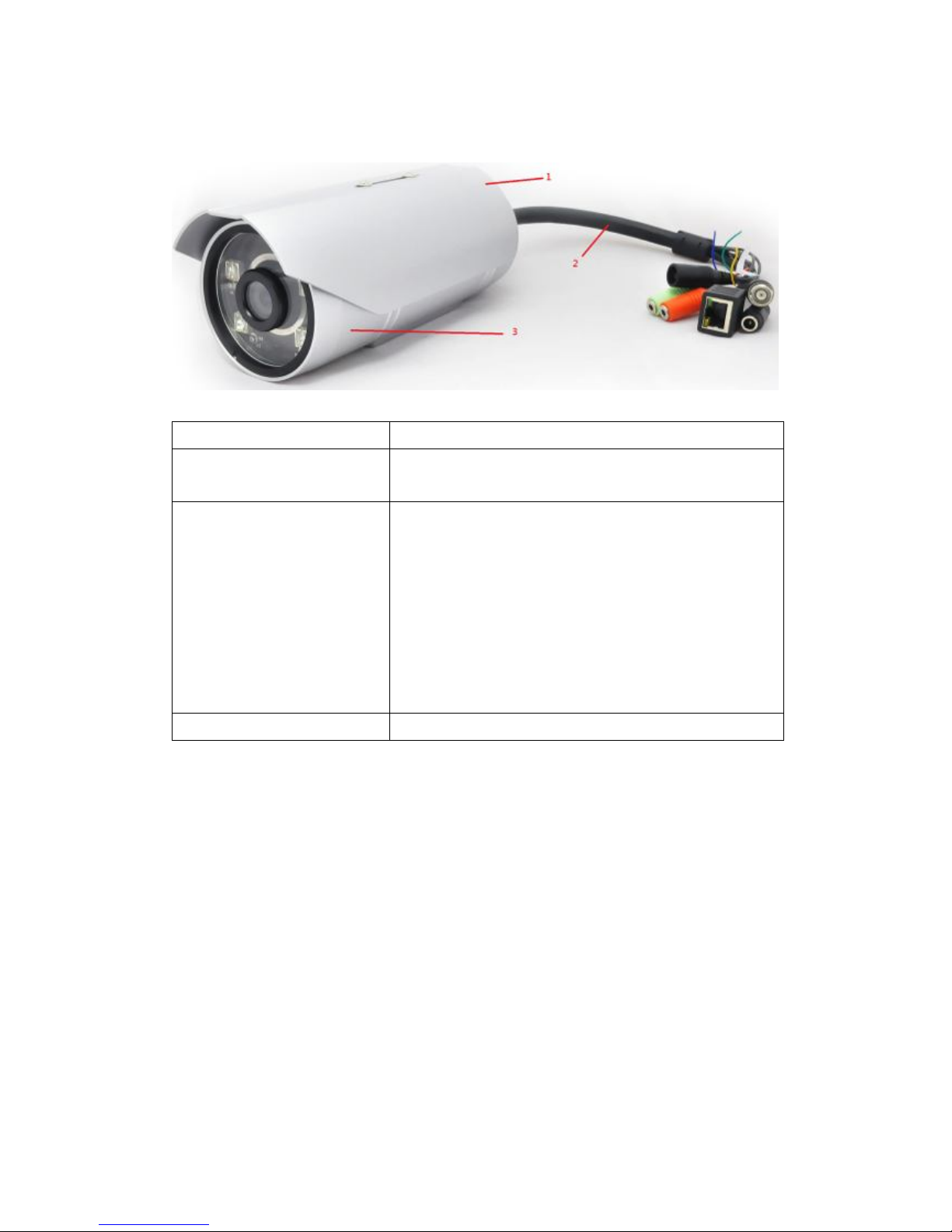
Item Description
1. Sun Shield Protect camera device body from sun shine or
rain directly
2. I/O cable Including
-Alarm I/O
-TV output
-Network
-Audio I/O
-RS485 +-
-Reset button
-GND
3. IP camera device IP camera

7
[Front site]
Item
Description
1
.
IR
-
LED
U
sed for illumination assistance under night mode
2
.
Day/night se
nsor
U
sed for day/night detection and IR
-
LED ON/OFF
control
3
.
Lens
Varifocal
focal length.

8
[Back]
Item
Description
1
.
Screw
Connects
between camera device body & sun shield
.
2
.
Sun Shield
Protect camera device body from sun shine
or rain
directl
y
3
.
Camera device body
IP camera
metal case
4
.
Bracket mount
T
he portion to mount bracket
5
.
Cable Gland
s
F
or water proof
9
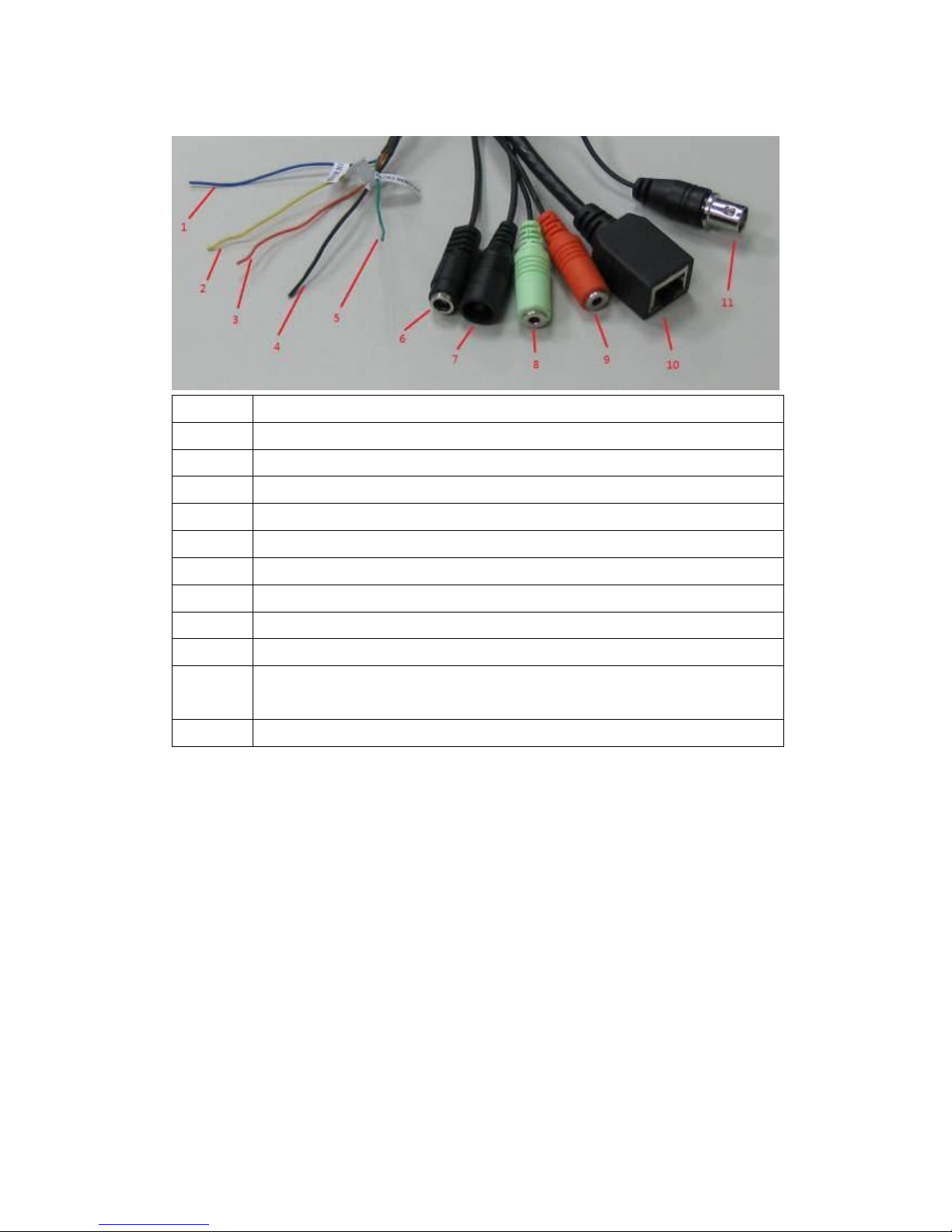
[DI/DO PIN ASSIGNMENT]
Item Description
1 Blue, Sensor IN1, for alarm input, DV3.3Volt level allowed.
2 Yellow, RS485 D-
3 Orange, RS485 D+
4 Black, GND
5 Green, Alarm out1, DV3.3Volt level allowed.
6 DC12Volt/2A input
7 Reset Button
8 Audio output
9 Audio input
10 Network, RJ45 connector, two LED index, orange color is
power index, green is network index
11 TV output, BNC connector
※Please check the I/O cable attached index before insert or release any
wire.
Indice


