FingerTec AC100C Manuale utente

AC100C TA100C TA200 Plus
Color Time Attendance System
User Guide
We Make Things Easy

3
CONTENTS
CONTENTS
4-6 Chapter 1 • GETTING STARTED
Viewing the User Guide in the Internet
Terminal Included Accessories
Included Printed Materials
Activating Terminal
Registering Terminal
7-11 Chapter 2 • BASICS
Introduction to Terminal
Terminal Overview
Main Menu
Power On/Off Button
Battery
Date/Time
Voice Control
Security Features
Cleaning Terminal
Restarting and Resetting Terminal
12-15 Chapter 3 • USER
Enrolling User
Verifying User
Adding User Information
Deleting User
Access Level/Privilege
Defining Work Codes
RFID Card Function
16-19 Chapter 4 •
INSTALLATIONS
& CONNECTION
Installations
Communications
Security
Checking the genuine TCMS V2
Installation and Setup of TCMS V2
Connecting Terminal to TCMS V2
Using USB to Download/Upload Data
20-23 Chapter 5 • SYSTEM
System Settings
Data Management
Data Update Using USB Flash Disk
Keyboard
Display Settings
Reset
Misc Settings
24 Chapter 6 • DATE/TIME
Setting Date/Time
Daylight Saving Time
25 Chapter 7 • USB
Understanding the Need for USB
26 Chapter 8 • AUTO TEST
Who should do the Auto Test?
27 Chapter 9 • RECORD
Checking Records of Users in the
Terminal
27 Chapter 10 •
SYSTEM
INFORMATION
Records
Device
28-29 TROUBLESHOOTING
“Unable to Connect” Appears
“Admin Affirm” Appears
Difficult to Read Finger
The LED is Blinking All The Time
“Duplicate Finger” Appears
RFID Card Doesn’t Respond
No Sound
30 INFORMATION ABOUT
FINGERTEC
30 COPYRIGHT NOTICE &
DISCLAIMER

4
AC100C MODEL
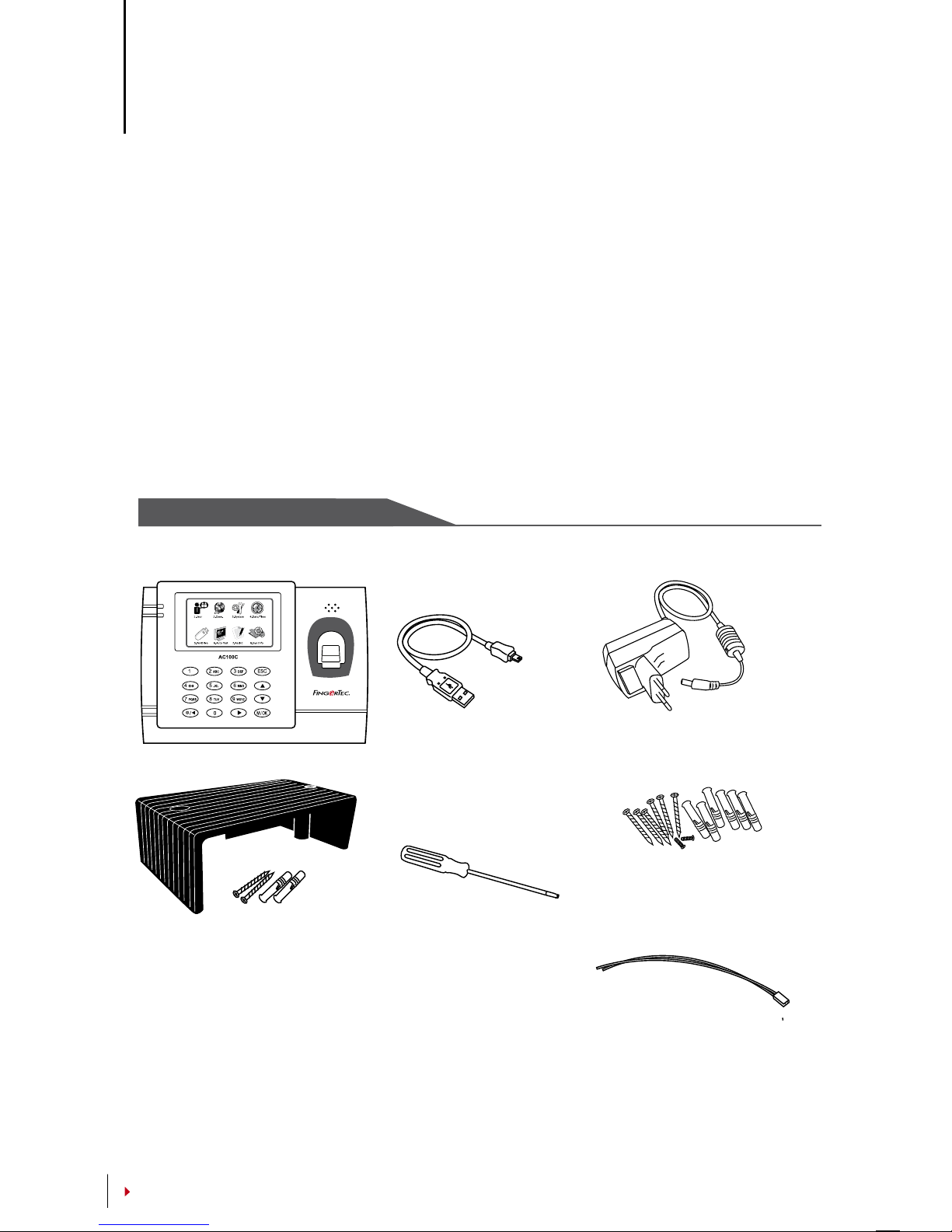
Cable Protector
To keep cables intact.
USB Extension
To connect to the USB port
of a computer for uploading
and downloading of data.
Screwdriver
Use the screwdriver to open
the back plate of ngerprint
terminal and to install the
back plate against a wall.
DC 5V Power Adaptor
For supplying power to the
terminal.
A Packet of Bolts
Use the screws to hold the
back plate of the terminal
against a wall.
Siren Cable
For connecting the terminal
to external siren.
CONTENTS
1• GETTING STARTED
Viewing the User Guide in the Internet
The User Guide is available in the package when you purchased the terminal. The User
Guide is also available online at fingertec.com and user.fingertec.com. Choose the lan-
guage that you prefer for your User Guide.
Terminal Included Accessories
Do not abuse the fingerprint sensor by scratching the surface, contacting the sen-
sor’s surface with heat, pressing hard during placement of fingerprint for verifica-
tion. Clean the sensor occasionally with microfiber cloth to maintain the perform-
ance of the sensor.

5
TA100C MODEL
TA200 PLUS MODEL
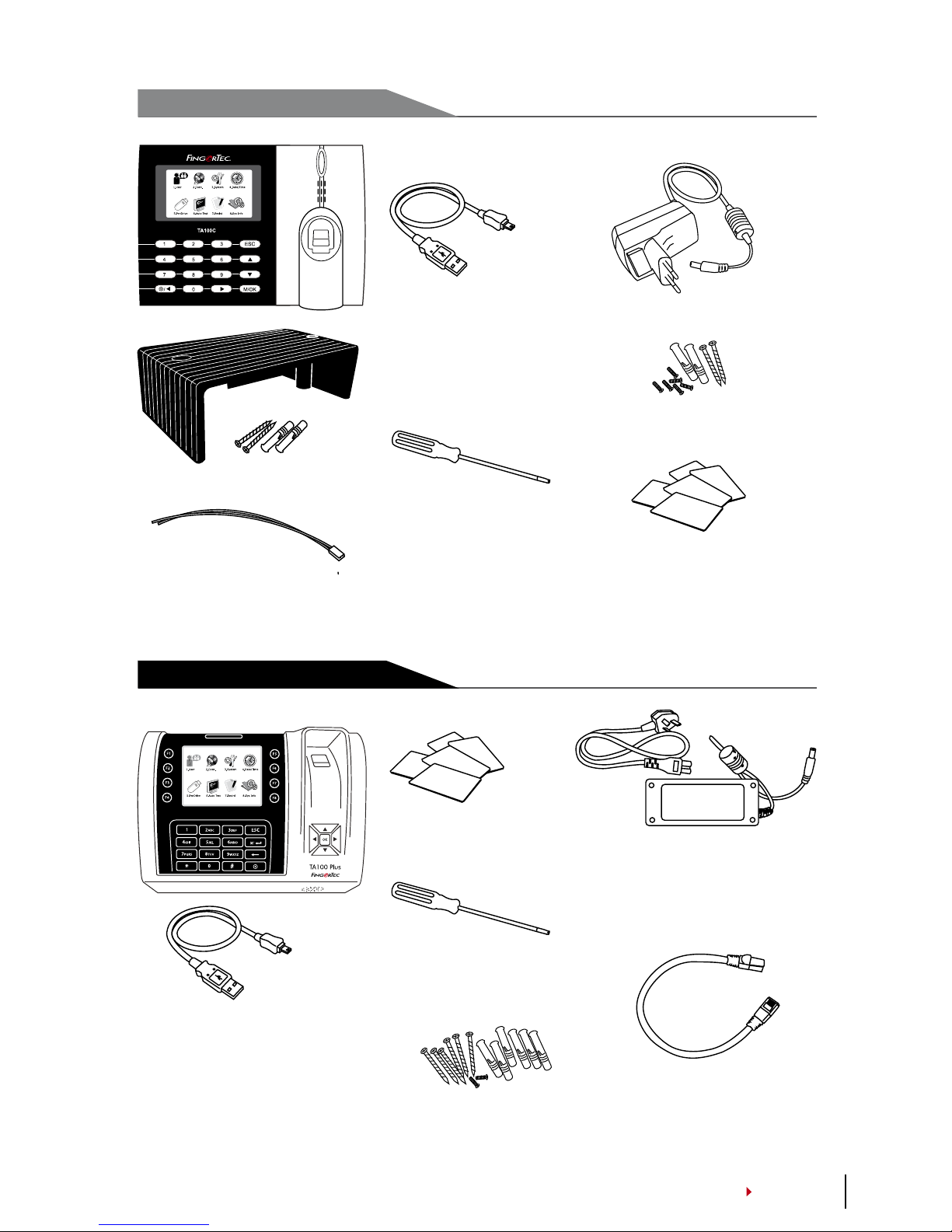
Cable Protector
To keep cables intact.
Siren Cable
For connecting the terminal to
external siren.
USB Extension
To connect to the USB
port of a computer for
uploading and down-
loading of data.
Screwdriver
Use the screwdriver to
open the back plate of
ngerprint terminal and
to install the back plate
against a wall.
DC 5V Power Adaptor
For supplying power to the terminal.
A Packet of Bolts
Use the screws to hold the back
plate of the terminal against a wall.
RFID Cards (5 pieces)
* Exclusively for TA103C-R model only
For card enrollment and verication.
USB Extension
To connect to the USB port
of a computer for uploading
and downloading of data.
RFID Cards (5 pieces)
For card enrollment and verica-
tion.
Screwdriver
Use the screwdriver to open
the back plate of ngerprint
terminal and to install the back
plate against a wall.
A Packet of Bolts
Use the screws to hold the back
plate of the terminal against
a wall.
DC 12V Power Adaptor
Connect the power adapter to
the terminal and plug it into
a standard power outlet to
charge the terminal.
Cat 5 Cable
Connect the CAT5 to the
terminal and another end for
LAN connection.
CONTENTS

6
8
Settings of Working Time &
Group
9
Assign Users To Working
Group
For Time AttendanceFunctions
(Skip steps 8 & 9 if you are NOTusing time attendance functions)
5
6
7
4
TCMS
V2
Quick Start Guide
For more info go to http://user.fingertec.com
TCMSV2 Installation
Communication
Settings TCMSV2 Initial Settings
terminal to computer installed
with TCMSV2
Download Fingerprint
Templates
User Information
Fillup user information in TCMS V2
123
456
78
0
9
ESC
OK
MENU
TCMS
V2
TimeControlManagementSystem-V2
SOFTWARE
INSTALLATION
*Refer to TCMS V2
Manual
SOFTWARE
SETTINGS
*Refer to
TCMS V2
Manual
SOFTWARE
SETTINGS
*Refer to
TCMS V2Manual.
SET ALL if using
both functions.
CONTENTS
Included Printed Materials
• FingerTec Comprehensive DVD (with Product Code and Activation Key)
• Quick Start Guide
• Pamphlet
• User Enrollment Template Form
• Warranty Card
Activating Terminal
To activate terminal, connect the terminal’s power adapter to a standard power outlet
and turn the power on. To download the data from the terminal, you need to have the
product key and activation code for the TCMS. The product key and activation codes can
be retrieved on top of the TCMS V2 manual booklet.
In case you lose TCMS V2 product key and activation code, go to user.fingertec.com/re-
trieve_key_user.php for retrieval.
Registering Terminal
Make sure that you register your terminal’s warranty with us at fingertec.com/ver2/eng-
lish/e_warranty.htm.

7
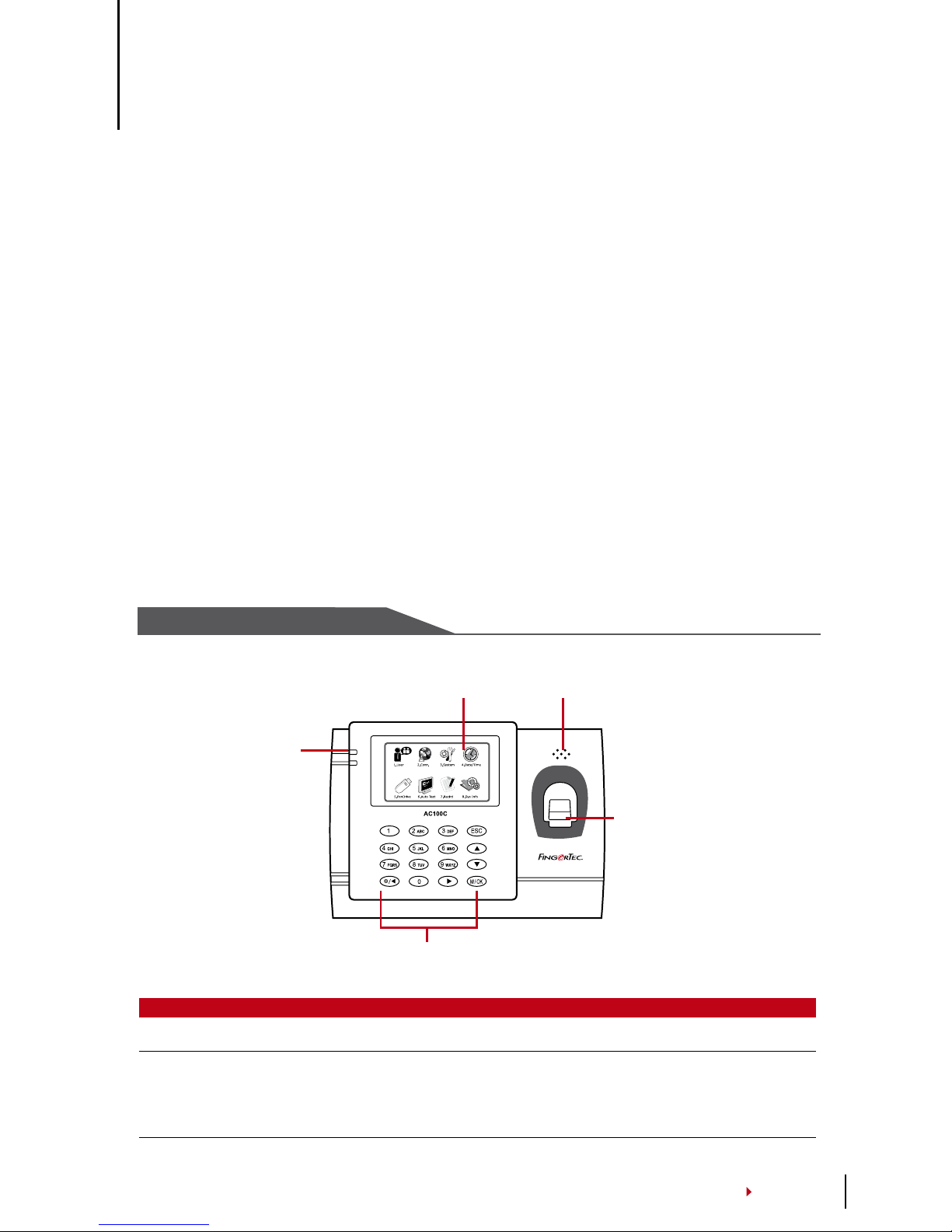
AC100C MODEL
L.E.D Display
LCD Screen
Keypad
Fingerprint
Sensor
Speaker
CONTENTS
2 • BASICS
Introduction to Terminal
FingerTec is a renowned brand name for commercial products for door access and time
attendance systems. FingerTec offers a wide range of products to cater to the growing
needs for biometrics products in office/home automation as well as in security indus-
try.
FingerTec terminals are loaded with powerful microprocessor that can process biomet-
rics authentication methods for accurate personal identifications and for collection of
precise data for time attendance. In addition, some fingerprint terminals are made to
accept card verification as an added security measure.
This manual covers color time attendance models of FingerTec products from AC100C,
TA100 and TA200 Plus model. The terminal acts as a tool to collect attendance data.
For a processing of attendance data, FingerTec is providing a powerful time manage-
ment software, TCMS V2 to process data and provide accurate and reliable attendance
reports.
Terminal Overview
ITEM FUNCTION
LCD Screen Displaying status of terminal, day, date, time and the icons available.
LED Display Green LED – The terminal is working fine and it is in standby mode.
Red LED – There is an error at the terminal that requires checking. For first
time use, the terminals need to be charged fully to avoid having the red
light blinking.

8
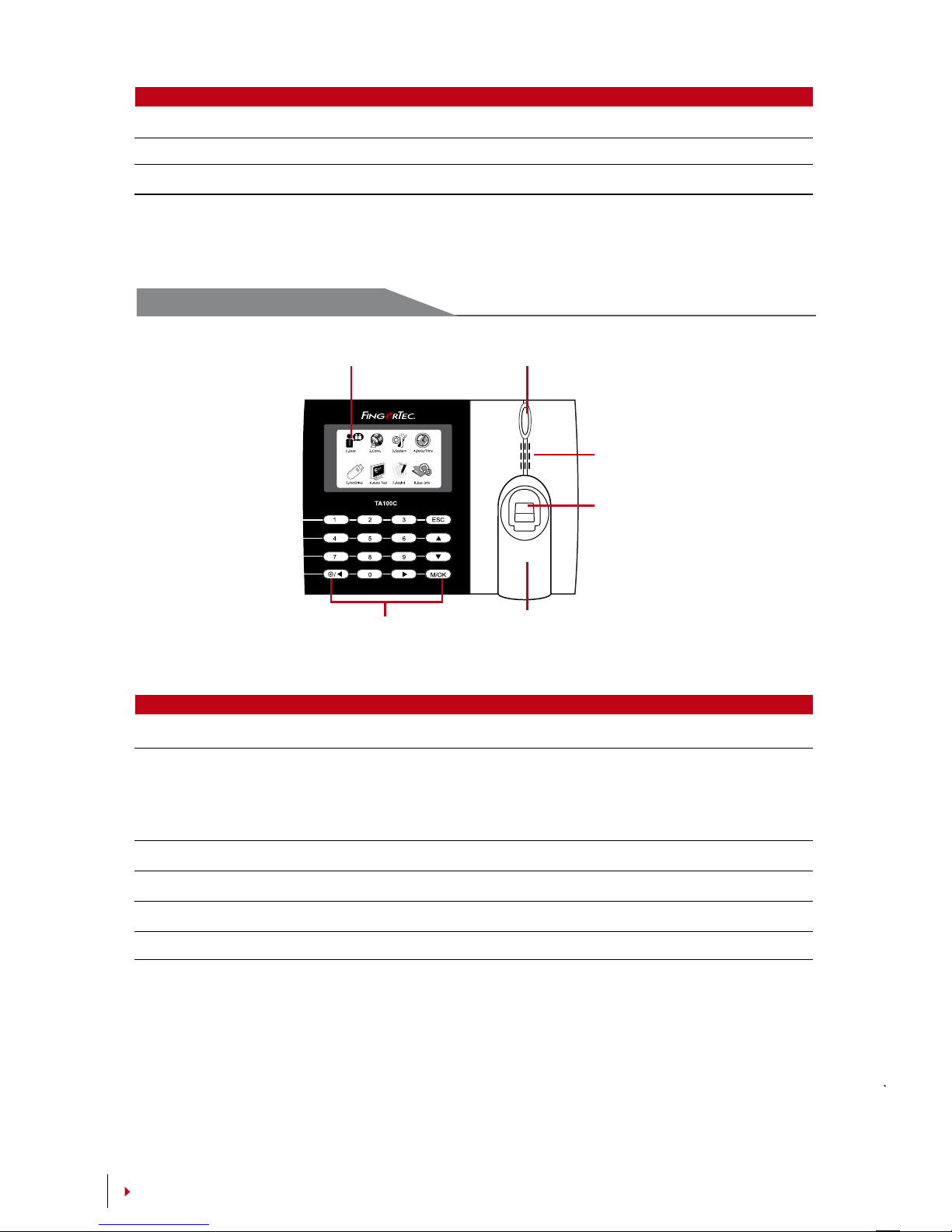
TA100C MODEL
L.E.D Display
LCD Screen
Keypad
Fingerprint
Sensor
RFID Card
Induction Area
Speaker
CONTENTS
ITEM FUNCTION
Keypad To input instructions into the terminal and to allow configuration.
Fingerprint Sensor To scan finger for confirmation of identity.
Speaker For terminal voice emission.
ITEM FUNCTION
LCD Screen Displaying status of terminal, day, date and time.
LED Display Green LED – The terminal is working fine and it is in standby mode.
Red LED – There is an error at the terminal that requires checking. For
first time use, the terminals need to be charged fully to avoid having the
red light blinking.
Keypad To input instructions into the terminal and to allow configuration.
Fingerprint Sensor To scan finger for confirmation of identity.
RFID Card Induction Area Area that reads RFID cards. * for TA103C-R only
Speaker For terminal voice emission.

9
L.E.D Display
LCD
Screen
Keypad
TA200 PLUS MODEL
RFID Card Induction Area
Speaker
Fingerprint
Sensor
Navigation
Keys
Reset Button
USB Port
CONTENTS
ITEM FUNCTION
LCD Screen Displaying status of terminal, day, date and time.
LED Display Green LED – The terminal is working fine and it is in standby mode.
Red LED – There is an error at the terminal that requires checking. For first
time use, the terminals need to be charged fully to avoid having the red
light blinking.
Keypad To input instructions into the terminal and to allow configuration.
Navigation Keys To navigatien and input command to terminal.
RFID Card Induction Area Area that reads RFID cards.
Speaker For terminal voice emission.
Reset Button To restart the terminal as and when required.
Main Menu
Enroll users, manage user data and input workcode.
Setup FingerTec terminal communication with computer through LAN, RS232 and
RS485. Set security password of the device for a secure data transfer.
Configure the settings of the FingerTec terminals from general to display setting to
fingerprint. Data management, update via USB flash disk, keyboard functions, reset and
other terminal settings can be done here.
Adjust the date and time settings of the terminal.

10 CONTENTS
Upload and download data and information to and from the FingerTec terminal using
a USB flash disk.
Run tests on the FingerTec terminal to diagnose the terminal on various aspects.
Check user attendance and transaction logs that are available in FingerTec terminals
and perform housekeeping of the machine.
View free and used memory of the terminal as well as the terminal’s details in system
information.
Power On/O Button
Use the power on/off button to turn the terminal on or off. You can disable the button to
avoid accidental shut off of the terminal.
Battery
Terminals operate using power supply from a standard power outlet. Inside the termi-
nal, there is an RTC battery for the running of the clock. Charge the terminal for at least
3 hours straight before you start using it. When there is a serious delay in time or the
clock keeps on restarting, the RTC needs to be replaced. External power supply: Mini UPS
(uninterrupted power supply) 5V and mini UPS 12V provide mobile power supply to the
terminals. Charge the mini UPS sufficiently for optimum performance. Refer to acces-
sory.fingertec.com for more information about accessories.
Date/Time
The terminals display the date and time at the home screen. Choose the date and time
format based on your preference. Press Menu > Date/Time > Select Value > OK to save.
Voice Control
Voice Control lets you control the level of volume emitted by the terminal.
TURN ON/OFF
The system lets you to turn on/off the voice based on your preference. Press Menu >
System > System > Voice > On/Off > Determine value in percentage (default is 67%) >
OK to save.

11
CONTENTS
ADJUST VOLUME
The default volume of the terminal’s voice is 67. The volume can go as high as 100 and
as low as 0. To sustain the performance of speaker, it’s recommended to stay within the
range of 60-70. To adjust the volume Press Menu > System Icon > System > Vol > input
value > OK to save
Security Features
Security features help protect the information in the terminal from being accessed by
unauthorized individuals.
ADMIN AFFIRM
Register an administrator to the system by enrolling a fingerprint or a password to a
user ID. Press Menu > User Mgmt > New User > Privilege: Admin > Choose enrollment
method > OK to Save. After enrolling an administrator, the main menu can only be ac-
cessed by the administrator. The terminal will display “Admin Affirm” when an anau-
thorized individual tries to access the Menu.
COM KEY
Create password for a specific terminal here. Press Menu > Comm. Icon > Security >
Insert Terminal ID No and Password > Ok to save. The security password known as COM
Key is intended for extra security. To connect the terminal with the software, the COM
key inserted in the Software must be the same as the one inserted in the terminal or else
the connection will not be established even though the activation key and product key
are correctly inserted.
Cleaning Terminal
CLEANING THE BODY
Use a dry cloth to clean the terminal’s body. Do not use any liquids, household cleaners,
aerosol spray, solvents, alcohol, ammonia and abrasive solutions to clean the body of
the terminal because it could damage it.
CLEANING THE FINGERPRINT PRISM
Clean the fingerprint prism with a cellophane tape for (silicon coated prism). View the
video on how to clean the fingerprint prism at this link fingertec.com/newsletter/en-
duser/cleanfinger.html. For the non-coated prism, please use microfiber cloth.
Restarting and Resetting Terminal
If a feature isn’t functioning as it should, try restarting or resetting the terminals
RESTARTING THE TERMINAL
Push the On/Off button on the terminal to restart the terminal. If you can’t restart the
terminal, or if the problem persists, you might want to reset.
RESETTING THE TERMINAL
Go to Menu, press the System icon and click on Reset. Choose to Reset All Default Set-
tings, Reset Keyboard Settings or Reset Other Parameters. Resetting the terminal will
cause all your settings to return to the original factory settings.
Altri manuali per AC100C
8
Questo manuale è adatto per i seguenti modelli
2
Indice
Altri manuali FingerTec Sistema di conferenza
Manuali Sistema di conferenza popolari di altre marche

Kramer
Kramer VIA GO Manuale utente

AVT
AVT MAGIC AC1 Go Manuale utente

ProSoft Technology
ProSoft Technology AN-X4-AB-DHRIO Manuale utente

Sony
Sony PCS-I150 Manuale utente

Middle Atlantic Products
Middle Atlantic Products VTC Series Manuale utente

Prentke Romich Company
Prentke Romich Company Vanguard Plus Guida