
Flavor Burst F10B Manuale utente

©2018 Flavor Burst Company Printed in October Printed in
All Rights Reserved The United States of America
Flavor Burst ®
Color Touch Panel F10B
Operations Manual*
*for installation and maintenance
information on your Color Touch Panel,
please consult your CTP model’s full
Operations Manual.
*Visit www.flavorburst.com/support/
“Color Touch Panel Files” to update your
panel to the most current program.
Manufactured by
Flavor Burst Company
499 Commerce Drive
Danville, IN 46122
For general information and to locate a
distributor near you, call or visit our website:
Phone: (317) 745-2952
Toll Free Number: (800) 264-3528
Fax: (317) 745-2377
www.flavorburst.com
For pricing, ordering and support, contact one
of our qualified distributors.
Warranty
An installation and warranty form is provided with every Color Touch Panel “CTP” system, located inside
the unit with this manual. It is important that the operator carefully review the warranty and installation
documents accompanying the unit before using this system. Any questions or concerns regarding the
warranty should be clarified upon delivery or installation. For more information, contact your local
authorized Flavor Burst ® distributor.

0
PAGE INTENTIONALLY
LEFT BLANK

1
TABLE OF CONTENTS
FCC ID……...……………………….……..…..………………………………….……..….…..2
Introduction……………………………...………………………………………….………….3
Safety Precautions……………………………..…………….………..……..….…………....3
Color Touch Panel – Ports & Features……..…………….………..……..….…………....4
Drawing a Serving……..………………………….…….…..…….…………………………..7
Initial Setup and Settings………………………………………….………………....….…11
Accessing Flavor Burst Maintenance Menu………………...…………….........….11
Choose Available Languages………………………………………………..….……12
Password Setup…………………………………....……………………………...…..13
Equipment Setup Wizard…………………………………....………………......…...15
Register Equipment…………………………………..........……………………....…17
Setup Trays and Dispense Speeds……………………….....…………..............…17
General Settings………………………………….....……………………………...…18
View Equipment Cleaning Videos………………………………………………...…18
Flushing and Priming Settings…………………………………………………….....19
Flushing Functions…………………………………………..................................…20
Priming Functions………………………………..…………...……………..…......…21
View Serving Statistics…………………………………………………………......…22
Enable or Disable Serving Options – Dispense Time & Timed Serving Options………...23
Enable or Disable Serving Options – Continued………....……………………....…..26
Enter Calorie Information……...…………………………………....…………...…...28
Setup Containers, Sizes, Prices…………………………………....…………...…...30
Adjust Dispense Time Limits...………………………….....…………...…...........…31
Edit Flavor Names List…………………………………..........…………………...…32
Edit Recipes……………………….....………….................................................…32
Design Button Icons………………………………….....…………………..……...…33
Multimedia Options…………………………………………………………………....36
Edit Cleaning Videos List………………………………………………………......…40
Transfer Files to Touch Panel…………………………………………………......…40
Contact Information………….…………………………………………………......…41
Motor Log………………………………..…………...……………………………...…41
Backup and Restore…………………………………………...............................…42
Exit Application, Sleep Mode, Shut Down.....…………...…………………..…...…43
Testing the CTP System………………………………………….……………….………..45

2
This equipment complies with FCC radiation exposure limits set forth for an uncontrolled environment.
This equipment should be installed and operated with minimum distance 20cm between the radiator &
your body.
FCC warning:
Any Changes or modifications not expressly approved by the party responsible for compliance could
void the user's authority to operate the equipment.
Note: This equipment has been tested and found to comply with the limits for a Class B digital device,
pursuant to part 15 of the FCC Rules. These limits are designed to provide reasonable protection
against harmful interference in a residential installation. This equipment generates uses and can
radiate radio frequency energy and, if not installed and used in accordance with the instructions, may
cause harmful interference to radio communications. However, there is no guarantee that interference
will not occur in a particular installation. If this equipment does cause harmful interference to radio or
television reception, which can be determined by turning the equipment off and on, the user is
encouraged to try to correct the interference by one or more of the following measures:
- Reorient or relocate the receiving antenna.
- Increase the separation between the equipment and receiver.
- Connect the equipment into an outlet on a circuit different from that to which the receiver is
connected.
- Consult the dealer or an experienced radio/TV technician for help.

3
Congratulations on your purchase of a Color
Touch Panel “CTP” series flavoring system!
This manual goes over the different settings
and options associated with your new Color
Touch Panel. For operations and maintenance
instructions on the Flavor Burst equipment
itself, please refer to your model’s complete
Operations Manual.
The Color Touch Panel is a 10” high resolution,
full-color, touch-controlled command center for
your Flavor Burst system. The panel not only
displays the flavors available with your Flavor
Burst system, it can also be set up to show
different container options (cups, cones, waffle
cones, etc), different sizes, and even show
pricing. Create and name your own flavor
combinations and set up a special flavor button
for your “recipe”. Change the flavor names,
button graphics, logos, background images and
even videos. Upload your own creations to your
Touch Panel through a USB connection.
Your Color Touch Panel also operates many of
the clean-in-place functions of your equipment.
You can clean out the spout with sanitizer
solution at the push of a button on the screen.
When the flavor lines are connected to the
sanitizer tank, it flushes the insides of the lines,
pumps and fitments with sanitizer solution.
The Color Touch Panel can also advertise for
you. Set up the screen to display rotating
images and messages or a full video while the
freezer is not in use.
Most of the system’s operations and even
maintenance functions are operated by the
panel, so becoming familiar with it and
understanding all of the available options is
important. This manual will walk you through
each section and explain each feature.
NOTE: EQUIPMENT AND PRODUCT
IMAGES IN THIS MANUAL MAY DIFFER
FROM YOUR CURRENT SETUP.
HOWEVER, THE INFORMATION AND
INSTRUCTIONS CONCERNING THE COLOR
TOUCH PANEL APPLY TO MOST
FREEZERS, FLAVOR BURST EQUIPMENT,
AND FROZEN PRODUCTS.
Always follow these safety precautions
when operating the Flavor Burst® system:
DO NOT operate the system without
reading this operator’s manual. Failure to follow
this instruction may result in equipment
damage, poor system performance, health
hazards, or personal injury.
DO NOT operate the system unless it is
properly grounded. Failure to follow this
instruction may result in electrocution.
DO NOT operate the system with larger
fuses than specified on the system data label.
Failure to follow this instruction may result in
electrocution or damage to the machine.
Consult your electrician.
DO NOT put objects or fingers in the
door spout. Failure to follow this instruction may
result in contaminated product or personal
injury from blade contact.
The CTP cabinet system must be placed
on a level surface capable of supporting at least
220 lbs of weight. Failure to comply may result
in personal injury or equipment damage.
DO NOT install the unit in an area where
a water jet could be used, and do not use a
water jet to clean or rinse the system. Failure to
follow these instructions may result in serious
electrical shock.
NOISE LEVEL: Airborne noise emission does
not exceed 70 dB(A) when measured at a
distance of 1.0 meter from the surface of the
machine and at a height of 1.6 meters from the
floor.
NOTE: Operations Manual subject to
change. Contact your local distributor for most
recent updates concerning the CTP system.
INTRODUCTION SAFETY PRECAUTIONS

4
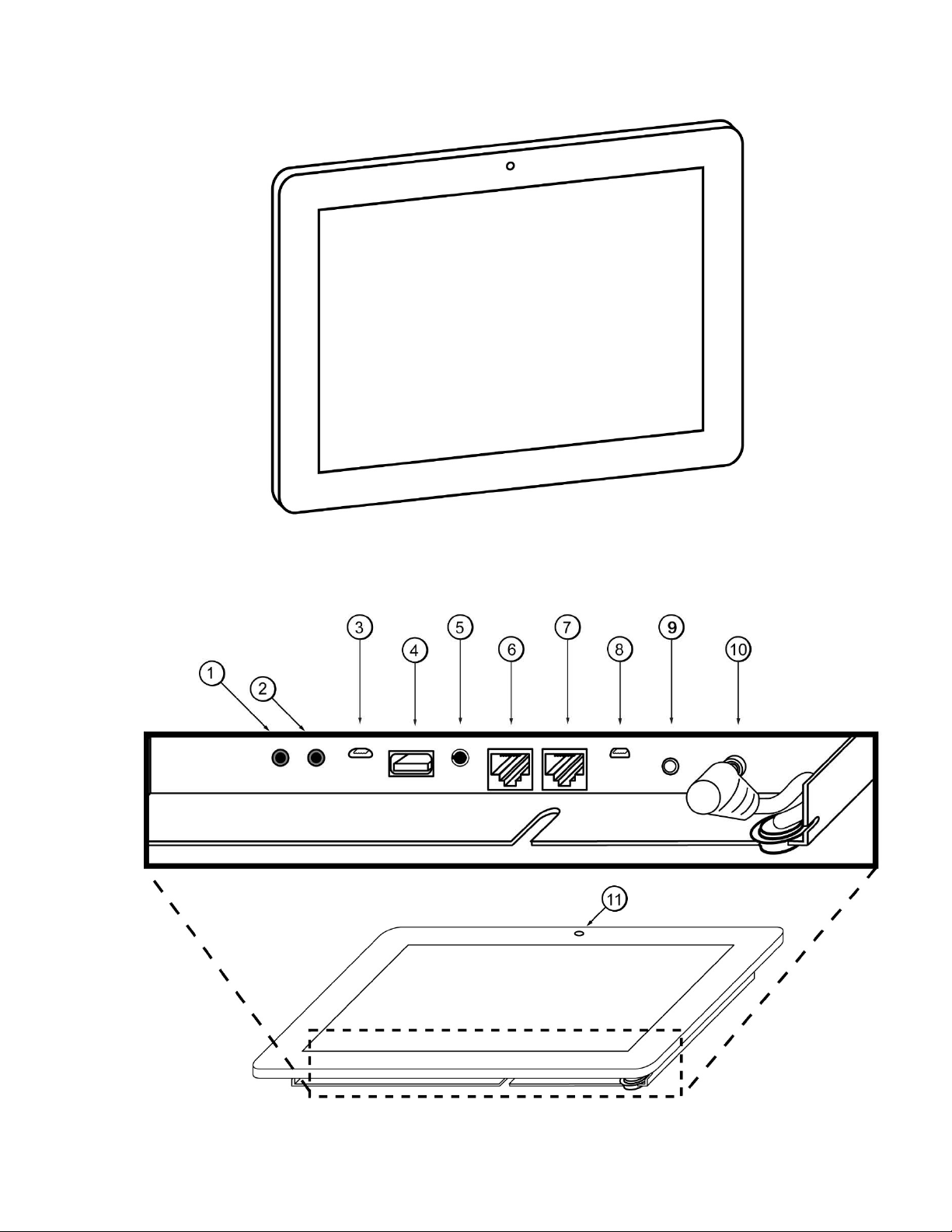
General System Overview (See Figure 1)
ITEM DESCRIPTION FUNCTION
1 SWITCH PORT #2
Secondary switch port used if switch port #1 fails, or when using
the Color Touch Panel to receive information from two freezers
(
for the “44” Dual Spout models and Base Unit models
)
2 SWITCH PORT #1 Primary switch port for the draw / spigot switch to receive
information from the freezer.
3 MICRO USB PORT (NOT USED BY OPERATOR) For in-house programming use
only.
4 USB PORT Allows for uploading information from or copying information to a
micro USB device.
5 STEREO JACK Allows for connecting speakers to the Color Touch Panel.
6 RJ45 PORT #2 (FOR FUTURE USE) Secondary communications port provides
additional serial communications and two additional switch ports.
7 RJ45 PORT #1 Primary communications port allows power to be supplied from the
driver board, and allows communication to / from driver board.
8 MICRO HDMI PORT Allow the programming from the Color Touch Panel to be
displa
y
ed on a secondar
y
monitor.
9 POWER BUTTON Powers the Color Touch Panel on and off.
10 POWER SWITCH PORT
Connects the externally mounted power button to the Color Touch
Panel and allows it to be turned on / off from outside the Panel
casin
g
.
11 CAMERA (FOR FUTURE USE) Allows for video recording and taking
pictures of whatever is within ran
g
e of the camera.
COLOR TOUCH PANEL – PORTS & FEATURES
5
Color Touch Panel – Ports & Features

6
PAGE INTENTIONALLY
LEFT BLANK

7
This section is a quick reference on how to
draw a Flavor Burst serving with the Color
Touch Panel. If this is your first time operating
the panel, it is recommended you walk through
the next section “Initial Setup” of this manual to
customize and familiarize yourself with the
panel and all its features. Although the panel
comes with general default settings, your flavor
buttons and product images may not match up
to what you are serving. Once the panel is set
up with your preferences, test the system and
the panel settings.
Follow these instructions to draw a Flavor Burst
serving.
NOTE: EQUIPMENT AND PRODUCT
IMAGES MAY DIFFER FROM YOUR SETUP.
HOWEVER, THE INFORMATION AND
INSTRUCTIONS STILL APPLY.
The selection screen can be set up to display
product choices (if the system is dispensing
from two spouts), container choices, and/or
sizes. elect the product type from the product
selection screen. These directions will take
you through each of these selection options.
1. If the system is set up to display the Quick
Dispense menu screen, make your flavor
selection(s) within the container and/or size
options shown. Then proceed to Step 6.
NOTE: THIS SCREEN IS AN OPTIONAL
SETTING AND MAY NOT APPEAR.
2. If the Flavor Burst system is attached to two
spouts, select the product type / spout you
wish to draw from.
NOTE: THIS SCREEN IS AN OPTIONAL
SETTING AND MAY NOT APPEAR.
3. The screen may show options to select a
container type. If so, make your selection.
NOTE: THIS SCREEN IS AN OPTIONAL
SETTING AND MAY NOT APPEAR.
4. The next screen may show options to select
a size. If so, make your selection.
NOTE: THIS SCREEN IS AN OPTIONAL
SETTING AND MAY NOT APPEAR.
DRAWING A SERVING

8
5. Make your flavor selections on the next
screen by touching the flavor button. Once
a flavor is selected, the button moves to a
list on the left. To deselect a flavor, touch
the button again and it will disappear from
the list.
NOTE: FLAVORS WILL DISPENSE IN THE
ORDER THEY ARE SELECTED, AND WILL
REPEAT THE CYCLE UNTIL THE SERVING
IS DONE.
NOTE: SERVING SIZE MAY DETERMINE
HOW MANY FLAVORS CAN BE SELECTED.
FOR EXAMPLE, A SMALL SERVING MAY
ONLY ALLOW TWO FLAVORS BECAUSE IT
IS SET TO DISPENSE FLAVORS FOR A
PRESET TIME. TO ADJUST THE SERVING
SIZE TIME OR FLAVOR DISPENSE TIME,
SEE SECTIONS “ENABLE OR DISABLE
SERVING OPTIONS” AND “ADJUST
DISPENSE TIME LIMITS” OF THE
MAINTENANCE MENU.
NOTE: IF A FLAVOR BURST BASE UNIT IS
ALSO ATTACHED TO THE SAME SPOUT AS
YOUR STANDARD UNIT, 16 FLAVOR
CHOICES MAY APPEAR ON THE MENU.
NOTE: IF THE SCREEN SHOWS AN OPTION
TO USE A RECIPE, YOU CAN PRESS THE
“USE RECIPE” BUTTON AND SELECT A
PRE-PROGRAMMED COMBINATION OF
FLAVORS.
Indice
Altri manuali Flavor Burst Pannello touch


