
FOR-A MV-400 Manuale utente

Remote Control Software
MV-400
Multi Viewer
Version 3.0 - Higher - Rev.1
OPERATION
MANUAL


Table of Contents
1. Setup ..........................................................................................................................................1
1-1. Overview.............................................................................................................................1
1-2. Operating Environment.......................................................................................................1
1-3. Software Installation............................................................................................................2
1-3-1. Using the Video Transfer Function in Internet Explorer...............................................2
1-3-2. Using MV-400 LiveViewer...........................................................................................2
1-3-3. Java2 Runtime Environment.......................................................................................3
1-3-4. Windows Installer 3.1..................................................................................................4
1-3-5. Microsoft .NET Framework 2.0 ...................................................................................5
1-3-6. Microsoft Visual C++ 2005 Redistributable.................................................................6
1-3-7. MV-400 LiveViewer.....................................................................................................6
1-4. Software Uninstallation .......................................................................................................7
1-5. Connections........................................................................................................................7
1-6. Communication Standards..................................................................................................7
1-7. PC Network Settings...........................................................................................................8
2. Remote Control in Internet Explorer..........................................................................................10
2-1. Starting and Connecting in Internet Explorer ....................................................................10
2-2. Exiting Internet Explorer....................................................................................................10
2-3. Control Screen..................................................................................................................11
2-4. SXGA Output Control........................................................................................................12
2-5. Video Output Control ........................................................................................................13
2-6. Video Transfer (VIEWER).................................................................................................14
2-7. Menu Operations ..............................................................................................................15
2-7-1. MAIN MENU .............................................................................................................15
2-7-2. TIME SETUP ............................................................................................................16
2-7-3. ALARM/VIDEO LOSS...............................................................................................17
2-7-4. TITLE/POSITION......................................................................................................18
2-7-5. DISPLAY...................................................................................................................20
2-7-6. LAN...........................................................................................................................23
2-7-7. SYSTEM...................................................................................................................24
3. Video Transfer Using MV-400 LiveViewer.................................................................................26
3-1. Starting and Connecting MV-400 LiveViewer....................................................................26
3-2. Shutting Off and Exiting MV-400 LiveViewer.....................................................................27
3-3. Controller Screen of MV-400 LiveViewer ..........................................................................28
3-4. Viewer Screen in MV-400 LiveViewer...............................................................................30
4. Troubleshooting ........................................................................................................................31

Trademarks
Microsoft Windows® 2000 and XP operating systems are registered trademarks or trademarks
of Microsoft Corporation (USA) in the United States and other countries.
.NET Framework is a registered trademark or trademark of Microsoft Corporation (USA) in the
United States and other countries.
Pentium® is a registered trademark or trademark of Intel Corporation (USA) in the United States
and other countries.
JavaTM and the Java logo are registered trademarks of Sun Microsystems, Inc.
1
1. Setup
1-1. Overview
The Multi Viewer MV-400 uses a network connection to enable remote control from a PC and
video transfer to a PC. Remote control is possible using the Internet Explorer web browser
preinstalled in Windows so that no special software needs to be installed. Video transfer can be
performed in two ways: Using Internet Explorer or using the special MV-400 LiveViewer
software. Although software must be installed to use MV-400 LiveViewer, it allows a higher
frame rate for video transfer compared to Internet Explorer.
1-2. Operating Environment
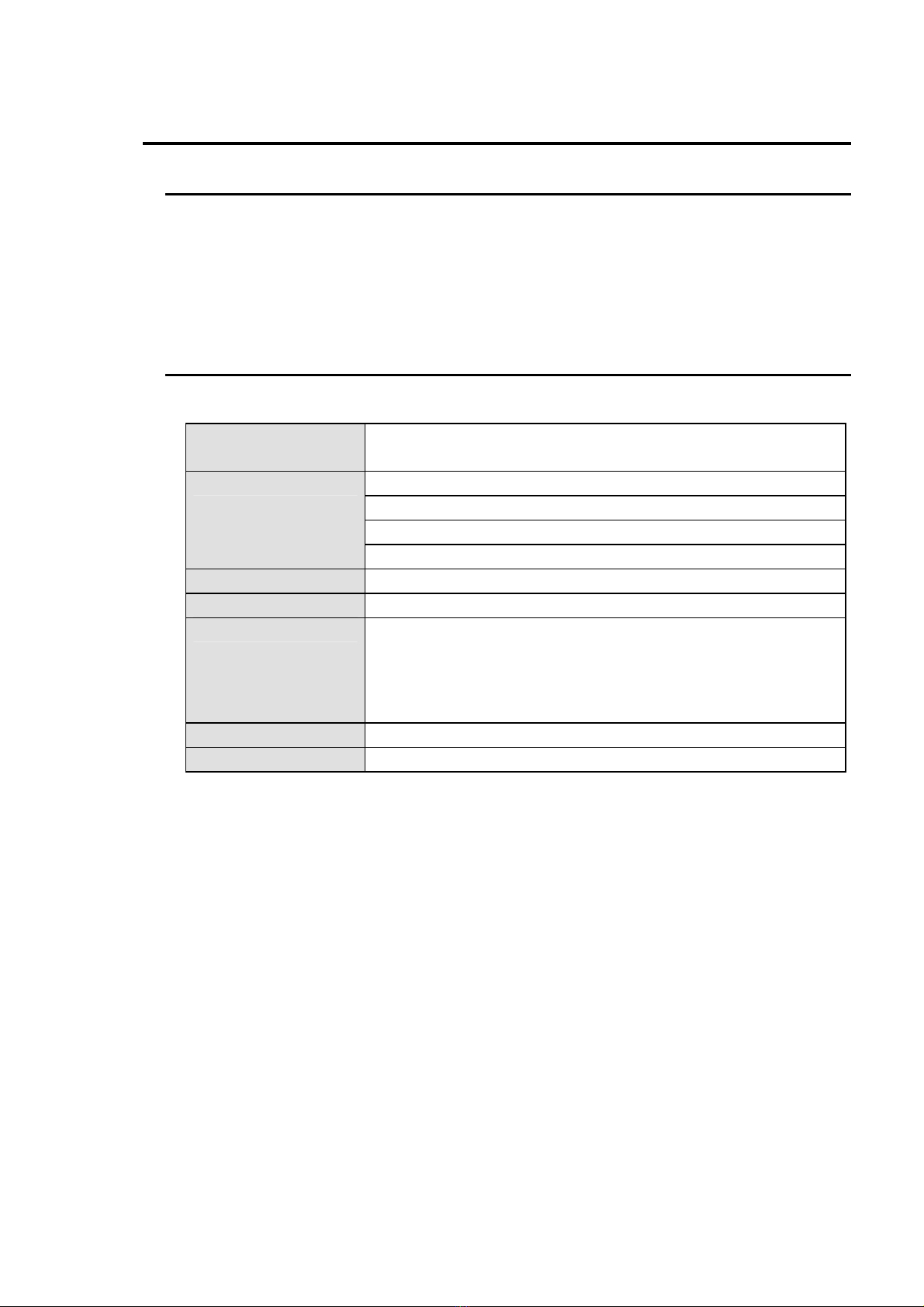
The MV-400 remote control software requires the PC operating environment below.
Compatible OS Windows 2000 Professional SP4 and later or
Windows XP SP2 or later (Professional or Home Edition)
Internet Explorer 6.0 or later
.NET Framework 2.0 (stored on supplied CD-ROM) *1
Visual C++2005 Redistributable (stored on supplied CD-ROM) *1
Software
Java2 Runtime Environment 5.0 (stored on supplied CD-ROM) *2
CPU Pentium IV 3 GHz or faster
Memory 1GB or more (512MB if Multicast mode is not used.)
Display Resolution of 1024x768 pixels or higher
Capable of displaying full color (24 bit)
* When transmitting 1280 x 960 pixels video with the optional
software (MV-40EX), use a display with a resolution higher than
1280 x 1024 pixels.
LAN adapter At least one 10BASE-T/100BASE-TX compatible port
LAN cable Enhanced category 5 or higher
*1: Not needed if using MV-400 LiveViewer.
*2: Not needed if the video transfer (Viewer) function will not be used in Internet Explorer.

2
1-3. Software Installation
1-3-1. Using the Video Transfer Function in Internet
Explorer
To use the video transfer function (Viewer) with Internet Explorer, the Java2 Runtime
Environment 5.0 must be installed beforehand. See section 1-3-3. "Java2 Runtime
Environment" for the installation procedure.
IMPORTANT
Be sure to perform all software installation by logging in withAdministrator rights. The
installation will not be performed properly under User rights.
The video transmission function (Viewer) with Internet Explorer may not perform
properly with other version of the Java2 Runtime Environment than the version 5.0.
Open Add/Remove Programs (Add or Remove Programs in Windows XP) in the
Control Panel and see if there is the Java2 Runtime Environment of higher version. If
there is the higher version, uninstall it.
1-3-2. Using MV-400 LiveViewer
To use the video transfer function with MV-400 LiveViewer, three software applications
provided by Microsoft and the MV-400 LiveViewer must be installed in the order below. The
installation procedure is described starting from section 1-3-4. "Windows Installer 3.1" to
section 1-3-7. "MV-400 LiveViewer."
(1)Windows Installer 3.1
(2)Microsoft .NET Framework 2.0
(3)Microsoft Visual C++2005 Redistributable
(4)MV-400 LiveViewer
Please note, however, that some PCs may already have this software installed. To check,
open Add/Remove Programs (Add or Remove Programs in Windows XP) in the Control
Panel, and see if the software from (1) to (3) are installed. You do not need to install the
software if it is already installed.
NOTE
An older version of the software, "Microsoft .NET Framework 1.1" is usually
preinstalled in Windows XP. In this case, "Microsoft .NET Framework 2.0" must be
installed.
The PC needs to be restarted during the installation process. Therefore, be sure to exit all
applications that are running before starting installation.
IMPORTANT
Be sure to perform all software installation by logging in withAdministrator rights. The
installation will not be performed properly under User rights.
3
1-3-3. Java2 Runtime Environment
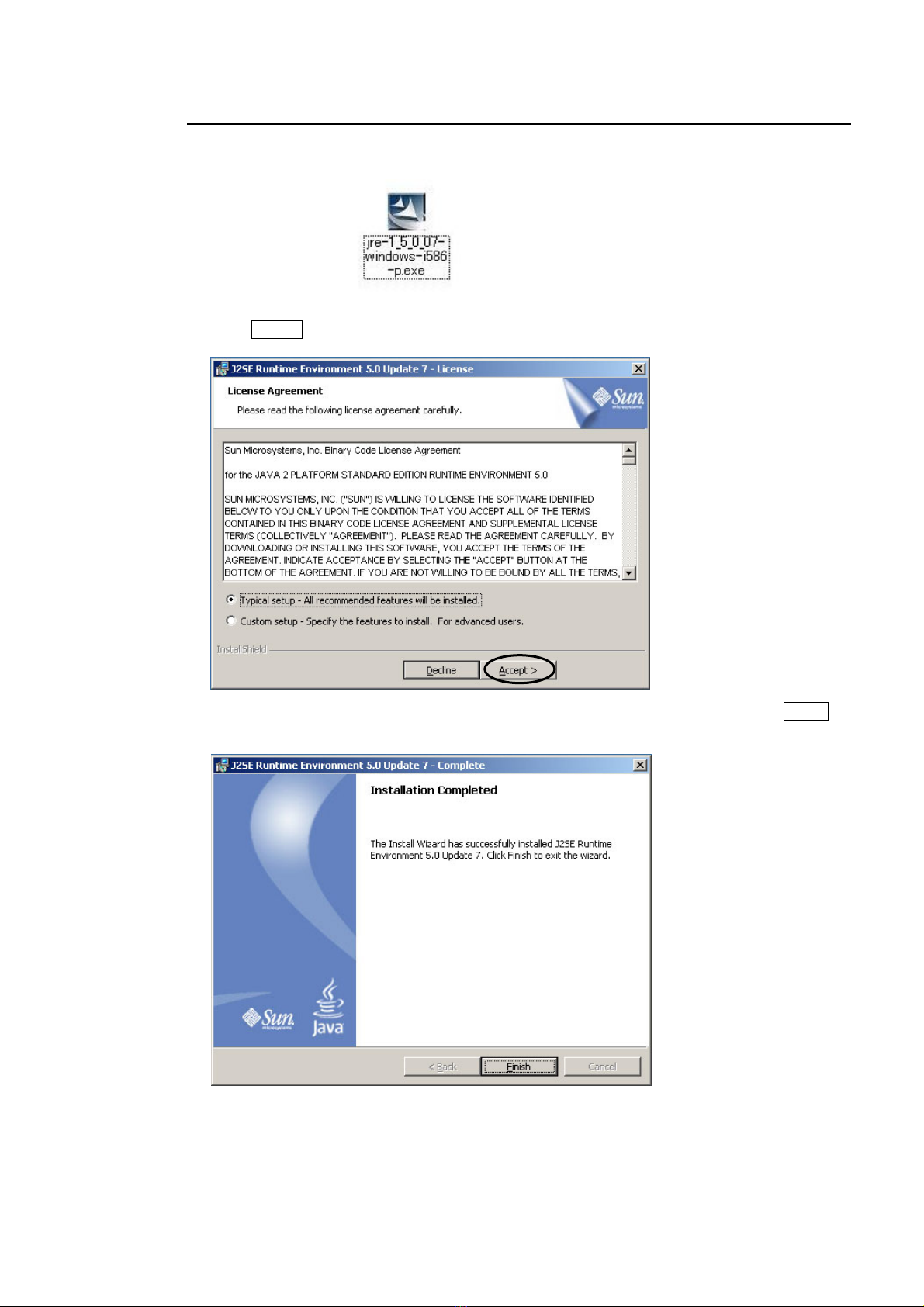
1) Load the supplied Installation CD-ROM into the PC, and open the CD-ROM drive. Run the
file "jre-1_5_0_07-windows-i586-p.exe" to start the installation wizard.
2) After the installation wizard starts, the [License Agreement] dialog is displayed.
Click Accept to start installation.
3) When installation is completed normally, the next screen is displayed. Click Finish to
restart the PC.
4
1-3-4. Windows Installer 3.1
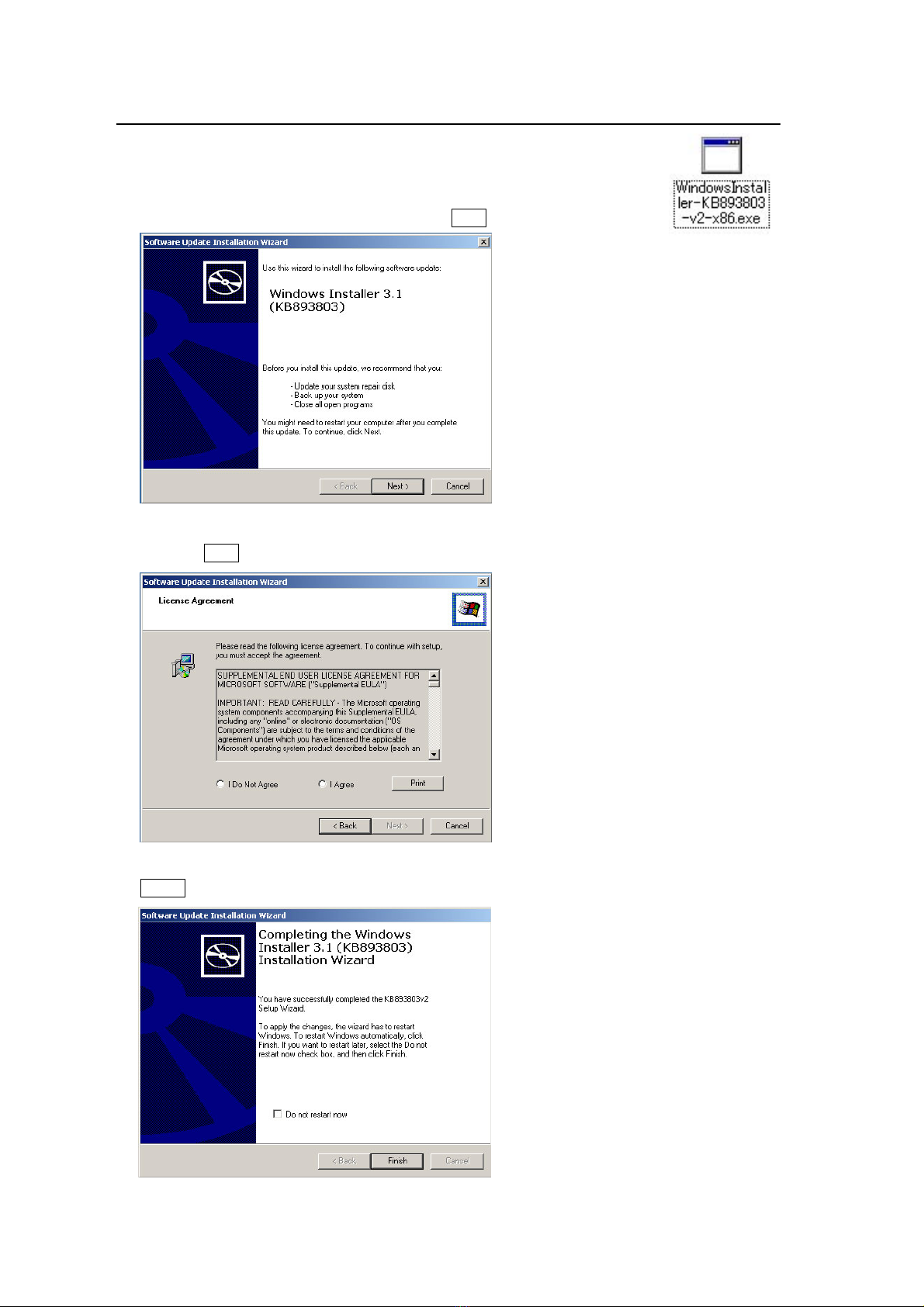
1) Load the supplied Installation CD-ROM into the PC, and open the
CD-ROM drive. Run the file "WindowsInstaller-KB893803-v2-x86.exe"
to start the installation wizard.
2) After the installation wizard is started, click Next.
3) The [License Agreement] dialog is displayed. Select the "I Agree" check box, and then
click the Next button to start installation.
4) When installation is completed normally, the screen shown below is displayed. Click
Finish to restart the PC.
5
1-3-5. Microsoft .NET Framework 2.0
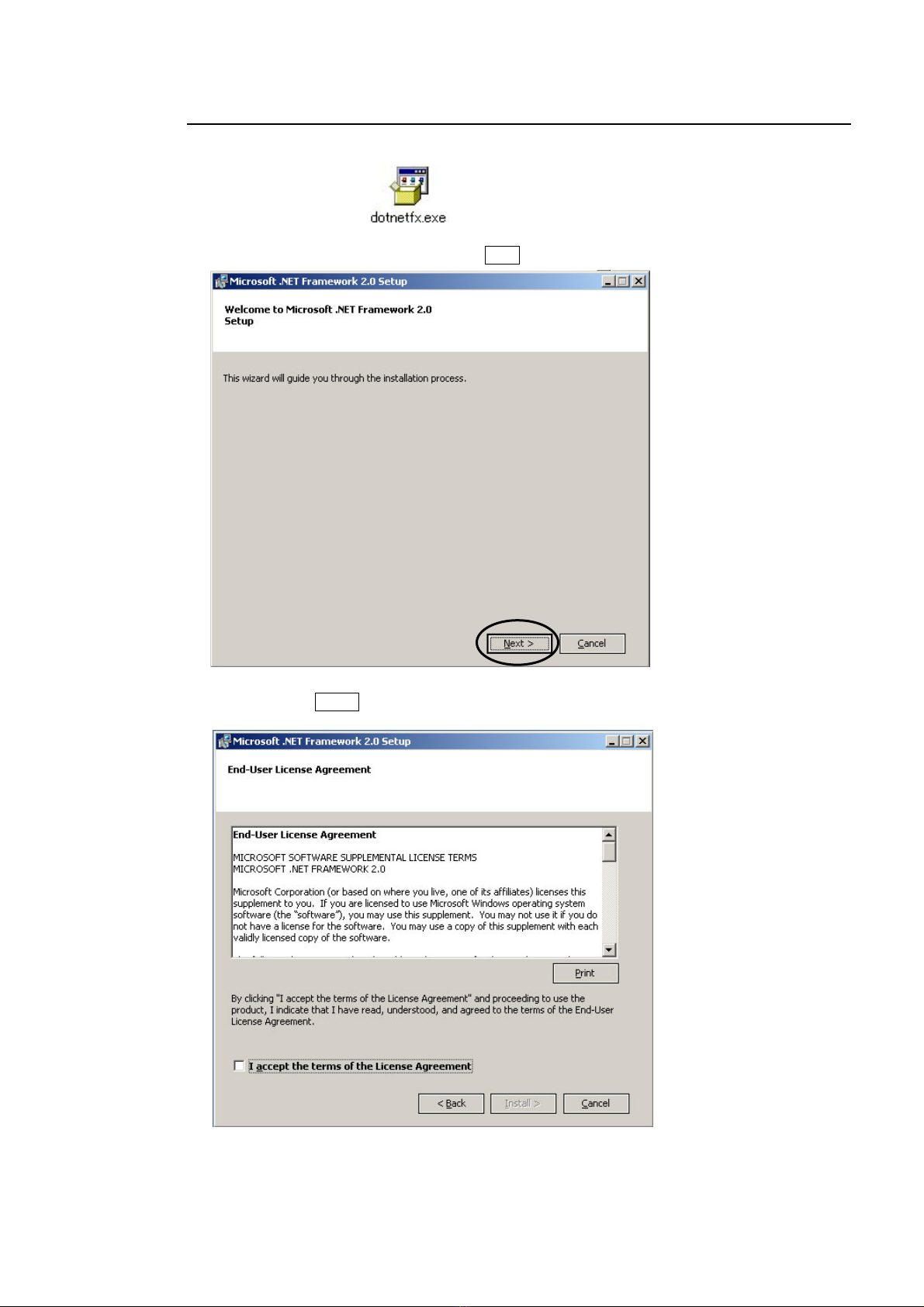
1) Run the file "dotnetfx.exe" on the CD-ROM to start the setup wizard.
2) After the setup wizard is started, click Next.
3) The End User License Agreement is displayed. Select "I accept the terms…" check box,
and then click Install to start the installation process.
6
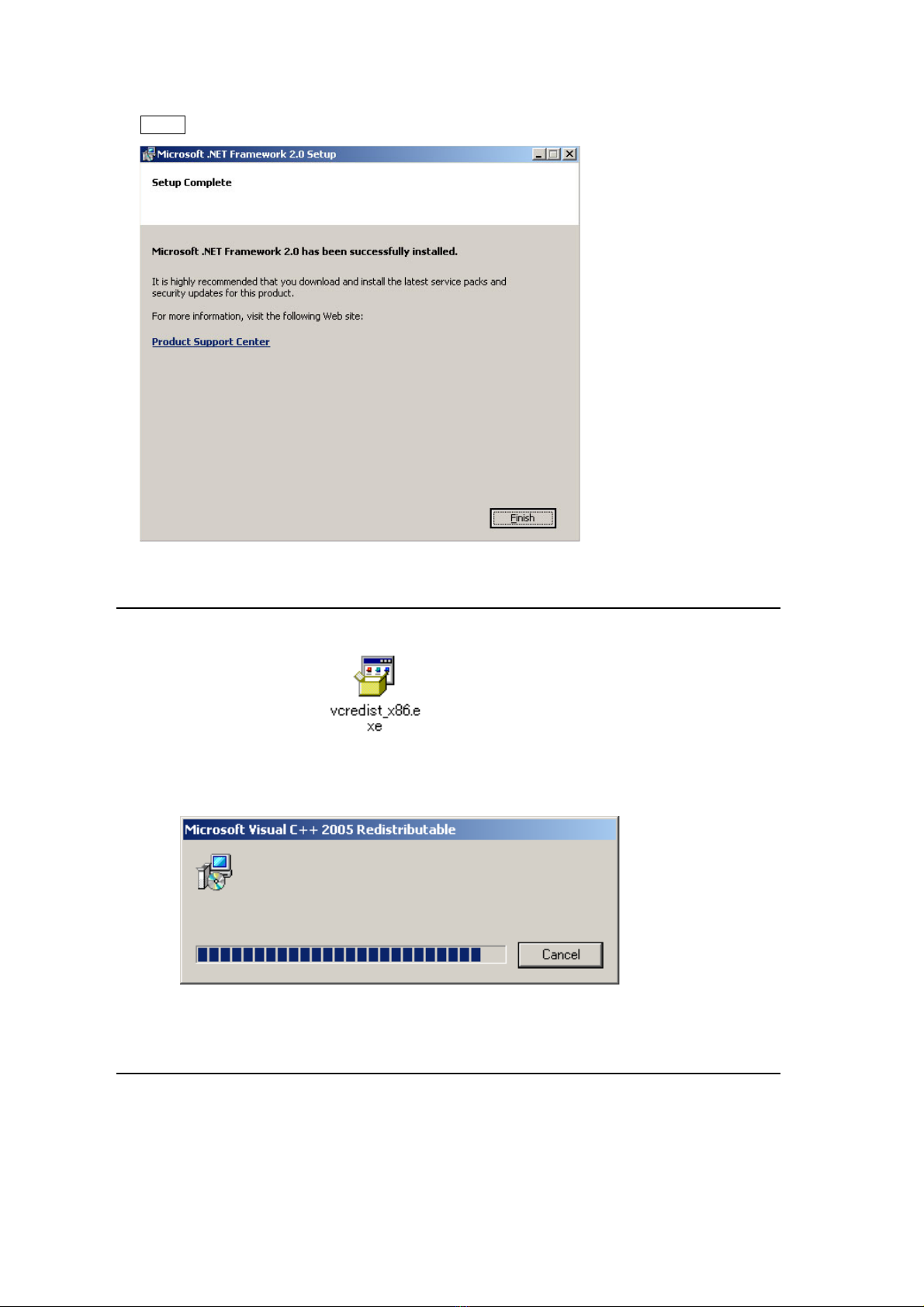
4) When installation is completed normally, the screen shown below is displayed. Click
Finish.
1-3-6. Microsoft Visual C++ 2005 Redistributable
1) Run the file " vcredist_x86.exe" on the CD-ROM to start the setup wizard.
2) Once vcredist_x86.exe is started, the progress bar shown below is displayed. When the
progress bar reaches the end, the installation is complete.
1-3-7. MV-400 LiveViewer
Create a folder, and then copy the file "MV400LiveViewer.exe" on the CD-ROM to the
created folder.
Indice
Altri manuali FOR-A Cornice digitale


