
foxunhd FX-EX36 Manuale utente

Operating Instructions
www.foxunhd.com
FX-EX36
H.264 HDMI over IP Extender with LED, Remote,RS232
Dear Customer
Thank you for purchasing this product. For optimum performance and safety, please read these
instructions carefully before connecting, operating or adjusting this product. Please keep this manual for
future reference.
ABLE OF CONTENTS
Feature
Specifications
Packing Contents
Panel description
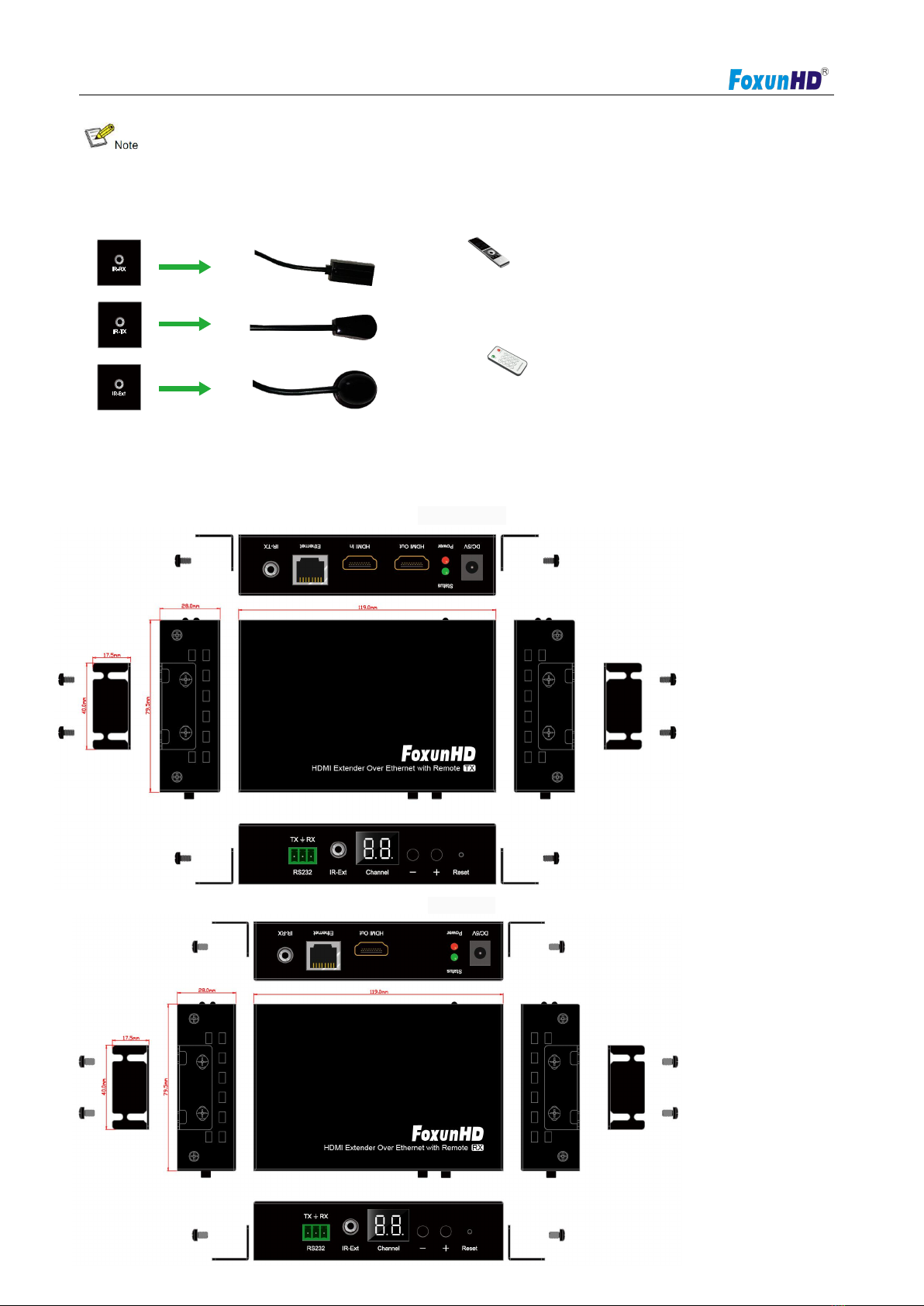
How to connect the IR Cable
Panel Drawing
Installation and Configuration
Choose the Group ID and Baud Rate by Remote controller
Connection
RS232 and Baud rate
Firmware update
PC Tool Instructions
Other settings
How to use VLC
Product Service
Warranty

Operating Instructions
www.foxunhd.com
1 Feature
Using H.264 compression encoding, support resolution up to 1080p@60hz
Transmit up to 120m over single Cat5e/6 cable, with 1x looping HDMI output
With IR Remote to choose the source, with LED to show the Group ID
Comply with TCP/IP protocol, streaming bit rate is up to 15Mbps
Support LPCM audio format
Smart IP Address Setting: Dynamic Host Configuration Protocol (DHCP)
Wide-band IR pass through to control the source (38khz to 56khz)
By pass 2 way UART/RS232 (Up to 115200), use remote controller to select 8 group Baud rate
Support one to one, one to many, many to one, many to many modes, with large cascade
HDCP Compliant
Support PC tool control
DC 5V 1A power supply
NOTICE
Our company reserve the right to make changes in the hardware, packaging and any accompanying
documentation without prior written notice.
Note: Specifications are subject to change without notice. Mass and dimensions are approximate.
2 Specifications
Performance
Protocol
H.264 encoder over TCP/IP
Support Video format
480i/480p/576i/576p/720p/1080i/1080p@60HZ
Support Audio format
LPCM, Audio sampling rate 48KHZ
Streaming Bit Rate
15Mbps
HDCP
Compliant
IR Frequency
38 -56 KHZ
RS232 Baud rate
Default 2400bps, total 8 kinds optional
IP setting &Group ID setting
Default IP
TX: 192.168.1.11 ; RX: 192.168.1.12
Group ID
Group 00 ~ group 63
Request for Switch/Router
Support IGMP, support DHCP

Operating Instructions
www.foxunhd.com
Connectors on Transmitter
Input
1xHDMI Female port
Output
1x RJ45 output , 1x HDMI looping output
RS232
Phoenix RS232 port
IR
IR TX port (Support 38K-56KHz)
IR Ext port (Support 38KHz)
Connectors on Receiver
Input
1xRJ45 input
Output
1x HDMI Female port looping output
RS232
Phoenix RS232 port
IR
IR RX port (Support 38K-56KHz)
IR Ext port (Support 38KHz)
Environmental & Power Requirements
Operating temperature
-5 to +65℃(+23 to +149℉)
Operating Humidity Range
5 to 90%RH (No Condensation)
Power supply
DC 5V 1A
Power consumption
Max 3 watt
Physical
Dimension
TX: 119x79.5x28mm ; RX: 119x79.5x28mm
Net Weight
TX: 0.28KG ; RX:0.28KG
Supported input resolution
Frequency
Resolution
50Hz
576i
576P
720P
1080P
1080i
60Hz/59.94Hz
480i
480P
720P
1080P

Operating Instructions
www.foxunhd.com
30Hz/29.97Hz
1080P
24Hz
1080P
25Hz
1080P
VESA Resolution
Frequency
Resolution
50Hz
576i
576P
720P
1080P
1080i
60Hz/59.94Hz
480i
480P
720P
1080P
30Hz/29.97Hz
1080P
24Hz
1080P
25Hz
1080P
3 Packing Contents
1). 1x Transmitter
2). 1x Receiver
3). 1x IR-TX cable
4). 1x IR-RX cable
5). 1x Manual
6). 8x screws
7). 4x detachable mounting ears
8). 2x Phoenix plugs for RS232 cable termination
9). 2x Remote controller
10). 2x Power adapter 5V 1A

Operating Instructions
www.foxunhd.com
4 Panel description
EX36-TX
EX36-RX
1) DC 5V 1A input
2) Green indicator of data status
3) Red indicator of power input
4) HDMI output for local display
5) HDMI input
6) Green indicator of data status
7) IR-TX
8) RS232 port
9) IR-Ext
10) LED to show the Group ID
11) Press the button for the previous Group ID
12) Press the button for the next Group ID
13) Reset button
1) DC 5V 1A input
2) Green indicator of data status
3) Red indicator of power input
4) HDMI output
5) CAT5e/6 input
6) IR-RX
7) RS232 port
8) IR-Ext
9) LED to show the Group ID
10) Press the button for the previous Group ID
11) Press the button for the next Group ID
12) Reset button
Operating Instructions
www.foxunhd.com
①The green LED will blink once the unit is working.
②The LED indicator will glow bright red once the power supply is connected.
5 How to connect the IR Cable
Remote of the source
Remote of the HDMI extender
6 Panel Drawing
Transmitter
Receiver

Operating Instructions
www.foxunhd.com
7 Installation and Configuration
Setup HDMI TX and RX
When connecting point to point, no need to configure TX and RX,
When connecting point to many, many to point and many to many, please make sure every TX and RX has
unique IP and MAC address, every TX has unique group ID.
Our this over IP Extender has been assigned unique default MAC address for every TX and RX, so you
don’t have to set the MAC for the units.
You just need to set the IP address and Group ID following bellowing steps.
Setting the IP address
A). DHCP (Dynamic host configuration protocol)
If you are using a Switch that supports DHCP, please enable DHCP so that the Switch will assign an unique
IP for TX and RX, and you don’t need to change the IP for the units manually.
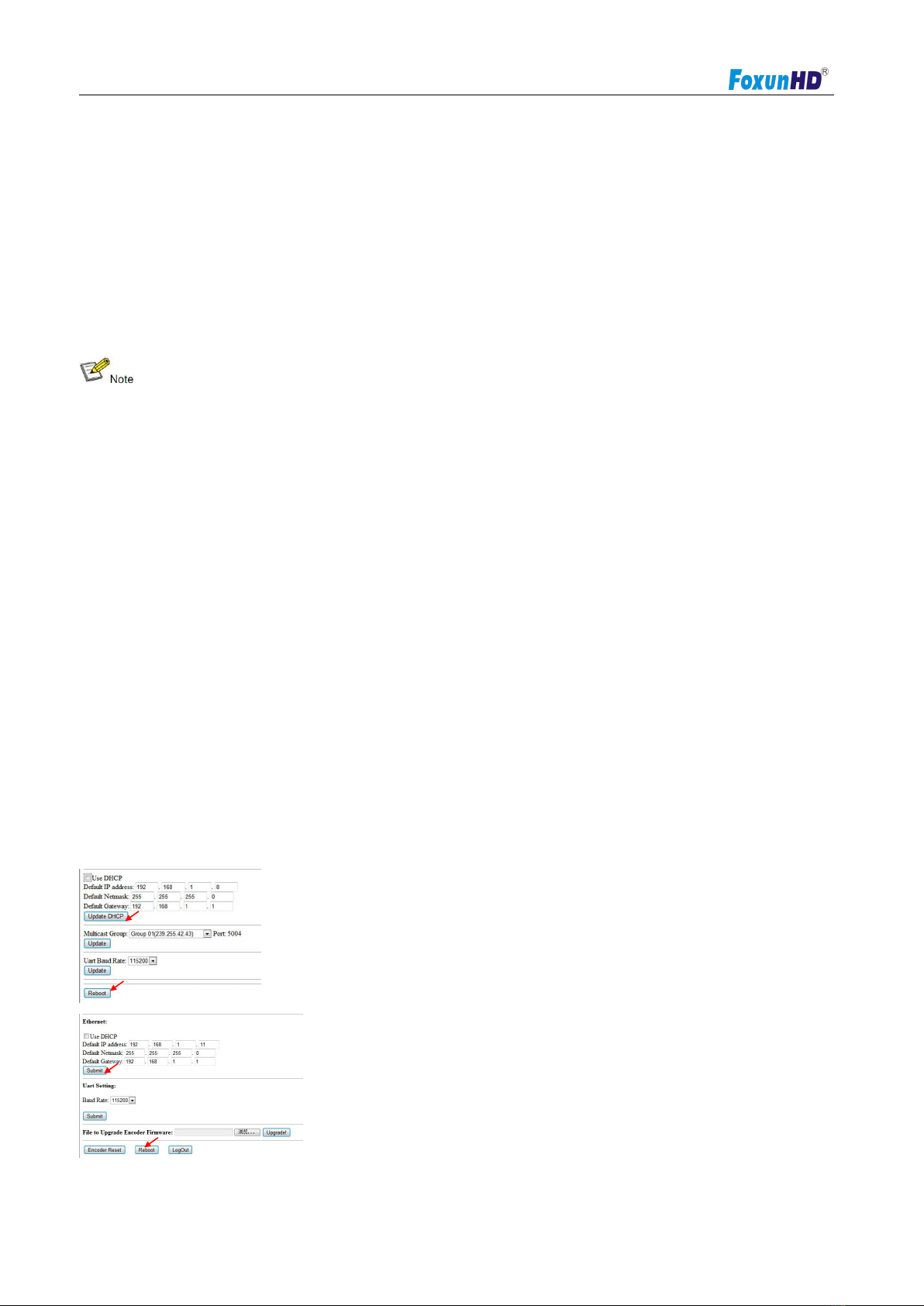
B). Set the IP via web browser
If you are using a Switch that doesn’t support DHCP, please change the default IP for TX (192.168.1.11)
and RX (192.168.1.12) manually.
A HTTP server is embedded in each TX and RX. You can set up IP address for HDMI Extender via web
browser
The default IP address of the TX is 192.168.1.11, user name: admin, password: admin
Operating Instructions
www.foxunhd.com
The default IP address of the RX is 192.168.1.12
Step 1: Make sure the Transmitter and PC are in the same domain.
Access the Network Setting Control Panel in Windows and locate your
Lan connection. Under Windows 7, this can be done by clicking Start >
Control Panel >Network Sharing center>Change adapter settings >
Properties >Internet Protocol Version4 (TCP/IPv4). Change the IP address field to 192.168.1.1
(0-255). After that press "OK" to save the configuration.
※The PC and TX/RX should be in the same domain.
※The IP address of PC should be different from the IP address of TX and RX.
Step 2: Use an Ethernet Cable to connect the PC (or laptop) and the extender. the power LED for the
extender is red and the green status is blinking.
Step 3: Login in IE: 192.168.1.11 (default IP for TX) or 192.168.1.12(default IP for RX), You can setup IP
address for the TX and RX. TX requires user name: admin and password: admin
Please set IP address for each TX and each RX, IP: 192.168.1.XX (XX:1-255. all IP address for TX and RX
must be different and can’t be same as the PC’s address.)
Step 4: After selecting “Use DHCP”or reset the IP Address, click “Submit”(transmitter) or “update
DHCP”(Receiver).
Step 5: Click “Reboot”.
Step 6: Restart the extender after resting the IP Address.

Operating Instructions
www.foxunhd.com
8 Choose the Group ID and Baud Rate by Remote controller
(When the LED shows “00”, it’s ready to work)
①Press the button, switch to
choose the Group ID or Baud rate.
②Factory reset. Press the button for
3 seconds, the LED will flicker then
turn to “00”, you have successfully
finished the factory reset.
Choose Group ID 00-63
1). Press “+”or “–” to change to the previous or next Group ID.
2). Press the No to change Group ID. For example, if you need change to 01, press “0”, then press“1”.
Choose the Baud Rate
Press the Button, switch to Baud Rate mode, press “+”or “–” to change the Baud Rate.
F0 = 2400 (default)
F1 = 4800
F2 = 9600
F3 = 19200
F4 = 28800
F5 = 38400
F6 = 57600
F7 = 115200
3). How to choose the source:
For example, when the connection is:
Source (DVD1) - TX (TX1) - Gigabit Switch –RX (RX1) - TV1
Source (DVD2) - TX (TX2) - Gigabit Switch –RX (RX2) - TV2
Source (DVD3) - TX (TX3) - Gigabit Switch –RX (RX3) - TV3

Operating Instructions
www.foxunhd.com
The group ID of transmitters is:
TX1 (01)
TX2 (02)
TX3 (03)
If you need display Source on TV1, then just set Group ID of RX1 same as
TX1: 01(see below picture).
TX 1 RX 1
1.Set the group ID for TX and RX via web browser
Step 1: Make sure the Transmitter and PC are in the same domain. (Refer to 5.1.1)
Step 2: Use an Ethernet Cable to connect the PC (or laptop) and the Extender. the power LED for the
extender is red and the green status LED is blinking.
Step 3: Power on the TX or RX with 5V 1A power supply.
Step 4: Login in IE: 192.168.1.11 (default IP for TX) or 192.168.1.12(default IP for RX), TX requires user
name: admin and password: admin.
Step5: Change the group ID at “Stream setting”,“00”means group “00”here which can be chosen
from 00 to 63.
Step 6: Click “Submit”(transmitter) or update (receiver).
※When you change the group ID on both Web browser and Remote controller, the units will follow
the latest one.
※If you change the Group ID on web browser, it can’t be shown on the LED.
Preparing the switch
When doing point to many and many to many, it requires a switch to distribute the sources. We suggest you
Indice
Altri manuali foxunhd Estensione

foxunhd
foxunhd SX-EX11 Manuale utente

foxunhd
foxunhd SX-AEX01 Manuale utente

foxunhd
foxunhd FX-EX37 Manuale utente

foxunhd
foxunhd FX-EX60-3DIR Manuale utente

foxunhd
foxunhd FX-EX22 Manuale utente

foxunhd
foxunhd FX-EX44 Manuale utente

foxunhd
foxunhd FX-KVM-02 Manuale utente

foxunhd
foxunhd FX-EX53 Manuale utente

foxunhd
foxunhd FX-EX21B Manuale utente

foxunhd
foxunhd FX-EX21C Manuale utente


