
FS TA1910-1GF-W Manuale utente

TA1910-1GF-W USER MANUAL
TA1910-1GF-W User Manual
Copyright © 2009-2022 FS.COM All Rights Reserved.

TA1910-1GF-W USER MANUAL
Contents
1 FS TA1910-1GF-W User Manual .....................................................................................................1
1.1 Introduction ..................................................................................................................................................................1
1.2 Hardware Connection ................................................................................................................................................. 1
1.3 Computer Setting ........................................................................................................................................................ 2
1.4 Wizard Setting .............................................................................................................................................................. 4
1.5 System Wireless Setting .............................................................................................................................................. 5
1.6 User Tips ........................................................................................................................................................................7

TA1910-1GF-W USER MANUAL
1
1 FS TA1910-1GF-W User Manual
1.1 Introduction
FS TA1910-1GF-W is a high-end integrated broadband access device that is flexible and user-friendly, conforming to
the IEEE802.11b/g/n standard. It can provide high-performance broadband access services for home users and
individual businesses.
Its main characteristics:
Comply with ITU-T G.984/988 standard and adopt GPON uplink;
Set and monitor the device through the WEB page;
Remote configuration and management through TR069 protocol;
Set the network with NAT and DHCP and help users easily connect to the network;
Strong firewall function;
Customize the online security performance for your device with MAC and URL filter functions;
Surf the internet by wireless.
1.2 Hardware Connection
Check the indicator status after connection.
Abbrev.
Name
Indicator color
Description
PWR
Power indicator
Green
On: The system is powered on normally.
Off: The system is not powered on.
PON
PON status indicator
Green
Off: The ONU has not started to activate.
On: The ONU has been activated.
Flicker: The ONU is being activated.
LOSS
Optical signal indicator
Red
Off: The ONU normally receives optical power.

TA1910-1GF-W USER MANUAL
2
Flicker: The optical power received by the ONU is
lower than the threshold of the optical receiver.
WIFI
Wireless status indicator
Green
Off: The system is not powered on or the wireless
interface does not connect to any network device;
On: The wireless interface has been connected, but
there is no data transmission.
Flicker: There is data transmission.
LAN1~2
Ethernet interface status
indicator
Green
Off: The system is not powered on or the Ethernet
port does not connect to the terminal;
On: The Ethernet port has been connected, but
there is no data transmission.
Flicker: There is data transmission.
Note: If the indicator does not work well, please check whether the connection is correct.
Warning:
1) Make sure the device is put on a horizontal and flat surface.
2) To avoid thunder-strike, disconnect all power lines from the power supply in thunder and rainy days.
3) Make sure that the workshop is well-ventilated, the heat of electrical devices is well-discharged and sufficient air
circulation is provided for device cooling.
4) Use the rated power adapter equipped with the device.
1.3 Computer Setting
1) Click "Start→Control Panel→Network and Internet→Network and Sharing Center→Local Area Connection",
select "Local Area Connection", and click "Properties".

TA1910-1GF-W USER MANUAL
3
2) Double click “Internet Protocol 4 (TCP/IPv4)” as shown in the following figure:
3) On the page of Internet Protocol 4 (TCP/IPv4) Properties, select “Obtain an IP address automatically” and “Obtain
DNS server address automatically”, and then click “OK”.

TA1910-1GF-W USER MANUAL
4
1.4 Wizard Setting
1) Open the web browser.
2) Enter 10.0.0.10 in the address bar and click “Enter” to the the web interface. Then enter the UserName (admin
by default) and Password (super&123 by default) respectively in the interface UserLogin.
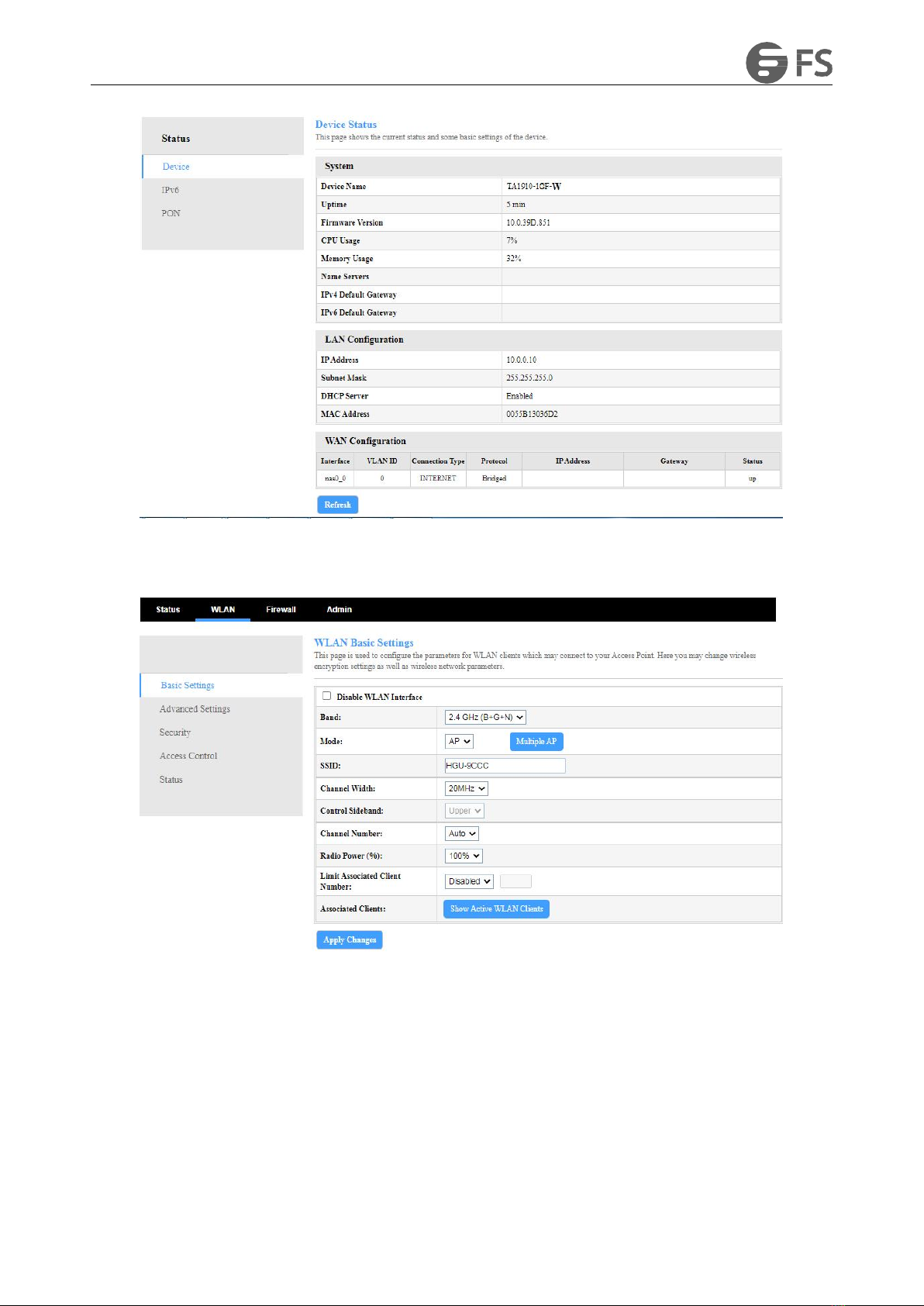
3) After Login, click “Status” on top of the navigation bar in Home Screen. Click “Device” on the left navigation bar
of Status. Basic information of the device is shown in the following page.
TA1910-1GF-W USER MANUAL
5
4) On page of WLAN Basic Settings, you can tick or not tick Disable WLAN Interface to disable WiFi. And you can
also modify the wireless name, authentication mode and password.
5) Click "Apply Changes" to proceed to the next step.
1.5 System Wireless Setting
If you want to use the wireless network, please make sure your PC is equipped with the wireless adapter card, then do
as following steps. Here takes Windows 7 System as an instance:
1) Select “Network” and “Properties”.

TA1910-1GF-W USER MANUAL
6
2) Click“Wireless Network Connection”.
3) Click the “Refresh” button, select the wireless network name of the terminal device, and double-click the name.

TA1910-1GF-W USER MANUAL
7
4) Enter the password and click "OK".
Reset
Please reset your router if you forget its username and password. Reset method: Keep your router powered on and
press the reset key “RESET” with a toothpick or a clip for 10 seconds and the router will reboot.
Caution:
The configuration parameters of the router will return to the default setting after reset. Please re-configure your
router as your requirement.
1.6 User Tips
1. If there is WiFi signal on the PC but it cannot connect to the Internet,
1) check whether the WiFi name is the same with SSID of the wireless router;
2) check the strength of the wireless signal. Adjust the location of the wireless router, if the wireless signal is
weak.
3) refresh the network list and re-connect to the WiFi;
4) consult the manufacturer of the notebook or wireless adapter card and re-connect according to the
relevant guidelines;
5) restart the PC.
2. If there is no WiFi signal on the laptop,
1) check whether the wireless adapter card is enabled;
2) check whether the driver of the wireless adapter card is successfully installed. If not, please reinstall;
3) check whether the WiFi function of the wireless router is enabled and access to SSID broadcast;
4) check whether the WiFi service is enabled. Right-click “My computer” on the desk of home screen (take
Windows 7 as an example) and select “Management”. Then select “service and application program”, and

TA1910-1GF-W USER MANUAL
8
select “service” after the page is unfolded. Find “WLAN AutoConfig” and ensure it is enabled;
5) check whether there is wireless signal if keep the laptop closer to the wireless router.
6) retry to connect other wireless adapter card if the above solutions are unsatisfactory. If not, reset the
wireless router
Indice
Altri manuali FS Router di rete


Manuali Router di rete popolari di altre marche


NETGEAR
NETGEAR FS526T - Switch Manuale utente

Korenix
Korenix JetNet 5710G Series Manuale utente

Automated Logic
Automated Logic ZN551 Manuale del proprietario

Cisco
Cisco ASR 1000 Series Manuale dell'operatore

EnGenius
EnGenius ESR-9710 Manuale utente

Cisco
Cisco 805 Series Istruzioni operative e di sicurezza