
Fusion CA-ML500BT Manuale utente

USER MANUAL
MODEL: CA-ML500BT
AM/FM/MP3/WMA/SD/USB/AUX SOURCE UNIT

2
CONTENTS
Precautions & Maintenance P3
Quick Start Guide P3
Dashboard Installation P4
Removal / Re-Attachment of the Face P4
Connecting the System P5
Basic Operations P6
Audio Functions P7
System Menu P8
Radio Operation P8
Media Playback (USB/SD) P9
Bluetooth Operation P10
Additional Media Playback Options P12
Troubleshooting P13
How To Reset The Unit P14
Product Specications P14
Supported File Types P15
Licensing P15
Register Your Product P19
Warranty P16-23

3
PRECAUTIONS &
MAINTENANCE
GENERAL
• When cleaning the vehicle, do not get water or cleaning
uids on the unit.
• Do not attempt to open the unit chassis. There are no
user servicable parts or adjustments inside.
• No Responsibility can be taken for use of the unit other
than under normally expected operating conditions in
conjunction with fully functional and undamaged media
devices.
QUICK START GUIDE
TUNER REGION SETTING
When the unit is powered up for the rst time (or the
battery is disconnected or runs at), you will need to set
your tuner region.
1. When you press the power button to turn on the unit
[OCEANIA] will be displayed on the LCD screen as the
default Tuner region.
2. Rotate the Encoder Volume Control to select an option:
OCEANIA (Australia / New Zealand), USA, EUROPE or
RUSSIA.
3. Press the Encoder Volume Control to store your
selection and exit to the Tuner mode.
If you make the wrong selection, you may not be able to
tune in to your desired stations. This setting can be easily
changed from the SYSTEM MENU — see page 9.
SELECTING THE MUSIC SOURCE
Press the source button to cycle through the following
sources (if available) — Radio > USB > SD > AUX>BT
AUDIO

4
REMOVAL / ATTACHING THE FACE
1. Press the Panel OPEN button.
2. Hold the left-hand side of the Face and pull forward
3. Pull the Face towards you (1) to disengage it from
the chassis (2).
DASHBOARD INSTALLATION
The following illustration shows a typical installation.
If you have any questions or require information regarding
installation kits, consult your car audio retailer.
If you are not sure how to install this unit correctly, have it
installed by a qualied installer.

5
WIRING DIAGRAM CA-ML500BT
CONNECTING THE SYSTEM

6
500BT BASIC OPERATIONS
1. OPEN
Press this button detach the control panel.
2. ENCODER VOLUME CONTROL
Rotate the encoder volume to increase and decrease the volume.
3. SEARCH
In Media playback mode, press to access the folder / le
search mode.
4. ENCODER VOLUME CONTROL MUTE/ENTER
FUNCTIONS
a) MUTE. Press this button to turn Mute ON or OFF
b) ENTER. In Media playback mode and Menu functions,
press this button to conrm a selection (ENTER).
5. AUDIO
Press this button to enter the Audio Menu mode.
6. DISP - DISPLAY
In MP3/WMA playback mode, press to display ID3
information: Track number and elapsed play Time - > File
- > Album - > Title - > Artist.
7. NUMERIC BUTTONS
a) In the Tuner mode, press the Numeric buttons to recall
the preset stations. Press and hold these buttons for 2
seconds to store stations.
b) In Media playback mode, Press the Numeric buttons to
perform the operations below:
8. SUBWOOFER – DIRECT SUBWOOFER LEVEL
CONTROL
When a subwoofer is connected; use the DSLC buttons to
adjust the subwoofer level up or down.
9. EQ
Press this button to select the preset equaliser settings:
FLAT->POP->USER->DANCE->ROCK->CLASSIC->JAZZ-
>VOCAL
10. ESC
ESC – ESCAPE. Press to quick return previous menu
or mode rather than having to cycle through all of the
options in the menu.
7

7
11. BAND CONTROL
In Tuner mode, press this button to cycle through Bands:
FM1, FM2, FM3, AM1 (MW1) or AM2 (MW2).
12. MENU
Press to access the system menu. See Page 8 for menu
options.
13. TUNE UP/DOWN, FILE & TRACK UP/DOWN &
FAST FORWARD/BACK
a) TUNE UP/DOWN. In tuner mode, press this button
to Auto Seek to the next station or press and hold this
button to manually tune in to your desired station.
b) FILE & TRACK UP/DOWN. In USB/SD media playback
mode, press these buttons to skip a chapter, track or le.
c) FAST FORWARD/BACK. In USB/SD media playback
mode, press and hold momentarily to fast forward/rewind.
14. SOURCE BUTTON/ POWER ON OR OFF
Press the Source Button to cycle through the following
sources if available: Radio: USB: SD: AUX: BT
Hold and press to power on or power off.
AUDIO FUNCTIONS
Audio functions are easily accessable on the ML500BT.
AUDIO MENU. Press the AUDIO BUTTON (button 5)
to access the Audio Menu mode. Then press ENTER
or TUNE UP to select the Audio Function to be
adjusted, then rotate the ENCODER VOLUME CONTROL
to select the desired setting. You can always return to the
previous Audio Function by pressing the TUNE DOWN
button.
REMINDER
In the AUDIO MENU, or in any menu, you can quickly exit the
menu by pressing the ESC button
EBX ON/OFF: Turn ON or OFF the EBX (Encounter Bass
Xtender) Bass Boost.
BAS (Bass) Adjust the Bass level between -7 to +7.
TRE (Treble) Adjust the Treble level between -7 to +7.
BAL (Balance) Adjust the balance between the right and left
speakers from 12R (full right) to 12L (full left).
FAD (Fader) Adjust the fader between the front and rear
speakers from 12R (full rear) to 12L (full front).
(SUBWOOFER)
SW ON/OFF Turn On or Off the Subwoofer RCA output.
SW LPF Subwoofer low pass crossover: 80/120/160Hz
SWAM ON/OFF In AM mode, turn ON or OFF the Sub
output.

8
NOTE
If the Subwoofer RCA output is set to “OFF”, then the SW LPF &
SWAM functions will not be displayed.
EQUALISER OPERATION
When you activate the Equaliser, the Pre-Set Equaliser settings
override your existing Bass, Midrange & Treble Settings.
Press the Equaliser button repeatedly to cycle through the
following pre-sets: FLAT->POP->USER->DANCE->ROCK-
>CLASSIC->JAZZ->VOCAL
To return to the Bass & Treble settings that were in use before
the EQ was selected, please select the USER setting.
SYSTEM MENU
Press (MENU) to access the System Menu and press
again to select the item be adjusted, then rotate Encoder
Volume Knob to select a value / option. To exit this menu
at any time, press the ESC button
STORE (Auto store)
While in Tuner mode, press the ENCODER VOLUME
CONTROL to activate Auto Store. The six strongest stations
of the selected band will be saved in the preset channels
automatically
LOC* ON/OFF
(Local/Distance). Use this setting to Auto Seek to strong
local stations (Local) or all stations regardless of their
strength (Distance).
AREA
Select your country/region for the tuner:
OCEANIA (Australia/New Zealand); USA; EUROPE;
RUSSIA & press ESC to save.
CLK (Clock)
To set the clock, rotate the Encoder Volume Control to
set the hours (Note “A” or “P” will be displayed in the
top-right hand of the LCD display indicating AM or PM if
the clock is in 12H mode – see below). Press the Encloder
Volume control to select “minutes” then rotate the control
to set.
CLK 12H/24H (Clock Format)
Select the time format 12H or 24H
BEEP ON/OFF
Select On or Off to activate button conrmation beep
tones.
RADIO OPERATION
TUNE INTO A RADIO STATION
1. Press the SOURCE button repeatedly until [RADIO] is
displayed on the LCD screen.
2. Select your preferred listening Band (FM or AM) by pressing
BAND. There are 3 FM Bands [FM1] [FM2] [FM3] and 2 AM Bands
[AM1] [AM2]. These multiple Bands allow you to store up to 18
FM stations & 12 AM stations in memory (see below).
3. To search for a radio station, press either the TUNE UP or
DOWN buttons to search for the next station higher
than the current station frequency or lower than the current

9
frequency.
4. To Manually tune to a radio station, press and hold either the
TUNE UP or DOWN button until the tuner frequency
on the LCD display starts ashing. You can then release the TUNE
UP or DOWN button, and press it again repeatedly until you
select your desired frequency. After 5 seconds, the display will
stop ashing and the unit will be tuned in to that station.
HOW TO STORE YOUR FAVOURITE STATIONS
1. Select you preferred Band. Generally you would use FM1 or
AM1 to save you favourite stations (6 stations per band). If you
need to store more stations, you can use FM2/3 or AM2 for AM
stations.
2. Tune in to your preferred station as per the steps above
3. Press and hold one of the Preset Station Buttons (1-6) for 2
seconds to store the station. The preset number and [SAVED] will
be dislayed on the LCD screen.
TUNE TO A SAVED or PRE-SET STATION
1. Select the relevant BAND
2. Press the Preset Station Number corresponding to your
required Pre-Set station.
MEDIA PLAYBACK
(USB/SD)
MEDIA PLAYBACK
Use the following functions during media playback:
• Press to pause the music playback. Press this
button again to resume music playback.
NOTE the volume level can be adjusted while the unit is
paused
• Press the to skip forward to the beginning of
the next or previous chapter/track.
• Press and hold to fast forward or fast rewind through
the track.
USB OPERATION
Insert the USB Device
1. Open the cover marked on the front panel.
2. Insert the USB device into the USB socket. The unit will
start playing from the USB device automatically.
Removal of the USB Device
Before removing the USB device from the front panel,
10
always remember to switch to another Source then remove
the USB device.
SD CARD OPERATION
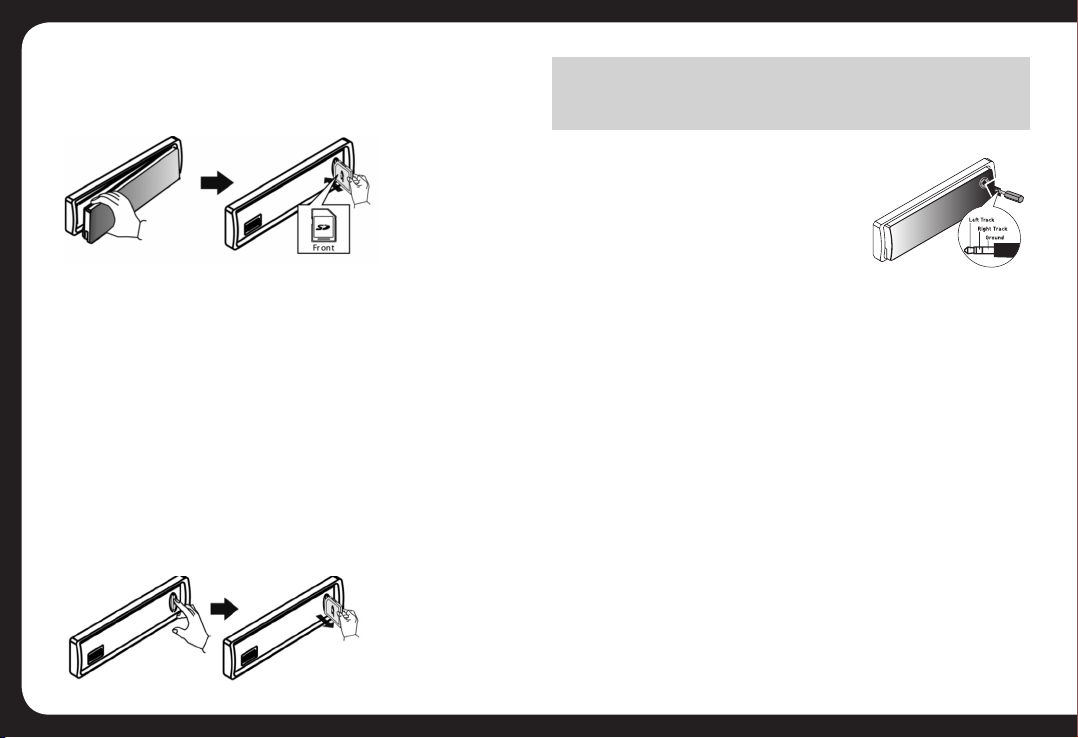
Insert the SD Card
1. Press the OPEN button to remove the front panel.
2. Hold the left hand side of the panel & pull forward to
disengage it from the chassis.
3. Insert the SD card into the slot with label facing left
until a “CLICK” sound is heard.
4. Replace the front panel and the unit will start playing
les from the card automatically.
Removal of the SD Card
Detach the face and press the card until you hear a click
sound. The card is now disengaged. You can then remove
the card.
NOTE
Please ensure that USB devices & SD cards contain WMA or MP3
les only.
USING AUX-IN
Connect the external device to AUX in
jack using a 3.5mm stereo Aux In cable
(not supplied) located on the face, then
press the Source button to select AUX
mode. Press the Source Button again to
select other source options.
BLUETOOTH HANDS FREE & A2DP
STREAMING OPERATION
You can make or receive phone calls with Bluetooth
enabled phones and listen to music from an A2DP
Bluetooth enabled device on the CA-ML500BT.
PAIRING A BLUETOOTH DEVICE
When connecting a Bluetooth device for the rst time,
you will need to pair the device with the unit.
For most devices, pairing only needs to be done once.
Please follow these steps:
1. Ensure Bluetooth is enabled on the phone to be
connected to the unit.
Indice
Altri manuali Fusion Ricevitore per auto

Fusion
Fusion CA-CD800 Manuale utente

Fusion
Fusion CA-IP500 Manuale utente

Fusion
Fusion CA-CD500 Manuale utente

Fusion
Fusion Apollo SRX400 Manuale utente

Fusion
Fusion Apollo MS-SRX400 Manuale utente

Fusion
Fusion CA-CD850 Manuale utente

Fusion
Fusion FCD-100M Manuale utente

Fusion
Fusion RV-CD800 Manuale utente

Fusion
Fusion CA-ML700BT Manuale utente

Fusion
Fusion CA-CD700 Manuale utente


