Garmin DASH CAM 56 Manuale utente

GARMIN DASH CAM™46/56/66W
Owner’s Manual

© 2019 Garmin Ltd. or its subsidiaries
All rights reserved. Under the copyright laws, this manual may not be copied, in whole or in part, without the written consent of Garmin. Garmin reserves the right to change or
improve its products and to make changes in the content of this manual without obligation to notify any person or organization of such changes or improvements. Go to
www.garmin.com for current updates and supplemental information concerning the use of this product.
Garmin® and the Garmin logo are trademarks of Garmin Ltd. or its subsidiaries, registered in the USA and other countries. Garmin Dash Cam™, Garmin Express™, and Travelapse™
are trademarks of Garmin Ltd. or its subsidiaries. These trademarks may not be used without the express permission of Garmin.
The BLUETOOTH® word mark and logos are owned by the Bluetooth SIG, Inc. and any use of such marks by Garmin is under license. microSD® and the microSD logo are trademarks
of SD-3C, LLC. Wi‑Fi® is a registered mark of Wi-Fi Alliance Corporation.

Table of Contents
Getting Started................................. 1
Device Overview...................................... 1
Installing a Memory Card........................1
Installing the Device on Your
Windshield............................................... 3
Connecting the Device to Vehicle
Power....................................................... 5
Setting the Camera Placement.............. 6
Turning On the Device Manually............ 6
Turning Off the Device Manually............ 6
Main Menu............................................... 6
Dash Cam Recording........................ 6
Saving a Video Recording....................... 7
Event Detection....................................... 7
Turning Audio Recording On or Off........ 7
Taking a Photo........................................ 7
Travelapse............................................... 7
Viewing Videos and Pictures............ 8
Saving Unsaved Video Footage............. 8
Deleting a Video or Photo....................... 8
Videos and Photos on Your
Computer................................................. 8
Driver Awareness Features and
Alerts............................................... 9
Forward Collision Warning System........ 9
Lane Departure Warning System......... 10
Go Alert.................................................. 11
Red Light and Speed Cameras............. 11
Voice Control..................................11
Controlling the Camera Using Voice
Commands............................................ 11
Turning Voice Control On or Off........... 12
Voice Control Tips.................................12
Pairing with Your Smartphone........ 12
Viewing Videos and Photos on Your
Smartphone........................................... 12
Trimming and Exporting a Video..........13
Multiple Camera Network..................... 13
Camera Settings in the Garmin Drive
App......................................................... 14
Settings..........................................15
Camera Settings....................................15
Driver Assistance Settings................... 16
System Settings.................................... 16
Device Information......................... 16
Cleaning the Camera Lens................... 16
Product Updates................................... 16
Garmin Support Center......................... 17
Viewing E-Label Regulatory and
Compliance Information....................... 17
Restarting the Device............................ 17
Specifications........................................17
Memory Card Specifications................ 17
Appendix........................................ 18
Recording Videos While Parked........... 18
Troubleshooting............................. 18
My camera feels warm while it is
operating................................................18
My memory card has degraded and
needs to be replaced............................ 19
My video recordings are blurry............. 19
My video recordings are choppy or
incomplete............................................. 19
Index.............................................. 20
Table of Contents i


Getting Started
WARNING
See the Important Safety and Product Information guide in the product box for product warnings and other
important information.
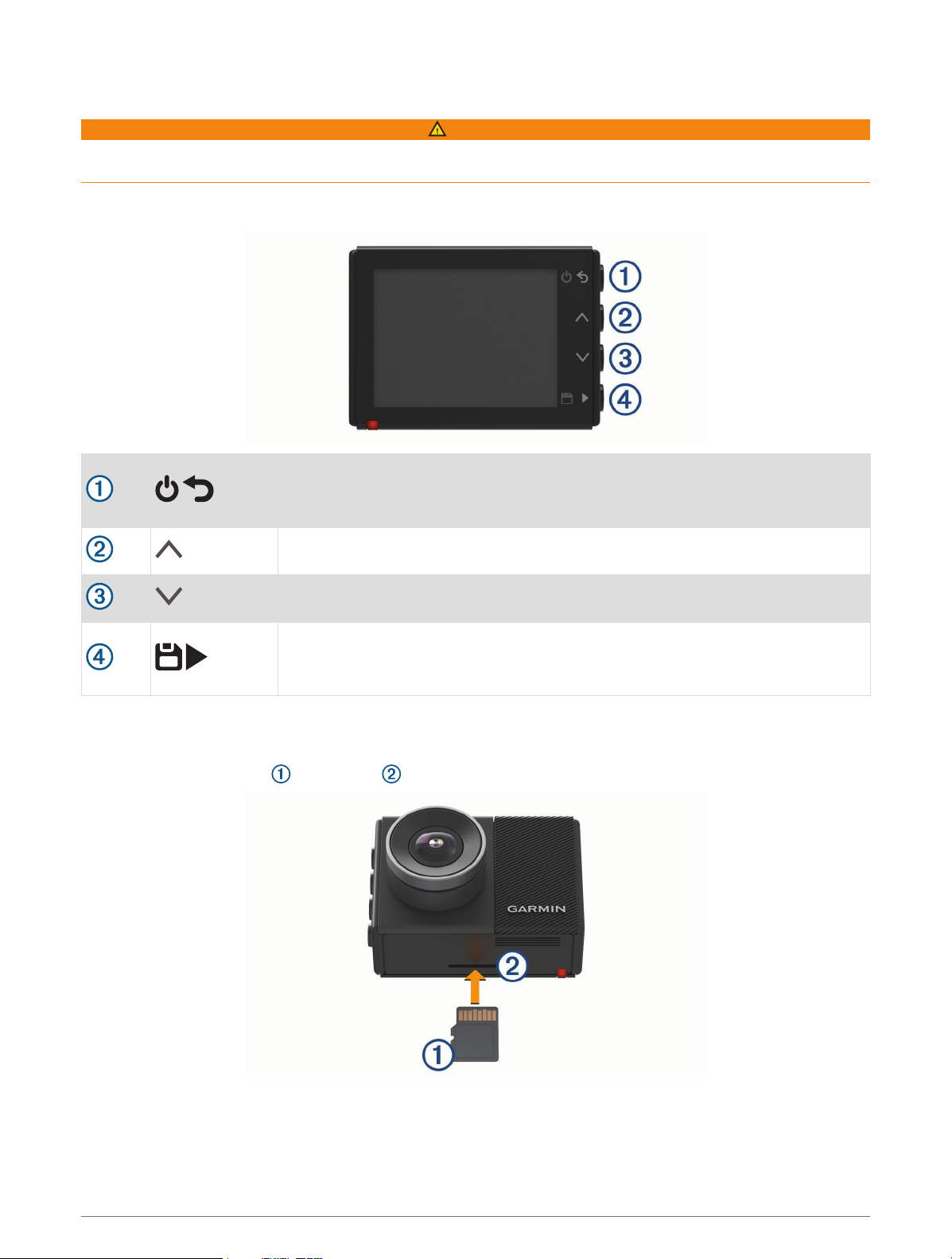
Device Overview
Press to turn the device on.
Hold for 3 seconds to turn the device off.
Select to return to the previous page.
Select to scroll through menus or pages.
From the viewfinder, select to save a photo.
Hold to save a video clip.
Select to choose an option in a menu.
Installing a Memory Card
To record video, you must install a compatible memory card (Memory Card Specifications, page 17).
1Insert the memory card into the slot .
2Press it in until it clicks.
Getting Started 1

Formatting the Memory Card
The camera requires a memory card formatted using the FAT32 file system. You can use the camera to format
your card using this file system.
You should format your memory card at least one time every 6 months to help extend the useful life of the
memory card. You must also format a brand new memory card if it is not formatted using the FAT32 file
system.
NOTE: Formatting the memory card deletes all videos, photos, and data on the card.
1Connect the camera to power.
2Select Settings > Camera > Format Card.
3Keep the camera connected to power until the formatting is complete.
When formatting is complete, the camera displays a message and begins recording.
Removing the Memory Card
NOTICE
Removing the memory card while the device is turned on can result in a loss of data or damage to the device.
1Turn off the device.
2Press the card in until it clicks.
3Release the card.
The card ejects from the slot.
2 Getting Started

Installing the Device on Your Windshield
NOTICE
The adhesive mount is intended for a long-term installation and can be difficult to remove. You should carefully
consider the mounting location before you install the mount.
Before you can install the adhesive mount onto your windshield, the ambient temperature must be from 21° to
38°C (from 70° to 100°F).
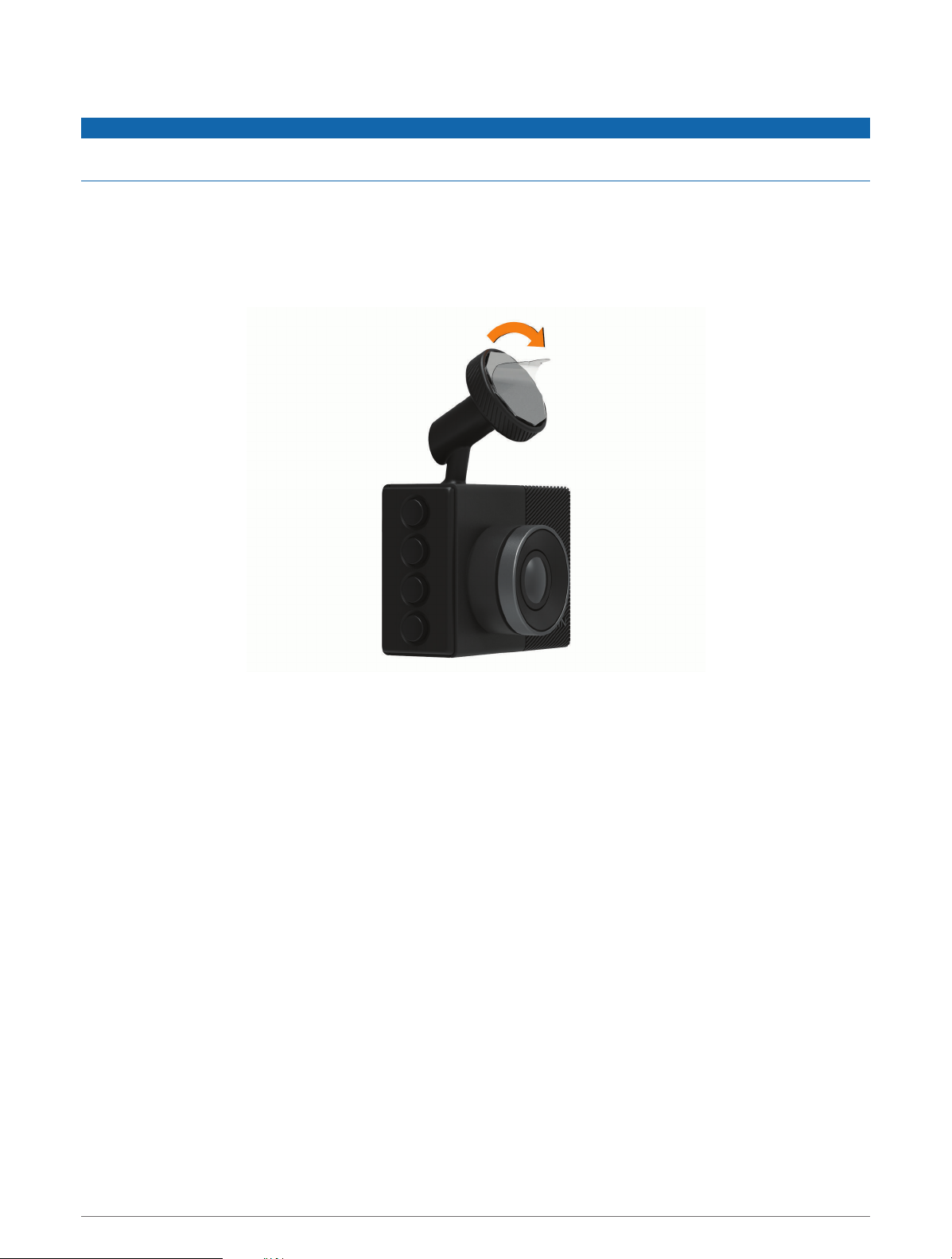
1Clean the windshield using water or alcohol, and a lint-free cloth.
The windshield must be free of dust, wax, oils, or coatings.
2Remove the protective film from the mount adhesive.
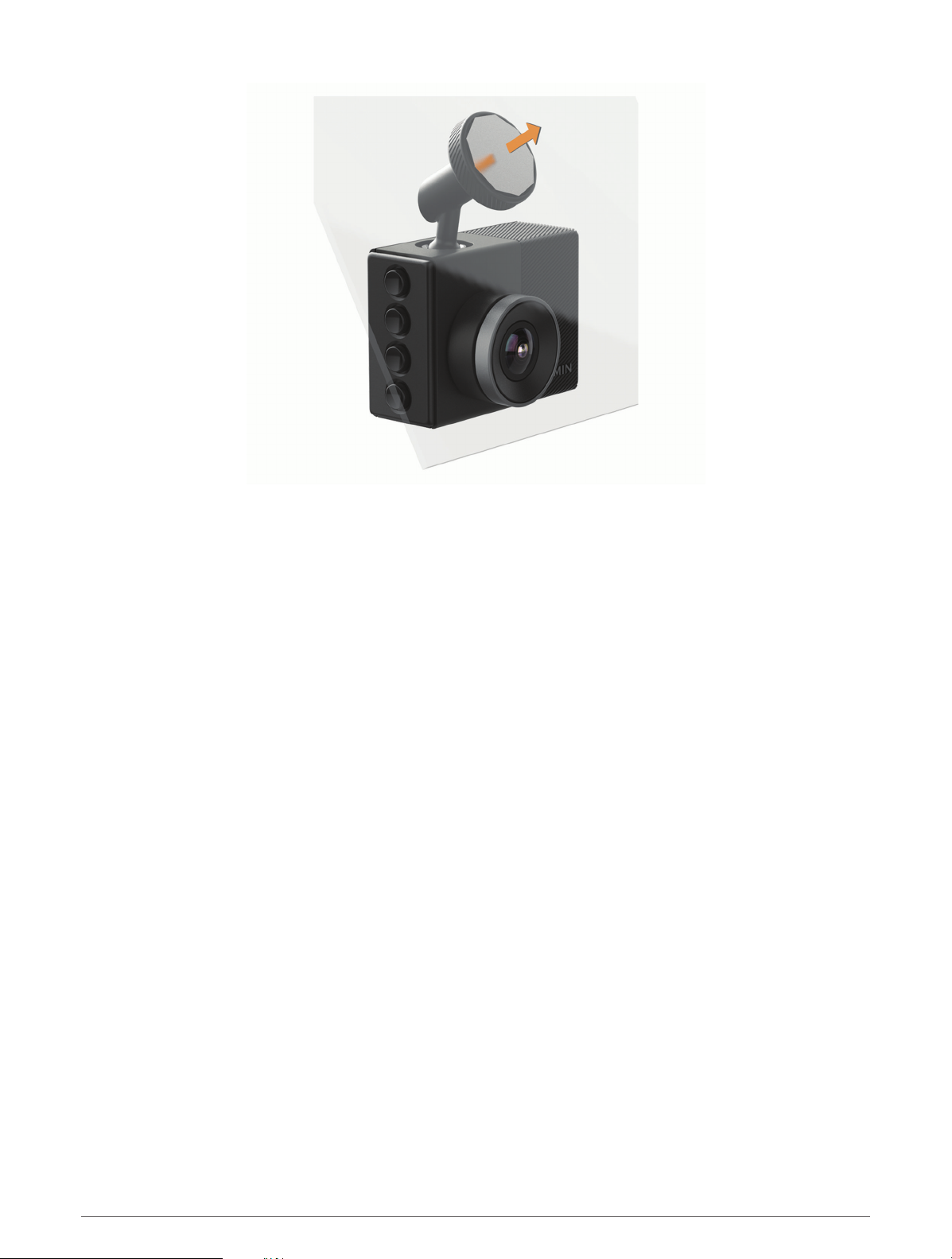
3Position the mount over the mounting location.
TIP: The adhesive is extremely sticky. Avoid touching the adhesive to the windshield until the mount is
properly positioned and aligned.
4Press the mount firmly onto the windshield, and maintain pressure for 30 seconds.
This helps to ensure the mount adhesive has proper contact with the windshield.
Getting Started 3

4 Getting Started

Connecting the Device to Vehicle Power
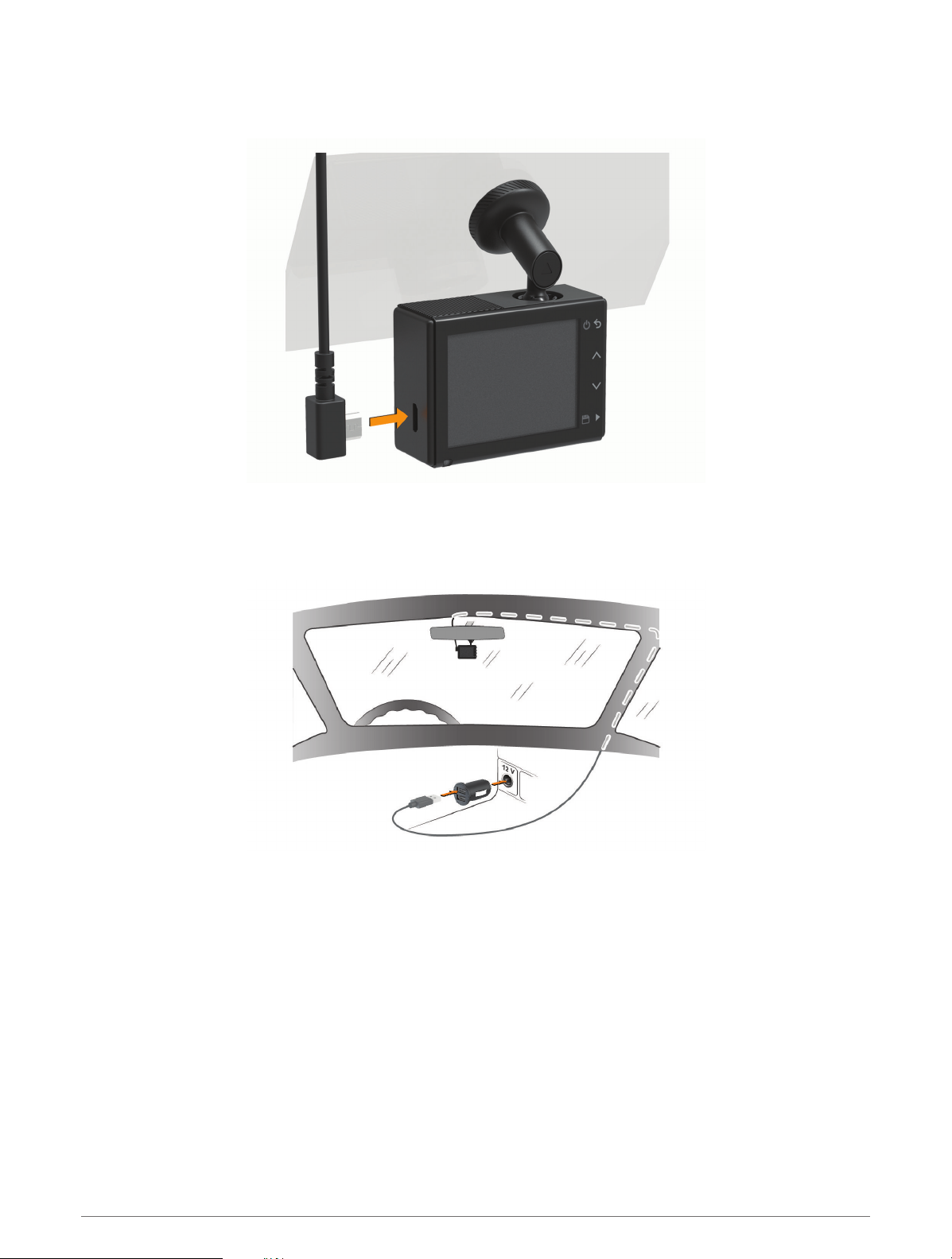
1Plug the power cable into the USB port on the device.
2Route the power cable to your vehicle power outlet.
You can use either of the included cables to provide power to the camera. The longer, lightweight power
cable is designed to be routed out of sight. To hide the 4 m (13 ft.) cable, route it behind the vehicle trim
along the windshield, doorframe, or dash.
3Plug the Garmin Dash Cam power cable into the included power adapter.
4Plug the power adapter into a power outlet in your vehicle.
5If necessary, turn on the vehicle ignition switch to provide power to the power outlet in your vehicle.
The device turns on.
Getting Started 5

Setting the Camera Placement
You can mount the device in the left, center, or right of your windshield. For the best performance, you should
set the Camera Placement option to indicate the location of your device in the vehicle.
1Select Settings > Driver Assistance > Camera Placement.
2Select Horizontal Placement, and select the horizontal placement of your camera.
3Select Vehicle Height.
4Select an option:
• If you are driving a large vehicle, like a full size van or truck, select Tall.
• If you are driving a car, select Normal.
Turning On the Device Manually
Before you turn on the device using battery power, you should fully charge the battery.
NOTE: When the device is connected to an ignition-switched power outlet, it turns on automatically when you
turn on the vehicle.
Select .
The device turns on.
Turning Off the Device Manually
NOTE: When the device is connected to an ignition-switched power outlet, it turns off automatically when you
turn off the vehicle.
Hold for 3 seconds.
The device turns off.
Main Menu
From the viewfinder, press or to scroll through the main menu, and press to open a menu item.
Gallery: Allows you to view and manage recorded video and photos (Viewing Videos and Pictures, page 8).
Travelapse: Allows you to start and stop Travelapse™ recording (Travelapse, page 7).
Voice Control: Allows you to enable and disable the voice control features (Voice Control, page 11).
Garmin Drive App: Allows you to pair your camera with your smartphone and the Garmin Drive™ app (Pairing with
Your Smartphone, page 12).
Settings: Allows you to set up camera features, change system settings, and view system information (Settings,
page 15).
Dash Cam Recording
NOTICE
Some jurisdictions regulate or prohibit use of this device. It is your responsibility to know and comply with
applicable laws and rights to privacy in jurisdictions where you plan to use this device.
The dash cam records video to the camera memory card (Installing a Memory Card, page 1). By default, the
device immediately starts recording video when it turns on, and it continues recording until it is turned off. If the
memory card is full, the device automatically deletes the oldest unsaved video to create space for new video.
When the option to promptly delete unsaved video is enabled, the device continually deletes unsaved video
more than three minutes old and deletes all unsaved video each time it is powered off. This feature is available
only for specific regions and is enabled by default for some of those regions. When the camera is set to a
supported region, you can enable or disable this feature in the camera settings (Camera Settings, page 15).
You can save a video recording to prevent it from being overwritten or deleted (Saving Unsaved Video Footage,
page 8).
6 Dash Cam Recording
Questo manuale è adatto per i seguenti modelli

2
Indice
Altri manuali Garmin Macchina fotografica digitale

Garmin
Garmin BC 40 Manuale di istruzioni

Garmin
Garmin XERO G1 Manuale di istruzioni

Garmin
Garmin GDR 190 Manuale utente

Garmin
Garmin GC 200 Manuale utente

Garmin
Garmin VIRB Ultra 30 Manuale di istruzioni

Garmin
Garmin BC 20 Manuale utente

Garmin
Garmin BC 40 Manuale utente

Garmin
Garmin GC 14 Manuale utente

Garmin
Garmin VIRB Series Manuale utente

Garmin
Garmin GC 12 Manuale utente