
Gigafast EE400-R Manuale utente

EE-400R Broadband Router
User Manual
1

Copyright
The contents of this publication may not be reproduced in any part or as a whole, stored,
transcribed in an information retrieval system, translated into any language, or transmitted in
any form or by any means, mechanical, magnetic, electronic, optical, photocopying, manual, or
otherwise, without the prior written permission.
Trademarks
All products, company, brand names are trademarks or registered trademarks of their
respective companies. They are used for identification purpose only. Specifications are
subject to be changed without prior notice.
Copyright© 2004, GigaFast Inc., All Right Reserved
2

FCC Interference Statement
This equipment has been tested and found to comply with the limits for a Class B digital device
pursuant to Part 15 of the FCC Rules. These limits are designed to provide reasonable
protection against radio interference in a commercial environment. This equipment can
generate, use and radiate radio frequency energy and, if not installed and used in accordance
with the instructions in this manual, may cause harmful interference to radio communications.
Operation of this equipment in a residential area is likely to cause interference, in which case
the user, at his own expense, will be required to take whatever measures are necessary to
correct the interference.
CE Declaration of Conformity
This equipment complies with the requirements relating to electromagnetic compatibility, EN
55022/A1 Class B, and EN 50082-1. This meets the essential protection requirements of the
European Council Directive 89/336/EEC on the approximation of the laws of the member
states relation to electromagnetic compatibility.
3

Table of Content:
Chapter 1
Features
Package Content
Requirement
Panel
Wire diagram
Chapter 2
Quick install
Chapter 3
Basic Configuration
Chapter 4
Advanced Configuration
Chapter 5
Frequently Asked Questions (FAQ)
Appendix A: Cabling and Pin Assignment
Appendix B: Technical Information
4
Introduction
Congratulations on your purchase of this outstanding Broadband Router EE-400R. This
product is the perfect option to connect a group of PCs to a high-speed Broadband Internet
connection or to an Ethernet based Backbone (ETTH/ETTB: Ethernet to the Home/Building).
Configurable as a DHCP server, this product is the only externally recognized server device on
your local area network (LAN). Thus even a non-technical person will easily configure it to
meet other popular applications.
This product does not only provide a complete solution to share the Internet bandwidth, it also
serves as an Internet Firewall to protect your LAN data from being accessed by outside
intruder/hacker. Since all incoming data packets can be analyzed or monitored, all unwanted
packets may be filtered-out and be recorded as an intrusion event. EE400-R can also be
configured to block some internal LAN user’s access to the Internet for management purpose.
Secure InternetAccess via Cable/DSL Modem.
Chapter 1 - Features
zConnects to 10/100M Broadband (cable or DSL) modem or Ethernet backbone for
Internet Surfing.
zMultiple WAN connection type:
Static IP : for lease line or router-router interconnect.
DHCP client : for most cable modem service.
PPPoE : for Dial-up ADSL service,
PPTP client : for some European Dial-up ADSL or L2-VPN application
zEquipped with a 4-port 10/100M switched Hub for LAN users.
zDHCP Server/ DNS proxy support (can save an extra PC/Server in LAN).
All the networked computers in LAN can retrieve TCP/IP setting (IP address, subnet
mask, gateway, DNS) automatically from this device.
zSimultaneously act as both DHCP Server on the LAN and a DHCP Client on the
WAN for most easy application.
zConnects multiple LAN PCs to the Internet with only one dynamic-assigned IP
address (NAT mode) or a range of legal IP address (NAT/Routing mode)
5

zWeb-based configuring
it is configurable through any networked computer’s web browsers using Internet
Explorer or Netscape browser.
zAllow/Deny remote administration through WAN connection by Web browser.
zFirewall capability to protect LAN PCs from outside intruder access/attack.
Avoid unwanted packet from WAN (Wide Area Network) and provide a system event
log to record intrusion information. (Date/Time, Source IP address & Port)
zLAN user Access privilege
Administrator can arrange interior LAN user’s access privilege to Internet by IP address,
TCP/IP port service, URL name keywords and 24-hour time zone.
zVirtual Server (Port forwarding) function
Internet servers (WWW, FTP, E-mail …) in LAN could be virtually exposed to WAN for
outside Internet user access. This is a useful and secure network deployment for
Internet servers.
zDMZ (De-Militarized Zone) Host
Administrator can expose a host PC in LAN to the Internet without any firewall
protection mechanism. This option allows a full two-way communication between the
local host PC and remote Internet node. (ex. bi-directional games, video/audio
conferences …)
zMulti DMZ Host support
In static IP configuration with a range of legal IP address, Administrator could totally
expose more host PCs in LAN to the Internet according to LAN/WAN IP address
mapping.
Package Content
zOne EE-400R
zOne power adapter
zOne Warranty card
zOne paper manual OR one manual CD
Requirement
zOne Ethernet based broadband Internet connection (Cable/ADSL modem or other
router)
zOne PC with a network card and TCP/IP protocol stack Installed
zMicrosoft Internet Explorer browser (V.4.75 or above)
6

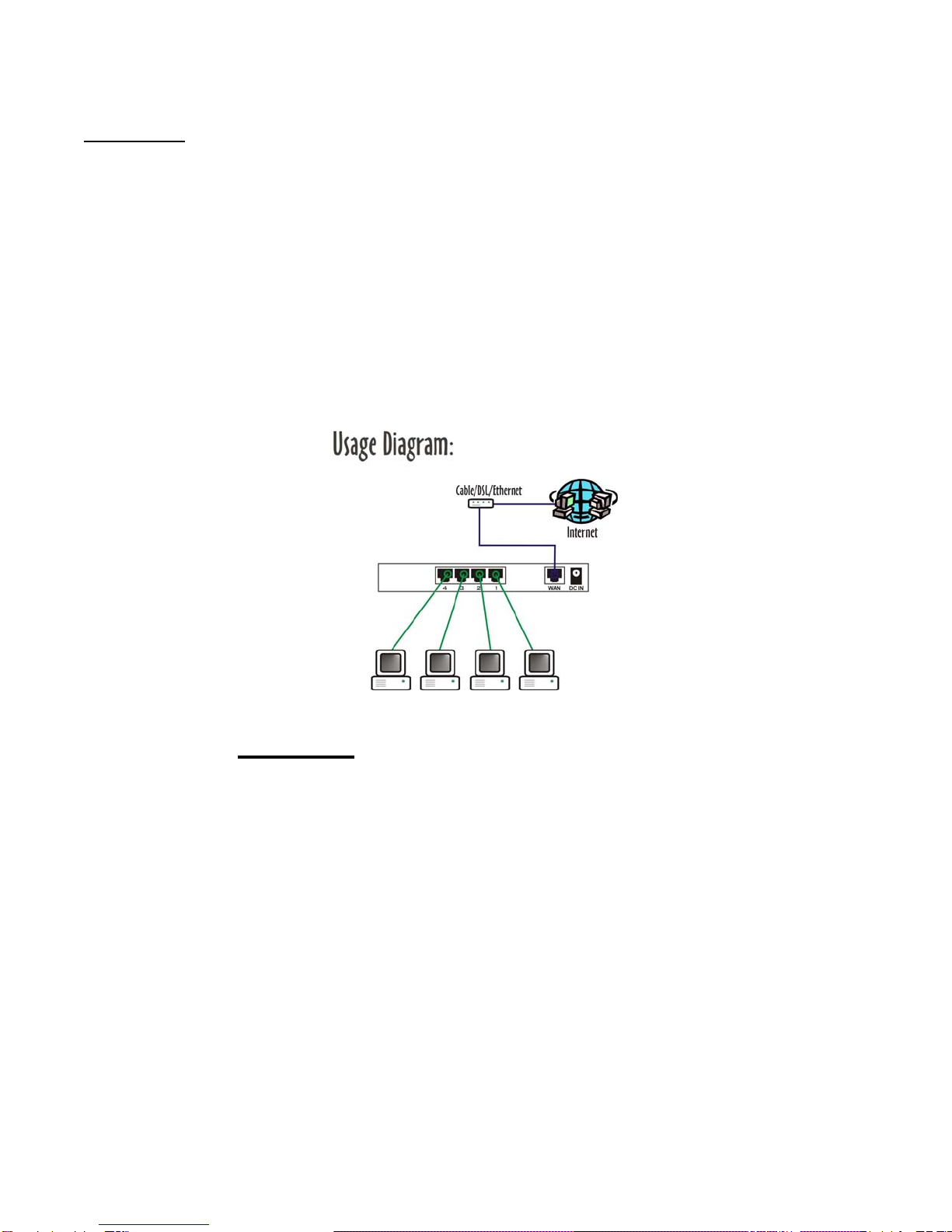
Panel – Wire Diagram
•The modem should be connected to the router’s WAN port with an Ethernet cable(Cat
5/Cat 5e)
•Power adapter should be connected to the power port on the router
•Computers are to be connected to port 1-4 on the router (Typically with a straight
through cable Cat 5/Cat 5e)
7

Chapter 2 - Quick install
The following steps are setup processes for most common broadband internet service
providers.
This section will be divided into three parts. Part one is for cable internet setup, part two is for
DSL internet setup and part three is for Macintosh Users.
*Note* the http://192.168.8.1 is the main console page for the EE-400R. Internet connection
is NOT required upon installation of this router. Any computer that is connected to the router’s
port 1-4 is capable of changing the settings on the router. It does not have to be a designated
port or computer to change the settings of the router.
Before you start
Make sure the internet connection from your ISP is working. Check to see if there is a
connection coming through your ISP (modem) to your computer. Also, check and see if the
lights are properly on when the router is connected with the computer(s) and the modem.
Part 1 Cable internet setup
Section 1
1. Turn off the cable modem and the router
2. Connect an Ethernet cable from the cable modem to the WAN port of the router
3. Connect your computers to ports 1-4 on the router
4. Power on the router
5. Power on the modem
6. Power on your computer
*Note* Make sure the WAN LED light and ports 1-4 LED lights are ON at the front panel of
the router.
Section 2
1. At the desktop (Windows based Operating System). Go to ‘Start’ > ‘Run’ and input
this address: http://192.168.8.1 and press ‘enter’
2. Your internet browser should automatically open up the ‘Broadband Router’ page
Example:
8
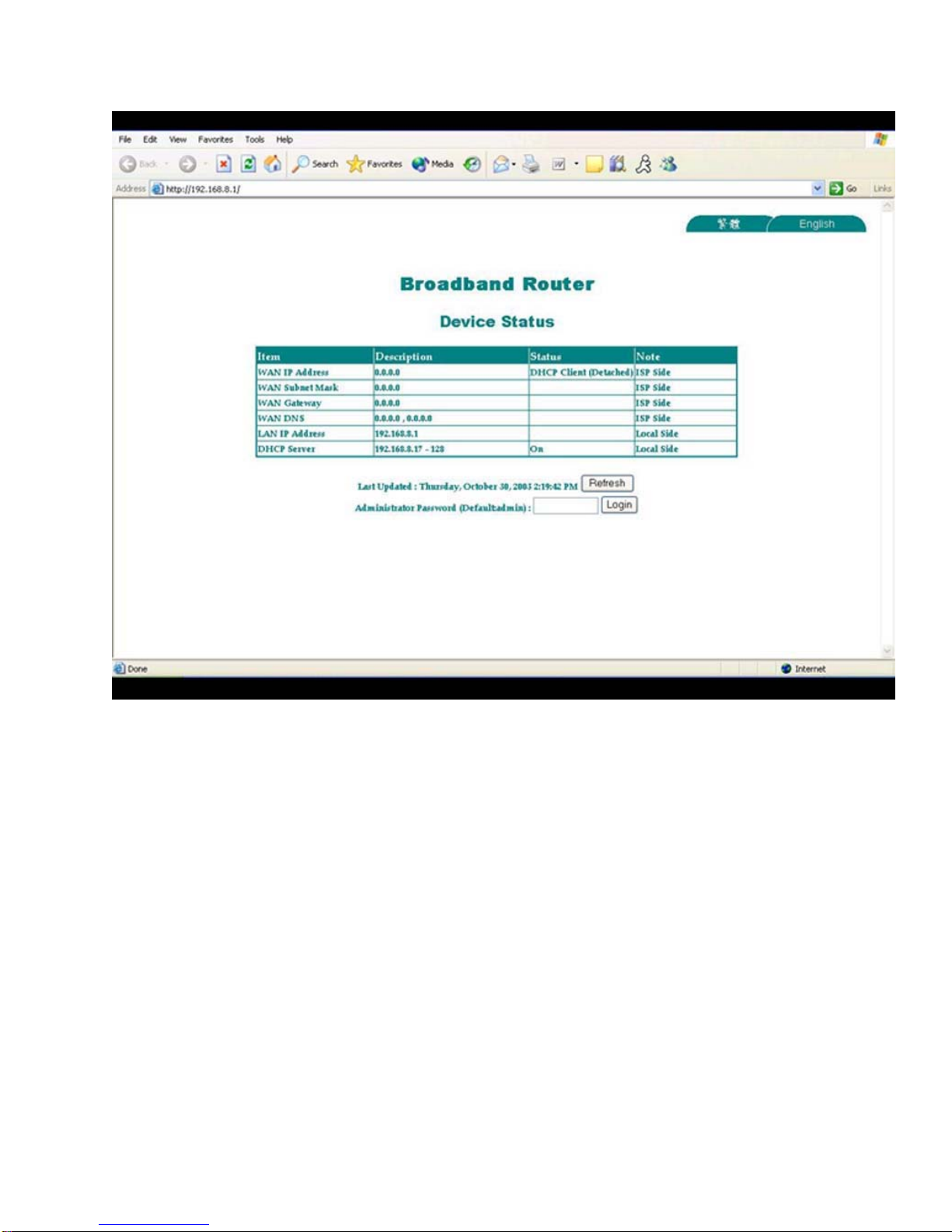
3. The password for the Administration Password is ‘admin’. It is case sensitive so
make sure the CAPS key is not on. Once ‘admin’ is entered, click on ‘Login’ to enter
the router’s configuration page.
*Note* Make sure the ‘WAN IP address’, ‘WAN Subnet Mask’, ‘WAN Gateway’, and ‘WAN
DNS’ are filled with numbers. This indicates that the router is communicating with the modem
(your ISP). If you are able to get those numbers, most likely you’re on the internet.
*Note* the next step is for those who can log onto the router page but cannot get an internet
connection through the ISP. (WAN IP addresses all show 0’s)
9

4. The page should look like this after you have logged onto the next page. The next step
is to click on the ‘Administration’ to the left side of the
screen.
10
Altri manuali per EE400-R
2
Indice
Altri manuali Gigafast Router wireless


