
Gira 0529 00 Manuale utente

Gira HomeServer
0529 00
Gira FacilityServer
2075 00
Gira HomeServer/FacilityServer
RemoteVisu


3
05.2012/V 1.2
Contents
1 Introduction ........................................................................................... 5
1.1 General Information........................................................................................ 6
1.2 Operating devices........................................................................................... 7
1.3 System requirements ..................................................................................... 7
1.4 Area of application ......................................................................................... 7
1.5 Specifics ......................................................................................................... 8
1.6 Installation ...................................................................................................... 8
2 RemoteVisu............................................................................................ 9
2.1 Sample project ............................................................................................... 9
2.1.1 Scope of sample project................................................................................. 9
2.2 Start-up........................................................................................................... 10
2.2.1 Setup .............................................................................................................. 10
2.2.2 Page size ........................................................................................................ 11
2.2.3 Popup page .................................................................................................... 12
2.2.4 Transferring a project ..................................................................................... 12
2.3 Starting visualisation ...................................................................................... 13
2.3.1 Start files......................................................................................................... 13
2.3.2 Variants B1, B2 parameters............................................................................ 15
2.3.3 Cookies........................................................................................................... 15
2.4 Media Center.................................................................................................. 16
2.4.1 RemoteVisu.mcl ............................................................................................. 16
2.4.2 Install_RemoteVisu......................................................................................... 17
2.4.3 Uninstall_RemoteVisu .................................................................................... 17
2.4.4 Button assignment ......................................................................................... 17
2.5 Safety ............................................................................................................. 20
2.6 Reconnect and Refresh .................................................................................. 20
2.7 Login variants ................................................................................................. 21
2.7.1 Login type 1.................................................................................................... 21
2.7.2 Login type 2.................................................................................................... 21
2.7.3 Login type 3.................................................................................................... 21
2.7.4 Login behaviour.............................................................................................. 22
2.8 Login mask, fields .......................................................................................... 22
2.8.1 User name ...................................................................................................... 22
2.8.2 Password........................................................................................................ 22
2.8.3 Design ............................................................................................................ 22
2.8.4 Refresh time ................................................................................................... 23
2.8.5 Save information ............................................................................................ 23
2.8.6 Log in.............................................................................................................. 23
2.8.7 5th parameter................................................................................................. 23
2.9 Installed files................................................................................................... 24

405.2012/V 1.2
2.10 Graphics files.................................................................................................. 24
2.10.1 ax0.gif ............................................................................................................ 24
2.10.2 num_bg.png................................................................................................... 24
2.10.3 mark1.png...................................................................................................... 25
2.10.4 mark2.png...................................................................................................... 25
2.10.5 hide3.png ....................................................................................................... 25
2.10.6 hide4.png ....................................................................................................... 25
2.10.7 Selection of marking ...................................................................................... 25
2.11 Javascript files................................................................................................ 26
2.12 HTML files...................................................................................................... 26
2.13 Login masks................................................................................................... 26
Introduction
5
05.2012/V 1.2
1. Introduction
The RemoteVisu provides you with an operating interface for the HomeServer and
FacilityServer that is optimally matched to the use of the visualisation on the Windows Media
Center and Internet Explorer.
Operation is carried out with the Media Center remote control. As an option, the Windows
Media Center can be operated with an XBox 360 and the wireless XBox 360 wireless
controller (see below).
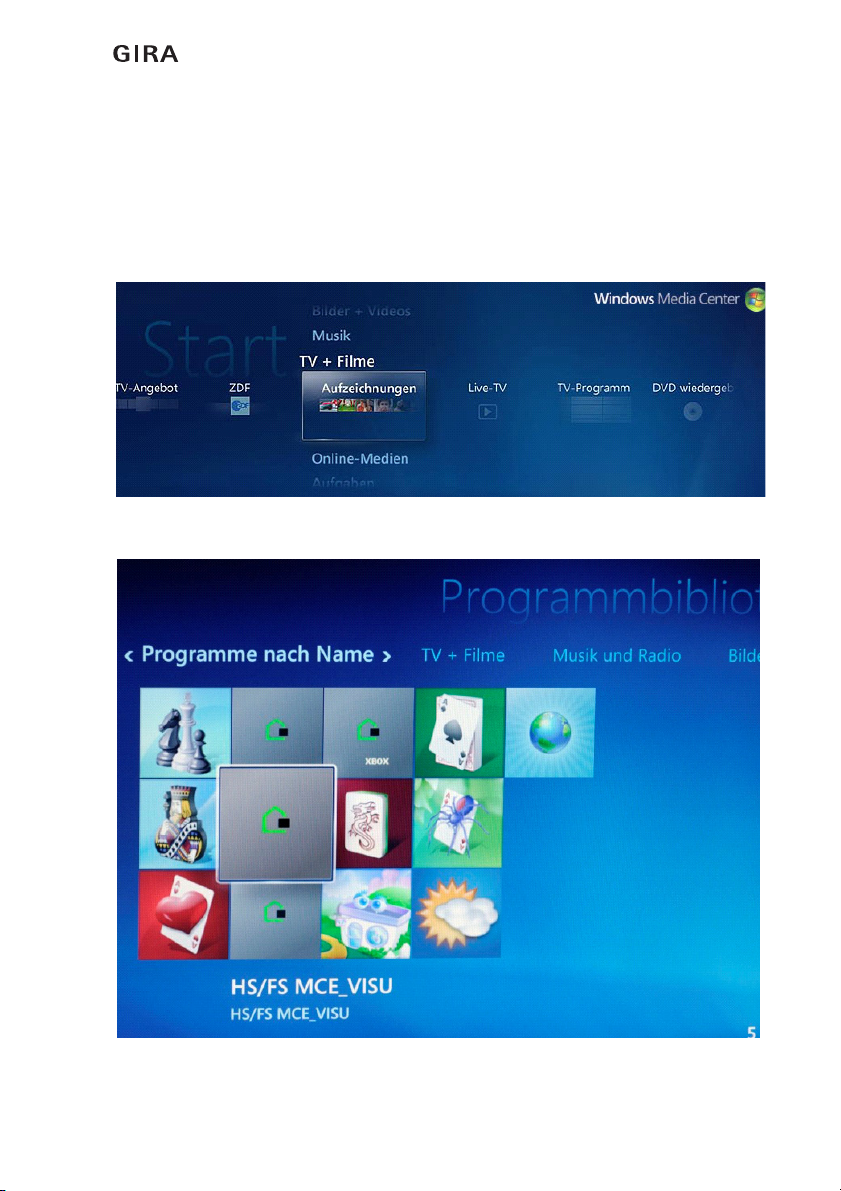
Figure 1.1: Windows Media Center for Windows XP or Windows Vista
Figure 1.2: Media Center - Section with four integrated HS links

Introduction
605.2012/V 1.2
Figure 1.3: Resolution 1680x1050: Internet Explorer (without upstream MCE). The browser should
be operated in the full-screen mode.
1.1 General Information
The information, data, values, etc. contained in these documents may be changed without
prior notification. The illustrations are also non-binding.
Subject to technical modifications!
i
Note: Up-to-date information is available on the Gira website.
As the software for the device purchased by you is being continuously further developed
and updated, information in this manual may no longer be up-to-date.
Current product information is always available on the Gira website:
www.gira.com
Current software updates and documentation for your product are also available.

Introduction
7
05.2012/V 1.2
1.2 Operating devices
RemoteVisu can be operated using the following operating devices:
– MS Media Center IR Remote Control for the Windows Media Center or only for the
Internet Explorer
– XBox 360 wireless controller As an option, the Windows Media Center of a PC can
be operated with an XBox 360.
1.3 System requirements
The following is required for using the RemoteVisu:
– HomeServer or FacilityServer.
– Expert software from Version 2.2.071114 (from 14/11/2007 or newer)
– HomeServer or FacilityServer firmware from Version 2.2.071114 (from 14/11/2007
or newer)
– Windows Media Center (on Windows XP or Windows Vista) or Internet-Explorer on
the operating device
1.4 Area of application
The RemoteVisu expands the existing HomeServer/FacilityServer visualisation functions.
Any other use of the device and software is not permitted. Gira shall assume neither legal
responsibility nor a warranty of any kind for errors and damage resulting from the improper
use of the device and/or the related software.
The areas Menu, Query and Seven-day time clock mask are not included in the scope of
the application.

Introduction
805.2012/V 1.2
1.5 Specifics
The RemoteVisu comprises the option of defining different sized visualisation pages.
A visualisation page can be opened as a popup mask.
No additional design is required for the RemoteVisu in a project. The layout is determined by
the visualisation program.
1.6 Installation
The RemoteVisu is a component of the HomeServer/FacilityServer Expert software and is
automatically installed with it.

RemoteVisu
9
05.2012/V 1.2
2. RemoteVisu
2.1 Sample project
A sample project is included with the HomeServer/FacilityServer Expert software. The name
of the sample project is:
sample-yyyymmdd-rv.de
Here "yyyymmdd" stands for the date of the respective file.
2.1.1 Scope of sample project
Two resolutions can be selected in the sample project:
1680 x 1050 and 1024 x 768.
The following visualisation masks are available:
– Graph overview
– Camera image overview
– Ground plan of grounds with light, blind and courtyard gate
– Ground floor, switchable elements: light, blind, temperature, universal time clock
(UTC)
– Upper floor, switchable elements: light, blind, temperature, temperature, universal
time clock
The following popups are available:
– Blind control
– Value entry
–Graphs
– Camera images
–UTC
– Camera archive
– Buddy list
– Message archive
– Holiday calendar
– Public holiday calendar
– Date and time entry
i
Note: Design MCE1680.
The design MCE1680 used in the sample project is only suitable for working with the
RemoteVisu.
The elements used in other designs (e.g. gira1024v) are not present here.
RemoteVisu
10 05.2012/V 1.2
2.2 Start-up
2.2.1 Setup
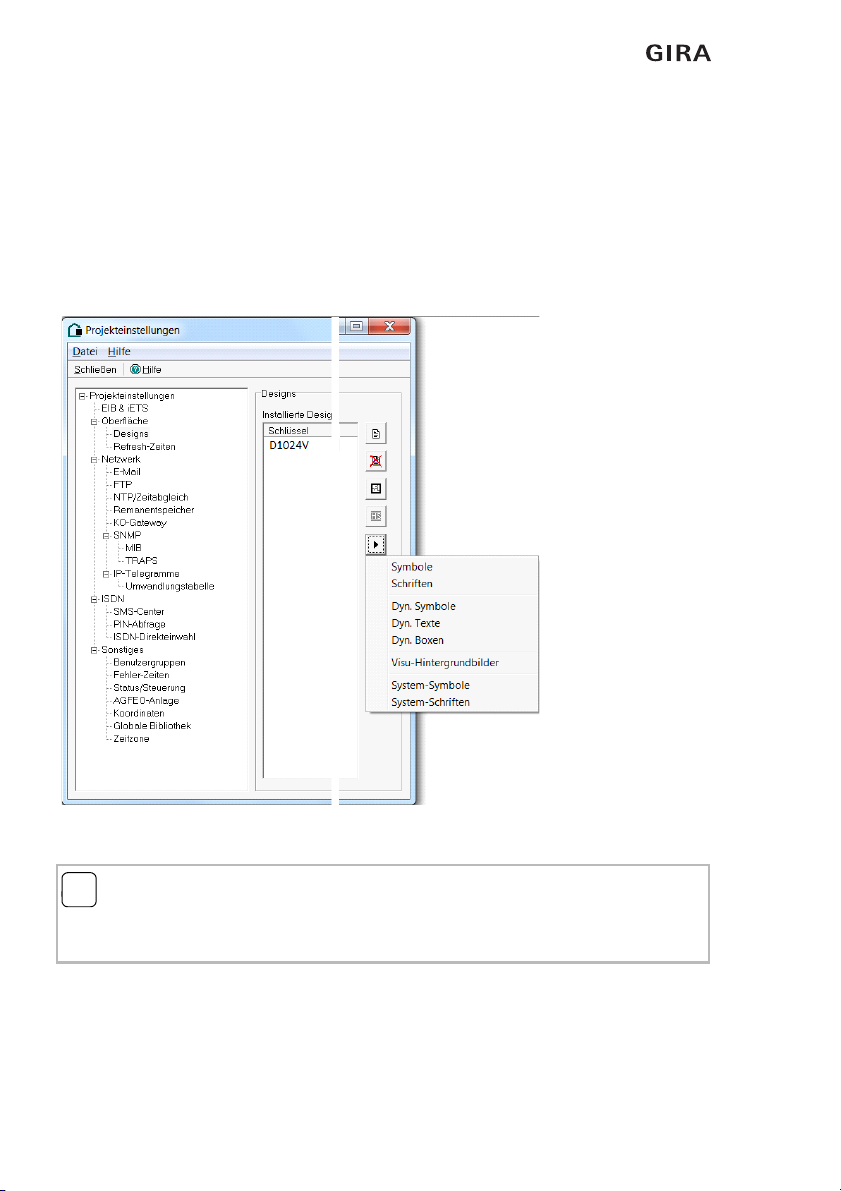
Existing projects can be expanded with the HomeServer AjaxVisu without an additional
design. Open the menu item Setup in the Expert. Create the following two symbols in the
Project settings mask (see Image 2.1). The image ID is decisive for the definition.
– Image ID: XXPAGE
– Image ID: XXPOPUP
The symbols can be assigned any name. However, using expressive names is advisable.
Figure 2.1 Creating two symbols under "Project settings"
i
Note: Do not create by copying or duplicating.
Please note that the two symbols cannot be created by copying or duplicating another
symbol!
Altri manuali per 0529 00
1
Questo manuale è adatto per i seguenti modelli
1
Indice
Altri manuali Gira Portale


Manuali Portale popolari di altre marche

LST
LST M500RFE-AS Manuale utente

Kinnex
Kinnex Media Gateway Manuale utente

2N Telekomunikace
2N Telekomunikace 2N StarGate Manuale utente

Mitsubishi Heavy Industries
Mitsubishi Heavy Industries Superlink SC-WBGW256 Manuale utente

ZyXEL Communications
ZyXEL Communications ZYWALL2 ET 2WE Manuale utente

Telsey
Telsey CPVA 500 - SIP Manuale utente


