
gofanco QuadView4K Manuale utente

4K30 4x1 HDMI
Multi-Viewer
User's Guide
G4-0152A
P/N: QuadView4K

2
Thank you for purchasing from gofanco. Our products
aim to meet all your connectivity needs wherever you
go. For optimum performance and safety, please read
the instructions carefully and keep this User's Guide for
future reference. If you need more information about
our products, please visit www.gofanco.com. For
For drivers or manual download, please go to
www.gofanco.com/downloads.
Important Safety Notices
Pleasereadsafetyinstructionscarefullybeforeinstallation
and operation.
• Please pay close attention to all warnings and hints
for this device
• Do not expose this unit to rain, heavy moisture, or
liquid
• Do not put any items into the device or attempt to
modify its operation
• Do not repair the device or open the enclosure
without professional guidance to avoid electric
shocks. Doing so may void your warranty
• Keep the product in a well-ventilated location to
avoid damage from overheating
• Shut off power and make sure environment is safe
before installation
• Do not plug the HDMI cables in/out when the
device is in use to avoid cable damage. Make sure
they are plugged into the correct ports

3
Introduction
The 4K30 4x1 HDMI Multi-Viewer allows you to view
four HDMI source devices on an HDMI display.
Features
• Simultaneously view four video sources on a
display
• Supports Quad, Triple, Dual, and Single/Full
screen modes
• Supports seamless switching
• Supported resolutions: 4K @30Hz, 1080p, 720p
• Control methods: Remote control and front panel
button
• Simple Plug & Play installation
PackageContents
• 4K30 4x1 HDMI Multi-Viewer
• Power adapter (5V/1A)
• Remote control
• RS232 cable
• User guide
Installation Requirements
1. HDMI source devices (DVD player, set top box, PC,
etc.)
2. HDMI display device (SDTV/Monitor, HDTV/
Monitor, projector, etc.)

4
Product Layout
Figure 1: 4K30 Multi-Viewer Layout
1. HDMI Inputs (1-4): Connect to your HDMI sources
using HDMI cables (HDMI cables not included)
2. Power Jack: Connect to the included power adapter
3. Video Mode Button: Press to select the video output
mode - see Video Mode on page 6 for more
information
4. Audio Button: Press to select the audio mode - see
Audio Selection Button of page 9 for more
information
5. IR Window: Receives IR signals from the included
remote control
6. RS232: Connects to your PC's serial port using the
included RS232 cable for PC control
7. HDMI Out: Connects to your HDMI display using
an HDMI cable (HDMI cable not included)

5
Hardware Installation
1. PoweroffalldevicesincludingyourHDMIsource(s)
and HDMI display.
2. Connect your HDMI source device(s) to the HDMI
In connectors with HDMI cables (HDMI cables not
included).
3. Connect your HDMI display to the HDMI Out
connector with an HDMI cable (HDMI cable not
included).
4. Plug the included power adapter into the Multi-
Viewer's power jack, then plug the power adapter
into a reliable power outlet.
5. Power on all devices.
6. The Multi-Viewer is ready for use.
ConnectionDiagram
The diagram shows the typical devices used with the
Multi-Viewer.
Figure 2: Connection Diagram

6
Device Control
Video Mode Button
There are four main modes: Quad, Triple, Dual, Single/
Full Screen. Within each mode there are sub-modes to
which you can choose screen positions. Use the video
mode button, located on the front panel or included
remote control, to select the video sub-mode.
Video Sub-mode Selection Order
1. Single View: Input 1
2. Single View: Input 2
3. Single View: Input 3
4. Single View: Input 4
5. Up/Down Full Screen: Input 1 & Input 2
6. Up/Down Standard Screen: Input 1 & Input 2
7. Up/Down Full Screen: Input 3 & Input 4
8. Up/Down Standard Screen: Input 3 & Input 4
9. Side by Side Full Screen: Input 1 & Input 2
10. Side by Side Standard Screen: Input 1 & Input 2
11. Side by Side Full Screen: Input 3 & Input 4
12. Side by Side Standard Screen: Input 3 & Input 4
13. PIP: Input 1 & Input 2
14. PIP: Input 2 & Input 1
15. PIP: Input 3 & Input 4
16. PIP: Input 4 & Input 3
17. 3 Screens (Portrait): Inputs 1-2-3
18. Quad (1 lg x 3 sm): Input 1 & Input 2, 3, 4
19. Quad (1 lg x 3 sm): Input 2 & Input 1, 3, 4
20. Quad (1 lg & 3 sm): Input 3 & Input 1, 2, 4
21. Quad (1 lg & 3 sm): Input 4 & Input 1, 2, 3

7
22. Quad "H": Input 1, Input 2& 3, Input 4
23. 2x2 Standard Quadview: Input 1/ Input 2 & Input
3/Input 4
Video Sub-Modes
Left and Right Dual
Single Screen

8
Up and Down Dual
3x1 Mode
One Large and Three Small

9
Four "H" Mode
Standard Quadview Mode
Audio Selection Button
Use the Audio button, located on the front panel, to
select the audio mode in order: Input 1, Input 2, Input 3,
Input 4, Mute.
10
1
2
3
4
5
6
7
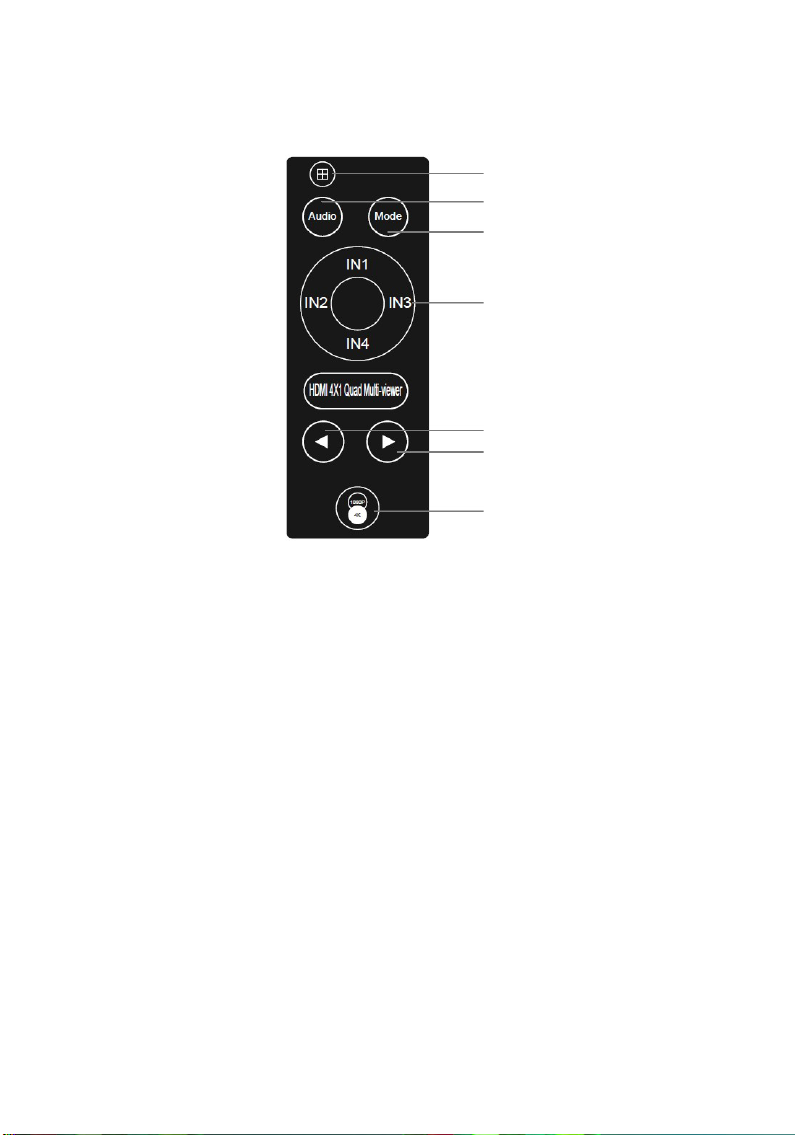
Remote Control
1. Four Pictures: Press to select quadview mode
2. Audio: Press to select audio mode, in order - Input
1, Input 2, Input 3, Input 4, Mute
3. Mode: Press to select between the different video
modes - see page 6 for more information
4. Input 1-4: Press to select an input device to display
in single screen mode
5. Back Button: Press to select the previous input
source
6. Next Button: Press to select the next input source
7. ResolutionButton:Pressto select resolution output,
in order - 720p, 1080p, 4K30
Questo manuale è adatto per i seguenti modelli
1
Indice


