
Good Way DU24A0 Manuale utente

High-Speed
USB 2.0 Docking Station
User’s Manual

High-Speed USB 2.0 Docking Station
ABOUT THIS MANUAL
This manual is designed for use with the High-Speed USB 2.0 Docking Station. Information in this document
has been carefully checked for accuracy; however, no guarantee is given to the correctness of the contents.
The information in this document is subject to change without notice. The manufacturer does not make any
representations or warranties (implied or otherwise) regarding the accuracy and completeness of this
document and shall in no event be liable for any loss of profit or any commercial damage, including but not
limited to special, incidental, consequential, or other damage.
SAFETY INSTRUCTIONS
Always read the safety instructions carefully:
Keep this User’s Manual for future reference
Keep this equipment away from humidity
If any of the following situation arises, get the equipment checked by a service technician:
zThe equipment has been dropped and damaged.
zThe equipment has obvious sign of breakage.
zThe equipment has not been working well or you cannot get it to work according to the User’s Manual.
COPYRIGHT
This document contains proprietary information protected by copyright.All right are reserved. No part of this
manual may be reproduced by any mechanical, electronic or other means, in any form, without prior written
permission of the manufacturer.
TRADEMARKS
All trademarks and registered trademarks are the property of their respective owners or companies.
i

Table of Contents
Table of Contents
1. Introduction.......................................................................................................1
Features..............................................................................................................2
Package Contents...............................................................................................2
System Requirements.........................................................................................2
LED Status..........................................................................................................2
2. Installation.........................................................................................................3
On Windows 2000 ..............................................................................................3
On Windows XP..................................................................................................5
On Windows Vista...............................................................................................7
Connecting the Docking Station..........................................................................9
Checking Device Installation.............................................................................10
Self-Power Mode vs Bus-Power Mode .............................................................11
3. Operation Notes About the Ports...................................................................12
4.Specifications...................................................................................................13
5. Regulatory Compliance..................................................................................15
FCC Conditions ................................................................................................15
CE.....................................................................................................................15
WEEE Information ............................................................................................15
ii

High-Speed USB 2.0 Docking Station
1. Introduction
This USB 2.0 Docking Station is a unique expansion unit specially designed to
accompany notebook or desktop PC, which has extra connectivity demands. With
only one USB port required from a notebook/desktop PC, not only USB but also
conventional RS-232 serial port, Stereo output port, LAN peripheral devices can be
accessed freely.
The USB 2.0 Docking Station allows you to add multiple high-performance USB 2.0
peripheral devices to your PC. Moreover, this product is fully backwards compatible
with the USB Revision 1.1 products, which means your previous USB 1.1 devices
can continue to function as well. You also can add additional hubs and devices of up
to 127 devices.
1

High-Speed USB 2.0 Docking Station
Features
Connect your notebook to your peripherals with just one USB plug
Four spaced USB 2.0 ports allow you to connect multiple USB devices such as
printer, external Hard Drive.
10/100 Ethernet port allows you to maintain an Internet connection and avoid
wireless hang-up.
Stereo output port allows connection of stereo or 2.1 speaker systems.
Connect your Internet chat headset with the Microphone In port and Stereo Output
port.
RS-232 serial ports - allows you to connect to a serial devices such as touch
screens and barcode scanners.
Fully compliant with plug & play and host swapping.
Supports self-power and bus-power mode.
Package Contents
High-Speed USB 2.0 Docking Station x1
Power Adapter x1
USB 2.0 cable x1
CD (Driver & User’ Manual) x1
Quick Installation Guide x1
System Requirements
Windows®2000 / XP / Vista
LED Status
LED Color Description
Power Orange Lights up when the docking station is powered on.
USB Hub Green Lights up when ready to connect to a USB device.
LAN Green Lights up when connection to a 10/100Mbps network.
Blinking when there is data flow between LAN and the host computer.
2
High-Speed USB 2.0 Docking Station
2. Installation
On Windows 2000
Caution: DO NOT connect the High-Speed USB 2.0 docking station to your computer
before you install the provided driver. You will be instructed to do so later.
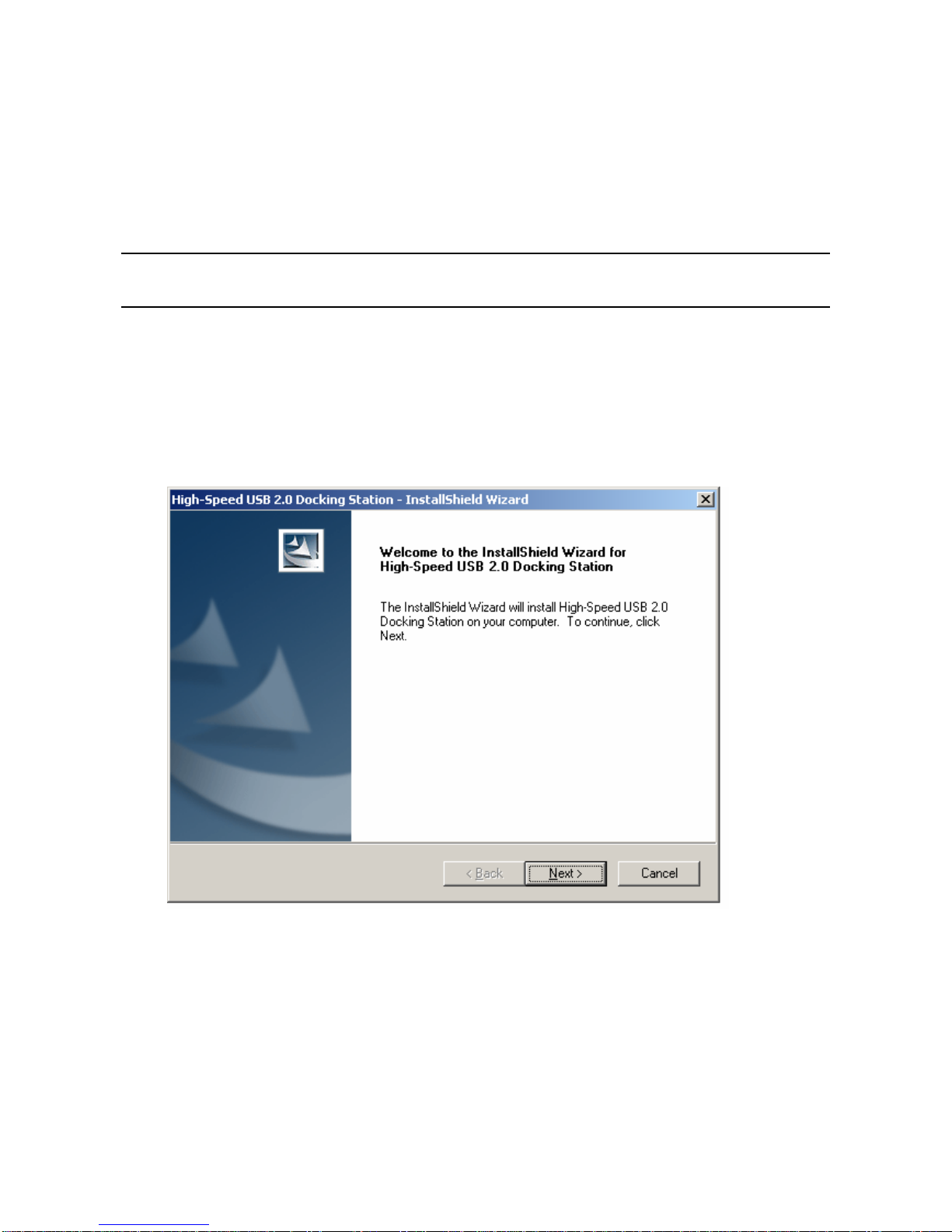
1. Insert the provided CD into your disc drive and the installer program will run
automatically when the High-Speed USB 2.0 Docking Station CD is inserted, and
your may see the screen as below. Please click Install to start the Driver install.
If the installer program doesn’t run automatically, please locate and double-click on
the Autorun.exe file in the CD to launch the install program.
3

High-Speed USB 2.0 Docking Station
2. When you see the screen as below, please click on Install to continue install process.
3. Please click on Finish to complete the installation of High-Speed USB 2.0 Docking
Station..
4
High-Speed USB 2.0 Docking Station
On Windows XP
Caution: DO NOT connect the High-Speed USB 2.0 docking station to your computer
before you install the provided driver. You will be instructed to do so later.
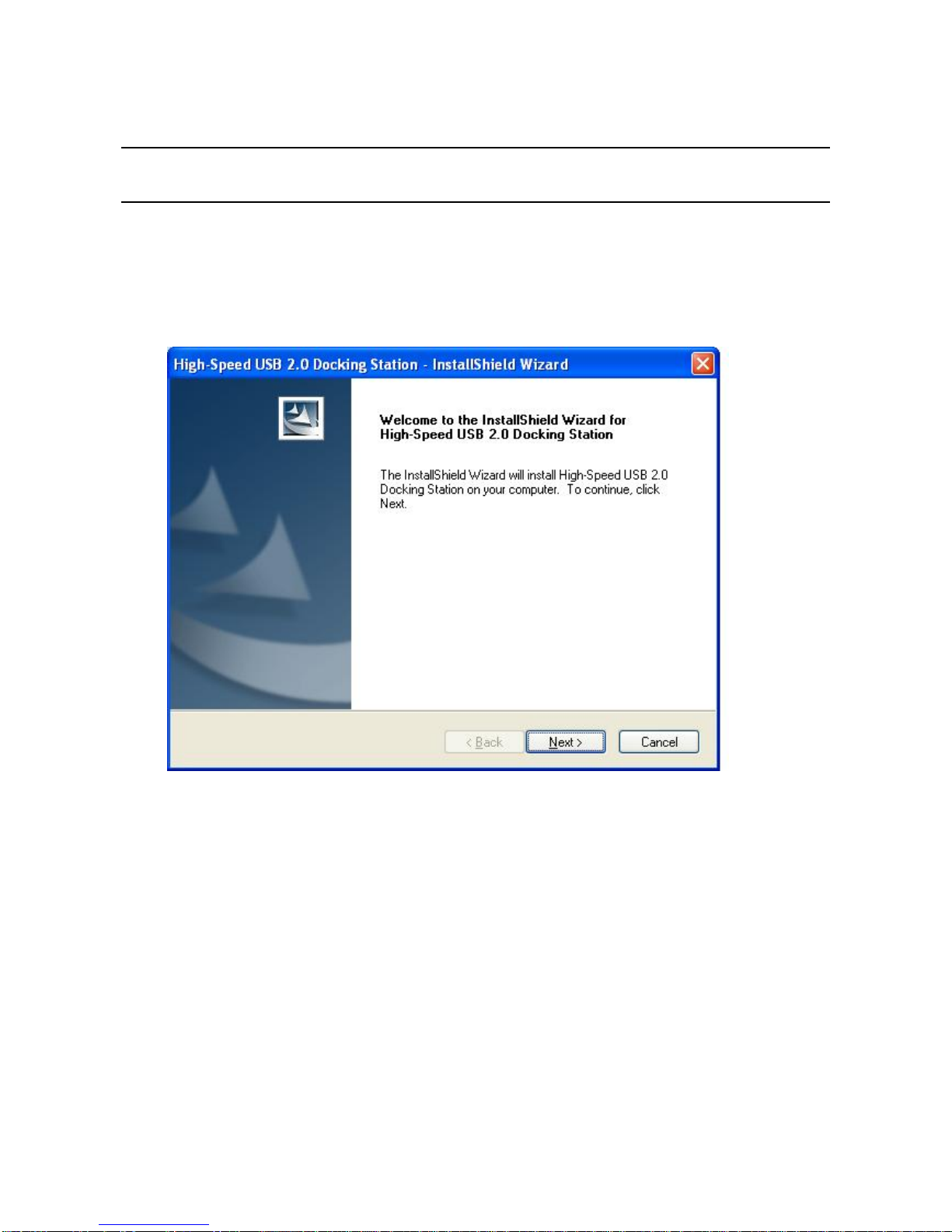
1. Insert the provided CD into your disc drive and the installer program will run
automatically when the High-Speed USB 2.0 Docking Station CD is inserted, and
your may see the screen as below. Please click Install to start the Driver install.
If the installer program doesn’t run automatically, please locate and double-click on
the Autorun.exe file in the CD to launch the install program.
5
High-Speed USB 2.0 Docking Station
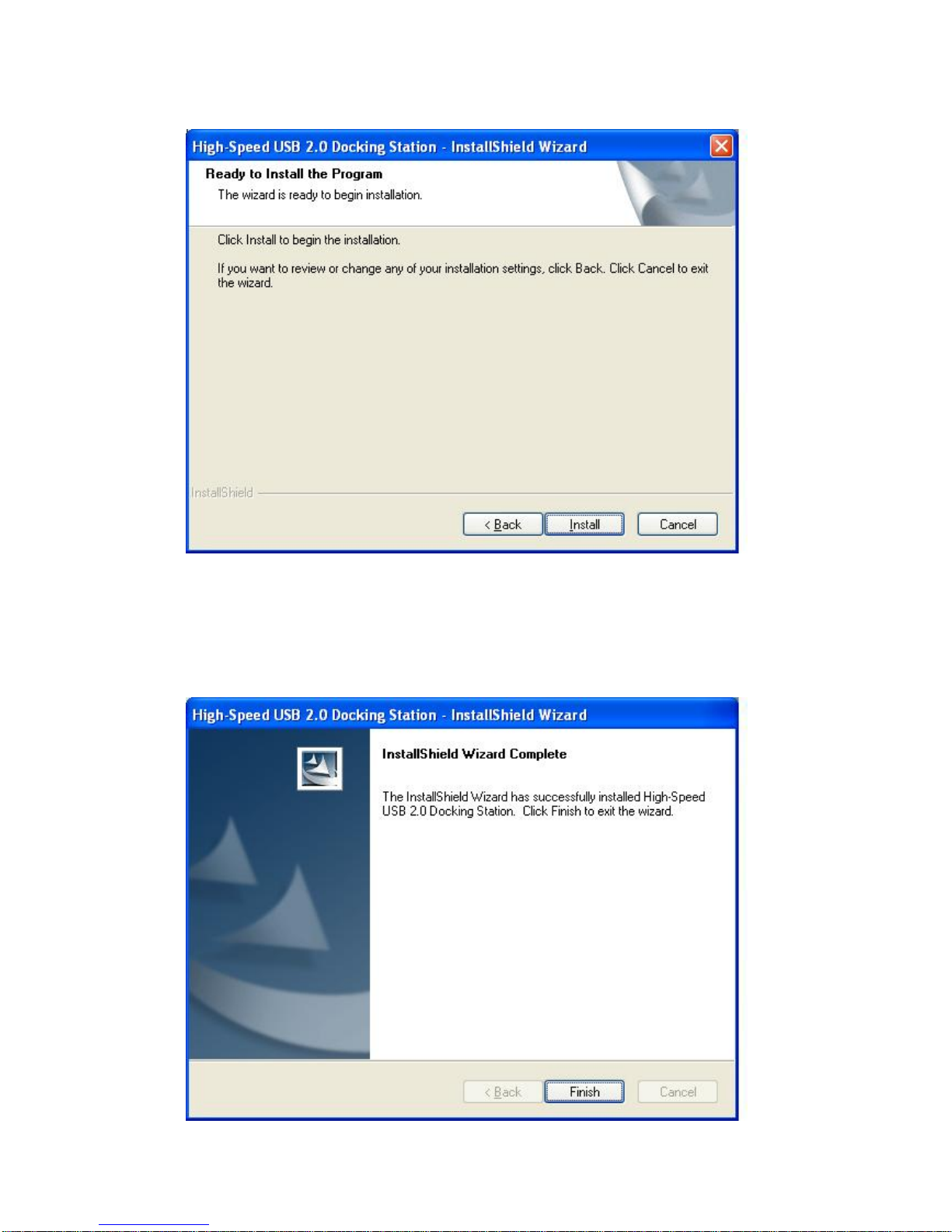
2. When you see the screen as below, please click on Install to continue install process.
3. Please click on Finish to complete the installation of High-Speed USB 2.0 Docking
Station..
6

High-Speed USB 2.0 Docking Station
On Windows Vista
Caution: DO NOT connect the High-Speed USB 2.0 docking station to your computer
before you install the provided driver. You will be instructed to do so later.
1. Insert the provided CD into your disc drive and installer program will run automatically
when the High-Speed USB 2.0 Docking Station CD is inserted. Please click on Run
Autorun.exe to execute the installer program.
If the installer program doesn’t run automatically, please locate and double-click on the
Autorun.exe file in the CD to launch the install program.
2. When you see the InstallShield Wizard for Wireless USB Hub screen as below, just
click on Next anyway.
7
Indice
Altri manuali Good Way Stazione di attracco


