
Hamilton WSA50 Manuale utente

Wireless Streaming Amplifier
WSA50
User Manual

1
The Hamilton WSA50 is designed to meet the high demand of the
installaon market and in most applicaons, can also be installed
as a retrot Installaon.
When used in conjuncon with the Hamilton range of ceiling
speakers, the Hamilton WSA50 can be installed around your home,
restaurant etc and can be wirelessly linked together on your Wi-Fi
network. It can also be wirelessly linked to other Hamilton Wi-Fi
audio products to stream music to dierent rooms / areas.
The free iOS and Android applicaon Hamilton Player
easily controls your Wireless Amplier. As you add more Wireless
Ampliers to your Wi-Fi network, you can play dierent music in
dierent areas or group the devices together to play the same
music in selected areas.
With Hamilton Player, you can play music from your phone mem-
ory, or use online streaming services such as Spofy, Tidal, and
Tune-in Radio. The Hamilton WSA50 has a USB port to connect to
your NAS, USB ash drives and hard disks.
Hamilton Player also allows you to use mulple Phones / tablets to
select and play dierent music in dierent areas on the same Wi-Fi
network.
INTRODUCTION
Package Contents:
1 x WSA50
1 x Power Supply (21v DC IN 5A)
2 x RCA Cable
2 x Antenna

2
INTERFACE AND FUNCTIONS
USB
LINE IN LINE OUT
FACT
DC IN
21V 5A
LAN
WIFIBT
L R
SPEAKERS
RESET
3 8
7
2
4 9 5 6
1
① WiFi Antenna: Used for Wi-Fi connecon
② Factory Reset: Used to reset the device if you have a
problem with your Wi-Fi connecon
③ Network Connecon: RJ45 used to connect to a
wired Ethernet network
④ Line Input: Analog input used to connect audio devices
via an RCA cable
⑤ USB Port: Used to connect local storage devices
⑥ Speaker Terminals: Phoenix speaker terminal used to
connect speakers
⑦ Power Input: DC power input used to connect the power
adaptor
⑧ Bluetooth Antenna: Used to pair with mobile devices
using a popular wireless service
⑨ Pre Out: Used to provide analog signal to amplier
Rear Panel

3
INTERFACE AND FUNCTIONS
⑩
LED: Indicates the status of the device
Blinking White: Power on or Network Connecng
Solid White: Network connected,
WiFi and USB streaming
Solid Blue: Bluetooth Input Acve
Solid Green: Line Input Acve
Front Panel
10

4
QUICK INSTALL
1. Unpack
Verify all the accessories are included in the package.
2. Install
Install the amplier in a clean and dry environment.
An integrated mounng bracket allows mounng to a wall or a
at surface, we suggest making sure you complete all
installaon steps before permanently mounng.
3. Speaker Wire Connecon
The Hamilton WSA50 can handle speakers from 4-16ohms
impedance.
(We recommend using a quality 2 core cable of 42 strands).
Connect the speakers to the amplier, nong the posive and
negave terminals match with the posive and negave
terminals on your speakers.
(Note: speaker connector can be unplugged for ease of installaon).

5
WIRING DIAGRAMS
1. Plug Socket
2. For In-Ceiling Installaon -
Connect using a switched fused spur.
Power the amplier with the power adapter included in the
accessories.
POWER SUPPLY
POWER SUPPLY
SWITCHED FUSED SPUR 3AMP
We recommended you have access to the switched fused
spur.
21V DC IN
21V DC IN

6
CONNECT YOUR DEVICE TO THE NETWORK
1. Download the Hamilton Player app
from the app Store for iOS and Google Play for Android.
2. Open the app and select add the device.
3. Select the WSA50 device.
4. This set up will guide you to the Wi- sengs page on your
device.
2 43

7
SET UP
5.A 65.B
5.a Select the Hamilton WSA50 network.
5.b You are now connected to the Hamilton WSA50 network.
Now return to the Hamilton Player app.
6. Connect your Hamilton WSA50 to your home router.
Enter your network password and press connue.
7. You are now connected.
8. Choose device name or custom name, then press the >
symbol.
9. Your device is now ready to play music.
789

8
Your device list will show your Hamilton WSA50.
(1) Press on the device/zone to select your music source.
(Note: You will skip the now playing page as no source has
been selected (2) and take you straight to the music source
page.
2
1
PLAYBACK
These screens let you access your available music, whether it
is stored on your network or connected to your hardware, so
there are mulple ways to play your music.
Streaming Opons
9
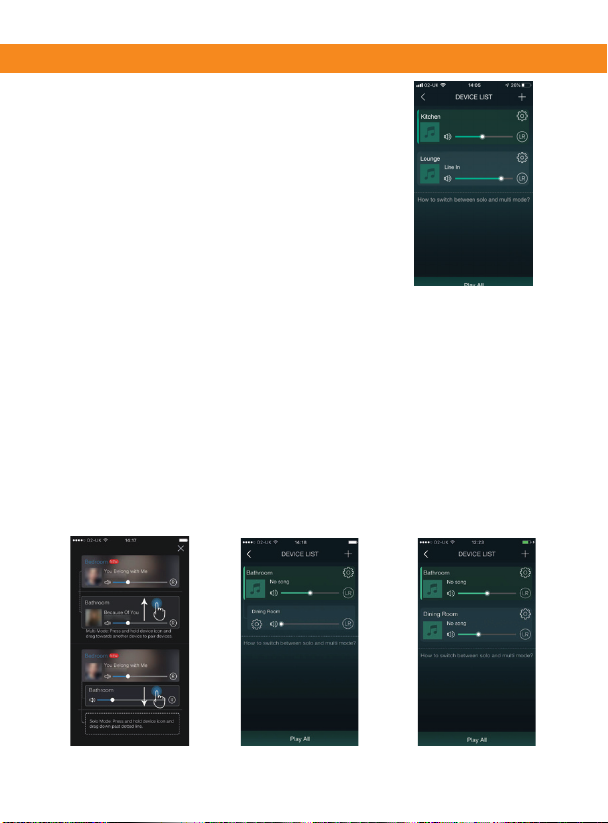
ADDING MORE DEVICES
1. Select the + icon on the top right
2 Follow the steps 3-9 above on pages 6&7.
3. Your second device is now added.
Mul-room playing
1. Click and drag any device bar into another device bar, this creates
a group which all the speakers will play the same music.
(This can take up-to 30 seconds to join the group, a message
will appear on the screen saying “mul-room mode successful”).
2. You are now playing in mul-room mode.
Click and drag any device out of its group, this will then un-group
the device.
3. You are now playing individually again.
(A message will now appear telling you
“Single room mode successful”).
1 2 3
Indice


