HandHeld Dolphin 7900 Series Manuale utente

™
Dolphin®7900Series
MobileComputer
Microsoft
®
WindowsMobile
™
2003
SecondEditionSoftwareforPocketPC
QuickStartGuide

Disclaimer
Hand Held Products, Inc. (“Hand Held Products”) reserves the right to make
changes in specifications and other information contained in this document
without prior notice, and the reader should in all cases consult Hand Held
Products to determine whether any such changes have been made. The
information in this publication does not represent a commitment on the part of
Hand Held Products.
Hand Held Products shall not be liable for technical or editorial errors or
omissions contained herein; nor for incidental or consequential damages
resulting from the furnishing, performance, or use of this material.
Thisdocumentcontainsproprietaryinformation that is protected by copyright. All
rights are reserved. No part of this document may be photocopied, reproduced,
or translated into another language without the prior written consent of Hand
Held Products.
©2005 Hand Held Products, Inc. All rights reserved.
Web Address: www.handheld.com
Trademarks
Dolphin, HomeBase, Mobile Base and QuadCharger are trademarks or
registered trademarks of Hand Held Products.
Windows Mobile, Windows, Windows NT, Windows 2000, Windows XP,
ActiveSync, Outlook, and the Windows logo are trademarks or registered
trademarks of Microsoft Corporation.
TheBluetoothtrademarksare ownedby BluetoothSIG, Inc.,U.S.A. andlicensed
to Hand Held Products, Inc.
Other product names mentioned in this manual may be trademarks or registered
trademarks of their respective companies and are hereby acknowledged.

Dolphin® 7900 Series Mobile Computer Quick Start Guide iii
TableofContents
Congratulations! ...................................................................... 1
Dolphin 7900 Series Peripherals and Accessories.................. 1
Dolphin 7900 Hardware Overview........................................... 2
Setting Up Dolphin 7900 Series Terminals.............................. 4
Unpack the Carton and Verify its Contents ............................. 4
Install the Main Battery Pack................................................... 4
Charge the Main and Backup Batteries................................... 5
Initialize the Mobile Computer................................................. 7
Using the Stylus....................................................................... 8
Today Screen.......................................................................... 9
Using the Imager................................................................... 10
Verifying Radio Status........................................................... 12
Adjusting the Backlight.......................................................... 13
Using the Keyboards............................................................. 14
Resetting the Terminal .......................................................... 18
Suspend Mode ...................................................................... 18
Communications.................................................................... 18
Troubleshooting..................................................................... 19
Product Service and Repair................................................... 20
Technical Assistance............................................................. 21
Limited Warranty ................................................................... 22
Regulatory and Safety Approvals.......................................... 23
FCC Compliance................................................................... 23

iv Dolphin® 7900 Series Mobile Computer Quick Start Guide

Dolphin® 7900 Series Mobile Computer Quick Start Guide 1
Dolphin7900SeriesQuickStartGuide
Congratulations!
You have made a wise choice in selecting the Dolphin, a device known
worldwide for the following features:
• Microsoft Windows Mobile 2003 Second Edition Software for Pocket PC
•AnIntel
®X-Scale 400MHz RISC microprocessor for fast processing
• Optional Wireless Full Area Networking™(WFAN) configuration for real-time
data and voice communications anytime, anywhere
• 64MB RAM (optional 128MB) and 64MB synchronous Flash memory
configuration for ample and secure data storage
• A mini-Secure Digital (SD) memory interface that enables memory expansion
• Rugged construction that withstands harsh treatment and real world use
• Adaptus Imaging Technology for advanced point-and-shoot bar code
decoding and image capture
• 7.4V, 14.8 watt hour Lithium-ion (Li-ion) batteries
Dolphin 7900 Series Peripherals and Accessories
Dolphin HomeBase™Charging/communications cradle with auxiliary battery well.
Data transfers via RS-232 serial or USB ports.
Dolphin Mobile Base™Mobile charging/communication cradle. RS-232 serial
transfers data transfers and powers out at 5 volts.
Dolphin QuadCharger™Four-slot battery charger that charges four Li-ion batteries
in under four hours. One slot doubles as a battery analyzer.
Dolphin Net Base Four-slot charging/communication cradle designed for
Ethernet-based communications.
Dolphin ChargeBase Four-slot charging cradle that stores, powers, and charges
a terminal in each slot.
Dolphin Mobile Charger Charging cable that plugs into a vehicle cigarette lighter/
power port.
Dolphin Cable Kits USB or serial cables that charge and communicate with the
terminal directly, without a cradle.

2 Dolphin® 7900 Series Mobile Computer Quick Start Guide
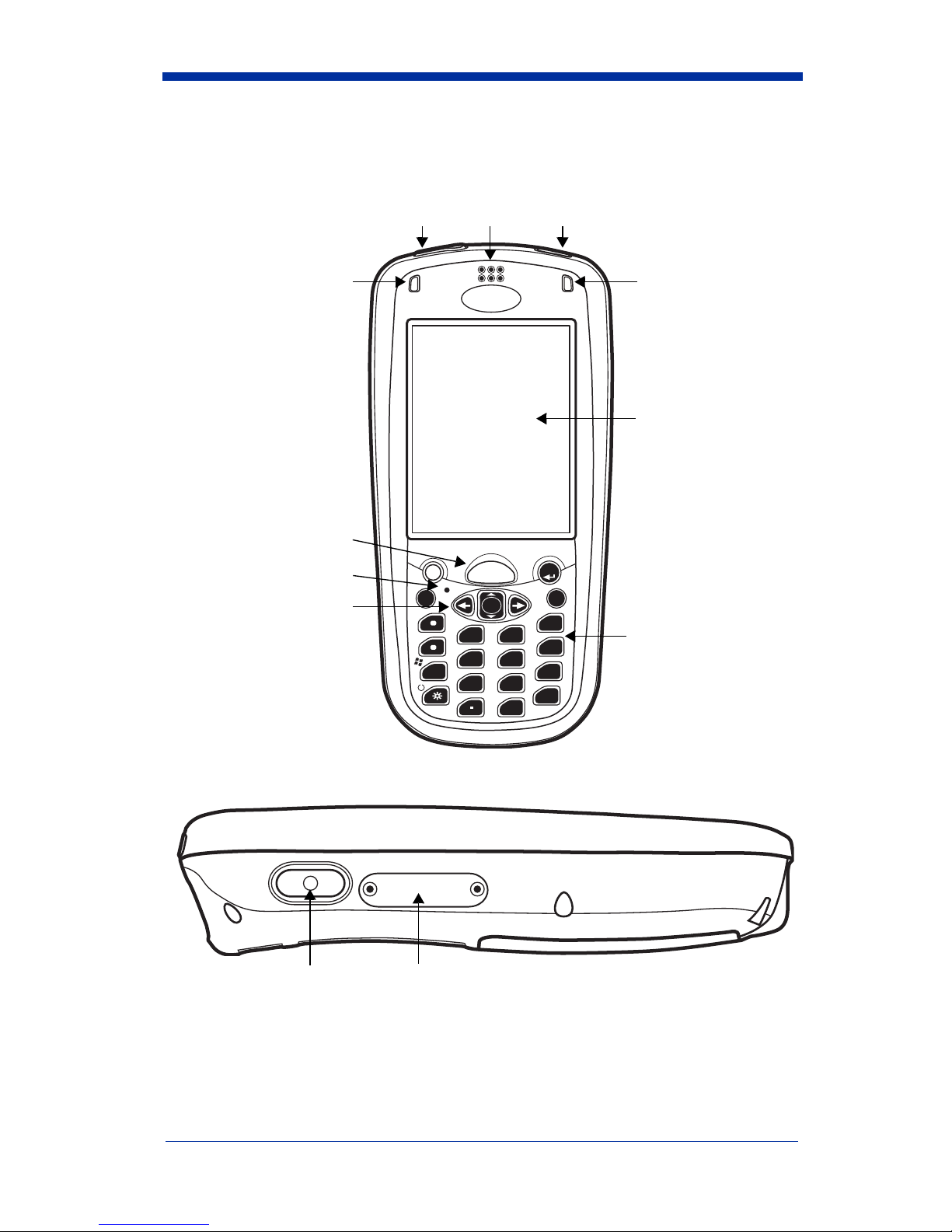
Dolphin 7900 Hardware Overview
Front Panel
Side Panel
Mini-SD Access Door - You can install a mini-SD memory card to expand
storage memory. After memory expansion is complete, this door should be
closed and sealed. The mini-SD memory interface does not support SDIO.
Pocket PC
ALT
SCAN
ESC
OK
VOL
PG
TAB
3
DEF
6
MNO
2
ABC
5
JKL
1
4
GHI
3
PQRS
8
TUV
9
WXYZ
,
@?!
0
*
#
SEND END
F1 F2
F5
F8
F10
F3
F6
F9
F4
F7
START
BKSP SP
Scan LED Decode LED
IrDa PortAudio/Headset Jack Speaker
SCAN key
Navigation keys
Microphone
Recessed Keyboard
Display
Programmable Side Button Mini-SD Access Door

Dolphin® 7900 Series Mobile Computer Quick Start Guide 3
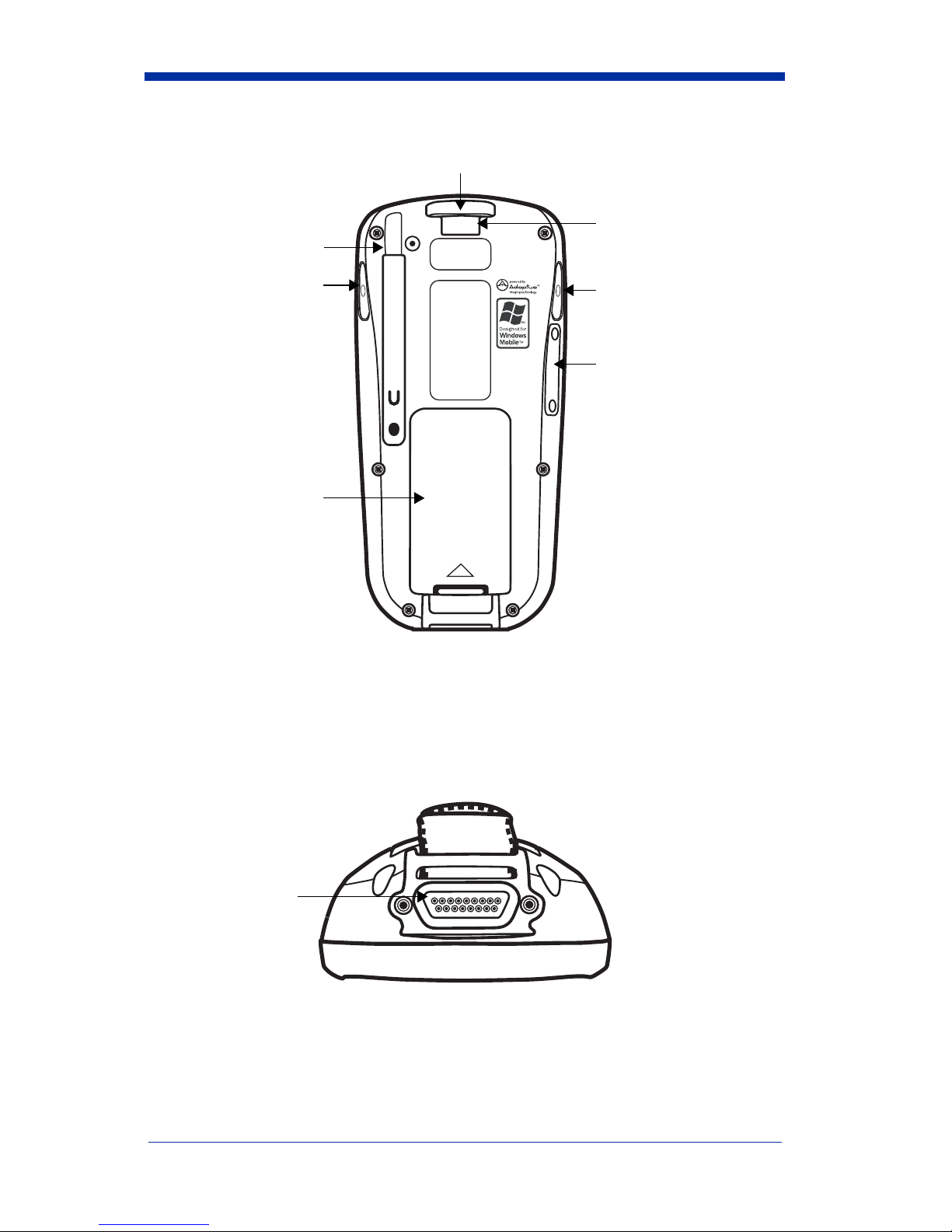
Back Panel
Programmable Side Buttons
By default, these buttons activate the image/scan engine as a more ergonomic
alternative to pressing the SCAN key on the keyboard. These buttons can also
be programmed to perform specific functions in the Buttons setting. For details
about programming these buttons, see the Dolphin 7900 Series User’s Guide.
Bottom Panel
Mini SD
Access Door
Battery
Image Engine Window
Programmable
Side Button
Hand Strap Clip
Programmable
Side Button
Stylus (in slot)
17-pin
Industrial-
Grade
Mechanical
Connector

4 Dolphin® 7900 Series Mobile Computer Quick Start Guide
Setting Up Dolphin 7900 Series Terminals
1. Unpack the carton and verify its contents - page 4.
2. Install the main battery pack in the terminal - page 4.
3. Charge the main battery for a minimum of four hours - page 5.
4. Turn the power on and initialize the mobile computer - page 7.
5. Allow Autoinstall to run - page 8.
Unpack the Carton and Verify its Contents
Verify that the carton contains the following items:
• Dolphin 7900 Series mobile computer (the terminal)
• Main battery pack (7.4v Li-ion)
• Microsoft Companion CD-ROM
• Dolphin 7900 Series Quick Start Guide
Be sure to keep the original packaging in the event that the Dolphin terminal
should need to be returned for service - see page 23.
If you ordered peripherals or accessories, verify that they are included in your
order. You may also have received the Dolphin Software Development Kit and
User’s Guide CD with your order.
Install the Main Battery Pack
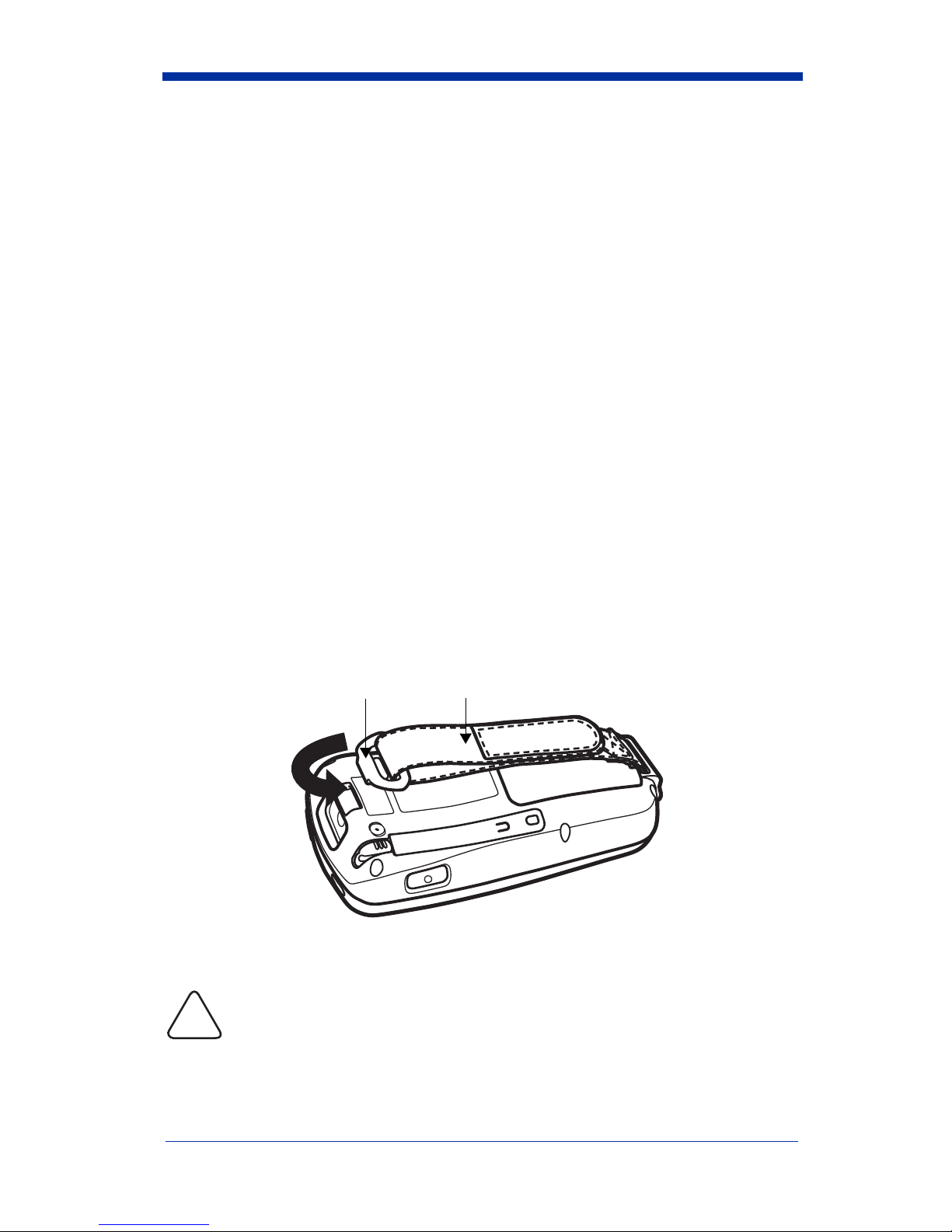
The Dolphin 7900 terminal ships with the hand strap installed and fastened with
a clip. To install the main battery pack, you must detach the hand strap first.
To detach the hand strap, push the clip up and away from the terminal.
To re-attach the hand strap, slide the clip back into place.
Use only the Li-ion battery packs provided by Hand Held Products. The
use of any battery pack not sold/manufactured by Hand Held Products
in a Dolphin terminal will void your warranty and may result in damage
to the Dolphin terminal or bat
1. Remove the Li-ion battery pack from its package.
Hand StrapClip
!

Dolphin® 7900 Series Mobile Computer Quick Start Guide 5
2. Detach the hand strap.
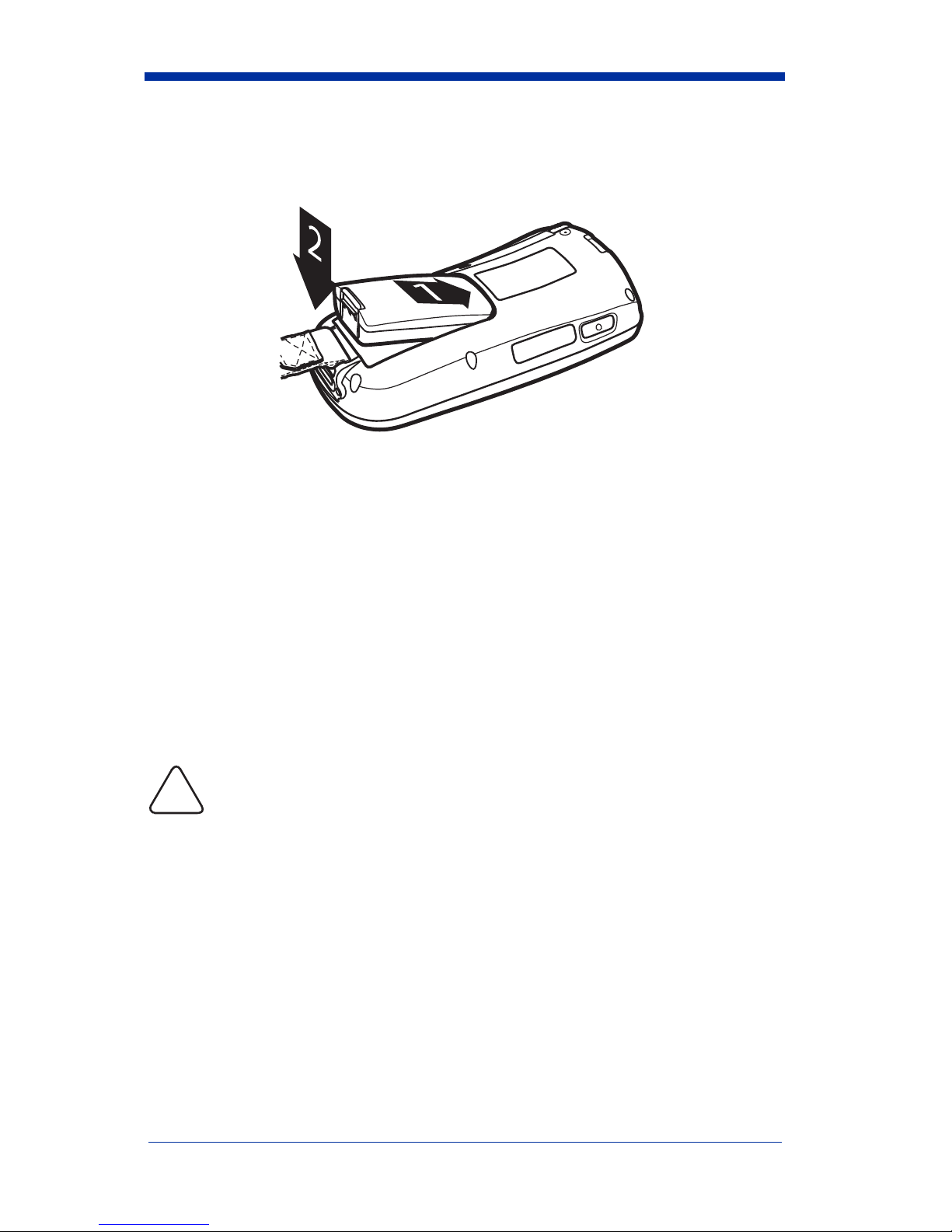
3. Take the battery and insert the end without the locking tab into the top of the
battery well and push down until the locking tab snaps.
4. Re-attach the hand strap.
Note: Put the terminal in Suspend mode before removing the battery; Suspend
Mode, page 18.
Charge the Main and Backup Batteries
The power supply consists of two types of battery power: the main battery pack
and the backup battery located inside the terminal. The main battery powers the
terminal and charges the internal backup battery.
Theinternal backupbattery maintainstheapplicationdata storedinRAM andthe
system clock for up to 30 minutes when the main battery pack is completely
discharged or removed.
Dolphin terminals ship with both batteries discharged of power. Charge the main
battery pack for a minimum of four hours before initial use in the terminal.
Use a Dolphin 7900 Series peripheral and the power cables provided
by Hand Held Products. Use of peripherals or cables not sold/
manufactured by Hand Held Products will void the warranty and may
damage the terminal.
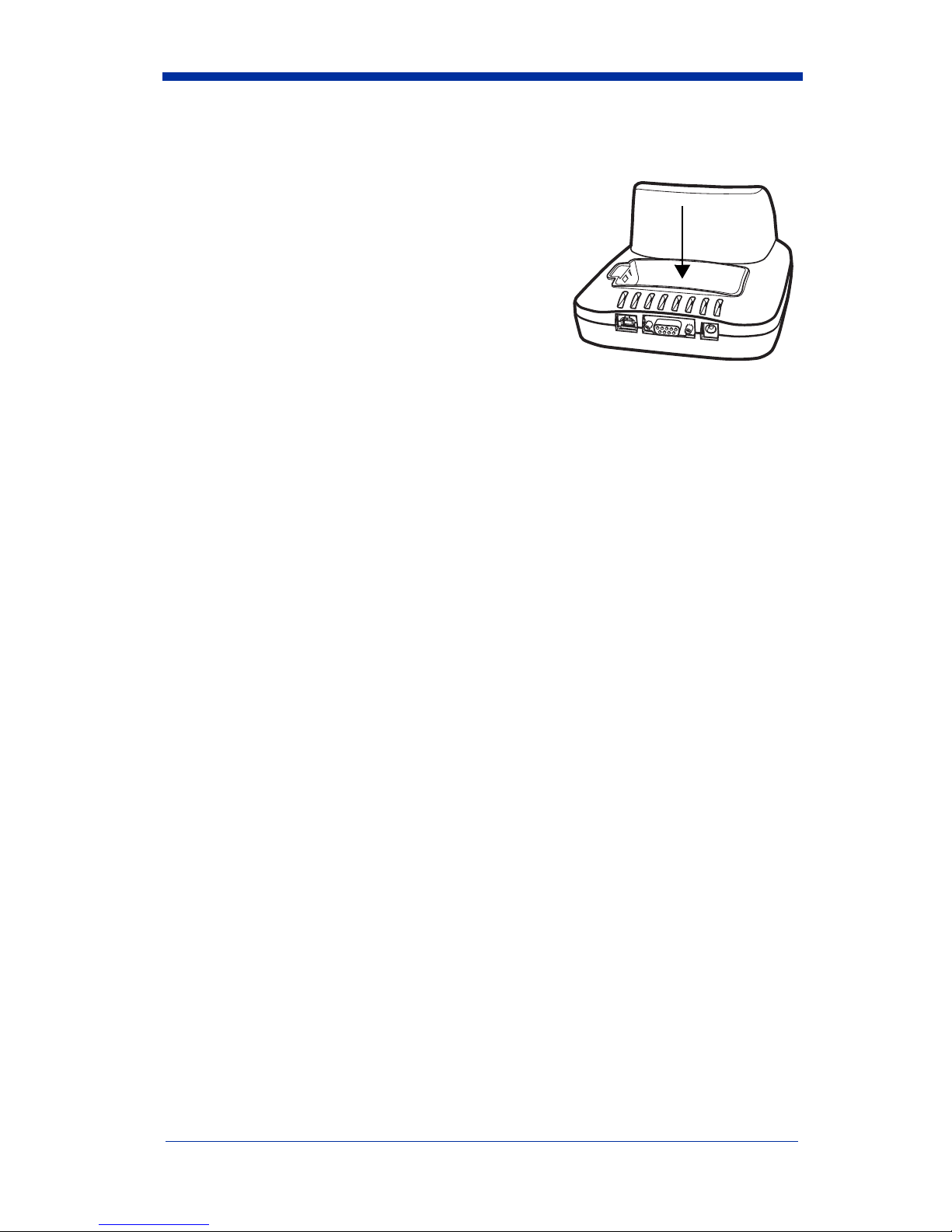
Using the Dolphin HomeBase
1. Set up the Dolphin HomeBase with the appropriate power supply from Hand
Held Products.
2. Install the Li-ion battery in the Dolphin terminal.
3. Slide the terminal into the terminal well until the Dock LED lights solid green.
4. The battery pack begins charging.
!

6 Dolphin® 7900 Series Mobile Computer Quick Start Guide
Charging a Spare Battery Pack
The back panel of the Dolphin HomeBase
contains an auxiliary battery well that you can
use to charge a spare battery before inserting it
into the terminal.
Insert a spare battery pack into this auxiliary
battery well and it charges in four hours,
independently of the terminal well. The AUX
Battery LED on the front panel indicates the
charging status of the battery in this well.
Using the Dolphin Mobile Base
1. Set up the Dolphin Mobile Base with the appropriate power supply from Hand
Held Products.
2. Install the Li-ion battery in the Dolphin terminal.
3. Slide the terminal into the terminal well until the Dock LED lights solid green.
4. The battery pack begins charging.
Other Charging Options
When the Li-ion battery is installed in the terminal, you can also use a charging/
communication cable kit.
To charge the Li-ion battery pack before inserting it in the terminal, place the
battery pack in the Dolphin QuadCharger and charge it for a minimum of four
hours.
Indice
Altri manuali HandHeld PDA

HandHeld
HandHeld Nautiz X4 Manuale utente

HandHeld
HandHeld NAUTIZ X9 Manuale utente

HandHeld
HandHeld NAUTIZ X5 Manuale utente

HandHeld
HandHeld 7600BP-112-B6EE - Hand Held Products Dolphin... Manuale utente

HandHeld
HandHeld Dolphin 7600 Series Manuale utente

HandHeld
HandHeld Dolphin 9500 Series Manuale utente

HandHeld
HandHeld Nautiz X3 Manuale utente