
High Sec Labs KM Admin Tool Manuale utente

KVM Remote RS-232 Control | QUICK SETUP GUIDE
Table of Contents SECTIONS 123
HDC21381 Rev. 1.0
KM Admin Tool | USER MANUAL
KM Admin Tool
User Manual
KM Admin Tool | USER MANUAL
TABLE OF CONTENTS
2
Introduction
3
Creating a Custom Layout File Using the KM Admin Tool
4
Uploading a Custom Layout File Using the KM Loader Tool
5
KM Admin Tool | USER MANUAL
INTRODUCTION
The High Sec Labs (HSL) KM switch is a solution for users, like
financial traders or command & control operators, who need
to avoid:
•Constantly switching from one display to another (KVM),
by letting them view multiple computers simultaneously
•Juggling between multiple mice and keyboards, by
enabling them to switch control between computers with
only one mouse and keyboard set
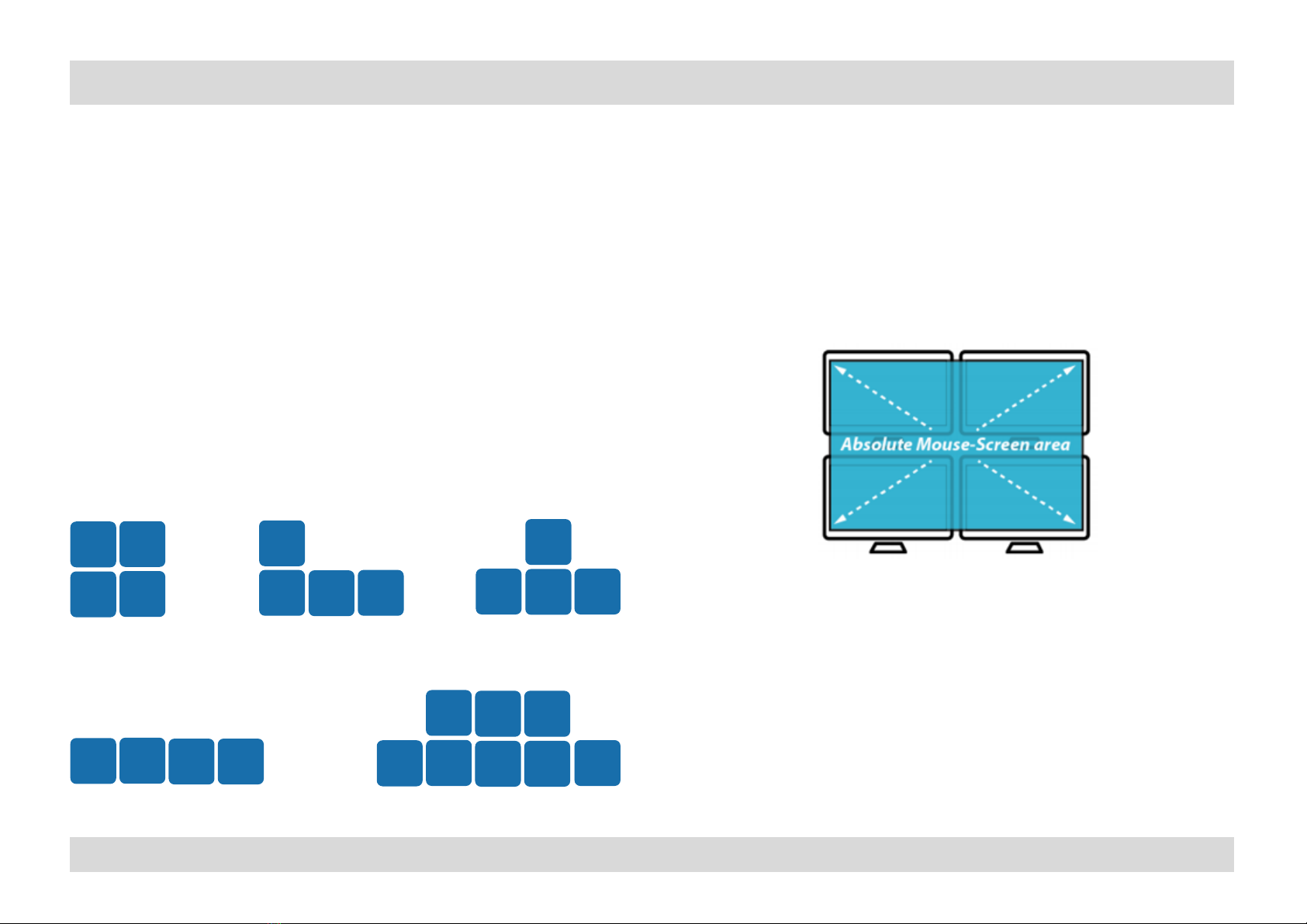
The KM supports any display layout defined by the user. This
enables users to align displays in in any physical layout they
want and configure the KM to support this layout.
Layout examples:
Once configured to the desired layout, the KM is set to reflect
the specific layout and display borders. This helps the KM to:
•Associate the mouse cursor with each computer, based on
its respective display position
•Consider all displays as one absolute screen area to enable
Virtual Display Technology (VDT)
3
12
34
1234
1
234
1
234
12345
678

KM Admin Tool | USER MANUAL
INTRODUCTION
4
The KM’s VDT enables automatically switching control from
one computer to another, by sliding the mouse cursor over
the computer’s display border. The other shared peripherals
(keyboard, audio, USB) move to the next computer, once the
mouse cursor passes the display border. The VDT eliminates
the need to press the front-panel buttons.
Many of the VDT layouts can be quickly set, using the
following table of pre-configured keyboard shortcut presets:
However, if the desired layout does not appear in the table
above, it is necessary to use the KM Admin Tool to create it.
The purpose of this manual is to explain how to use the KM
Admin Tool to set custom layouts.
Using the admin tool requires several steps:
•Create a config file representive of the user’s requested
screen layout
•Loading the config file on the target KM switch
•Directing the KM switch to use the config file loaded.

KM Admin Tool | USER MANUAL
Creating a Custom Layout File Using the KM Admin Tool
5
As stated earlier, a display layout that does not appear in the
table of presets, needs to be created. The first step is to create
a custom layout file using the KM Admin Tool.
This procedure uses the following custom layout example:
This layout consists of three computers, as follows:
•In the top row are Computer #1, on the left and Computer
#2, on the right.
•In the bottom row are two displays of Computer #3,
including the:
oSecondary display, on the left, AND –
oPrimary display, on the right
In this example, the:
•Size of all displays is 24”
•Resolution of all displays is 1920 x 1080
To create a custom layout file:
1. On an Admin PC, from the following link:
http://www.highseclabs.com/support/downloads/?rid=1,
download and install the KM Admin Tool.
This creates the KMC Creator icon on the desktop.
2. Double-click on the KMC Creator icon.
The KM Configuration Utility dialog opens:
Note: Before creating a custom layout file, make sure to note the
screen size and resolution of all monitors to be connected to the KM.

KM Admin Tool | USER MANUAL 6
3. Click Create Project.
The KM Project Setup dialog opens:
4. Fill in the General Setup fields.
•Project Name: Use a descriptive name. In this
example, PCs 1 and 2, single display. PC 3, dual
display.
•Product Model: The product model can be found
on the back sticker of the KM switch. In this
example, select K304 (4-port KM).
•Mouse Speed: Makes mouse movements faster or
slower. In this example, select 5 –Default.
•Mouse Acceleration: Makes mouse accelerate faster or
slower. In this example, select 5 –Default.
•Number of computers: In this example, type 3.
Creating a Custom Layout File Using the KM Admin Tool
Note:
oK304 represents all 4-port switches.
oK308 represents all 8-port switches.
o2-port switches cannot be configured.

KM Admin Tool | USER MANUAL 7
5. At the bottom, click Next Step.
The KM Project Description dialog opens:
6. Type a description that explains the custom layout. In
this example, fill out as follows:
7. At the bottom, click Next Step.
The Computer 1 Setup dialog opens:
8. In this example:
•Computer 1 has one display, so for Number of
displays, select 1
•The display is 24” in diagonal, so for Display 1,
type 24
•The Display Resolution (H/V) is 1920 (horizontal) x
1080 (vertical) resolution, so type 1920 and then
1080
Creating a Custom Layout File Using the KM Admin Tool

KM Admin Tool | USER MANUAL 8
Fill out as follows:
9. At the bottom, click Next Step.
The Computer 2 Setup dialog opens:
10. In this example, fill out like for Computer 1, as follows:
11. At the bottom, click Next Step.
The Computer 3 Setup dialog opens:
Creating a Custom Layout File Using the KM Admin Tool

KM Admin Tool | USER MANUAL
12. In this example, Computer 3 has two displays, the first for
the primary display and the second for the secondary
display. So, in the Number of displays field, select 2.
Two rows for entering the display parameters open.
In addition to the Display Diag and Display Resolution
(H/V) parameters, are the MS H/V Coordinates. The MS
H/V Coordinates enable setting the position of the
primary display relative to the secondary display.
9
Creating a Custom Layout File Using the KM Admin Tool
Note: Due to an error, the dialog shows MS V/H Coordinates instead of
MS H/V Coordinates. When entering these coordinates, use the H/V
order.
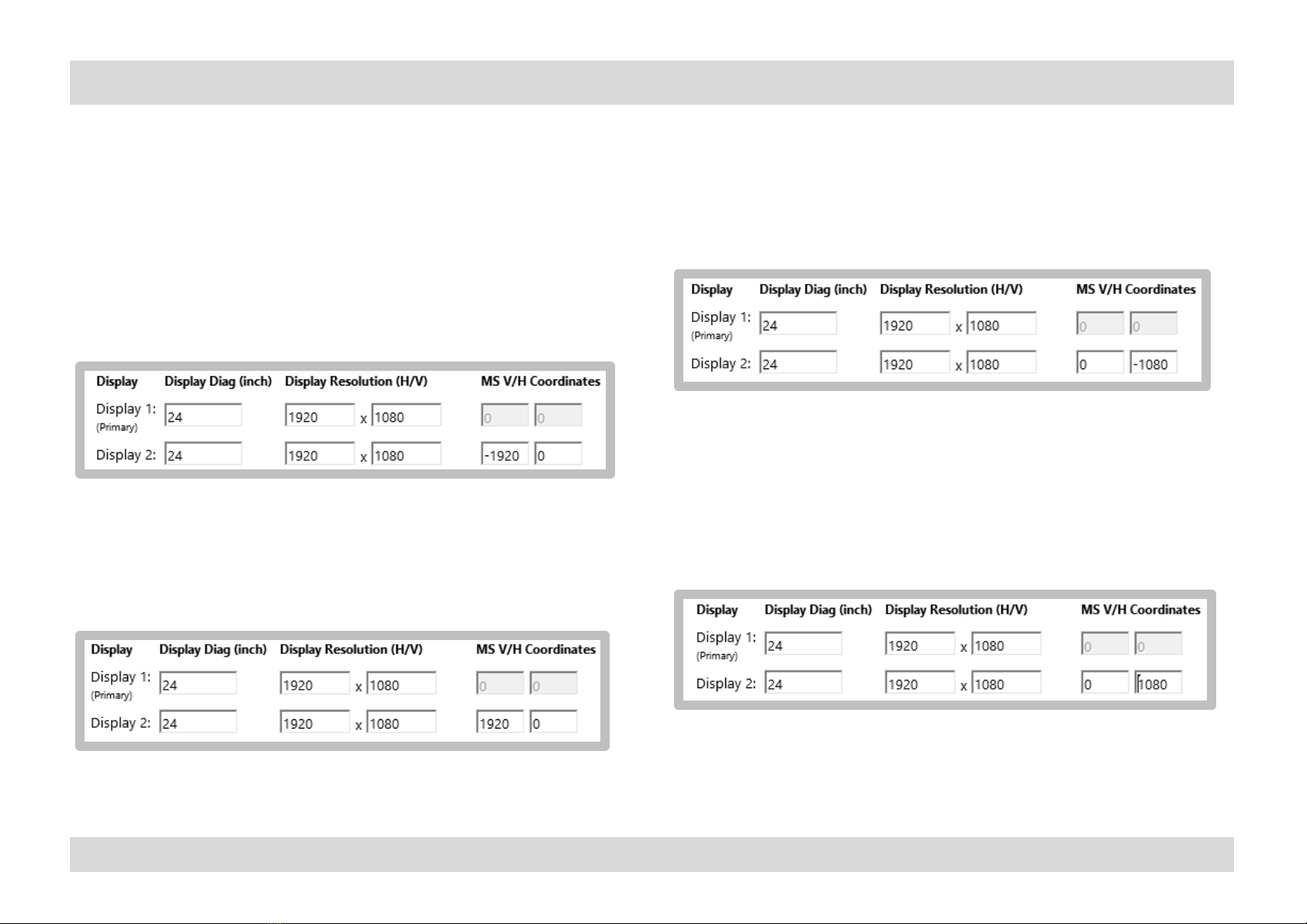
Note: To set the MS H/V Coordinates, use the following diagram:
KM Admin Tool | USER MANUAL
The following examples show how to make the MS H/V
Coordinates settings for different primary-secondary relative
positions:
Left
If the secondary display (=1920 x 1080) is to the LEFT of the
primary display, type the SECONDARY display’s HORIZONTAL
value as: (minus) -1920 and the VERTICAL value as: 0.
Right
If the secondary display is to the RIGHT of the primary display
(=1920 x 1080), type the PRIMARY display’s HORIZONTAL
value as: (plus) 1920 and the VERTICAL value as: 0.
Above
If the secondary display (=1920 x 1080) is ABOVE the primary
display, type the SECONDARY display’s HORIZONTAL value as:
0 and VERTICAL value as: (minus) -1080.
Under
If the secondary display is UNDER the primary (=1920 x 1080),
type the PRIMARY display’s HORIZONTAL value as: 0 and
VERTICAL value as: (plus) 1080.
10
Creating a Custom Layout File Using the KM Admin Tool
Altri manuali High Sec Labs Hardware di rete


Manuali Hardware di rete popolari di altre marche

Matrix Switch Corporation
Matrix Switch Corporation MSC-HD161DEL Manuale utente

B&B Electronics
B&B Electronics ZXT9-IO-222R2 Manuale utente

Yudor
Yudor YDS-16 Manuale utente

D-Link
D-Link ShareCenter DNS-320L Manuale utente

Samsung
Samsung ES1642dc Istruzioni per l’uso

Honeywell Home
Honeywell Home LTEM-PV Istruzioni per il montaggio


