
HKC P778A Manuale utente

P778A


Attention:
This handbook contains important information on security measures and
the correct use of the product. In order to avoid accidents, please make
sure to read the manual carefully before use the device.
Please do not use the unit in places that are extremely hot, cold,
dusty, or humid. Especially in summer do not leave the device in the
car with Windows closed.
Avoid dropping or violent collisions with the device.
Please charge battery before use.
A Battery power ICONS show it has no power.
B The system automatically shuts off immediately after startup.
C Buttons have no response.
When the device is formatting or going through upload and download
file, please don't disconnect, this could cause application error.
If memory is erased because of damage to the product, repair, or
other, the company shall not be liable, please follow the user manual
for the standardized operation to use the device.
Don't disassemble the product, don't use alcohol, thinner or benzene
to scrub product.
Please don't using the Tablet PC when you are driving or walking
down the street.
USB is only for data transmission.
The company reserves the right to improve product, without prior notice.
(This tablet is not waterproof).
【Note】All pictures in this manual are just for your reference. The information is
subject to changes without prior notice.

14
13
12
11
10
9
8
7
6
5
4
3
2
1
1. Appearance and Buttons
Power Jack
Microphone
MIC
Mini HDMI
Mic USB
Reset
Micro TF card Jack
Power on/off
Volume +
Volume -
Camera
Return
Home
Menu
1.1 Touch panel
7” Capacitive touch panel: In the Operation, to click and drag on the touch panel
1.2 POWER
Startup: Press and hold the power button, the system will enter the main interface.
Shutdown: In the main menu interface, Press the power button for about 5
seconds to shutdown, The system can hint "power off" option, Click ”ok”. Then you
can safely shut down.
Lock Screen: Short press power button to lock screen or unlock screen.
Note: When power is depleted, system tablet will shut down automatically.
1.3 ESC
Press ESC button will return the last interface; Long Press ESC button will return
the main interface.
1,4 Menu
Short press Menu button will take you back to the home screen

1.5 Volume +, Volume-
The buttons on top Volume (+) Volume (-) achieve changes in the volume.
1.6 Earphone jack
3.5 mm standard earphone jack
1.7 Video Output interface
HDMI output interface
1.8 TF card
TF-CARD solt: external T-FLASH card
1.9 Mini-USB
Mini-USB jack: you can use it to connect the computer for data transmission,
charging and external connection to USB flash drive
1.10 Reset
When the tablet has crashed, use the small objects to short press RESET button,
tablet will force shutdown.
【Note】: Use RESET option only if unable to shut down any other way.
2. First use
2.1 Battery management and charge
Before first use, please charge battery fully. The first two times charging device you
should long charge for about 6 hours, after this you only need 4 hours to charge.
【Note】: This tablet uses Built-in polymer battery, Charge must with standard
adaptor (Input: AC110~240V 50/60Hz Max:180MA.. Output: DC5.0~5.5V/1.5A)
USB interface can charge as well.
During the charging, the battery icon will scroll
When finished charging, battery icon will become green and stop rolling
In order to prolong the service life of the machine, please use out battery power
before charging it
【Note】: 1. To avoid power consumption caused damages please charge/use
battery at least once a month.
2. After low battery shut down, connect DC adaptor, device will not start right away
please let charge before trying to start again.
3. Device charging should be in standby status to reach normal charging time.
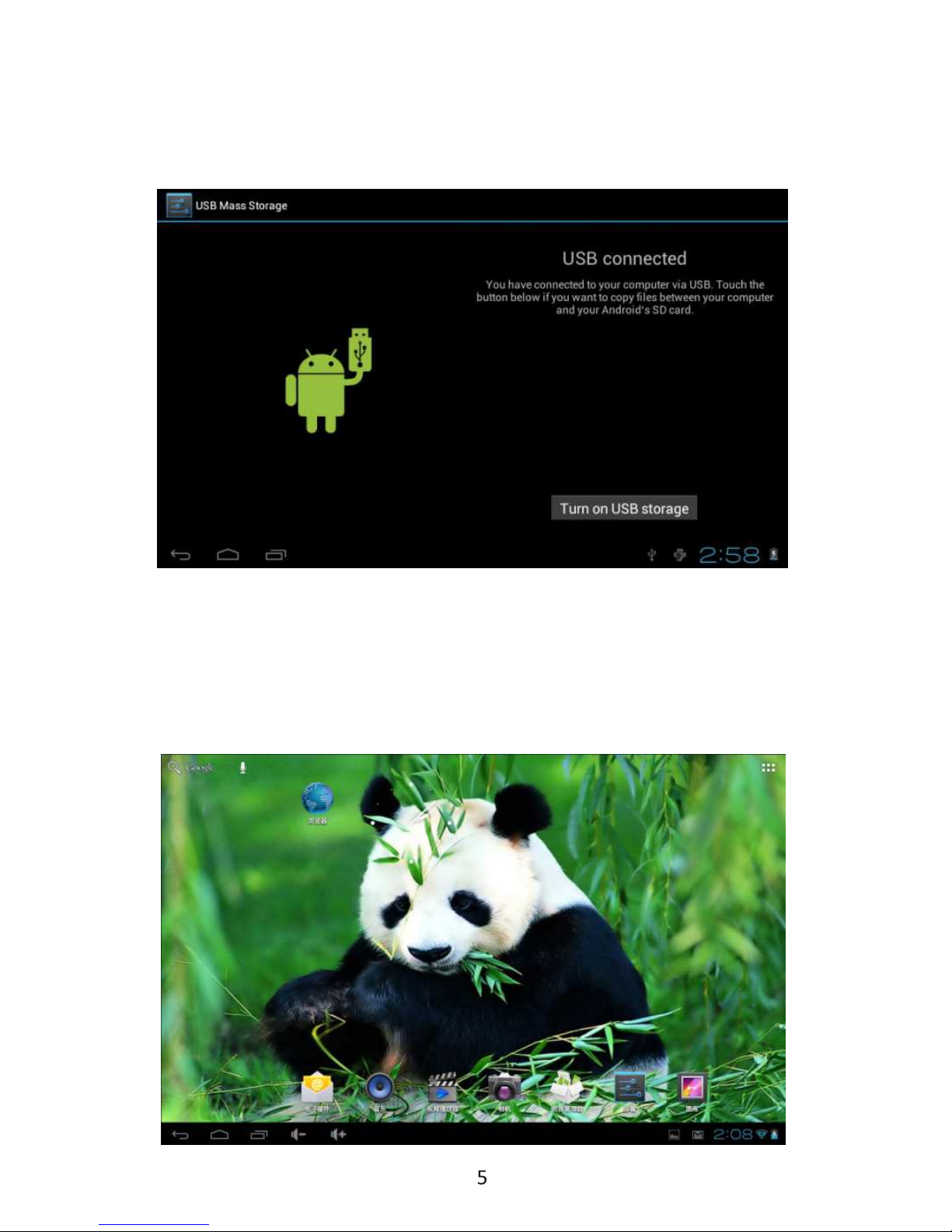
2.2 Connection with PC
Use USB cable to connect device to PC, device will pop up the USB connection
window, click turn on USB storage to connect to PC
In load mode, you can copy or delete the files on the device and on the memory card.
3. Equipment operation interface
3.1 Main interface
After starting up the device will enter the main interface

In the main interface, you can:
Management main interface software ICONS: long press the icon for 3 second,
after the icons will appear bigger, then you can drag anywhere in the interface.
Delete icons: long press the icon for 3 second, drag the icon to the Recycle Bin
icon, once it becomes red, release, after that you can delete icon.
Touch the screen and hold, a dialog box will appear “Add Your Home Screen” as
shown below:

3.2 Status Bar
• The status bar above of the screen
Top left display main interface software, T-Flash card, USB connection s
status and so on.
Top right display the battery, battery charge icons, current time, set time,
Settings Menu, ESC button.
3.3 Use touch panel
Device equipped with a 7” touch screen.
Screen Functions:
No matter which interface you are on the screen can go back to main screen by
pressing the soft key on the corner of the main screen.bottom right
【Note】The main screen soft key functions as the machine back key In
different applications, by tapping the back soft key on the corner bottom right
on the touch screen, you can return to previous interface.
In different applications, by tapping the menu key on the upper right corner of
touch screen, the screen will appear the operation setting interface as follows,
Remark】: The main screen soft key functions as the machine menu
In the main interface, you can touch the icon to open the APPs

In different browser (file, music, video, pictures), You shift and drag the scroll bar, so
that the file list can scroll up or down.
4. Basic Equipment
Setting: Click setting icons enter setting interface

4.1 Silent mode, Volume, Notification, Ringtones, Audible selection,
Screen lock, sounds.
Indice
Altri manuali HKC Tavoletta


