
honor View 10 Manuale utente

User Guide

Contents
Exciting Features
Tips 1
Smart Life 3
Camera Tips 4
More Features 6
New Device
New Device Conguration 10
Smart Charging: Charge Your Device Faster and Safer 11
Getting Help 11
Gestures and Operation
Screenshots and Screen Recording 15
Home Screen
Use the Recent Key to Conveniently Manage Background Apps 20
Quick Switch 20
Notication and Status Bar 22
Use Shortcuts to Access Frequently Used Features 23
Screen Lock and Unlock 24
Go Back to Basics with Simple Mode 26
Home Screen Management 27
Contacts
Managing Business Cards 31
Search Contacts 33
Managing Contacts 33
Merging Third-Party App Contacts 35
Dialing
Basic Calling Functions 36
Harassment Filter 38
VoLTE 38
Message
Basic Messaging Functions 40
Camera
Basic Camera Functions 42
Wide Aperture 47
Panorama 49
3D Panorama 50
Pro Mode 52
i

Beautication 56
Monochrome 57
Light Painting Mode 58
Use Time-lapse to Condense Hours into Minutes 63
Discover New Possibilities with Customized Shooting Modes 64
Gallery
Highlights 65
Photo Management 67
Phone Manager
Use One-touch Optimization 71
Manage Your Mobile Data 71
Optimize Power Consumption 72
Use Virus Scan to Keep Your Phone Safe 73
Email
Add Email Accounts 74
Manage Email Accounts 74
Manage VIP Email Contacts 75
Set Auto Response for Exchange Email 75
Calendar
Calendar: Your Event Management Center 76
Navigate the Calendar 76
Import To-Dos to Keep Your Work Organized 77
View Global Holidays 78
Clock
Use the Clock 79
Notepad
Manage Your Notes to Keep Your Records in Order 81
Utilities
Smart Remote 82
Phone Clone 83
Use Recorder to Make Audio Notes 85
Huawei ID and Multiple Users
Multiple Users 86
Device Connection
Bluetooth 88
Near Field Communication (NFC) 90
Multi-screen Display 92
Connecting USB Device 94
Contents
ii

Transfer Files Using Huawei Share 96
Security and Privacy
Fingerprint 97
PrivateSpace 99
Use App Lock to Lock Important Apps 101
More Security Settings 101
Backup and Restoration
Data Backup: Prevent Data Loss 104
Back Up Your Data to a microSD Card 104
Back Up Your Data to Internal Storage 104
Back Up Your Data to a USB Storage Device 105
Back Up Your Data to a Computer 105
Wi-Fi and Network
Wi-Fi 106
Manage Dual-SIMs 108
Mobile Network 109
Apps and Notications
App Twin: Log in to Two Social Media Accounts at Once 111
Sound and Display
Congure Do Not Disturb Mode 112
Congure Your Sound Settings 112
Enable Eye Comfort Mode to Prevent Eye Strain 113
Change the Display Settings 114
Storage
Storage Cleaner 116
Smart Assistance
Navigation Bar and Navigation Dock 118
Enable or Disable Touch-disable Mode 118
System
Change the Input Method 120
Accessibility 120
General Settings 122
System Update
Performing an Online Update 128
Contents
iii

Exciting Features
Tips
Use Shortcuts to Access Frequently Used Features
Touch and hold an app icon to display a menu of frequently used features for quick access. You can
also touch and hold a feature and drag it to your home screen to create a shortcut.
If you touch and hold an app icon and a shortcut is not created, the app does not support home
screen shortcuts.
Quickly access frequently used app features: Touch and hold an app icon on your home screen,
and then touch a frequently used feature to access it. Each app supports up to four frequently used
features. These are preset by the app and cannot be changed. For example, to take a sele, touch and
hold the camera icon, and then touch Sele in the pop-up menu.
Add shortcuts to your home screen: Touch and hold an app icon on your home screen to bring up
the menu. Touch and hold the desired feature, and then drag it to your home screen to create a
shortcut. For example, you can add a shortcut for the camera's sele feature for quick access to the
sele camera.
1

Transfer Files Using Huawei Share
You can use Huawei Share to quickly transfer photos, videos and other les between Huawei devices.
Huawei Share uses Bluetooth to detect nearby Huawei devices and Wi-Fi to quickly transfer les
without using mobile data.
Huawei Share uses Wi-Fi and Bluetooth to transfer data. When Huawei Share is enabled, Wi-Fi
and Bluetooth are automatically enabled.
Huawei Share
Use Huawei Share to send les: Select the le you want to share and touch Share. Select the
receiving device from the list of nearby devices to send the le.
Use Huawei Share to receive les: Swipe down from the status bar, open the shortcuts panel, and
then touch to enable Huawei Share. Touch Accept when a le transfer notication is displayed.
Received les are saved to the Huawei Share folder in Files by default.
Exciting Features
2

Smart Life
Smart Remote: Control Your Home Electronics with Your Phone
lThe Smart Remote can be used with home electronics that have accompanying infrared
remotes. It does not work with devices that use Bluetooth or other non-infrared remote
controls.
lThere is no unied industry standard for infrared codes. This means the Smart Remote may not
be able to control some home electronics.
lTurn your phone into a universal remote control: Add your home electronics to the Smart
Remote and you won't have to worry about misplacing remotes any more. The remote control
buttons can be customized to t your own preferences so the remote is easier to use.
lUse your phone as a remote control for your camera: Take better group photos by using your
phone as a remote control for your camera. Smart Remote helps you to get the best shot and
capture natural expressions when taking photos.
Multiple Users: Create Separate User Accounts on Your Phone
Want to lend your Phone to someone else but don't want them accessing your private les and
information? Add multiple users and user types to protect your information privacy when lending your
Phone to others. Your settings and les will not be affected. You can also log in to your Phone with
Exciting Features
3

two user accounts, such as one for work and one for personal use, and quickly switch between them
with a single touch.
You can create three different types of users:
lOwner: The Phone's owner. Log in as the owner when you are using your device. As the owner,
you have access to all actions, such as adding or deleting users and guests, and giving users
permission to make calls and send text messages.
lUser: Add family members and close friends as users. Users can perform most actions but cannot
perform actions that will affect the owner, such as restoring the device to factory settings or
enabling Do not disturb mode.
lGuests: Add casual acquaintances as guests. Guests can only perform a limited number of actions.
App Twin: Log in to Two Social Media Accounts at Once
Have you ever wished you could log in to two WeChat and Facebook accounts on your Phone
without the hassle of constantly switching between them? App twin lets you log in to two WeChat
and Facebook accounts at the same time, allowing you to keep your work and private life separate.
The App twin feature only works with WeChat, QQ, LINE, Facebook, Snapchat, WhatsApp, and
Messenger. Download the latest versions of these apps before using this feature.
Open Settings. Go to Apps & notications > App twin and enable App twin for WeChat, QQ,
LINE, Facebook, Snapchat, WhatsApp, or Messenger as required.
When App twin is enabled, two WeChat, QQ, LINE, Facebook, Snapchat, WhatsApp, or Messenger
app icons are displayed on the home screen. This means that you can log in to two accounts at the
same time. Touch and hold the twinned app icon on the home screen to quickly disable App twin.
Camera Tips
Highlights: Turn Your Photos into a Personalized Video
Having to sort through a sea of photos to relive and share past moments can be a pain. Highlights
intelligently selects photos and videos by location to generate short video clips, so you can easily look
back on your wonderful memories. You can choose different animation effects and background music
for the videos and share them with friends and family.
lHighlights automatically creates videos based on the geographical information in your photos.
To use this feature, open Camera, go to Settings, and check that GPS tag is enabled.
lCheck that your Phone is connected to the Internet.
lHighlights albums are created automatically when your Phone is charging, the screen is
switched off, and the battery is at least 10% charged. It may take some time for your Phone to
create the album. Your Phone will not create a Highlights album if there is an insufcient
number of photos or videos in your Gallery.
Exciting Features
4

Use Portrait Mode to Capture Stunning Portraits
Want to always look your best in your seles? Portrait mode lets you congure different beautication
settings and create an information database for custom beautication.
lPortrait mode: Enable Portrait mode to automatically apply beautication effects to everyone in
the frame.
lPerfect sele: Enable Perfect sele and your Phone will create a custom beauty plan for you. The
higher the beautication level, the more pronounced the effects.
3D Panorama: Capture 3D Photos in Motion
Do you ever feel let down by the feeling of atness in your panoramas? 3D panorama gives you a
great way to liven your panoramas up. You can tilt your Phone or drag your photos to create a 3D
effect.
3D panorama is a pre-installed camera mode in your Phone. You can use 3D panorama to create
moving panoramic shots of objects, people, and landscapes.
Exciting Features
5
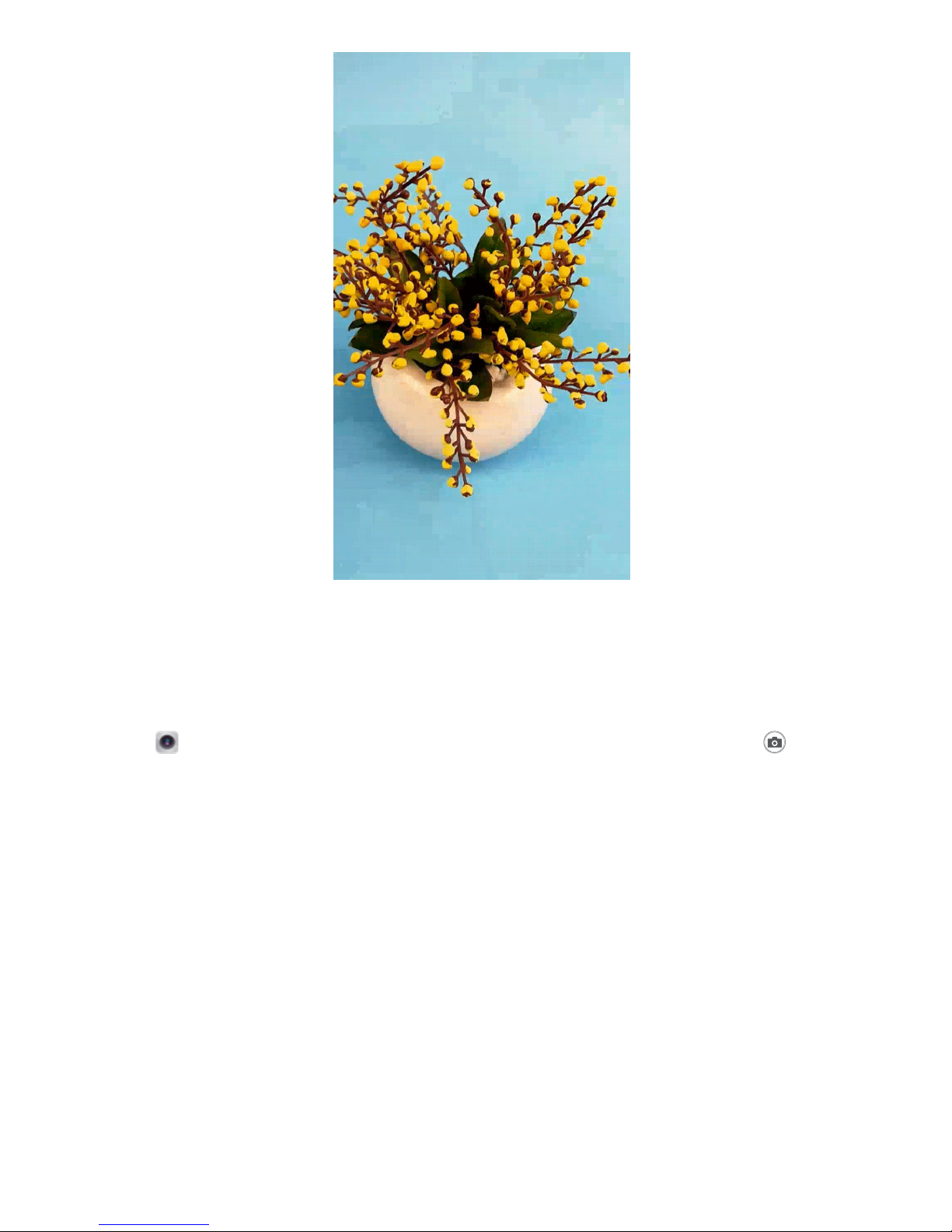
Monochrome: Explore the Beauty of Light and Shadow
The world is an amazingly colorful place. But sometimes too much color can be distracting.
Monochrome mode lters out color, helping to bring out light and shadows and give photos more
mood and atmosphere.
Open Camera and swipe right on the screen. Touch Monochrome, and then touch to take
photos in black and white.
More Features
PrivateSpace: Keep Your Private Information Hidden
Want to keep your personal apps and data (such as photos and videos) hidden on your Phone, secure
from other users? Look no further than PrivateSpace. With PrivateSpace, you can create an
independent space on your phone to keep your private information. For example, you can install a
separate WeChat in both your MainSpace and PrivateSpace, keeping the two apps completely
independent of each other.
Exciting Features
6
Indice
Altri manuali honor Telefono cellulare

honor
honor AKA-L29 Manuale utente

honor
honor 20 Pro Manuale utente

honor
honor 3C Lite Manuale utente

honor
honor 7 Manuale utente

honor
honor x4 Manuale utente

honor
honor YAL-AL00 Manuale utente

honor
honor COR-AL00 Manuale utente

honor
honor Holly2 Plus Manuale utente

honor
honor 3C Lite Manuale utente

honor
honor 50 Manuale utente

honor
honor Bee2 Manuale utente

honor
honor View20 Manuale utente

honor
honor CHL-LX1 Manuale utente

honor
honor magic4 lite Manuale utente

honor
honor HRY-LX1T Manuale utente

honor
honor VER-N49 Manuale utente

honor
honor Magic4 Pro Manuale utente

honor
honor Magic4Pro Manuale utente

honor
honor NTH-NX9 Manuale utente

honor
honor DUA-L22 Manuale utente


