
Hope Education E.a.R.L Manuale utente

An interactive coding and programming robot
designed specially for the EYFS and KS1
user guide
2
Features:
• 5 colour LEDs
• Built-in MP3 Player
• Digitally controlled motor
• Up to 250 step program memory
• Programmable lights and sounds
• Custom sounds can be uploaded by USB
• Compatible with Scratch 2.0 on PC
Introduction:
E.a.R.L is a brand-new oor robot, packed with new features that make learning fun.
With lights and sounds (including the option to record your own voice or sounds),
pupils will love creating and debugging simple programs. Plus, his transparent body
lets pupils see exactly how he works.
Getting started:
Before using E.a.R.L for the rst time, please fully charge by connecting E.a.R.L to a
USB port or USB charger, using the cable provided (see charging section below:)
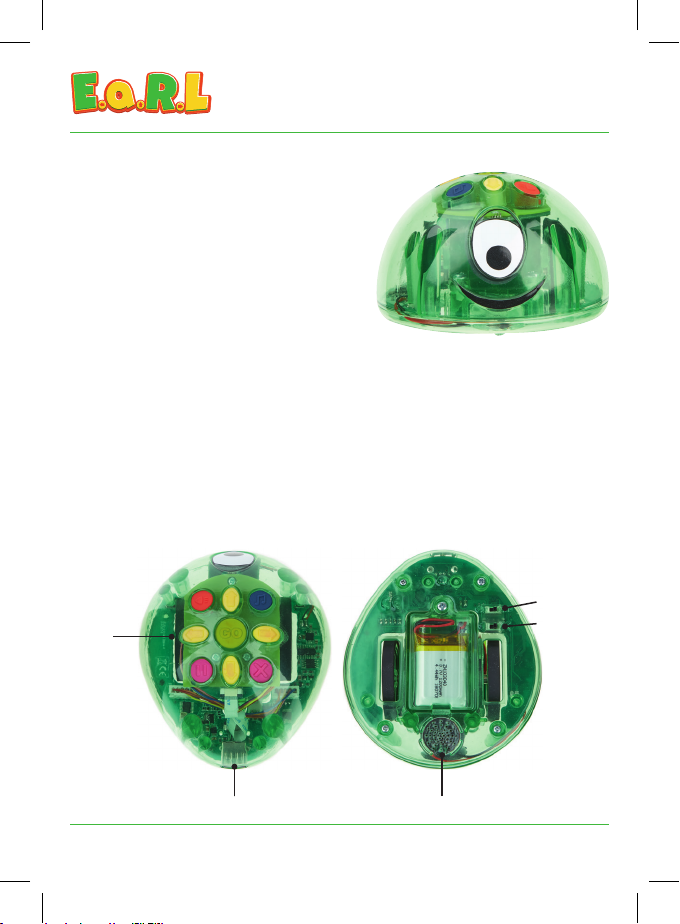
Keypad
Sound on/o
Power on/o
USB Port Speaker
3
Charging:
Using the USB lead provided, connect E.a.R.L to any USB port or USB charger.
E.a.R.L’s eye will light red to show it is charging. When E.a.R.L is fully charged, the
eye will light green. E.a.R.L will be completely charged in less than 3 hours.
Please note, always fully charge E.a.R.L before storing for long periods.
Changing the battery:
In the unlikely event that the battery becomes defective, the battery may be
accessed by removing the battery hatch using a screwdriver. The battery can then be
unplugged from E.a.R.L and an exact replacement tted. Ret the battery hatch and
secure using the screw.
Switching on:
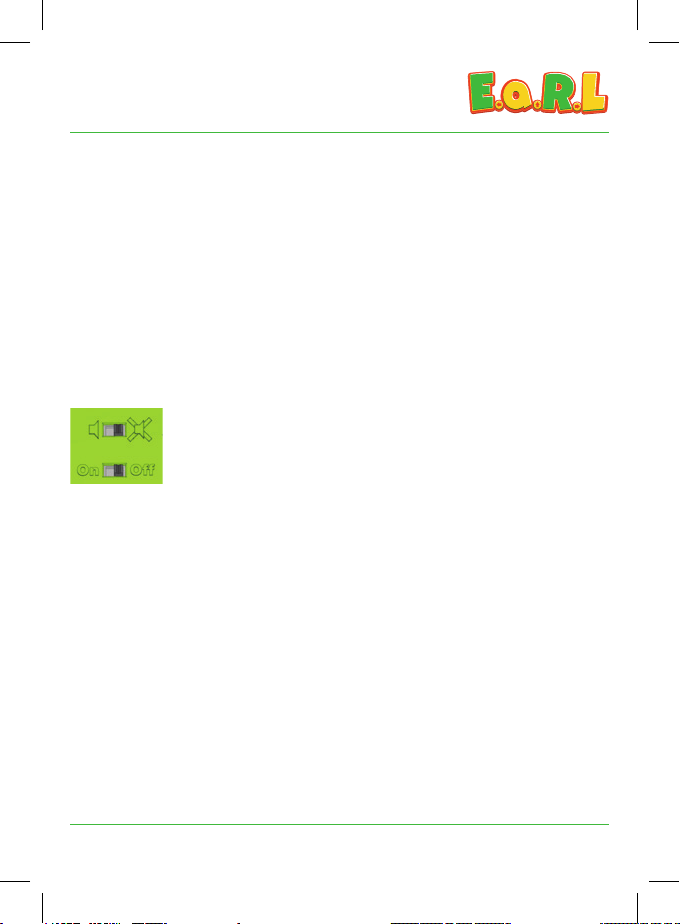
There are two slide switches located next to the battery hatch. The
rst switch is for sound and the second for power. Normally both
switches will be in the “on” position when in use, but if a number of
E.a.R.L’s are being used at the same time, the sound can be turned
off by moving the sound switch to the “speaker off” position.
When E.a.R.L is switched on, the LEDs will light for 3 seconds to indicate the
remaining battery charge and E.a.R.L will play a sound.
60 – 100% Green
30 – 60% Amber
10 – 30% Red
If E.a.R.L’s battery charge is less than 10%, the eye will change to red to indicate that
recharging is required.
Sleep mode:
If no buttons are pressed for 5 minutes, E.a.R.L will go into a very low power sleep
mode in order to conserve the battery. Pressing any button will wake E.a.R.L. Any
programmed steps are retained when E.a.R.L wakes from sleep mode.
4
Programming E.a.R.L:
When E.a.R.L is switched on for the rst time, the program memory will be empty.
When E.a.R.L is switched on thereafter, E.a.R.L will remember the last sequence that
was entered. We recommend that the “X” clear button is pressed whenever E.a.R.L
is switched on to clear program memory.
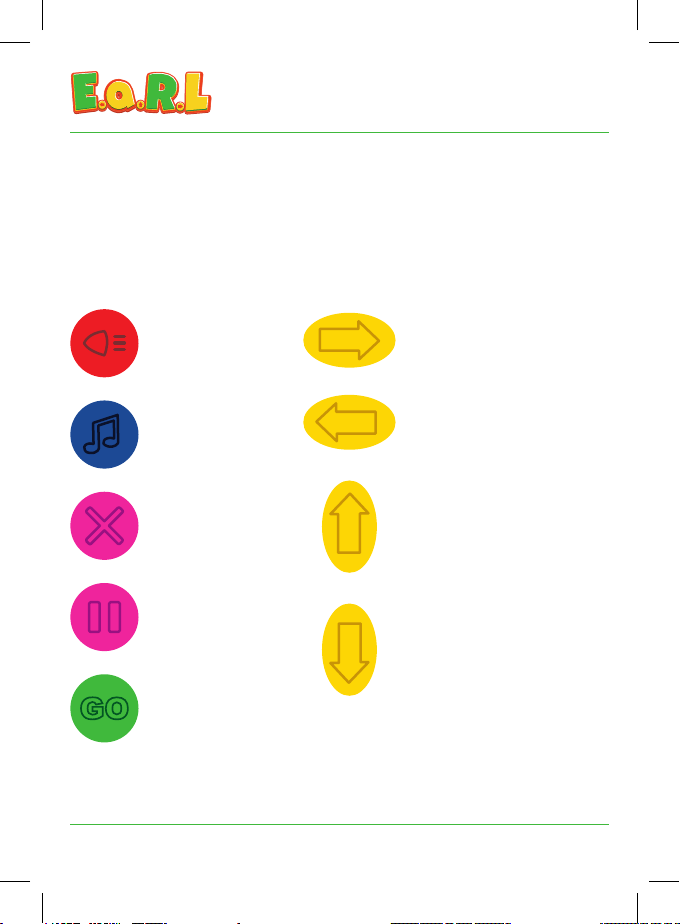
Insert a light
eect program Turn right 90°
Turn left 90°
Move forward 15cm
Move backwards 15cm
Insert a sound
eect program
Clear the
entire program
Insert a pause
program step
Run the
program
E.a.R.L can remember up to 250 commands, allowing your pupils to explore
increasingly complex sequences and programs as their learning progresses.
5
Each forward and backward command will make E.a.R.L move a 15cm step. The turn
left and turn right buttons will make E.a.R.L turn 90° on the spot. The pause button
inserts a short pause into the program. When the “GO” button is pressed E.a.R.L will
execute each command of the sequence in order. There is a short pause and sound at
the end of each step. To stop the program at any time, just press the clear “X” button.
Pressing the clear “X” button again will clear the memory. The light and sound effect
keys can be used to extend the learning opportunities and give pupils cues as to the
progress of E.a.R.L through a sequence.
Uploading sounds:
When you connect E.a.R.L to a PC or Mac, E.a.R.L will appear as a Mass Storage
Device (just like a memory stick). In the “ZH” folder you will nd an MP3 sound for
each of the default system sounds. If E.a.R.L does not appear as a Mass Storage
Device, press and hold the “GO” button until E.a.R.L’s LEDs ash green. E.a.R.L is
now in MSD mode.
You can customise these sounds by replacing the existing les with your own MP3
sounds; just rename your les to match the existing ones. Please note, make sure
to make a backup so you can revert to the original sounds should you wish. You can
also add a sound for each of the buttons on the key pad. The sound will be played
each time the button is pressed when programming and when that program step is
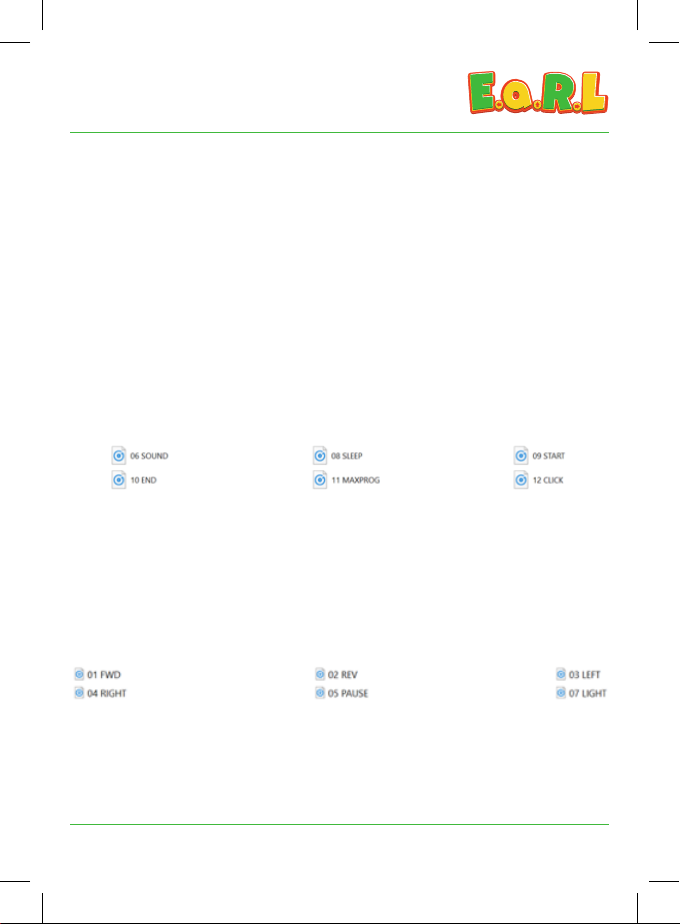
reached when the “GO” button is pressed. Just rename your MP3 le to match the
following format:
You could record some of the children speaking the commands and upload the les
to E.a.R.L so they can hear their own commands when E.a.R.L is in action!
6
Programming E.a.R.L using Scratch
Scratch is a project of the Lifelong Kindergarten Group at the MIT Media Lab. It is
provided free of charge. To begin using Scratch, just follow these simple steps:
1. Download the free Scratch 2.0 ofine editor from
https://scratch.mit.edu/download/scratch2 to the PC or Network you will be using
E.a.R.L with.
2. Follow the instructions and install Scratch 2.0.
3. Choose the relevant E.a.R.L Scratch Helper and save it to the PC or Network you
will be using E.a.R.L with.
UK: www.hope-education.co.uk/earl-has-landed
International: www.ndel-international.com/earl-has-landed
4. Switch E.a.R.L on, then using the USB lead provided, connect E.a.R.L to a USB
port on your PC. Press and hold the “GO” button for 5 seconds. The LEDs will ash
blue, E.a.R.L will be detected by your computer, and the necessary driver will be
loaded automatically. Please note, it may be necessary to restart your PC.
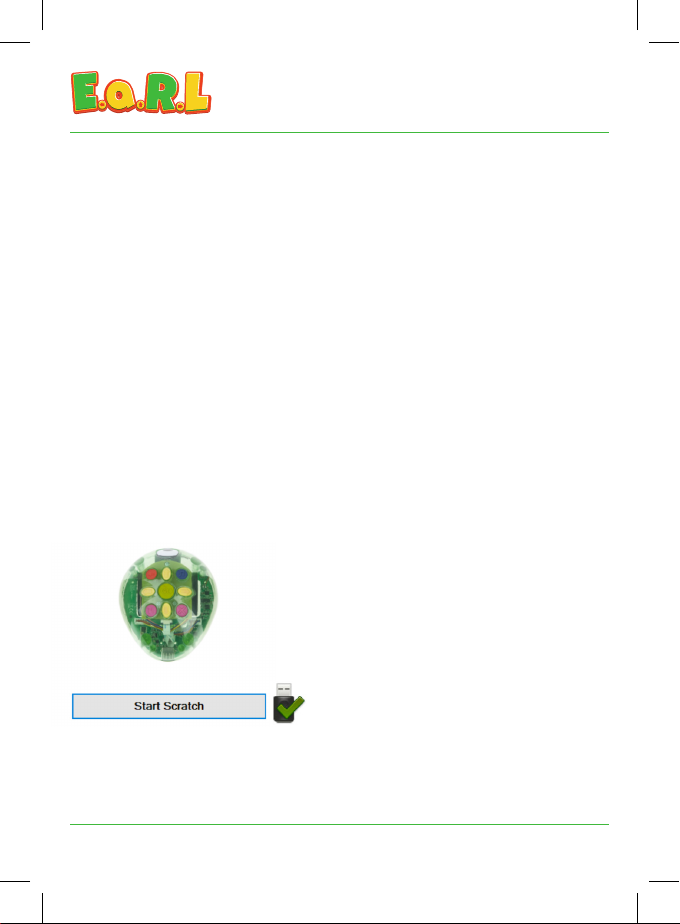
Click on “Start Scratch” and the E.a.R.L Scratch Helper will launch Scratch for you.
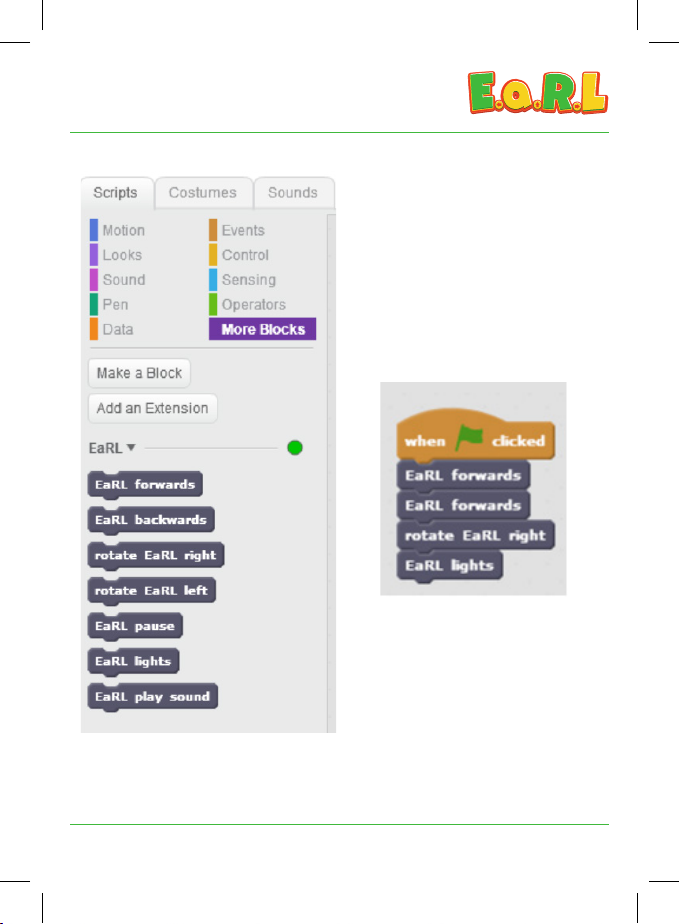
Just click on “More Blocks” and you will nd the custom blocks needed to control
E.a.R.L. You can use these blocks to build your program.
All the necessary software is now installed on
your computer. Switch your E.a.R.L on and
connect to a USB port on your computer.
Press and hold the “GO” button for 5 seconds
until E.a.R.L’s LEDs ash blue, signalling E.a.R.L
is now in Scratch mode. Double click the
E.a.R.L Scratch Helper icon to launch it. Check
there is a tick under the image of E.a.R.L to
show that it is connected. If the tick isn’t pres-
ent, check the USB connection.
7
You must use an “Event” to start your
program. When you have nished
creating your program, simply trigger
the event you have chosen. In this
example, click on the green ag to send
the code to E.a.R.L. E.a.R.L will make
a sound to conrm the program has
transferred. You can now unplug E.a.R.L
from your PC and press “GO” to run
the program.
Please note that the motors are
disabled when E.a.R.L is connected to
a computer.
For more ideas, download the free learning resources and getting started guides at:
UK: www.hope-education.co.uk/earl-has-landed
International: www.ndel-international.com/earl-has-landed

Important information:
WARNING choking hazard - small parts not suitable for children under 3 years.
WARNING strangulation hazard - USB lead should only be used by an adult.
Please retain these instructions for future reference.
Non-rechargeable batteries are not to be recharged.
Rechargeable batteries are only to be charged under adult supervision.
The supply terminals are not to be short-circuited.
Regularly examine for damage to the cord, plug, enclosure and other parts. In the event of
any damage, the toy and charger must not be used until the damage has been repaired.
Batteries should only be replaced by an adult.
Do not allow E.a.R.L to come into contact with water or other liquids.
In the event of a static discharge, your E.a.R.L may malfunction. In this case, please
switch it off and then back on again to reset it.
Care and maintenance:
If necessary, wipe E.a.R.L gently with a clean damp cloth. Do not use solvents or abrasives.
Specication:
Battery type Rechargeable 3.7v
lithium battery
Battery capacity 1.2AH
Charging time 3 hours (typical)
Battery life 8 hours in normal use
Turn accuracy 90° ± 1°
Forward/backward 15cm ± 0.5mm
Program memory 250 steps
Sound memory 300 s
Sound format MP3
Lights RGB LEDs
Made in the U.K for
Findel Education, Gregory Street, Hyde, Cheshire, SK14 4RH, UK
Disposal of Waste Electrical and Electronic Equipment (WEEE)
Do not dispose of this product with household waste. For the proper treatment, recovery
and recycling please take this product to an appropriate collection point. If you are
unsure where this is, contact your Local Authority. By disposing of this product correctly
you will be providing positive help to the environment.
Not suitable for children
under 3 years.
Small parts - choking hazard
Warranty information
E.a.R.L is guaranteed for a period of one
year from the date of delivery to the
customer. This warranty does not apply
to defects resulting from the action of a
user such as misuse, improper wiring, any
operations outside of its specication,
improper maintenance or repair, or
unauthorised modication.
Our liability is limited to repair or
replacement of the product. Any failure
during the warranty period should be
referred to our customer services team.
Indice
Altri manuali Hope Education Giocattolo


