
HP Stream 11 Pro G4 EE Manuale

HP Stream 11 Pro G4 Education Edition
Notebook PC
Maintenance and Service Guide
IMPORTANT! This document is intended for
HP authorized service providers only.

© Copyright 2017 HP Development Company,
L.P.
Bluetooth is a trademark owned by its
proprietor and used by HP Inc. under license.
DTS, the Symbol, & DTS and the Symbol
together are registered trademarks, and DTS
Sound is a trademark of DTS, Inc. © DTS, Inc. All
Rights Reserved. Intel and Celeron are
trademarks of Intel Corporation in the U.S.
and other countries. SD Logo is a trademark of
its proprietor.
The information contained herein is subject to
change without notice. The only warranties for
HP products and services are set forth in
the express warranty statements
accompanying such products and services.
Nothing herein should be construed as
constituting an additional warranty. HP shall
not be liable for technical or editorial errors or
omissions contained herein.
Third Edition: September 2017
Document Part Number: 902298-003
Product notice
This guide describes features that are common
to most models. Some features may not be
available on your computer.
Not all features are available in all editions of
Windows 10. This computer may require
upgraded and/or separately purchased
hardware, drivers, and/or software to take full
advantage of Windows 10 functionality. See
http://www.microsoft.com for details.

Safety warning notice
WARNING! To reduce the possibility of heat-related injuries or of overheating the computer, do not place
the computer directly on your lap or obstruct the computer air vents. Use the computer only on a hard, at
surface. Do not allow another hard surface, such as an adjoining optional printer, or a soft surface, such as
pillows or rugs or clothing, to block airow. Also, do not allow the AC adapter to come into contact with the
skin or a soft surface, such as pillows or rugs or clothing, during operation. The computer and the AC adapter
comply with the user-accessible surface temperature limits dened by the International Standard for Safety
of Information Technology Equipment (IEC 60950).
iii

iv Safety warning notice

Table of contents
1 Product description ....................................................................................................................................... 1
2 External component identication .................................................................................................................. 3
Display .................................................................................................................................................................... 3
Button .................................................................................................................................................................... 4
TouchPad ................................................................................................................................................................ 5
Left side ................................................................................................................................................................. 6
Right side ............................................................................................................................................................... 7
Bottom ................................................................................................................................................................... 8
3 Illustrated parts catalog ................................................................................................................................ 9
Locating the serial number, model number, product number, and warranty information ................................. 9
Computer major components .............................................................................................................................. 10
Display assembly subcomponents ...................................................................................................................... 12
Miscellaneous parts ............................................................................................................................................. 13
4 Removal and replacement preliminary requirements ..................................................................................... 15
Tools required ...................................................................................................................................................... 15
Service considerations ......................................................................................................................................... 15
Plastic parts ....................................................................................................................................... 15
Cables and connectors ...................................................................................................................... 15
Drive handling ................................................................................................................................... 16
Grounding guidelines ........................................................................................................................................... 17
Electrostatic discharge damage ........................................................................................................ 17
Packaging and transporting guidelines .......................................................................... 18
Workstation guidelines ................................................................................ 18
5 Removal and replacement procedures ........................................................................................................... 20
Component replacement procedures .................................................................................................................. 20
Computer feet ................................................................................................................................... 20
Keyboard/top cover ........................................................................................................................... 21
Speakers ............................................................................................................................................ 25
Battery ............................................................................................................................................... 26
WLAN module .................................................................................................................................... 26
Heat sink ............................................................................................................................................ 28
System board .................................................................................................................................... 30
v

Audio board ....................................................................................................................................... 32
Power connector ............................................................................................................................... 33
Power button board .......................................................................................................................... 33
TouchPad board ................................................................................................................................. 35
Display assembly ............................................................................................................................... 36
6 Using Setup Utility (BIOS) ............................................................................................................................. 43
Starting Setup Utility (BIOS) ................................................................................................................................ 43
Updating Setup Utility (BIOS) .............................................................................................................................. 43
Determining the BIOS version ........................................................................................................... 43
Downloading a BIOS update .............................................................................................................. 44
7 Using HP PC Hardware Diagnostics (UEFI) ....................................................................................................... 45
Downloading HP PC Hardware Diagnostics (UEFI) to a USB device .................................................................... 46
Using Remote HP PC Hardware Diagnostics (UEFI) settings (select products only) ........................................... 46
Customizing Remote HP PC Hardware Diagnostics (UEFI) settings ................................................. 46
8 Specications .............................................................................................................................................. 48
9 Backing up, restoring, and recovering ........................................................................................................... 49
Creating recovery media and backups ................................................................................................................ 49
Using HP Recovery media (select products only) ............................................................................. 49
Using Windows tools ......................................................................................................................... 50
Using the HP Cloud Recovery Download Tool (select products only) ............................................... 51
Restore and recovery ........................................................................................................................................... 51
Recovering using HP Recovery Manager ........................................................................................... 51
What you need to know before you get started ............................................................. 51
Using the HP Recovery partition (select products only) ................................................. 52
Using HP Recovery media to recover .............................................................................. 53
Changing the computer boot order ................................................................................ 53
Removing the HP Recovery partition (select products only) ......................................... 53
10 Power cord set requirements ...................................................................................................................... 54
Requirements for all countries ............................................................................................................................ 54
Requirements for specic countries and regions ................................................................................................ 55
11 Recycling .................................................................................................................................................. 57
Index ............................................................................................................................................................. 58
vi

1 Product description
Category Description
Product Name HP Stream 11 Pro G4 Notebook PC
Processor ●Intel® Celeron™ N3450 1.1 GHz (turbo up to 2.2 GHz) dual core processor, (1866 MHz
FSB, 2 MB L2 cache, dual SDP, 4 W)
●Intel Celeron N3350 1.1 GHz (turbo up to 2.4 GHz) dual core processor, (1866 MHz FSB,
2 MB L2 cache, dual SDP, 4 W)
Chipset Intel integrated soldered-on-circuit (SoC)
Graphics Internal Graphics:
Intel HD Graphics 400
Supports HD decode, DX11, and HDMI
Panel 11.6 in, high-denition (HD), AntiGlare (1366×768), slim, SVA, white light-emitting diode
(WLED), at (3.0 mm); 16:9 aspect ratio; typical brightness: 220 nits, eDP
11.6 in, high-denition (HD), BrightView (1366×768), slim, UWVA, white light-emitting diode
(WLED), at (1.2 mm); touch; 16:9 aspect ratio; typical brightness: 220 nits
Memory Supports DDR3L-1600 dual channel on-board 4.0 GB system memory
●4096 MB (256 MB × 16 × 8 pieces)
Storage Support for 64 GB and 128 GB embedded MultiMedia Controller (eMMC) congurations
Audio and video HP VGA camera, USB 2.0 xed (no tilt) integrated activity light, 640×480 by 24 frames
per second, non-touch
Single digital microphone with appropriate beam-forming, echo-cancellation, noise-
suppression software
Two speakers
HP noise cancellation
Wireless Integrated wireless local area network (WLAN) options by way of wireless module
Two built-in WLAN antennas
Supports the following WLAN module:
●Intel Dual Band AC 7265 802.11 AC 2×2 WiFi + Bluetooth 4.2 Combo Adapter (non-vPro)
Ports ●HP Smart Plug AC adapter (4.0 mm barrel)
●Headphone/microphone combo jack
●High-denition multimedia interface (HDMI) v.1.4b, supporting up to 1080b,
1920×1080 at 60 Hz
●USB 3.0 port
●USB 2.0 port
External media cards HP 2-in-1 multiformat Digital Media Reader Slot with push-push technology. Reads data
from and writes data to digital memory cards such as micro SD/SDHC/SDXC.
Keyboard/pointing devices Full-sized, textured, island-style, keyboard
1

Category Description
TouchPad
Clickpad with image sensor
Multitouch gestures enabled (2-nger scroll, pinch, rotate, 2-nger click, 3-nger ic)
Support for modern trackpad gestures
Taps enabled as default
Power Supports a 2-cell, 37 WH, polymer battery
Supports 45 W HP Smart AC adapter (non-PFC, RC, 4.5 mm)
Security Trusted platform module (TPM) 2.0
Security cable lock
Operating system Preinstalled:
●Windows 10 Pro 64 Compact
●Windows 10 Pro 64 StF MSNA Compact
●Windows 10 Pro 64 StF MSNA EM Compact
●Windows 10 Pro 64 StF MSNA Strategic Compact
●Windows 10 Home 64 Compact
●Windows 10 S 64 Compact
Serviceability End-user replaceable parts:
●AC adapter
2 Chapter 1 Product description
2 External component identication
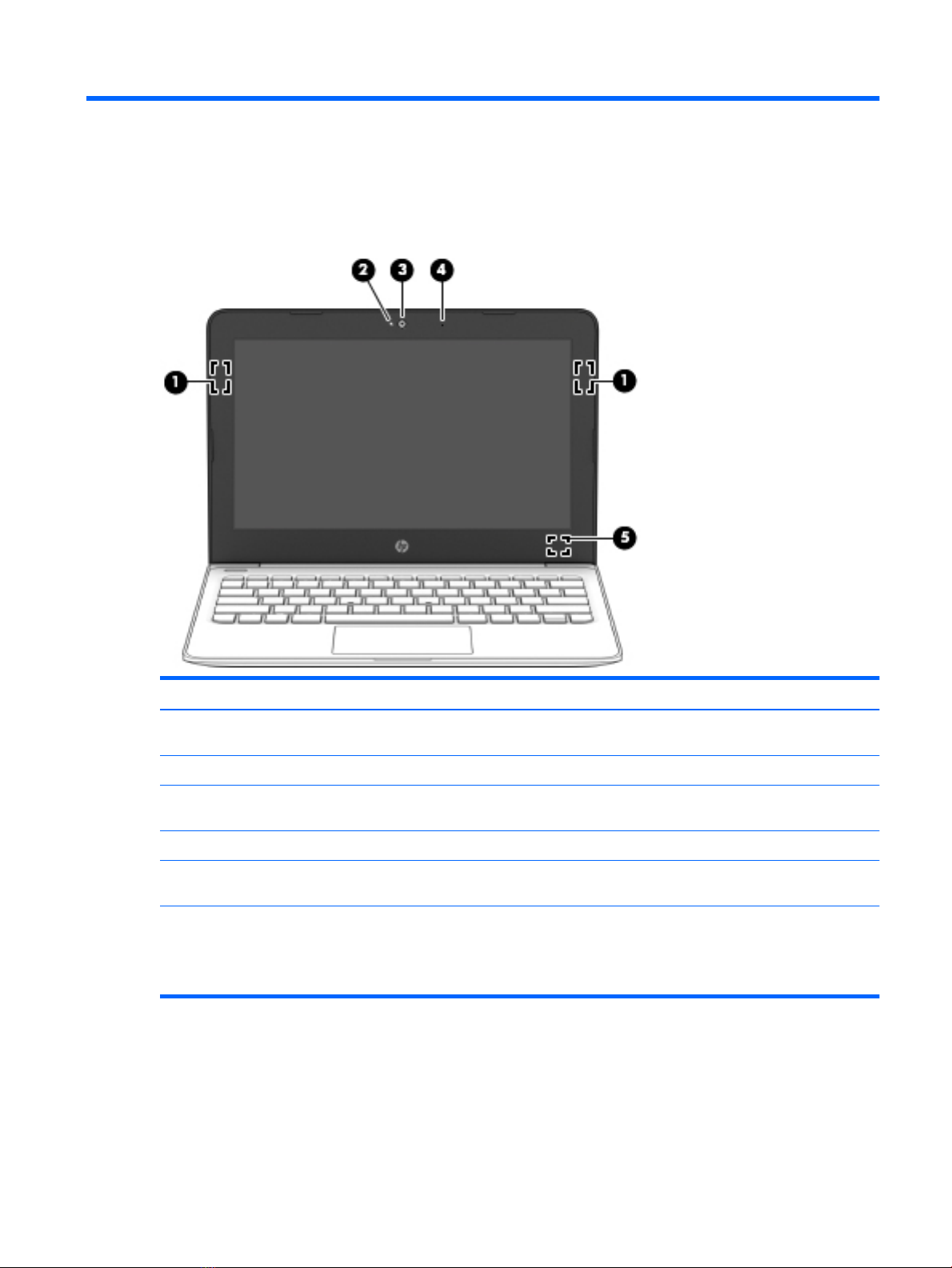
Display
Item Component Description
(1) WLAN antenna* Sends and receives wireless signals to communicate with
wireless local area networks (WLANs).
(2) Camera light On: The camera is in use.
(3) Camera Records video and captures photographs. Some models allow
you to video conference and chat online using streaming video.
(4) Internal microphone Records sound.
(5) WLAN antenna* Sends and receives wireless signals to communicate with
wireless local area networks (WLANs).
*The antennas are not visible from the outside of the computer. For optimal transmission, keep the areas immediately around
the antennas free from obstructions.
For wireless regulatory notices, see the section of the Regulatory, Safety, and Environmental Notices that applies to your country
or region.
Display 3
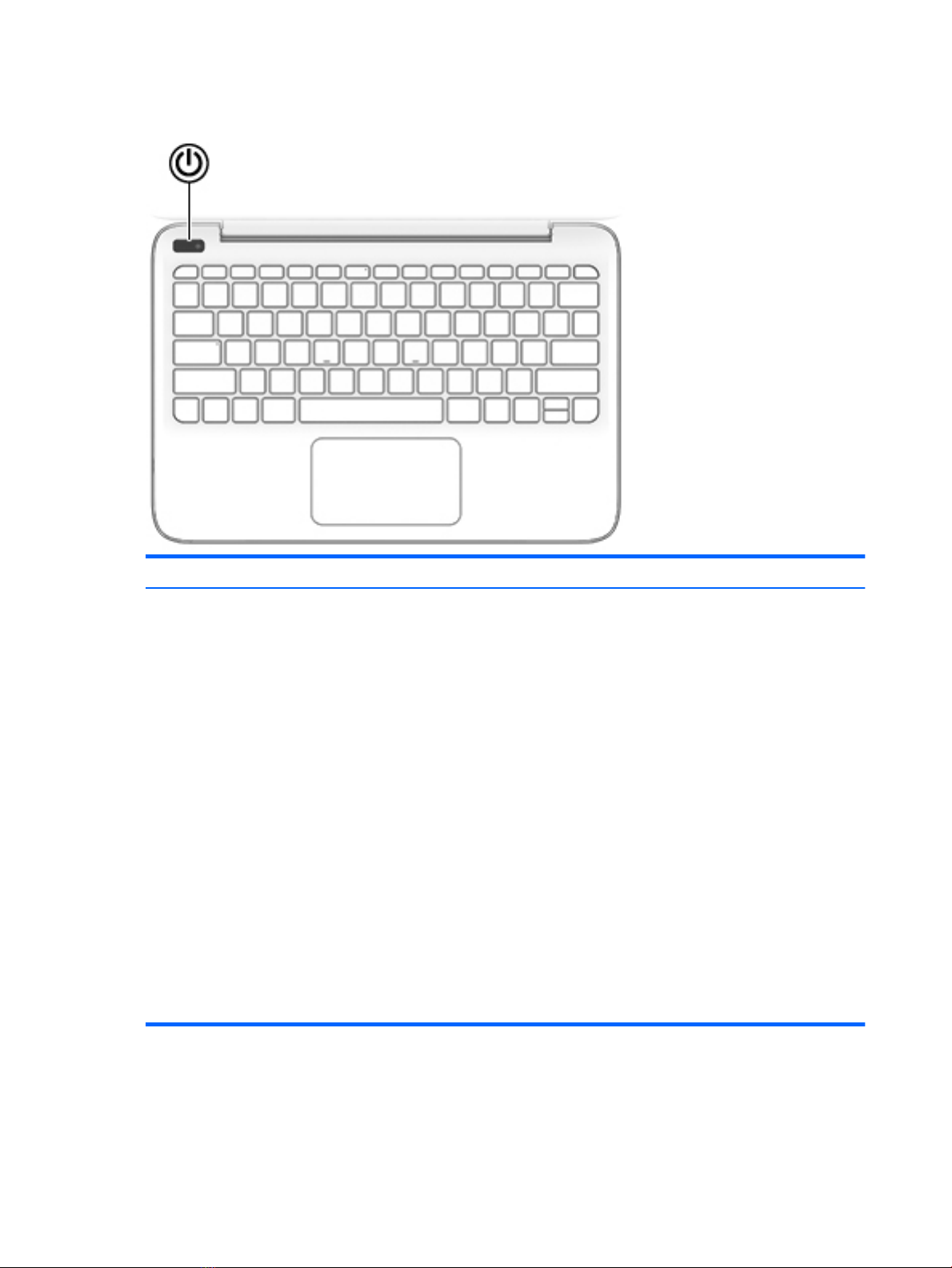
Button
Item Component Description
Power button ●When the computer is o, press the button to turn on the
computer.
●When the computer is on, press the button briey to initiate
Sleep.
●When the computer is in the Sleep state, press the button
briey to exit Sleep.
●When the computer is in Hibernation, press the button
briey to exit Hibernation.
CAUTION: Pressing and holding down the power button results
in the loss of unsaved information.
If the computer has stopped responding and shutdown
procedures are ineective, press and hold the power button
down for at least 5 seconds to turn o the computer.
To learn more about your power settings, see your power
options.
▲Type power in the taskbar search box, and then select
Power and sleep settings.
‒ or –
Right-click the Start button, and then select Power
Options.
4 Chapter 2 External component identication
Indice
Altri manuali HP Computer portatile

HP
HP Compaq Presario Manuale

HP
HP Pavilion DV7-6C60 Manuale utente

HP
HP Envy 15 Manuale

HP
HP EliteBook 820 G2 Manuale

HP
HP Presario CQ57-200 Manuale utente

HP
HP Pavilion DV7-4060 Manuale

HP
HP Pavilion DV2-1010EA Manuale

HP
HP G6060EA Manuale utente

HP
HP V6604AU Manuale utente

HP
HP EliteBook 725 G2 Manuale utente

HP
HP Compaq NX6330 Manuale

HP
HP Nx9420 - Compaq Business Notebook Istruzioni utente

HP
HP ELITEBOOK 2740P Manuale utente

HP
HP Pavilion HDX9000 Manuale utente

HP
HP Pavilion DV4-1280 Manuale utente

HP
HP Compaq Presario V5000 Series Istruzioni per il montaggio

HP
HP ze2000 Istruzioni per il montaggio

HP
HP Pavilion DV5-2070 Manuale

HP
HP Pavilion DM1z-3200 Manuale utente

HP
HP G32-200 - Notebook PC Manuale


