
HP LC4776N Manuale utente

HP LCD TVs - Setting Up Your LCD TV
Before you begin
Items needed for setup
Attaching or removing the stand
Connecting devices
Connecting an external sound system
Connecting power to the TV
TV back panel
This document pertains to these HP LCD TVs:
HP LC4776N 47-Inch LCD High-Definition Television
HP LC4276N, LC4272N, and LC4270N 42-Inch LCD High-Definition Television
HP LC3772N and LC3770N 37-Inch LCD High-Definition Television
HP LC3272N and LC3270N 32-Inch LCD High-Definition Television
This document explains how to set up your HP LCD TV.
NOTE:
It may be necessary to purchase additional video and audio cables to perform some of the steps in
this document.
Points to note during installation:
Select a location for the TV that has easy access to the AC power receptacle.
WARNING:
Due to the size and weight of the display and stand, it is recommended that a minimum of
two people assemble and move the TV.
Refer to TV back panel for connector locations.
Refer to Turning on the TV for TV buttons and indicators.
Before you begin

The following items that came with the TV are used in this article. If you recently purchased your TV and
an item is missing Contact HP (in English) for a replacement.
Figure 1: Television (panel with stand detached)
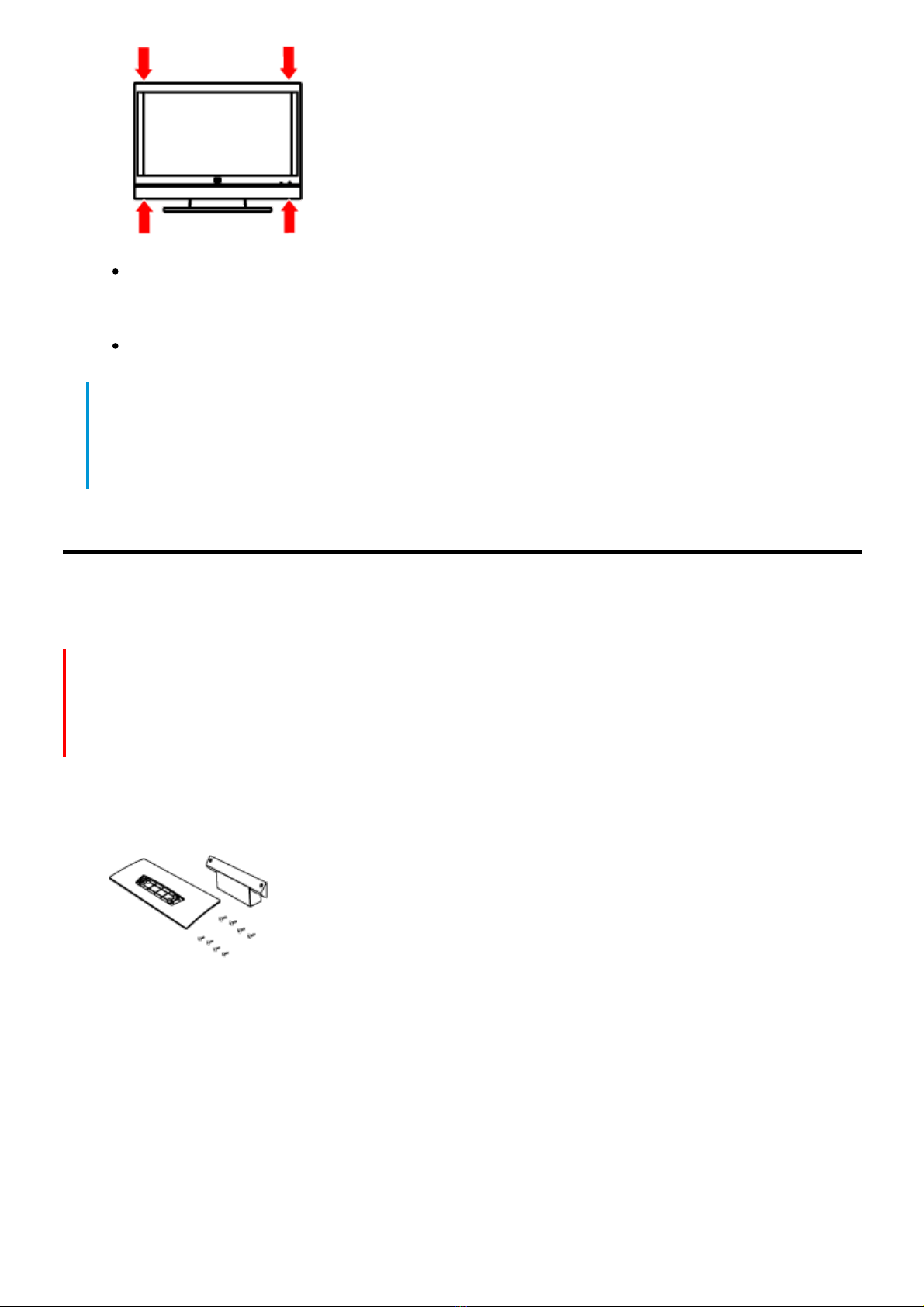
Figure 2: TV stand (two pieces) with mounting hardware (eight screws)
Figure 3: Cable clamp
Figure 4: AC power cord
Two persons to lift the display and move the assembled TV
Figure 5: Lift the TV by grasping the left and right ends of the panel in the areas below and
above the screen. Do not lift the TV by the attached stand.
Items needed for setup
Other items you need
Cables to connect the antenna or cable TV signal source, and other devices you want to connect
to the TV
A TV signal source (antenna, satellite, cable)
NOTE:
Optional equipment, cable or satellite TV service, and all cables are sold separately.
Your TV comes with the stand attached. Select TV models come with a stand that must be attached to
the display.
CAUTION:
Use two people to assemble the TV.
1. Locate the TV stand (two pieces), and the eight screws of mounting hardware from the box.
Figure 6: TV stand pieces and eight screws
2. Using the two pieces of the stand, place the pedestal onto the base.
Figure 7: Place the pedestal onto the base
Attaching or removing the stand

3. Turn the assembled stand over and insert four short screws into the bottom of the base, and
tighten the screws to secure the base to the pedestal.
Figure 8: Insert four short screws into the bottom of the base
4. Carefully place the TV panel with the glass screen facing downward on a padded, stable table.
Position the bottom of the TV near the edge of the table.
WARNING:
Do not lean or press on the TV panel. The stand is heavy. Do not allow the stand to drop onto
the TV panel. Do not lift the stand over the TV panel.
5. Holding the assemble stand by the base with the rear facing up toward you, place the stand into
the bottom of the TV. Hold the stand in place.
Figure 9: Place stand into bottom of the TV
6. Insert four long screws into the holes on the back of the stand (pedestal) and into the rear of the
TV, and then tighten the screws.

7. Carefully lift the TV and then position the TV upright on a stable table.
To remove the stand, perform the steps in reverse order.
Use the following sections depending on the type of device you are connecting:
Connecting the cable TV or an air broadcast antenna
Connecting cable or satellite with a set-top box
Connecting a DVD player, VCR, DVR, game console, or camcorder
Connecting a PC
WARNING:
Before connecting the TV to any other electronic device, unplug the TV and electronic device AC
cords from the AC input.
CAUTION:
An F-type connector should be finger-tightened only. When connecting the RF cable to the TV set,
do not use tools to tighten the F-type connector, as it may cause damage to your TV set.
Use standard 75-ohm coaxial cable to connect a ground antenna or cable TV input source to the TV. Use
shielded coaxial cable to reduce radio frequency (RF) interference.
NOTE:
Optional equipment, cable or satellite TV service, and all cables are sold separately.
CAUTION:
Unplug the power for the TV and all connected components before connecting the antenna or
cable.
1. Connect a coaxial cable to the input source.
2. Connect the input source coaxial cable to the ANT/Cable connector on the back of the TV.
Connecting devices
Connecting cable TV or an air broadcast antenna

Figure 10: Source coaxial cable to the ANT/Cable connector on the back of the TV
3. Connect power to the TV.
4. Turn on the TV.
You can connect a digital TV set-top box (air or cable) and other audiovisual equipment by using the
following steps.
NOTE:
Optional equipment, cable or satellite TV service, and all cables are sold separately.
CAUTION:
Unplug the power for the TV and all connected components before connecting the set-top box.
1. Connect the set-top box input source cable(s) to the back of the TV using one of the connector
sets:
HDMI cable connected to any of the Digital High Definition Input (HDMI 1, HDMI 2, or HDMI 3)
connectors on the TV.
Figure 11: Connecting HDMI cable to HDMI 1
Connecting cable or satellite with a set-top box

DVI video cable with a DVI-to-HDMI converter and audio cables connected to the HDMI 1
connector and the Audio In connectors on the TV.
Figure 12: Connecting DVI-to-HDMI converter, DVI cable, and audio cables to HDMI 1
Component video and audio cables connected to Component High Definition (Component 1
or Component 2, and Audio L and R) connectors on the TV.
Figure 13: Connecting Component cables and audio cables to Component 1 or Component
2 connectors
S-video and audio cables connected to Standard Definition Input, AV Input 1 or AV Input 2
(S-Vid and Audio L and R) connectors on the TV.

NOTE:
The S-Vid connector in each of the Standard Definition Input (AV Input 1 and the AV
Input 2) connector sets shares the audio connectors in the set with the Video connector
in the set. Do not connect video cables to both the S-Vid and Video connectors in an
input set.
Figure 14: Connecting S-Video cable and audio cables to AV Input 1 or AV Input 2
connectors
Video (composite) and audio cables connected to Standard Definition Input, AV Input 1 or AV
Input 2 (Video and Audio L and R) connectors on the TV.
NOTE:
The Video (composite) connector in each of the Standard Definition Input (AV Input 1
and the AV Input 2) connector sets share the audio connectors in the set with the S-Vid
connector in the set. Do not connect video cables to both the S-Vid and Video
connectors in an input set.
Figure 15: Connecting Composite cable and audio cables to AV Input 1 or AV Input 2
connectors

2. Connect the cables to the set-top box.
3. Turn on the set-top box.
4. Connect power to the TV.
5. Turn on the TV.
You can connect optional equipment, such as a DVD player, VCR, DVR, home stereo systems, and so on,
to the TV. Optional equipment, including cables, are sold separately.
You can connect a DVD or other audiovisual equipment by using the following:
HDMI cable connected to any of the Digital High Definition Input (HDMI 1, HDMI 2, or HDMI 3)
connectors on the TV.
DVI video cable with a DVI-to-HDMI converter and audio cables connected to the HDMI 1 connector
and the Audio In connectors on the TV.
Component video and audio cables connected to Component High Definition (Component 1 or
Component 2, and Audio L and R) connectors on the TV.
S-video and audio cables connected to Standard Definition Input, AV Input 1 or AV Input 2 (S-Vid
and Audio L and R) connectors on the TV.
Video (composite) and audio cables connected to Standard Definition Input, AV Input 1 or AV Input
2 (Video and Audio L and R) connectors on the TV.
You can connect a VCR for playback by using either S-Vid or Video (composite) connections.
Connecting a DVD player, VCR, DVR, game console, or
camcorder

You can connect a game console, camcorder, and other AV equipment by using either S-Vid or Video
(composite) connections.
You can connect HDMI equipment by using an HDMI connector.
You can connect DVI equipment by using a DVI cable with a DVI-to-HDMI converter and audio cables, and
the HDMI 1 connector and Audio Input connectors.
1. Connect the optional equipment input source cable(s) to the back of the TV using one of the
connector sets.
2. Connect the cables to the optional equipment.
3. Turn on the optional equipment and start play.
4. Connect power to the TV.
5. Turn on the TV.
Use the following instructions when connecting a PC or other source equipment to the PC Input (VGA and
Audio L/R) connectors on the back of the TV. The PC Input is a selectable input source (PC in the source
list). Cables are sold separately.
You can also connect a PC with a DVI connector:
For a PC with a DVI-D connector, connect a DVI-D cable and DVI-to-HDMI converter to HDMI 1, and
audio cables to Audio In L and R.
For a PC with a DVI-I connector, connect a DVI-I cable and a DVI-to-VGA converter to the PC Input
(VGA) connector and an audio cable to the PC Input Audio L/R connector.
CAUTION:
Unplug the power for the TV and all connected components before connecting a PC. Ensure that the
PC is powered off.
1. Connect the video cable and the audio cable to the back of the TV using the PC Input (VGA and
Audio L/R) connectors.
Figure 16: Connecting a PC with a VGA cable and an audio cable
Connecting a PC
Questo manuale è adatto per i seguenti modelli
7
Indice
Altri manuali HP TV LCD

HP
HP MediaSmart SL4282N Manuale utente

HP
HP LC3760N Manuale utente

HP
HP LT4700 Guida all'installazione

HP
HP LC2640N Istruzioni per l'installazione

HP
HP LT3200 Manuale utente

HP
HP LT3200 Guida all'installazione

HP
HP LT4700 Manuale utente

HP
HP HP LC3260N Manuale utente

HP
HP LT4200 Guida all'installazione

HP
HP Pavilion LC3700N Manuale utente


