
Hyco W28 Series Manuale utente

W28 Series Product
2D Ring Scanner
User Manual
www.hycoiot.com

W28 Series Product 2D Ring Scanner Product Specification
1
Disclaimer
Disclaimer @2018 Shanghai Hyco Genyong Technology Co., Ltd. All rights
reserved.
Please read through the manual carefully before using the product and operate
it according to the manual. It is advised that you should keep this manual for
future reference.
Do not disassemble the device or remove the seal label from the device.
Otherwise, Shanghai Hyco Genyong Technology Co., Ltd. does not assume
responsibility for the warranty or replacement.
All pictures in this manual are for reference only and actual product may differ.
Regarding to the product modification and update, Shanghai Hyco Genyong
Technology Co., Ltd. reserves the right to make changes to any software or
product to improve reliability, function, or design at any time without notice.
Besides, the information contained herein is subject to change without prior
notice.
The products depicted in this manual may include software copyrighted by
Shanghai Hyco Genyong Technology Co., Ltd. or a third party. The user,
corporation or individual, shall not duplicate, in whole or in part, distribute,
modify, decompile, disassemble, decode, reverse engineer, rent, transfer or
sublicense such software without prior written consent from the copyright
holders.
This manual is copyrighted. No part of this publication may be reproduced or
used in any form without written permission from Hyco.
Please visit www.hycoiot.com or check the latest version of the specification
sheet for the latest product information

W28 Series Product 2D Ring Scanner Product Specification
2
Product demonstration
Front view
Back view
Ring strap
Ring Scanner
Right touch button
Scan Window
Left touch button
Indicator Light

W28 Series Product 2D Ring Scanner Product Specification
3
How to wear
The product can be worn on the third joint of the index finger of the left or right
hands to adapt to the tightness of the ring strap.
Touch the left or right touch button area with your thumb. The scanner emits
light for barcode recognition. When the indicator light flashes green and the
scanner vibrates, it means the scanning is successful.
It can also be worn on other fingers, just tap the corresponding scanning area
on the left and right sides.
How to charge
Connect the charging cradle to the power source, and place the scanner into
the charging cradle as shown in Figure 1 (the scanning lens of the scanner is
upward), and then charging starts.
The charging status indicator turns red to indicate that it is charging, and green
to indicate that the battery is fully charged, and charging is complete.
Note: Please make sure that the ring strap is pushed to the bottom of the
scanner slot.
★
In order to avoid triggering the light when taking out the Scanner from the
charging cradle and directing the eyes to cause injury. Therefore, it is set that
after the Scanner is charged, it needs to touch three times in a row to emit light
normally.

W28 Series Product 2D Ring Scanner Product Specification
4
Charge via W2X/SC100 cradle
Figure 1
W2X Charging Cradle (Bluetooth Receiver)
Bluetooth Indicating LED
Charging Indicating LED
Charging Contact Point
Charging & Bluetooth Indicating LED:
Red – Charging and Bluetooth
disconnection
Blue – Bluetooth connection, no charging
or charging finished
Purple – Charging and Bluetooth
connection
Green – Fully charged or no charging
Working Indicating LED:
Red – Power-up
Green – In operation

W28 Series Product 2D Ring Scanner Product Specification
5
Replacing the ring strap
This product is equipped with 1 silicone ring strap, and 5 different kinds of
spare silicone ring straps to adapt to different finger sizes.
You can contact HYCO Technology Customer Service Center to purchase
additional ring straps as a spare.
Figure 2
How to replace the ring strap
You can complete the replacement as shown in Figure 3.
When installing the ring strap, be sure to push the silicone ring strap to the end
of the slot to avoid affecting the normal charging of the product.
Figure 3
Figure 4
Ring strap haven’t push to the end of the slot and
affects charging.
W28 Series Product 2D Ring Scanner Product Specification
6
Bluetooth Connection
Connect with PC
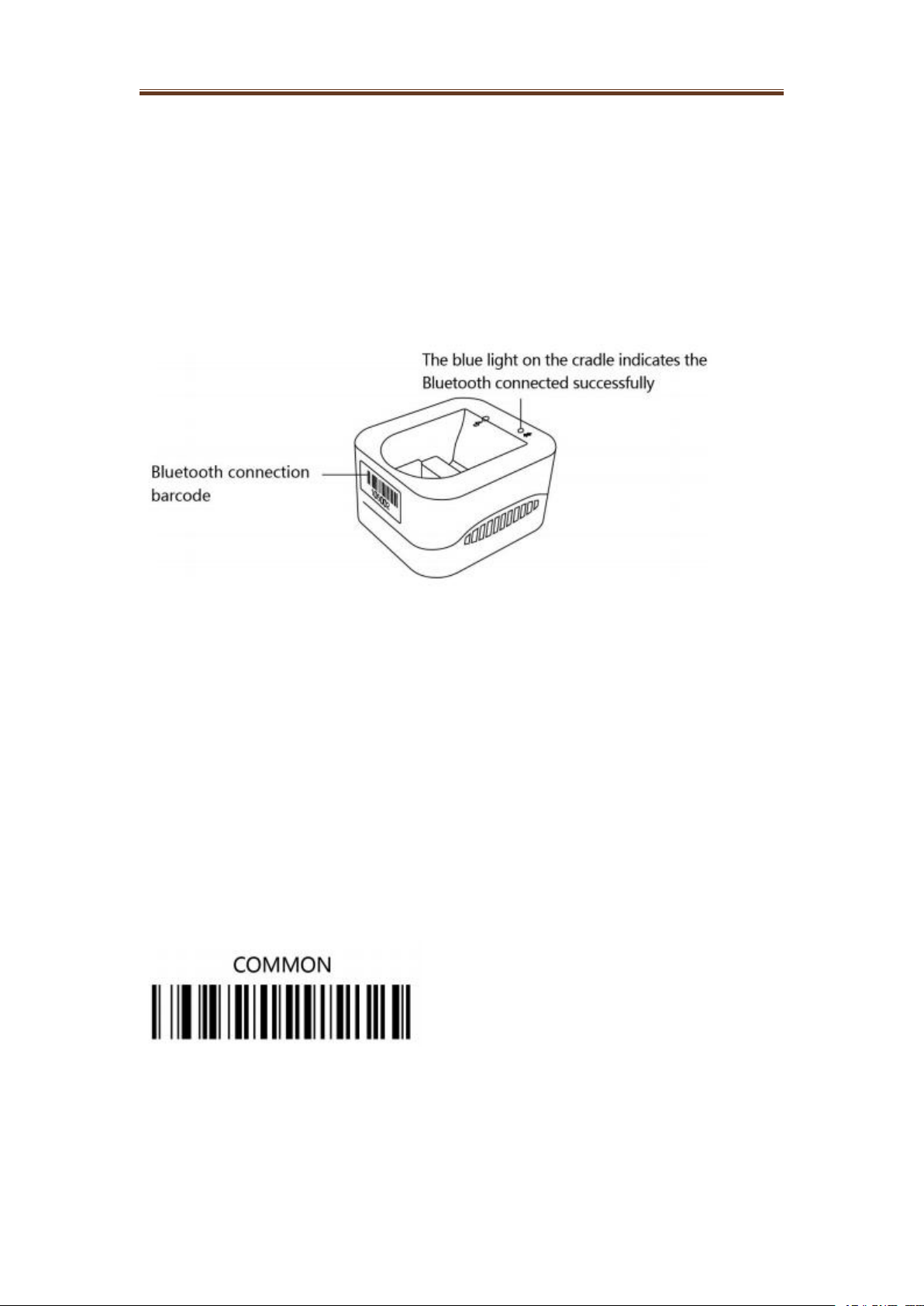
Firstly, connect the charging cradle with computer via USB cable, the green
light on the cradle turns on. Secondly, after 15 seconds, ring scanner scans the
"Bluetooth connection" barcode on the front of cradle, the blue light on the
cradle indicates the Bluetooth communication between ring scanner and
cradle is successfully set up.
Connect with Tablet PC or phone
Enter the ‘Setting’ in the Tablet PC or phone, click ‘Bluetooth search’, find the
Bluetooth serial number of the ring scanner, choose the corresponding
Bluetooth serial number in the searching list. When the ring light turns on
green, it indicates successful Bluetooth connection between ring and Tablet
PC or phone.
Use of applications (APP)
Prerequisites before connecting ring with different devices:
Change connection with different masters among computer, Tablet PC and
phone. When ring pairs with different terminal devices, user needs to scan
different barcode before Bluetooth connection.
To connect ring scanner with computer, please scan the barcode “COMMON”,
but it is set by default.

W28 Series Product 2D Ring Scanner Product Specification
7
To connect ring scanner with Smart Phone or Tablet PC based on IOS system,
please scan the barcode "IOS".
To connect ring scanner with Smart Phone or Tablet PC based on Android
system, please scan the barcode "ANDROID".
To connect ring scanner with Smart Phone or Tablet PC based on Windows
system, please scan the barcode "WINDOWS".
Specifications
Weight
20g(ring strap not include)
Ring strap
10 pieces (5 different sizes)
Working Temp.
-20℃to 50℃(-4℉to 122℉)
Scan angle
Horizontal angle 32.5°, vertical angle 21.4°
Image Sensor
CMOS sensor, 1280*800 pixels
Scan mode
Matrix image scanning
Indicator
RGB LED indicator, vibration
Wireless
Ring Scanner : BT4.2 BLE

W28 Series Product 2D Ring Scanner Product Specification
8
W2X,SC100 charging cradle: USB 2.0,With
USB DONGLE function, it can be used as a
Bluetooth adapter on the PC side;
Optional cradle charger with RS-232 or Ethernet
interface.
How to wear
It is recommended to wear it on the left and right
index fingers
Button method
Capacitive touch on the left and right sides
Ingress protection
IP66
Anti-drop/roll-off
performance
Within the applicable temperature range, it can
withstand 12 drops from a height of 3 meters to
the concrete floor.
Battery
3.7V, 200mAh lithium polymer battery
Work time
8 hours
★
The technical specifications of this product are subject to change without
notice.
Indicator light
Red, green and blue
Switch on
Short flashing green
light
Successful scan
Double flashing red
light every 5 seconds
Low power
The green light is on
for 1 second
Bluetooth successful connect
The blue light is on for
1 second
Bluetooth disconnect
Short flashing yellow
light
Function setting success
The blue light keeps
flashing and vibrates
Bluetooth disconnection prompt is turned on, and
current Bluetooth is disconnected

W28 Series Product 2D Ring Scanner Product Specification
9
Vibration reminder
Vibration reminder function default turns on, this function can be turn on/off
through scan below function code.
开启振动
Turn on vibration reminder
关闭振动
Turn off vibration reminder
Remind type
Description
Turn on the vibration
function (default)
After turning on this function, if the barcode is
correctly identified, it will vibrate. The vibration time is
70 milliseconds.
Turn off vibration
Successfully scan the barcode without vibration.
1 short vibration
The barcode is correctly recognized and the prompt is
sent successfully.
Continuous vibration 3
times
The Bluetooth is disconnected, and the barcode
information is not sent successfully.
Altri manuali per W28 Series
1
Indice
Altri manuali Hyco Scanner


