
I-CAN 1850S Manuale utente

1850S
1
USER GUIDE
1850S

2
TABLE OF CONTENTS
Table of contents.................................................................. 2
About your high definition receiver................................... 3
What is HDTV? ..................................................................... 3
Getting started..................................................................... 5
Safety first.......................................................................... 5
Unpacking your digital receiver...........................................5
Front panel......................................................................... 5
Basic connections ...............................................................6
TV connections................................................................... 7
Surround sound .................................................................7
Internet set up.................................................................... 8
Remote control..................................................................... 6
First installation ................................................................. 11
How to set up your receiver.............................................. 11
Changing resolution......................................................... 11
First time installation ........................................................ 11
Using your decoder............................................................ 12
Channel information ........................................................13
What is channel banner?.................................................. 13
More information............................................................. 15
How to change channels? ................................................15
How to change program options? .................................... 15
Channel lists..................................................................... 16
Parental control................................................................18
Using your decoder............................................................ 20
Interactive applications .....................................................20
Electronic program guide.................................................. 20
Language options............................................................. 20
Screen saver and banner duration..................................... 20
TV settings .......................................................................20
Satellite antenna configuration......................................... 20
Software upgrade ............................................................22
Factory reset..................................................................... 22
Troubleshooting................................................................. 23
Maintenance ....................................................................23
Before requesting service.................................................. 23
Technical Data .................................................................... 25
USER GUIDE
1850S
3
ABOUT YOUR HIGH DEFINITION RECEIVER
Your receiver allows you to watch programs filmed in High
Definition with much greater picture and sound quality than ever
before. In addition you can do everything you would expect with
a state of the art TV receiver, including the following:
■Watch free-to-air and pay TV channels including scrambled
programs
■Full parental control to prevent your children watching unde-
sirable programs
■Access to interactive applications such as home shopping,
games, and e-voting
■Find your favourite channels quickly on your personal lists
WHAT IS HDTV?
HDTV (High Definition Television) is a new digital broadcasting
standard bringing you much higher quality video and audio
compared with the previous technology.
There are several reasons why HDTV provides a superior TV
viewing experience:
1. Higher resolution pictures give smarter images
The picture on your TV screen is made up of dots known as pixels,
and more of them give sharper pictures and display movement
more realistically. The number of such dots on the screen, given
as the number of lines, is a measure of the quality, known as
resolution, and the higher the better. Standard definition pictures
have 576 lines per screen, while High Definition TV sets can
display either 720 or 1080 depending on the model.
2. Surround Sound
Many HD programs are broadcast with surround sound (Dolby
Digital), which combined with the panoramic picture creates a
cinema-like experience, with much higher audio quality than
most standard definition TVs.
To get surround sound you’ll need to have an appropriate TV set
or connect your receiver via S/PDIF to a home cinema device.
3. HDMI Connector
The HDMI connector transmits the HDTV pictures and sound to
your TV set with the best possible quality. You must check though
that your TV set supports High Definition Content Protection
(HDCP), which is needed for the HDMI connector to work. If the
HDMI cable cannot be used, your receiver can be connected to
the TV set with a conventional SCART cable.
You will need a TV capable of displaying HD pictures at full
quality to enjoy HD programs. Such TVs are labelled ‘HD
Ready’ or ‘Full HD.’ Check in your TV manual if unsure whether
it is ‘HD ready.’
4
This receiver has an external power supply that works in the range
100 to 240V AC, 50/60 Hz. Ensure you plug the power input lead
into a standard AC wall outlet, and not any DC power source. Re-
member that contact with the AC power supply can be lethal.
Ensure that all cables, including the power input lead, are inserted
properly into the receiver before connecting it to the AC power
supply. Similarly always unplug the receiver from the power supply
first, before disconnecting cables from the receiver or reconnecting
them.
Never attempt to repair or reconstruct the receiver yourself. You
can get a serious electric shock if you attempt to open the casing.
Be extremely careful if this receiver gets wet for any reason. Im-
mediately unplug it from the mains supply.
DO
■If any object falls into the casing, unplug the receiver and
have it checked by a qualified technician.
■Allow adequate air circulation around the unit to prevent
internal heat build-up. Do not place the unit next to a radia-
tor or any heat source, and make sure that the air vents are
left clear.
DO NOT
■Do not expose the receiver to extreme temperatures, direct
sunlight, or high humidity.
■Do not place any objects on top of the receiver since that
could restrict air circulation.
■Do not place the receiver on fabric furnishings, carpets or
other flammable materials.
This digital receiver has been manufactured to meet international
safety standards. However, safety precautions must be followed
to ensure the safe and reliable operation of the device. Please take
note of the following guidelines to avoid the risk of an electric
shock.
SAFETY FIRST
Thank you for purchasing an i-CAN 1850S!
Removing the cover of the receiver may lead to a
severe and potentially fatal electric shock
GETTING STARTED
USER GUIDE
1850S
5
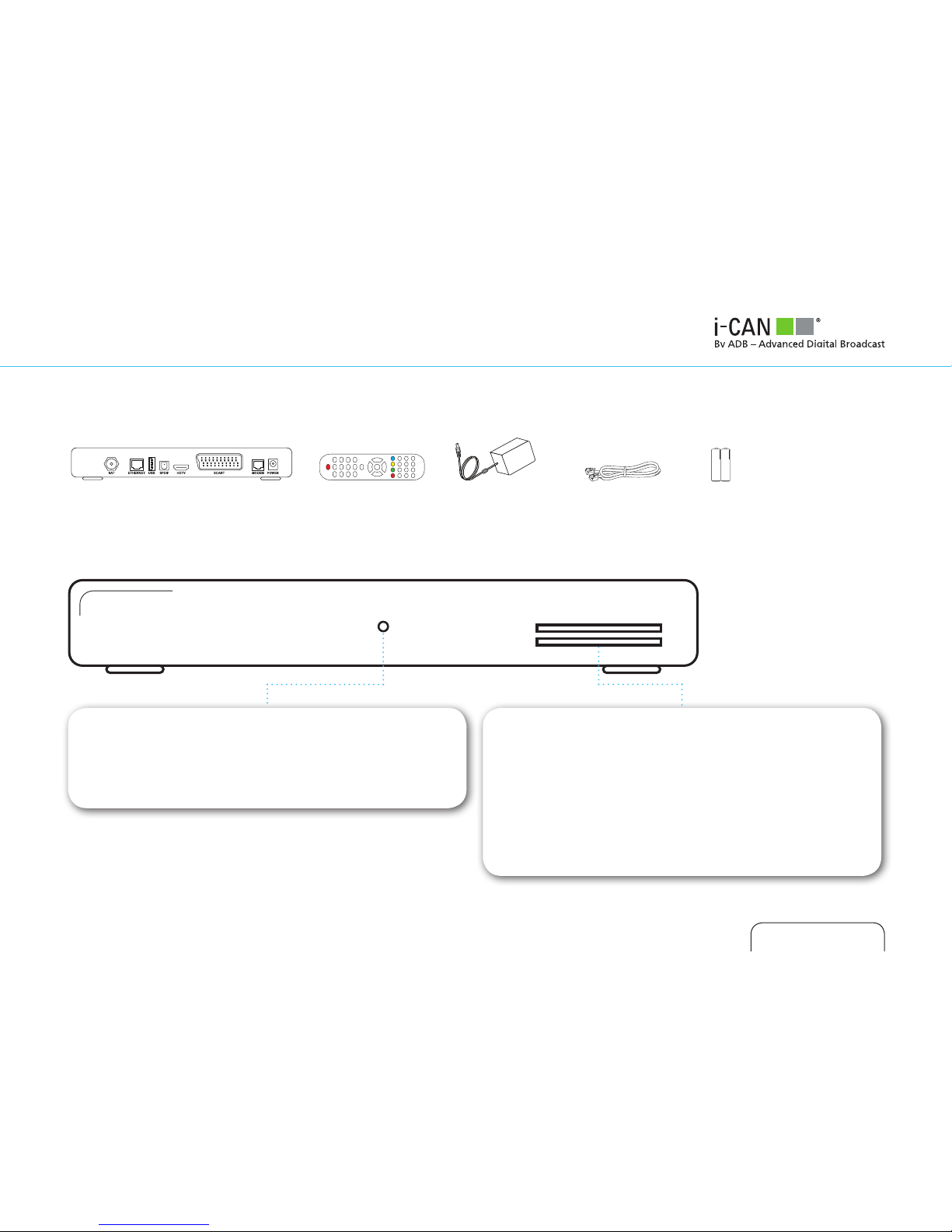
UNPACKING YOUR DIGITAL RECEIVER
FRONT PANEL
LED INDICATOR
White - operating mode.
Red - standby mode.
The LED blinks when your device is receiving signals from the
remote control.
SMART CARD SLOT
Smart Card allows you to view scrambled TV channels. Gently
push the card into the slot. Its chip should face downwards
and the symbol of an arrow should face inwards.
Two Nagra Smart Cards can be used at the same time. If you
are using two Cards, it does not matter to which slot you
place a Card first.
If you are using just one Card, it does not matter which slot
you use.
Receiver Remote Control Power Supply BatteriesTelephone Cable
6
GETTING STARTED
BASIC CONNECTIONS
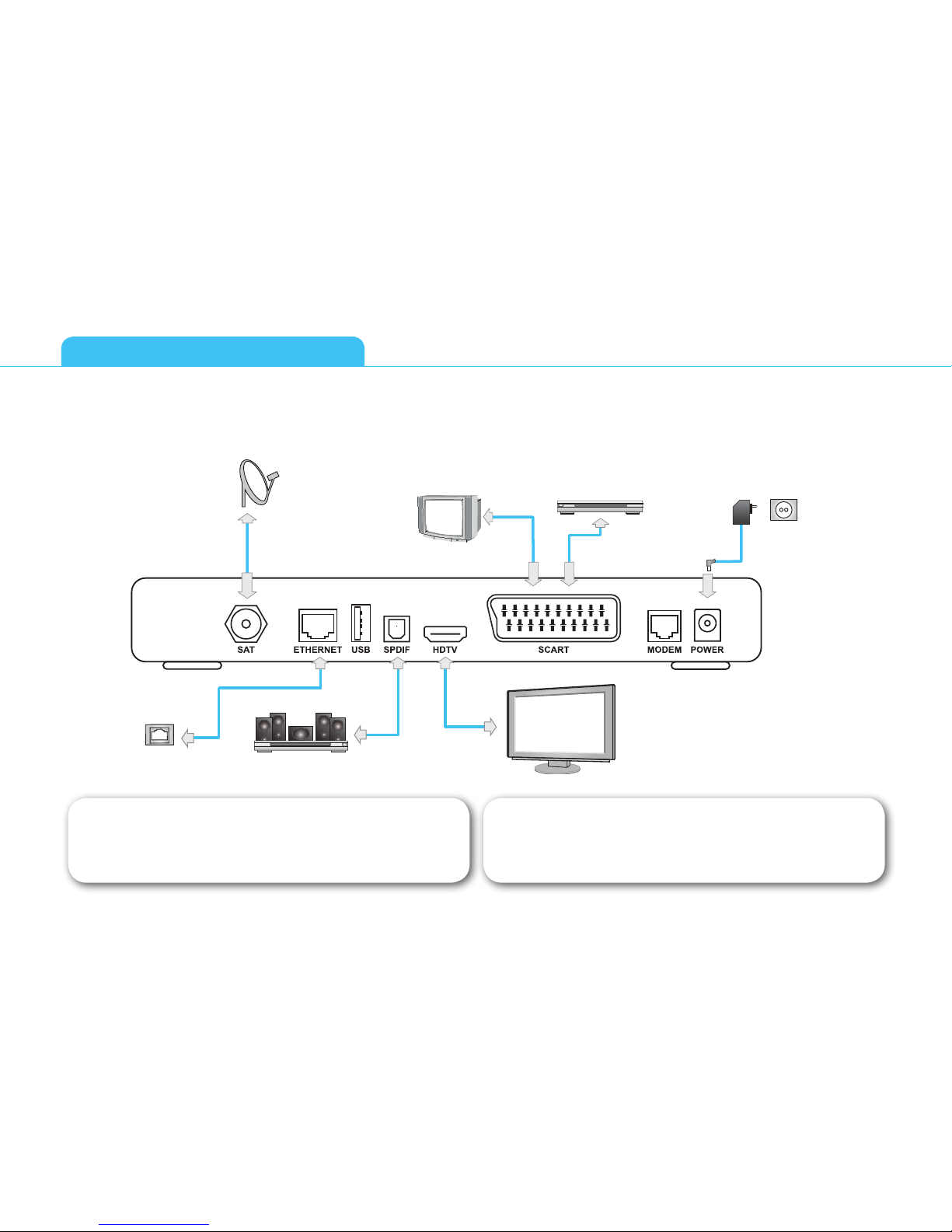
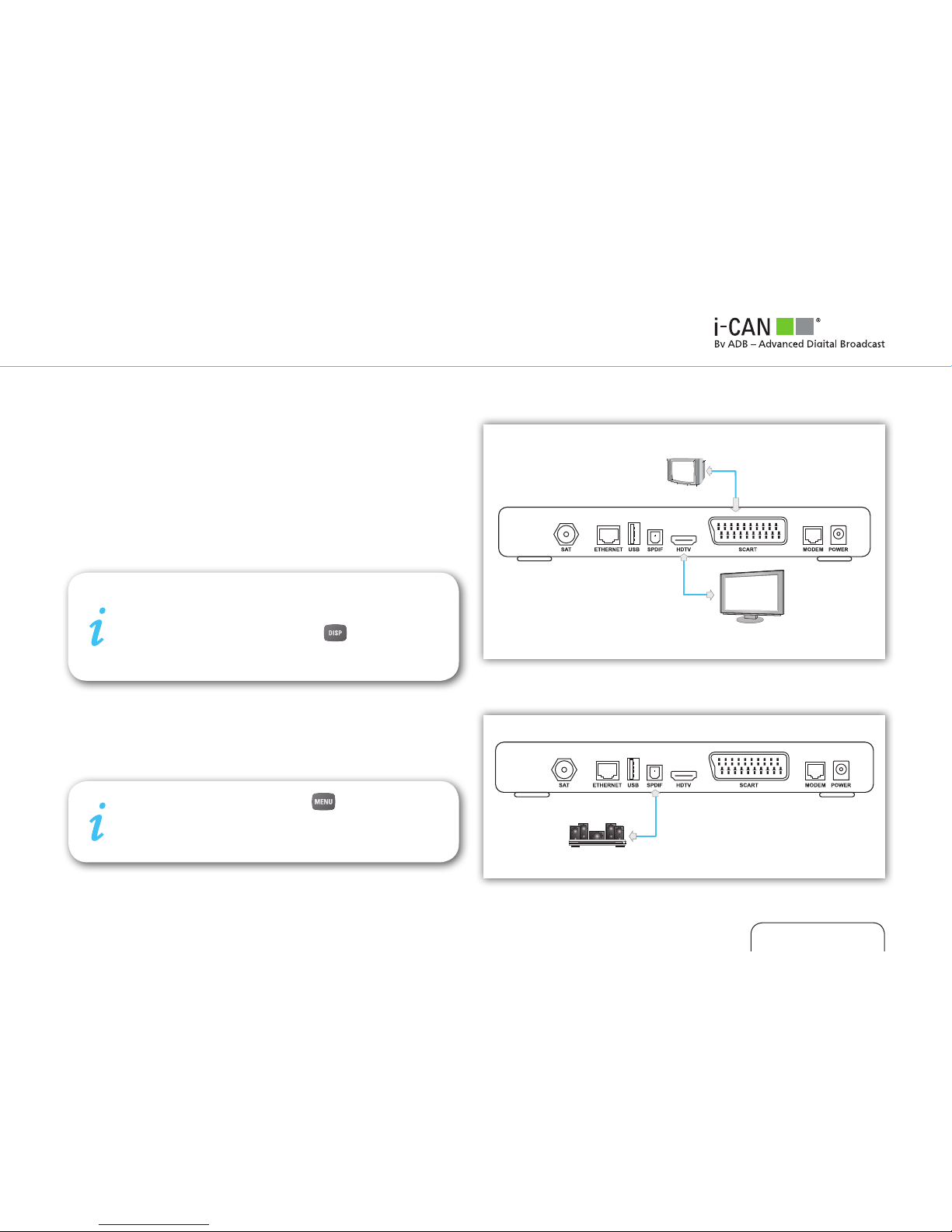
The following connections need to be made in order for the decoder to work properly.
SD TV
Home Cinema
Internet
DVD Recorder
Power socket
HD TV
Plug in all cables before connecting the receiver to the
power supply. Similarly always unplug the receiver
from the power supply first, before disconnecting
cables from the receiver or reconnecting them.
!If you have a non standard antenna installation,
please make sure that you have configured it properly
in the Installation Menu. For more details on the con-
figuration options, go to page 20.
!
USER GUIDE
1850S
7
TV CONNECTIONS
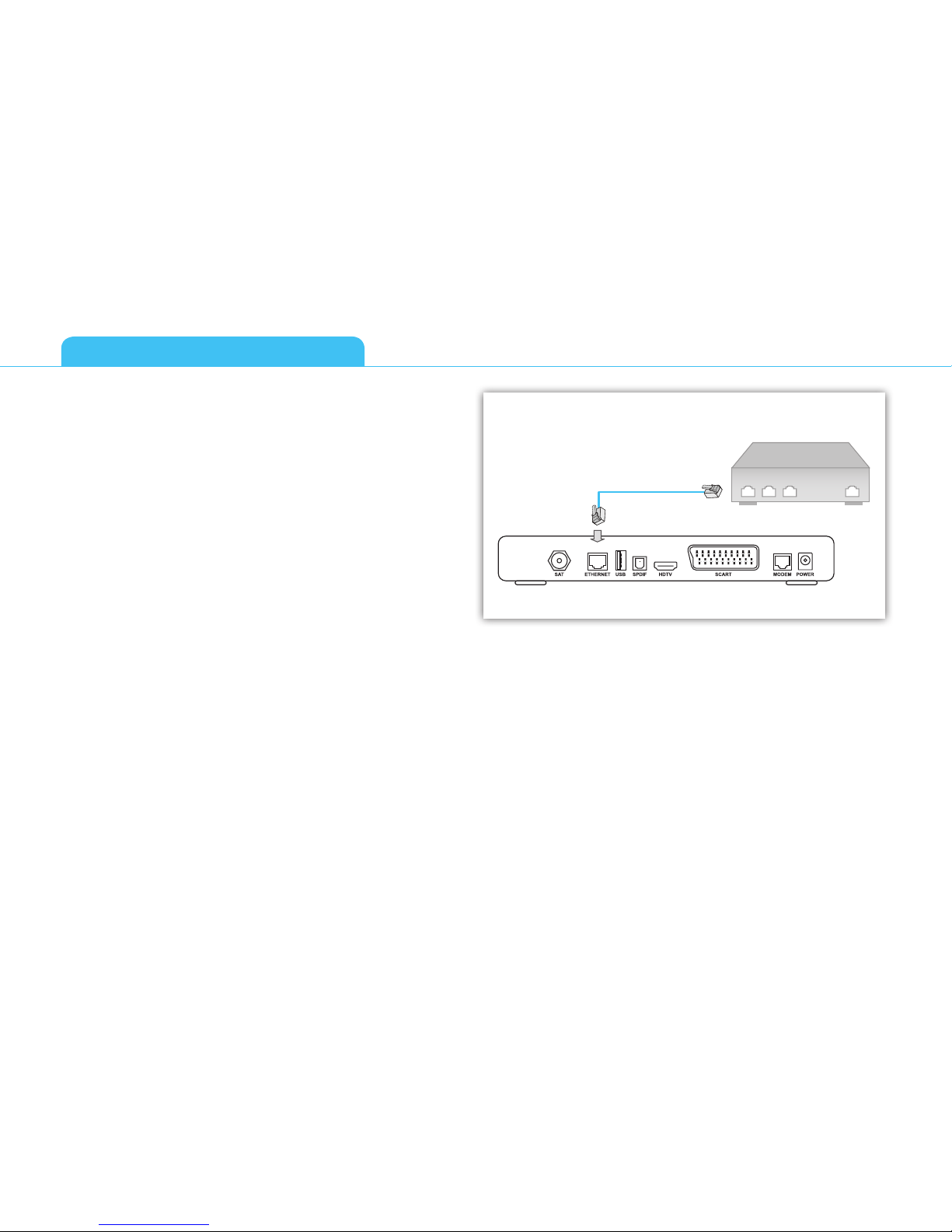
There are two ways of connecting the receiver to your TV set.
■Connection with HDMI cable is the most recommended one.
It provides the highest picture and audio quality. The receiver
automatically detects the best resolution for your TV. But
this requires support for the High Bandwidth Digital Content
Protection (HDCP) standard from your TV set.
■If there is no possibility of connecting the receiver with HDMI
cable, use SCART cable.
SURROUND SOUND
If you would like to enjoy Dolby surround sound, connect your
home cinema system to the receiver with S/PDIF cable.
To enjoy surround sound, press , select “Audio
Mode” in “Your Preferences” menu and choose “Yes”.
Surround sound will be audible only if it is broadcast
with the program.
SD TV
HD TV
Home Cinema
If your receiver is connected with SCART cable, please
make sure that the picture resolution is set to 576i. If
the reslution of the screen is different, then the graph-
ic is not displayed. Keep pressing on the remote
control unit of your i-CAN receiver until it switches on
to 576i mode and the graphic appears.
8
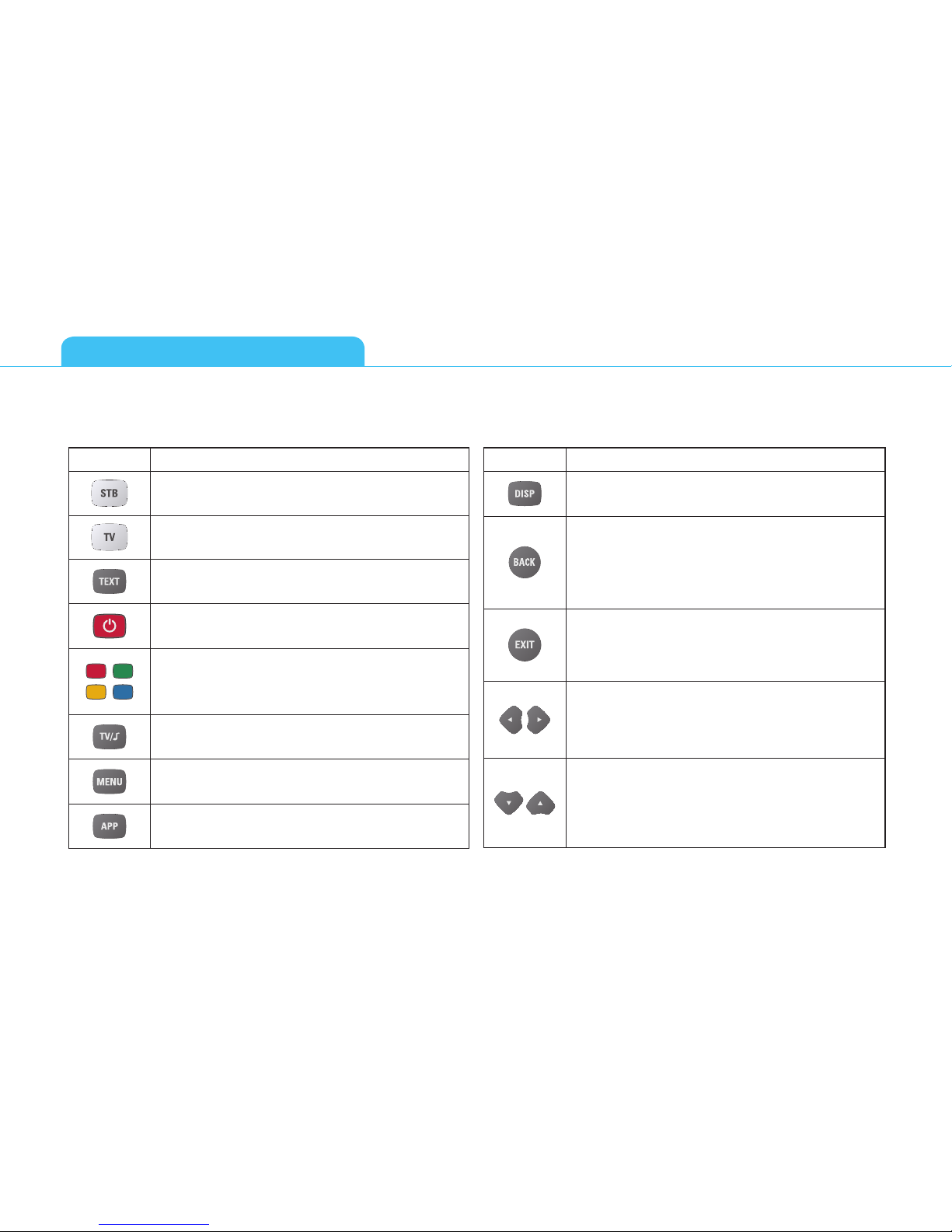
INTERNET SET UP
You may need to set up or reconfigure your Internet connection
for interactive services to work properly. First connect an Ethernet
cable to the Ethernet connector on the back of your receiver, then
set up the connection by going to the Network Configuration
window (Menu then Installation then Network Configuration).
This gives you two options for Internet configuration:
■Automatic Configuration - try this option first, as in most
cases your Internet Service should be able to support auto-
matic discovery of your new device.
■Manual Configuration - allows you to enter data manually
if automatic configuration is not possible. You can contact
your Internet Service Provider for help.
GETTING STARTED
ADSL Router
9
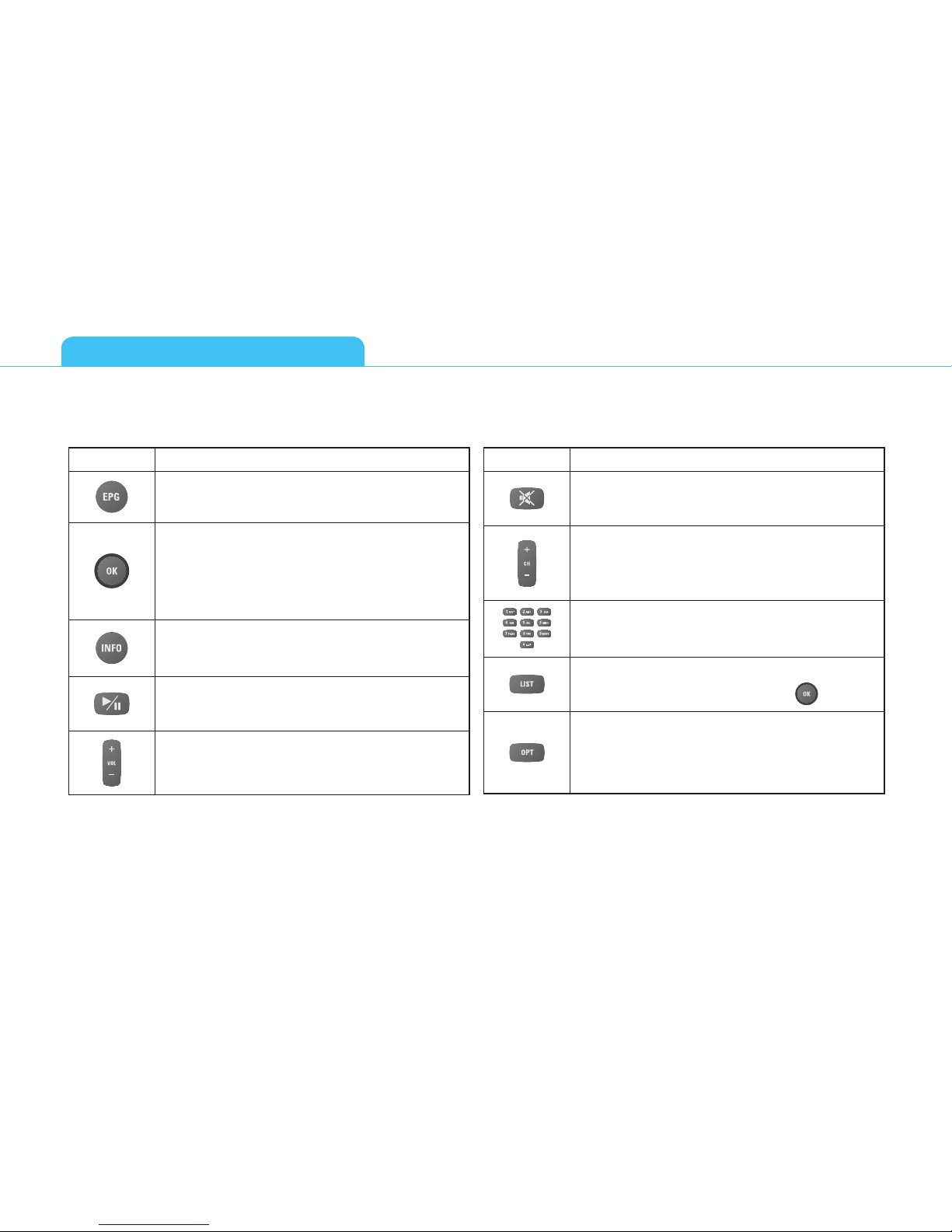
Button Action
Sets the remote control to operate your receiver.
Sets the remote control to operate your TV.
In viewing mode or in the Channel Banner, displays/
leaves teletext if it is available.
Switches your decoder between standby and operating
modes.
Color buttons are seldom used in some of the menu
screens.
Used in external applications.
Switches between TV and Radio mode.
Displays/leaves the menu system.
Displays/leaves the applications window.
Button Action
Changes the video resolution.
In viewing mode or in the Channel Banner, alternates
between the current and previous program within the
same channel list. In the menu or in the Program Guide,
returns to the previous screen.
In the Channel Banner, removes the Channel Banner,
or Extended Information from the screen. In the menu
system or Program Guide, returns to normal viewing.
In the Channel Banner, switch between the current
program information and the next program information.
In the menu, select menu items or change parameters
with pre-defined values.
In Channel Banner, scroll channel information up/down.
The decoder remains tuned to the current channel. In the
menu, select menu items or menu options.
REMOTE CONTROL
10
Button Action
Displays/leaves the Program Guide.
In the Channel Banner, tunes to the channel the Channel
Banner refers to. In the menu, selects the currently
highlighted menu item or confirms your choices made
in the menu screens.
Switches circularly between: viewing mode, Channel
Banner, Channel Banner with Extended Information. In
menu screens displays help texts.
Reserved for future use.
Increases/decreases audio volume level.
Button Action
Mutes the sound. Pressing this button once again will
restore the previously set volume level.
In viewing mode, or in the Channel Banner, tunes to
the next/previous channel. In the Channel List, menu,
or in the Program Guide, scrolls the channel list page
up/down.
Number buttons allow you to type your choice directly,
for example channel numbers or a PIN code (default PIN
code: 1234).
Displays/leaves currently used channel list. Select the
channel you want to tune to, and press .
Displays the Options menu where you can change
the audio and subtitles language and screen format.
Particular options are available only if they are broadcast
with the program.
REMOTE CONTROL
Indice
Altri manuali I-CAN Ricevitore TV


