
IEI Technology SEG-1 Manuale utente

Secure Ethernet Gateway
SEG-1 and SEG-M
for IEI Access Systems
Installation Manual
Section 1: Introduction
SECURITY WARNING: New SEG's shipped after April 2008 will have Telnet setup option enabled by default. Enabling Telnet on
the SEG allows you the customer) to be able to configure the settings of the SEG via LAN without requiring the serial connection to
the SEG via the “Gateway Config” RJ11 adapter. While enabling Telnet setup was done as a convenience to speed setup, it also opens
a security hole in the SEG. It is recommended that when you are finished setting up the SEG, that you also enable the Telnet
password option, so that a password is required to enter Telnet in the future. This Telnet password option is located in Setup menu
option named “0 Server Configuration” and when you get to “Change telnet config password” enter Y and then enter a 4 digit
password. You can also completely disable Telnet in the menu named “6 Security”.
The SEG is a LAN/WAN TCP/IP to serial) interface that enables existing or new IEI access systems to use the end user's network
infrastructure and to be programmed and managed at any network PC running Hub Manager™ Professional software. The SEG
requires Hub Manager™ Professional software version 5.0 or higher for static IP addressing and version 7.1 or higher for dynamic
addressing. The access system data sent over the corporate network is 128-Bit so that user and door information cannot be "sniffed"
and security compromised.
The IP address assigned to the SEG may be either a static address assigned by authorized network administrator, or it may be a
dynamic address assigned by a DHCP Server.
IMPORTANT NOTE:
To set up the SEG, installation technicians must have a technical knowledge of networks and networking in a PC environment. It is
important to consult the end user's system administrator in order to resolve any networking issues that may occur.
Ordering Information
Model p/n Description
SEG-1 0296005
IEI Secured Ethernet Gate ay. Converts TCP/IP to serial data enabling IEI access
systems to use a network to securely send and receive data; and to be programmed and
managed from any network PC running Hub Manager Professional. Requires network
connection. Wall mounts using separately provided hardware; requires separate 12VDC
power [150 mA max], provided with modular cord for communication with access
panel.
SEG-M 0296006
IEI Secured Ethernet Gate ay [Plug-in] Module. Converts TCP/IP to serial data
enabling IEI access systems to use a network to securely send and receive data; and to
be programmed and managed from any network PC running Hub Manager Professional.
Requires network connection. Easily plugs into backplane which provides module
power and communication with access panel.
Document Number: 6 66 5, Rev 3.2 Page 1 of 34

Table of Contents
Section 1: Introduction.............................................................................................................................1
Section 2: Product Overview...................................................................................................................3
2.1 Product Specifications...................................................................................................................3
2.2 LED Status....................................................................................................................................3
Section 3: Hardware Installation..............................................................................................................4
3.1 SE -1 Diagrams...........................................................................................................................4
3.2 Connection the SE -1 to a HubMax or Hub MiniMax (RS-232)...................................................5
3.2.1 SE -1 to HubMax/Hub MiniMax Connection Method 1........................................................5
3.2.2 SE -1 to HubMax/Hub MiniMax Connection Method 2........................................................5
3.3 Connecting the SE -1 to HC500P (RS-232)................................................................................6
3.3.1 SE -1 to HC500P Connection Method 1..............................................................................6
3.3.2 SE -1 to HC500P Connection Method 2..............................................................................6
3.4 Connecting Multiple HubMax/Hub MiniMax Networks..................................................................7
3.5 Connecting the SE -1 to a prox.pad plus (RS-485).....................................................................8
3.5.1 SE -1 to prox.pad plus Connection Method 1......................................................................8
3.5.2 SE -1 to prox.pad plus Connection Method 2......................................................................8
3.6 Connecting Multiple prox.pad plus Networks................................................................................9
3.7 Connecting the SE -1 to a Max 3 System (RS-485).................................................................10
3.8 Connecting the SE -1 to a MiniMax 3 System (RS-485)...........................................................11
3.9 SE -M Installation (Plug On Module).........................................................................................12
3.9.1 SE -M Diagram...................................................................................................................12
3.9.2 SE -M Connectors..............................................................................................................13
3.9.3 SE -M LED Indicators.........................................................................................................13
3.9.4 Connecting the SE -M to a HubMax System (RS-232)......................................................14
3.9.5 Connecting the SE -M to a Hub MiniMax System (RS-232)..............................................14
3.9.6 Connecting the SE -M to a Max 3 System (RS-485).........................................................15
3.9.7 Connecting the SE -M to a MiniMax 3 System (RS-485)..................................................16
Section 4: SE Configuration................................................................................................................17
4.1 Dynamic IP Address via DHCP server, IP Address in SE can change....................................17
4.2 Dynamic IP Address, non-expiring lease....................................................................................20
4.3 Static IP Address.........................................................................................................................21
4.3.1 Setting a Static IP Address of a SE through a serial connection (via PC com port)........21
4.3.2 Setting a Static IP Address of a SE via LAN (through a Telnet connection) ...................22
4.3.3 SE Setup Menu.................................................................................................................24
4.3.4 Configuring the IP Address in Hub Manager Professional..................................................27
4.4 SE Parameters.........................................................................................................................27
4.4.1 IP Address............................................................................................................................27
4.4.2 IP Port..................................................................................................................................27
4.4.3 SE Serial Net Number.......................................................................................................27
4.4.4 Security Key.........................................................................................................................27
4.4.5 enerate Random Security Key..........................................................................................28
4.4.6 enerate Default Security Key............................................................................................28
4.4.7 Set This Security Key into the SE .....................................................................................28
4.5 Defaulting the SE Settings.......................................................................................................28
4.5.1 Reset the Security Key in the SE to all 0's .......................................................................28
4.5.2 Reset the Security Key in the SE to all 0's .......................................................................29
4.5.3 Reset the Security Key in the PC to all 0's..........................................................................29
Section 5: Trouble Shooting..................................................................................................................30
Section 6: FCC Compliance Statement.................................................................................................33
Page 2 of 34 Document Number: 6 66 5, Rev 3.2
Section 2: Product Overview
2.1 Product Specifications
The chart below contains the environmental and electrical specifications.
Electrical
Voltage 12VDC 9V Min; 20V Max)
Current 150mA @ 9V; 100mA @ 20V
Environmental
Temperature 0° to 70 ° C 32° to 158° F)
Humidity 0-95% RH Non-condensing
Environment Indoor Only
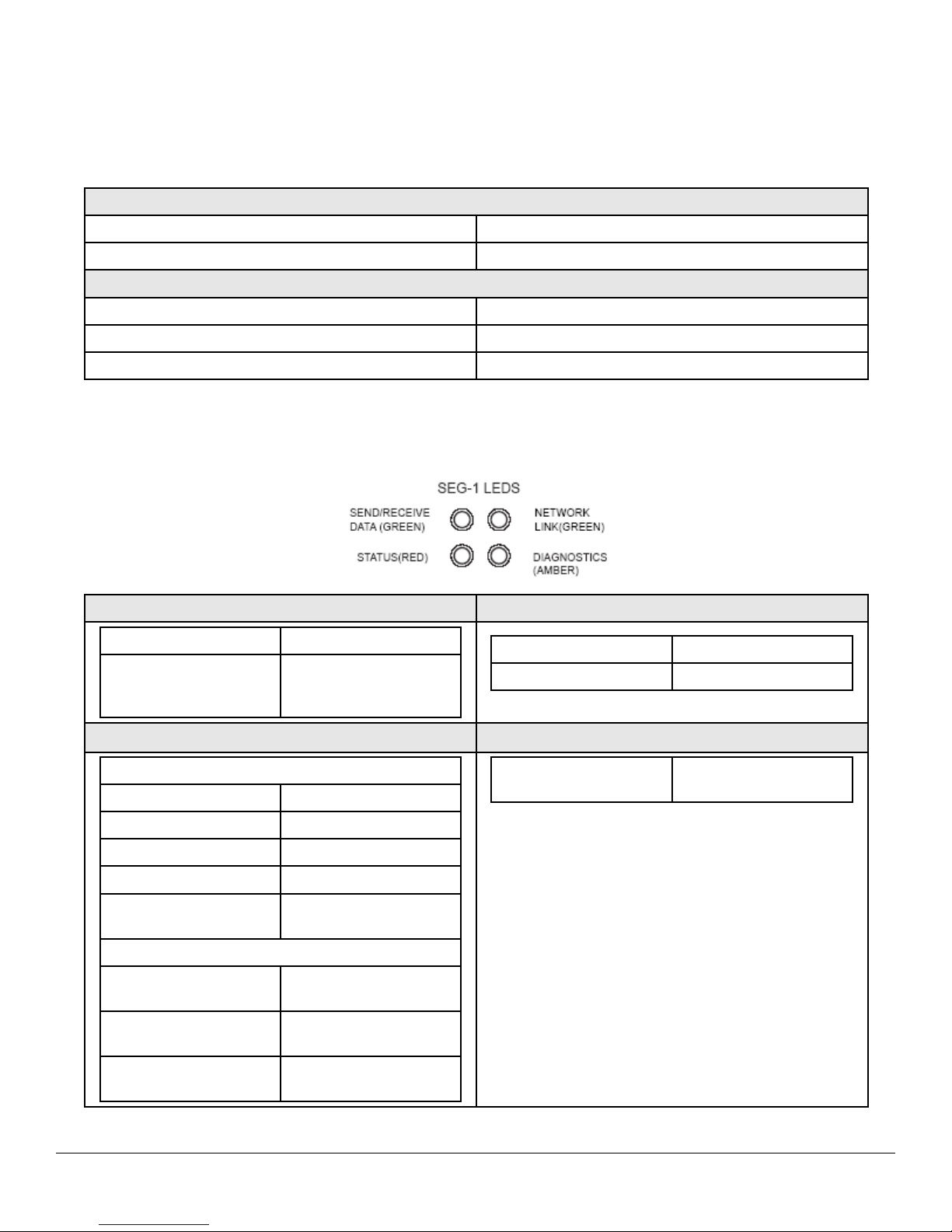
2.2 LED Status
The following diagram and chart describes the SEG LED operations.
Data Send/Recieve (Top Left) Net ork Link (Top Right)
Solid Idle
Flashing
Receiving data from
Hub Manager Pro and it is
being properly decrypted
Solid Good Network Link
Off No Network Link
Status (Bottom Left) Diagnostics (Bottom Right)
Solid with top left blinking)
1x EEPROM Checksum Error
2x RAM Error
3x Network Controller Error
4x EEPROM Checksum Error
5x Duplicate IP Address on
the Network
Flashing with top left blinking)
4x Faulty Network
Connection
5x No DHCP Response
Received
6x Software does not Match
Hardware
Flashing Alternately with
Bottom Left
Module is in Setup Mode
Document Number: 6 66 5, Rev 3.2 Page 3 of 34

Section 3: Hardware Installation
The following section contains information about installing the SEG-1 and SEG-M hardware.
3.1 SEG-1 Diagrams
Page 4 of 34 Document Number: 6 66 5, Rev 3.2

3.2 Connection the SEG-1 to a HubMax or Hub MiniMax (RS-232)
Two different methods can be used to connect Port A of the HubMax or HubMiniMax to the SEG-1:
1. Connect to the RS232 modular jack front of SEG-1)
2. Connect to the RS232 terminals rear of SEG-1)
NOTE: If connection to SEG-1 is NOT located at the HubMax or HubMiniMax then the connection must be made via
stranded/shielded cable.
3.2.1 SEG-1 to HubMax/Hub MiniMax Connection Method 1
The diagram below illustrates the method to connect the HubMax or HubMinimax to the RS232 port of the SEG-1 via its RS232
modular jack on the front of the unit.
3.2.2 SEG-1 to HubMax/Hub MiniMax Connection Method 2
The diagram below illustrates the method to connect the HubMax or HubMinimax to the RS232 port of the SEG-1via the terminal
block at the rear of the unit.
NOTE: The stranded shielded cable used in the diagram shows the connection to the SEG-1 across a distance.
*THIS CHART PERTAINS TO THE CABLE RUN BETWEEN THE SEG-1 AND IEI ACCESS SYSTEMS
Document Number: 6 66 5, Rev 3.2 Page 5 of 34

3.3 Connecting the SEG-1 to HC5 P (RS-232)
Two different methods to can be used to connect Port A of the HC500P to the SEG-1
1. Connect to the RS232 modular jack front of SEG-1)
2. Connect to the RS232 terminals rear of SEG-1)
NOTE: If connection to SEG-1 is NOT located at the HC500P then the connection must be made via stranded/shielded cable.
3.3.1 SEG-1 to HC5 P Connection Method 1
The diagram below illustrates the method to connect the HC500P to the RS232 port of the SEG-1 via its RS232
modular jack on the front of the unit.
3.3.2 SEG-1 to HC5 P Connection Method 2
The diagram below illustrates the connections between the HC500P and the RS232 port of the SEG-1
via the terminal block at the rear of the SEG-1.
NOTE: The use of stranded shielded cable used in this diagram below is necessary when connecting
the SEG-1 at a distance from the controller.
Page 6 of 34 Document Number: 6 66 5, Rev 3.2

3.4 Connecting Multiple HubMax/Hub MiniMax Networks
Document Number: 6 66 5, Rev 3.2 Page 7 of 34

3.5 Connecting the SEG-1 to a prox.pad plus (RS-485)
Two different methods can be used to connect P5 Connector of the prox.pad plus to the SEG-1:
1. Connect to the RS485 modular jack front of SEG-1)
2. Connect to the RS485 terminals rear of SEG-1)
NOTE: If connection to SEG-1 is NOT located at the prox.pad plus then the connection must be made via
stranded/shielded cable.
3.5.1 SEG-1 to prox.pad plus Connection Method 1
The diagram below illustrates the method to connect the prox.pad plus to the RS485 port of the SEG-1 via its RS485 modular jack on
the front of the unit.
3.5.2 SEG-1 to prox.pad plus Connection Method 2
The diagram below illustrates the method to connect the prox.pad plus to the RS485 port of the SEG-1 via the TS1 terminal block at
the rear of the unit.
NOTE: The use of stranded/shielded cable in the diagram shows the connection to the SEG-1 across a distance.
Page 8 of 34 Document Number: 6 66 5, Rev 3.2

3.6 Connecting Multiple prox.pad plus Networks
Document Number: 6 66 5, Rev 3.2 Page 9 of 34
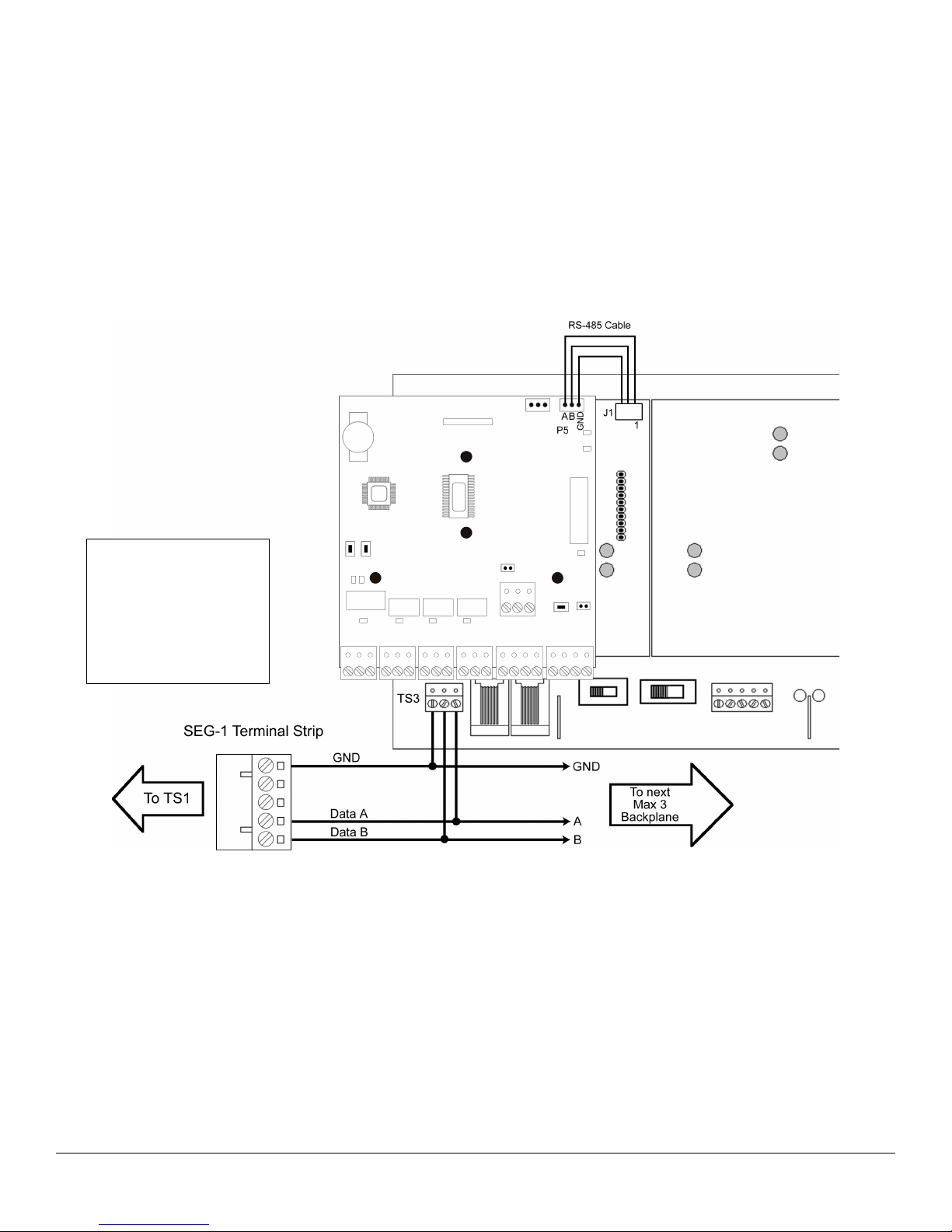
3.7 Connecting the SEG-1 to a Max 3 System (RS-485)
You can also use the SEG-1 to connect your Max 3 or MiniMax 3 system to your LAN/WAN. Follow the instructions below and refer
to the diagram.
Run your RS-485 cable between terminal strip TS1 on the SEG-1 to TS3 on the backplane as shown in the diagram. You must also
connect each module to the backplane by connecting the 3-conductor wire harness supplied with the Max 3 from P5 to the RS-485
connector underneath each module on the backplane J1 through J4).
To connect additional backplanes to the system, simply connect TS3 on the first backplane to TS3 on the next backplane as shown
below. The SEG-1 is only required on the first backplane of the system up to 64 doors Max; if you require more doors an additional
SEG-1 is required).
Page 1 of 34 Document Number: 6 66 5, Rev 3.2
Note: The maximum
distance between any
backplane and the SEG-1 is
4000 feet using 24AWG,
shielded, two twisted-pair
telephone cable with a shunt
capacitance of 16 pF/Ft.
Altri manuali per SEG-1
1
Questo manuale è adatto per i seguenti modelli
1
Indice
Altri manuali IEI Technology Portale


Manuali Portale popolari di altre marche

LST
LST M500RFE-AS Manuale utente

Kinnex
Kinnex Media Gateway Manuale utente

2N Telekomunikace
2N Telekomunikace 2N StarGate Manuale utente

Mitsubishi Heavy Industries
Mitsubishi Heavy Industries Superlink SC-WBGW256 Manuale utente

ZyXEL Communications
ZyXEL Communications ZYWALL2 ET 2WE Manuale utente

Telsey
Telsey CPVA 500 - SIP Manuale utente


