
iGolf Saturn Manuale utente


Table of ContentsUser Manual
Section 1: Introduction.................................................................................... 2
Welcome
Important Information
iGolf.com
Package Contents
Additional Requirements
iGolf Saturn Features
Battery Installation
Keypad Function
Start-Up
2
3
4
5
5
6
7
8
8
Section 2: iGolf Saturn.................................................................................... 9
Main Menu
Play Golf
Reviews
News
Map Course
Settings
SD Card
Owner Information
9
11
14
15
16
18
20
21
Section 3: iGolf Saturn Sync.......................................................................... 22
Introduction
Installation
Download Courses
Send Courses
Save Courses
Settings
22
23
24
25
26
27
Section 4: Limited Warranty........................................................................... 28
1

32
IntroductionUser ManualUser ManualIntroduction
Dear Valued Consumer:
Congratulations on your purchase of the iGolf Saturn. We sincerely hope you will
find your iGolf product both enjoyable and easy to use. Knowing the exact distance
for each shot will assist you in lowering your score and enhance your overall golfing
experience.
This User Manual was created for you to get the most out of your new device and
assist with the initial setup. It only takes a few minutes to read, after which you can
immediately begin using your new Saturn and enjoying its many features.
Also, please visit www.iGolf.com to explore the benefits of becoming an iGolf Member.
As a member, you have access to all the features and benefits iGolf.com has to offer,
including access to an extensive database of GPS enabled golf course files for use on
your Saturn.
Thank you for choosing iGolf.
Sincerely,
L1 Technologies
Welcome
Legal Disclaimer
By using this product, you agree that L1 Technologies, Inc. will not be held legally
responsible for any injury or damage to you or any person or property caused by the
user’s improper operation and/or poor judgment while using this product.
Note: See Limited Warranty for other limitations to our liability.
Additional Information
The Global Positioning System (GPS), a network of 24 satellites orbiting Earth, is
operated and maintained by the U.S. government. This GPS device requires at least 3
satellites to be acquired to accurately determine your position. Any change made to the
system by the government could affect the accuracy and performance of this product.
Important Information

54
IntroductionUser ManualUser ManualIntroduction
iGolf.com
iGolf.com is an online resource for all golfers, but serves as a community for iGolf
members to access GPS golf course files to use with their iGolf products. Membership
is not required for much of the content; however, access to GPS course files, and the
ability to download GPS files, requires a membership.
iGolf.com
Package Contents
1 - iGolf Saturn
1 - USB Sync Cable
1 - AC/DC 5V Adapter
1 - Belt Clip
1 - Screen Protector
1 - Software CD
1 - User Manual
1 - Quick Start Guide
Additional Requirements*
PC with Windows Vista/XP/2000 or Mac OSX
PC with CD-ROM
PC with USB port
Required to transfer files from computer
Windows is a registered trademark of Microsoft Corporation.
Mac OS X is a trademark of Apple, Inc.
Package Contents – Additional Requirements
Visit www.iGolf.com today to become a member!
Download Course Files
Go to www.iGolf.com and log in to access account. If not a member, use the1.
“Join Now” link to enroll.
Click on GPS Courses and search for desired course using simple terms, or2.
narrow further with Advanced Search.
Select course name from search results and then select Download GPS and3.
Scorecard.
When prompted, Save downloaded file to green iGolf folder on the desktop.4.
Use iGolf Sync to transfer golf course file to device.5.
*

76
IntroductionUser ManualUser ManualIntroduction
iGolf Saturn Features
Battery Information
This product contains an internal rechargeable lithium-ion battery. Under normal
operating conditions, a new battery will last 14 -16 hours on a full charge. However,
battery life is diminished due to a variety of factors including temperature and backlight
usage. All rechargeable batteries lose their effective charge length over time.
The internal battery can be charged by connecting the included USB cable to the
device and a computer. Alternatively, the battery can be charged by connecting the
USB cable to the device and using the included adapter to plug the charger into a
standard 110V wall outlet.
WARNING
Keep battery cover closed at all times. Risk of explosion if battery is replaced with•
incorrect type.
Do not attempt to open, disassemble or service the battery. Battery must be•
replaced by qualified technician.
Do not crush, puncture or short external contacts. Do not expose to temperatures•
above 140oF (60oC).
Properly recycle or dispose of battery. Do not dispose in fire or water.•
Battery Information
USB Connection >
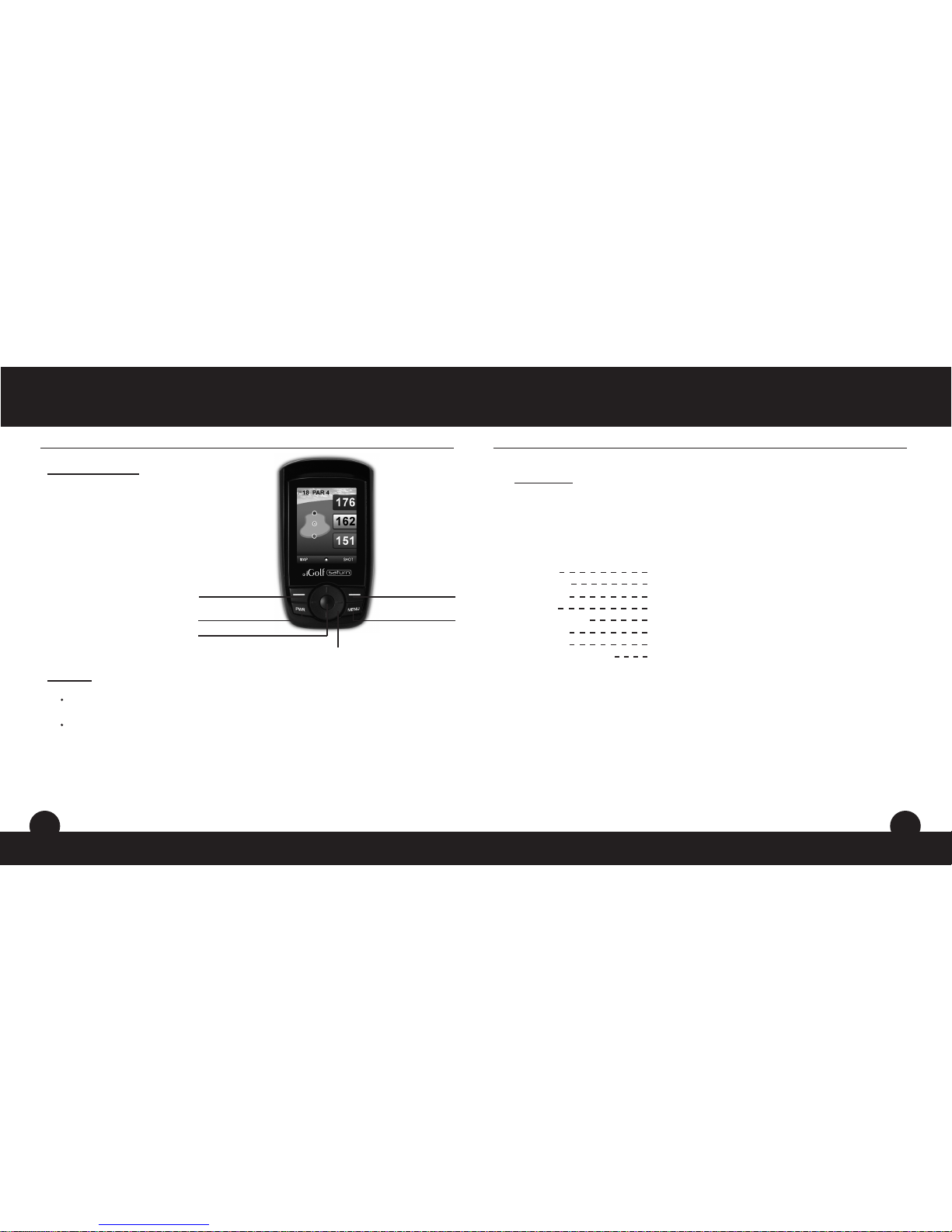
Keypad Function
Power Button
• Turns the device on and off
Menu Button
• Launches Play Menu
Right/Left Function Buttons
• Switches between screens
Right/Left Toggle Buttons
• Moves between fields
• Changes hole number (+/-)
Up/Down Toggle Buttons
• Scrolls up/down
• Switches between screens
Enter Button
• Selects highlighted option
• Activates Shot Distance
Start-Up
Power On
Press and hold power button until the welcome screen appears (about 2 seconds).
Power Off
Press and hold power button until the screen goes blank.
98
iGolf SaturnUser ManualUser ManualIntroduction
Keypad Function – Start-up
Main Menu
The Main Menu displays all the features available to the user, which are explained in
detail in subsequent sections of this User Manual. To begin using the device, scroll to
highlight any feature using the Function buttons and press the Enter button.
Main Menu
Feature Descriptions
Home View current time, satellite strength and battery level
Play Golf Select to play golf using GPS data
Reviews Select to read the latest reviews from iGolf.com
News Select to read the latest news and opinions from iGolf.com
Map Course Select to create and customize golf course files
Settings Select to customize additional features
SD Card Select to access contents of MicroSD card
Owner Information View the owner’s name and phone number
Power Button
Right Function Button
Left Function Button
Menu Button
Enter Button
Up / Down / Left / Right Toggle Buttons

1110
iGolf SaturnUser ManualUser ManualiGolf Saturn
Home Play Golf
Play Golf
This feature is the main interface to display scorecard
and distance information. Course information must be first
downloaded from iGolf.com or manually entered using the
Map Course feature. If GPS data is available, distances to
the front, center and back of the green and up to five custom
points per hole will be displayed upon satellite acquisition, as
well as the shape of each hole. The user is also able to enter
the score and putts for each hole.
1. Select Course
Highlight “Play Golf” on the Main Menu and press Enter.
If a satellite fix is available, the golf course closest to
current location (within 1,000 yards) will automatically be
highlighted. If a satellite fix is not available, scroll to highlight the correct golf course. Once
the desired course is highlighted, press Enter.
2. Select Tee Box
Highlight the desired tee box and press Enter. Only the tee boxes available in the data file
will be displayed.
Home
This feature is the main interface to display the current
time, satellite strength and battery level. Use the Up/Down
buttons to move between the screens.

12
Play Menu
From any Play Golf screen, press Menu to access the
Play Menu. This menu allows the user to easily view
status or modify settings being used for the current
course.
1. Score Summary
Allows the user to see statistics for the current
game being played.
2. Course Information
Displays general information about the course
being played.
3. Map Golf Hole
Allows the user to map the current hole being
played without having to exit the game.
4. Battery Level
Displays a horizontal bar representing the power remaining in the battery.
5. Satellites
Displays various circles to show current satellites being tracked and GPS signal
strength.
6. Select Tee Box
Allows the user to change the current tee box selection.
7. Yard or Meter
Allows user to select unit of measurement displayed.
8. Return to Game
Resumes play from previous screen.
9. Exit
Returns to Main Menu.
Screen Operation
Right/Left toggle Move between holes
Up/Down toggle Move between Main,
Custom and Score screens
Right/Left Function Move between Main,
Map and Shot screens
Menu Go to Play Menu
Score
This feature allows the user to input his or her score and putts
for each hole played. The hole number, par and handicap are
also displayed on this screen for reference. Use the Right/
Left buttons to highlight the correct score and putts. Press
the Enter button to select the highlighted value. This information will be used on the Score
Summary screen which is found in the Play Menu.
Map
This feature displays the shape of the current hole. Using the Up/Down/Left/Right buttons,
the user is able to move the call-out icon to any area within the hole. The distance from the
user to this point is displayed in the call-out icon. The user’s current position is marked by
the yellow circle icon. The distance to the center of the green is displayed at the top of the
screen.
Shot
This feature allows the user to measure the distance of any shot taken.
From the Shot screen, press Enter to activate the Shot Distance feature.1.
Distance from the start position will automatically update as the user moves.2.
Once the user reaches the end position, press Enter to freeze the shot distance measurement.3.
Press Enter again to reactivate the Shot Distance feature and establish a new start position.4.
Play Golf Play Golf
13
iGolf SaturnUser ManualUser ManualiGolf Saturn
12
13
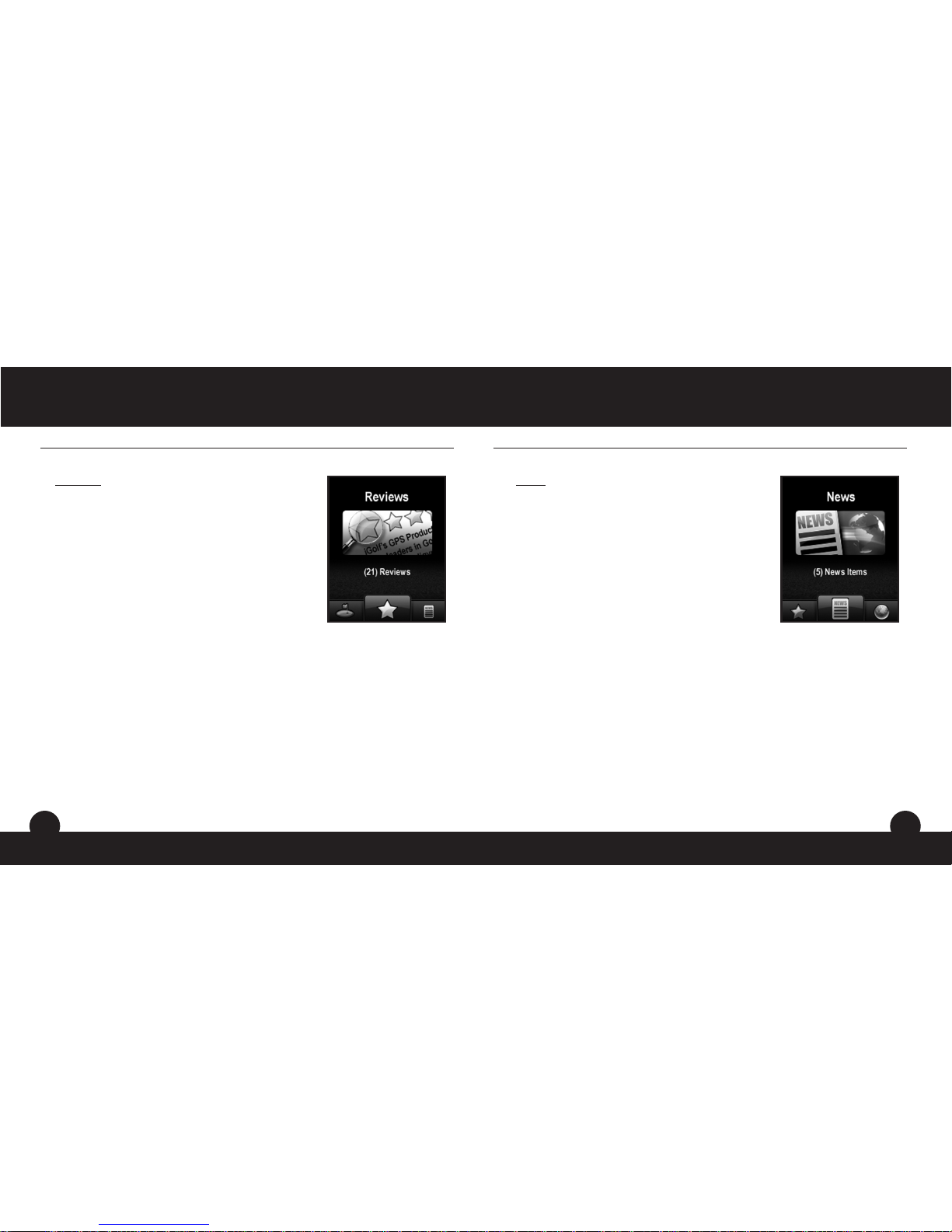
Reviews
This feature allows the user to read reviews on the device
that are loaded from iGolf.com when the device syncs
with the computer. Highlight “Reviews” on the Main Menu
and press Enter. Use the toggle buttons and the Enter key
to select different categories and reviews to read.
Reviews
14
User ManualiGolf Saturn
14
News
This feature allows the user to read news and opinions
articles on the device that are loaded from iGolf.com when
the device syncs with the computer. Highlight “News” on
the Main Menu and press Enter. Use the toggle buttons
and the Enter key to select different categories and
articles to read.
News
15
iGolf SaturnUser Manual

13
Map Course
This feature is used to manually input course name
and map GPS data points. Existing course files may be
customized or new files created using the device. Highlight
“Map Course” on the Main Menu and press Enter.
1. Select Course
Scroll to highlight the desired new or existing golf
course and press Enter.
2. Course Name
To revise name, highlight “Course Name” and press
Enter. Names should be distinguishable from other
golf courses entered. Scroll to highlight the character
and press Enter. To delete characters, scroll to “BKSPC” and press Enter.
When finished, press SAVE.
3. Course Data
Highlight “Course Data” and press Enter. Highlight desired hole and press
Enter. Input par and handicap information, using the toggle buttons to select
values and move between options. When finished, press Save. Repeat these
instructions for all desired holes for the course and press Save to exit.
14
Map Course (continued)
*If mapping a Custom Point, the user may customize the name prior to registering GPS data.
The user may select from a list of common abbreviations, or choose a six (6) character name,
to easily identify the point on the course. If the user chooses not to customize the name,
proceed directly to “Register”.
4. Map GPS Points
To add or revise GPS data highlight “Map GPS
Points” and press Enter. Select the desired hole and
press Enter. Highlight point to map* and press Enter.
Stand at desired location, confirm satellite strength
and press Register to mark the point. Do not move
until process is complete. Repeat these instructions
for all desired points. When finished, press Save.
Repeat for all holes, then select “Save/Exit” to return
to Main Menu.
5. Save/Exit
After all data has been entered and/or captured, the
user MUST scroll to “Save/Exit” and press Enter to save
all information. All entered data will be lost if function is
exited without saving.
Map Course Map Course
1716
iGolf SaturnUser ManualUser ManualiGolf Saturn
Indice
Altri manuali iGolf GPS


