
iLive ICP360 Manuale utente

1
ICP360 User GuideCustomer Helpline Number: 0844 481 5000
ICP360
User Guide
Clock Radio Docking System

2ICP360 User Guide
Welcome
Congratulations on purchasing this Colour Changing Clock Radio for iPhone and iPod.
You can now listen to your iPod or iPhone, or other external device, through your
clock radio’s stereo speakers. You can also listen to FM radio or use the built in alarm,
all in an attractive colour changing case.
Please read the warning section on page 12 carefully before using your clock radio.
• 2x AAA batteries
You may also need
There are a wide range of accessories and other products that can be ordered direct to your door
from ASDA. For more information see www.asda.com
Need something else?
You should have
AC/DC adaptor
iPod brackets (5)
Clock radio with dock for iPod

3
ICP360 User GuideCustomer Helpline Number: 0844 481 5000
Title
Clock Radio Docking System
Setup
Everyday use
Safety instructions
Compatibility information
Warnings
Support
Contents
01
02
03
04
05
06
07
3
ICP360 User Guide

4ICP360 User Guide
TitleYour Colour Changing Clock Radio for iPhone and iPod
01
Dock for
iPhone/iPod
Snooze/Sleep
After the alarm sounds,
press to delay the
alarm for an additional
9 minutes. With the
clock radio powered
on, press repeatedly to
set the sleep timer.
Play/Pause
Press to play or pause a
docked iPhone or iPod.
Colour
Press to have the clock
radio cycle through all
colors. Press again to
pause on the current
color. Press a third time
to turn the internal
lights off.
Dim/Mem
Press repeatedly to
adjust the brightness
of the display. In FM
mode, press and hold
to save the current
station to the clock
radio’s memory.
Skip/Search
Press to skip between
tracks on a docked
iPhone or iPod. Press
and hold to search
the current track on a
docked iPhone or iPod.
Press to tune the radio
when in radio mode.
Volume
Press to adjust
the volume.
Preset (-/+)
AL1, AL2
Press to switch
between saved
radio stations.
With the clock radio
powered off, press
and hold to set alarm
1 or alarm 2. Press to
activate alarm 1 or 2
to wake to iPod, FM
radio, or the buzzer.
Standby
Press to switch the
clock radio off or on.
Source
Press to switch
between FM, iPod,
and LINE IN modes.
Time/Bass
Press to activate
the bass boost.
With the clock radio
powered off, press and
hold to set the clock.

5
ICP360 User GuideCustomer Helpline Number: 0844 481 5000
DC power input
Reset
Line input
Video output
LCD display

6ICP360 User Guide
Setup
02
Setting up your radio
1 Plug one end of the included AC/DC
power adapter into the DC POWER
INPUT on the back of your clock radio.
Plug the other end into a standard
power socket.
1
Back up batteries
2 Insert 2 AAA batteries (not supplied)
into the bottom of your clock radio
as shown – ensure that the positive
(+) and negative (-) symbols on the
batteries match the symbols inside
the battery compartment
Please be aware that the unit cannot be
run using only batteries. The batteries
will ensure your settings are saved if you
disconnect the clock radio from its power
source for a short period of time.
2
Note:
Please always dispose of batteries at
a suitable recycling point.
Battery disposal

7
ICP360 User GuideCustomer Helpline Number: 0844 481 5000
Setting the time
1 Press the STANDBY button to power
the unit off.
2 Press and hold the TIME/BASS button.
3 While holding the TIME/BASS button
Press the button to adjust the hour.
4 Still holding the TIME/BASS button press
the button to adjust the minute.
5 Release the TIME/BASS button to set
the time.
Setting the Alarm
1 Press the STANDBY button to turn
the clock radio off.
2 Press and hold the AL1 or AL2 button.
3 While holding the AL1 or AL2 button
press the button to adjust the hour.
4 Still holding the AL1 or AL2 button press
the button to adjust the minute.
5 Release the AL1 or AL2 button to set
the adjusted alarm time.
6 To set the second alarm repeat steps
2 -5 above pressing the other alarm
(AL1 or AL2) button.
7 Press the AL1 or AL2 button repeatedly
to set that alarm to wake to iPod/iPhone
, wake to FM radio , wake to
buzzer , or to turn the alarm off.
8 After the alarm sounds, press the
STANDBY button to turn the
alarm off.
Setting the sleep timer
The sleep timer automatically turns the unit
off after a certain time.
1 While the unit is on, press the SNOOZE
button and “90” appears on the display.
2 Press the SNOOZE button repeatedly to
select the desired sleep time as below:
3 The unit will automatically turn off once
it counts down the sleep time
Everyday use 03
Note:
You can stop the Alarm sounding by pressing
the SNOOZE button. The Alarm will sound
again in 9 minutes.
Snooze
90 80 70 60 50
10 20 30 40
Dimming the Clock Screen
1 Press the DIM/MEM button to
reduce the brightness of the screen.
2 Press it again to reduce the
brightness to its lowest level.
3 Press it again to increase
the brightness.

8ICP360 User Guide
Everyday use
03
Docking an iPod or iPhone
1 Locate the numbered Bracket that
fits the iPod that will be docked.
Each included Bracket has a number
on it, indicating which iPod model
that bracket is compatible with.
See the chart on page 11 for further details
on compatible iPods and iPhones.
2 Snap the Bracket into place over the
iPod connector in the Docking Station.
All Brackets will only fit one way onto
the Dock.
3 Connect the iPod to the iPod connector
inside the Docking Station. Once an iPod
is connected to the Docking Station, the
unit will charge the docked iPod.
Playing an iPod or iPhone
1 Dock an iPod onto the unit.
2 Press the STANDBY button
to turn the unit on.
3 Press the SOURCE button to switch
the unit to iPod mode.
4 Press the Play/Pause Symbol button
to play and pause the docked iPod.
5 Press the Skip/Search/Tuning symbol
buttons to skip songs.
There are a range of other functions you
can use whilst playing your iPod, please
see page 4 for more details.
Tuning the FM Radio
1 Press the STANDBY button to turn
the unit on.
2 Press the SOURCE button to switch
the unit to FM radio mode.
3 Press and hold the and buttons to
tune the FM radio. The alarm clock will
automatically stop tuning when it finds
a station.
4 Press the and buttons once to
fine tune the station.
Saving FM Radio Stations
to the Unit’s Memory
1 After tuning the FM radio to the desired
station, press and hold the DIM/MEM
button for 3 seconds.
2 Press the and button to adjust
the radio memory slot “P01” etc.
You can save up to 20 stations
3 Press the DIM/MEM button
to save the current radio station
to the selected memory slot.
Press the PRESET (-/+) buttons to cycle
through saved FM radio stations.

9
ICP360 User GuideCustomer Helpline Number: 0844 481 5000
Advanced use 04
Playing video through your TV
1. Connect a television to the
VIDEO OUT on your Clock radio using
video cable B (available at ASDA,
see www.asda.com for more details)
as shown below
2. Follow the instructions for Docking
an iPod or iPhone and Playing an
iPod or iPhone.
3. Make sure the docked iPhone or
iPod’s TV out option is turned on.
4. Adjust the connected television to
the correct input setting.
5. Video played through the docked
iPhone or iPod will now play on the
connected television.
Connecting an external device
1. Use a 3.5mm line in cable A (available
at ASDA, see www.asda.com for more
details) to connect an MP3 player or other
audio source to the LINE IN on
the clock radio as shown below
2. Press the POWER button to power
the clock radio on as shown below.
3. Press the SOURCE button to switch
the clock radio to LINE IN mode.
“LINE IN” will appear on the display.
4. Audio played through the
connected MP3 player or other
audio source will now play through
the clock radio’s speakers.
A B
External device Television
10 ICP360 User Guide
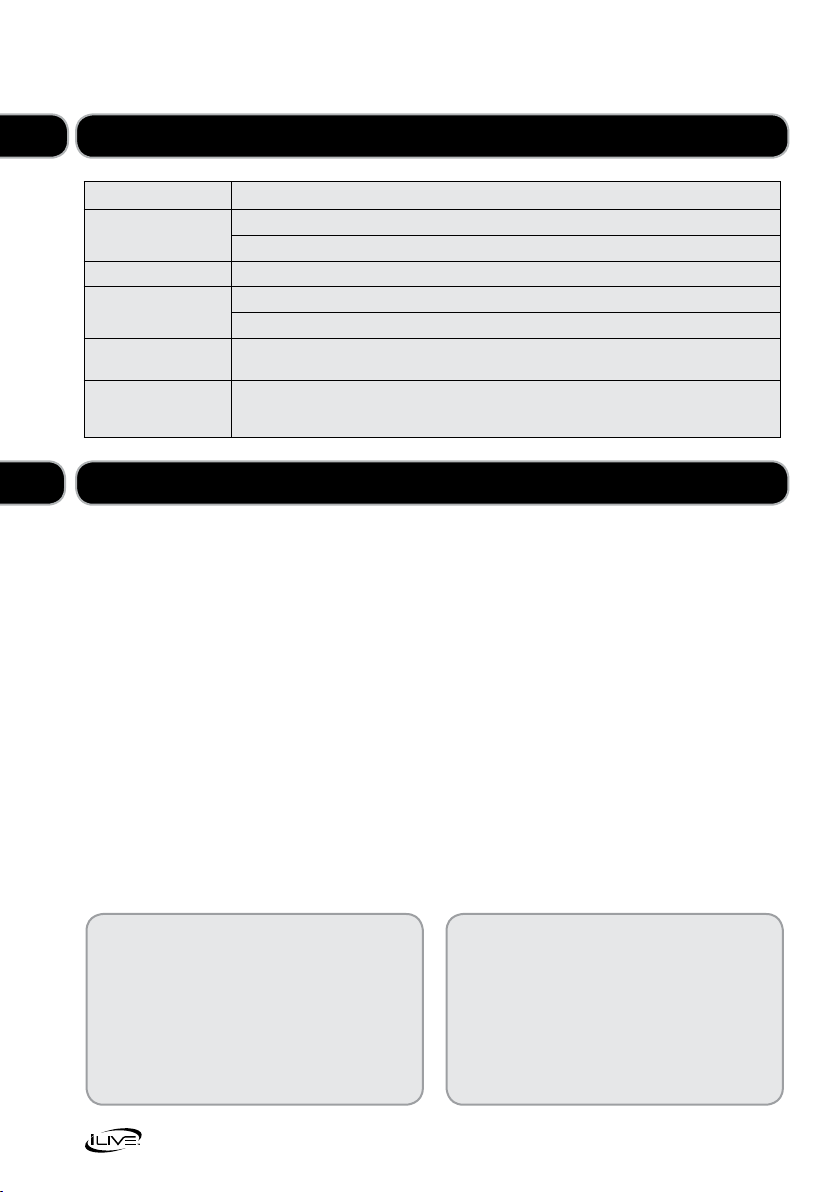
Troubleshooting
Problem What to do
No power Check that the power is switched on at the wall.
Check if the power cord is properly connected to the power outlet.
No sound Check that the volume control is NOT at minimum setting.
Radio channel
reception is poor
Adjust the antenna location and position to obtain the best signal reception.
Tune to the correct radio channel frequency.
Function disturbed If none of the above solutions work, try switching off and unplugging your music system,
leaving it for two minutes and then switching it back on again.
TFT display is frozen
(or partially frozen) with
a mosaic like pattern
ESD (electrostatic discharge) due to contact with the TFT screen frame.
Disconnect the unit from the power supply and then reconnect.
Need extra help?
Don’t worry we’re just the other end of the
phone. If you’re experiencing problems using
your new product, before returning it to the
retailer just call 0844 481 5000.
Monday - Friday 9am - 8pm, Saturday 9am - 5pm
Sunday 11am - 4pm. Calls charged at local rates.
Loving your new iLive Clock Radio? ASDA has a
wide variety of electrical and other products that
are available either instore or online.
For more information visit your local store
or find us online at www.asda.com
Need something else?
05
Maintenance
1 Do not use harsh or abrasive cleaning
agents or solvents.
2 Do not attempt to disassemble
your product.
3 Do not paint your product.
4 Do not drop, throw or try to bend
your product.
5 Do not expose your product to open
flames or lit tobacco products.
06
Altri manuali per ICP360
2
Indice
Altri manuali iLive Radiosveglia

iLive
iLive ICP211 Manuale utente

iLive
iLive IC109 Manuale utente

iLive
iLive IC609 Manuale utente

iLive
iLive INTELLI SET IC600B Manuale utente

iLive
iLive ICP601B Manuale utente

iLive
iLive ICP310B Manuale utente

iLive
iLive IC618B Manuale utente

iLive
iLive ICP232B Manuale utente

iLive
iLive ic638B Manuale utente

iLive
iLive ICP310B Manuale utente

iLive
iLive ICP360 Manuale utente

iLive
iLive ICP122W Manuale utente

iLive
iLive IC618B Manuale utente

iLive
iLive ICQ988B Manuale utente

iLive
iLive ICQ988 Manuale utente

iLive
iLive ICP200B Manuale utente

iLive
iLive ICP360 Manuale utente

iLive
iLive IKBC384S Manuale utente

iLive
iLive ISBQ270 Manuale utente

iLive
iLive IC109 Manuale utente


