Computer Operating Procedures
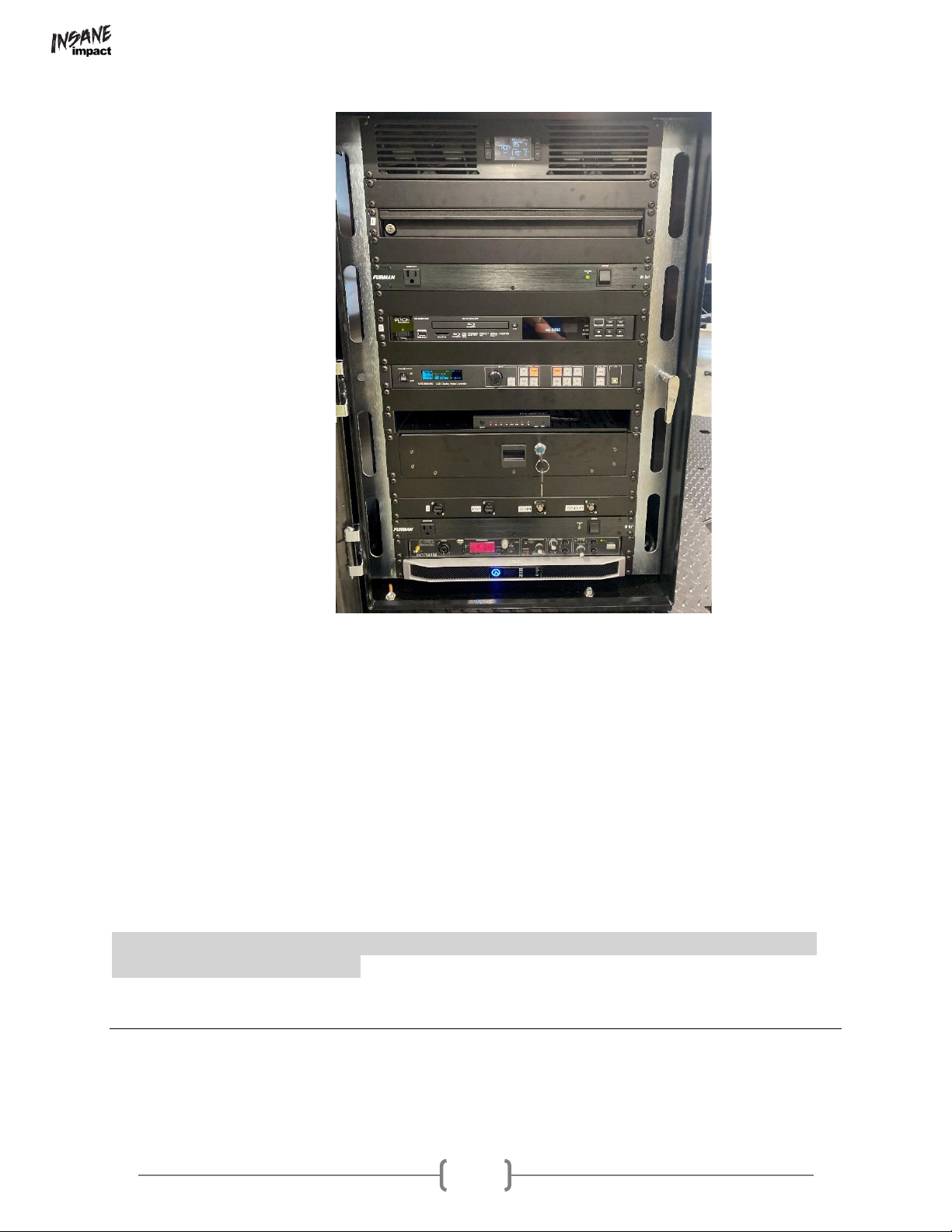
Included in the MAX production box is a laptop computer with Windows 10 operating system.
NovaLCT and ViPlex programs come pre-installed, with icons for each on the desktop and
pinned to the task bar.
Computer display setup.
1. Turn computer on and open display setting by right clicking on the desktop and clicking
“Display Settings”.
2. Once in the “Display Settings” window scroll down until you see the dropdown menu
under “Multiple Displays” and set to “Extended.”
3. Click “Keep Changes”
4. Scroll back up and click on the box that has a number 2 inside of it (this lets you control
the display settings that is sent to the VX4S controller and ultimately the LED screen)
5. Set the dropdown menu under “Change the size of text, apps, and other items” to
“100%”
6. Set the dropdown menu under “Resolution” to “1920x1080”.
7. Click “Keep Changes”
8. Set the dropdown menu under “Orientation” to “Landscape” (if not already set. Click
“Keep Changes” if you needed to change this)
9. Close out of Display Settings window
NovaLCT- setup
NovaLCT- is an LED display control software. The primary functions of this software include
sending and receiving data to and from the sending and receiving cards, monitoring card and
multi-function card information, brightness and power control, LED error detection, screen
calibration, and hardware monitoring. This enables the user to easily monitor and control key
screen information through one simplified platform on their laptop computer.
Receiving card and data configuration setup
The proper configuration of the LED screen is setup prior to delivery. Bypass the following
directions if screen is working properly.
1. Plug the USB cord that is ran through the back of the laptop drawer into the laptop.
2. Open NovaLCT
3. Click the “User(U)” dropdown tab and click “Advanced User Login (A)”
4. Use password admin and click “login”.
5. Click screen configuration.
6. Be sure that the current operation is the USB port that is plugged in, and the “Configure
Screen” box is checked. If so, click “Next.”
7. Click the “Receiving Card” tab
8. Click “Load from File”
9. Find the file labeled “Receiving Card” (It should be in the “Tech Files”folder on the
desktop) and click “Open”.