
Ipcam 310R Manuale utente

English
Table of Contents
Introduction.....................................................................................1
Package Contents...........................................................................1
Overview.........................................................................................2
Front Panel............................................................................2
Rear Panel ............................................................................3
Position the camera........................................................................4
System Requirements.....................................................................4
Networking............................................................................4
Softfoundry VMEET software for remote monitoring .............4
How to use......................................................................................5
Step 1: Connect an Ethernet cable........................................5
Step 2: Attach the power supply............................................5
Step 3: Install Softfoundry VMEET software..........................6
Install Software ............................................................6
Login..........................................................................10
Step 4: Start to use and link the camera..............................12
Advance Setting............................................................................15
Get into Configuration .........................................................15
Configuration setting ...........................................................17
English
-1-
Symbol for Separate Collection in European Countries
This symbol indicates that this product is to be collected
separately.
The following apply only to users in European countries:
zThis product is designated for separate collection at
an appropriate collection point. Do not dispose of as
household waste.
zFor more information, contact the retailer or the local
authorities in charge of waste management.
Introduction
IPCam 310R is an innovative surveillance camera designed with a five layer
glass lens and a premium 640 X 480 pixel CMOS sensor that can offer
superior quality MPEG-4 videos at 30 fps in full VGA resolution. With the
built-in microphone, it can record live video with sound. The six infrared LED
for night vision technology allows monitoring without light.
IPCam 310R is bundled with Softfoundry VMEET, the easiest software to
install for surveillance device. You can start to monitor your home or
business and check the live video in anywhere in just a few steps: install
software Ækey in user name and password Ælink to IPCam 310R, and
you’re ready to go.
Package Contents
Carefully remove all items from the package. In addition to this User’s Guide,
be certain that you have:
IPCam 310R
CD-ROM
- Softfoundry VMEET installation software
- Multi-language user’s manual
DC power adapter
Camera Stand
RJ-45 Ethernet Cable
Multi-language Quick Installation Guide

English
-2-
Overview
Front Panel
1. Power LED (Red)
A steady red light confirms that the
IPCam 310R is powered on.
2. Link LED (Green)
A steady green light confirms that
the camera has good connection to
LAN connectivity.
Dependent on the data traffic, the
LED will begin to flash to indicate
that the IPCam 310R is
receiving/sending data from/to the
network.
3. IR LED
IPCam 310R has six IR LEDS that
can work up to a five meter distance and you can control it using the
software. IPCam 310R can be used day and night for 24 hour
surveillance.
4. Lens
Adjust the focus by twisting the lens.

English
-3-
Rear Panel
1. RJ-45 Network Cable
Connector
The connection for 10/100M
Ethernet.
2. DC Power Connector
The DC power input jack is located on the rear side. The input power is 5V
DC. Note that the power to the IPCam 310R is a standard power adapter.
Do not use another power adapter as it may damage the unit.
3. Reset Button
When you press the reset button, the IP address of IPCam 310R will
return to the default setting as a DHCP connection, Administrator
password and IP address 192.168.1.168.

English
-4-
Position the camera
The enclosed wall mount allows you to position the IPCam 310R firmly and
easily. To assemble the mount:
1. Use the hex wrench to fasten the hex screw.
2. Screw the pivot head into the rear of the camera.
3. Pre-drill holes into the wall and screw the mount base into the wall, and
use anchors if necessary.
System Requirements
Networking
10Base-T Ethernet or 100Base-TX Fast Ethernet
Broadband Router (Recommended)
Softfoundry VMEET software for remote monitoring
Microsoft® Windows® XP/Vista Operation System
Intel Pentium 4 2.4Ghz or above
512MB RAM
1GB Free HDD
CD-ROM

English
-5-
How to use
IPCam 310R makes home or business security so easy! No complicated
Internet setting, just install Softfoundry VMEET software, then you can to
start to have remote monitoring, image capture and video recording.
Step 1: Connect an Ethernet cable
Connect an Ethernet cable to the network cable
connector located on the IPCam 310R’s rear
side. Also make sure an Ethernet cable is firmly
connected to a broadband router.
Step 2: Attach the power supply
Attach the external power supply to the DC power input connector located
on IPCam 310R’s rear side, and then connect it to
an outlet.

English
-6-
Step 3: Install Softfoundry VMEET software
Install Software
1. Install Softfoundry VMEET software from CD disk.
2. Language selection: Chinese, English and Japanese.
3. Welcome to the Softfoundry VMEET Setup Wizard. Click Next to
continue.

English
-7-
4. License Agreement. Press “I Agree” after you have read it carefully.
5. Choose Components to Install. Select the components you want install
and click “Next” to continue the installation.

English
-8-
6. Choose Install Location. Setup will install Softfoundry VMEET in the
following folder C:\Program File\Softfoundry VMEET. To install in a
different location, click to select another folder and click Next to
continue.
7. Choose Start Menu Folder. Select the Start Menu folder in which you
would like to create the shortcut of Softfoundry VMEET. The name of
the folder can be changed. If you don’t like to create a shortcut in the
Start Menu, select “Do not create shortcuts”. Click to continue.
English
-9-
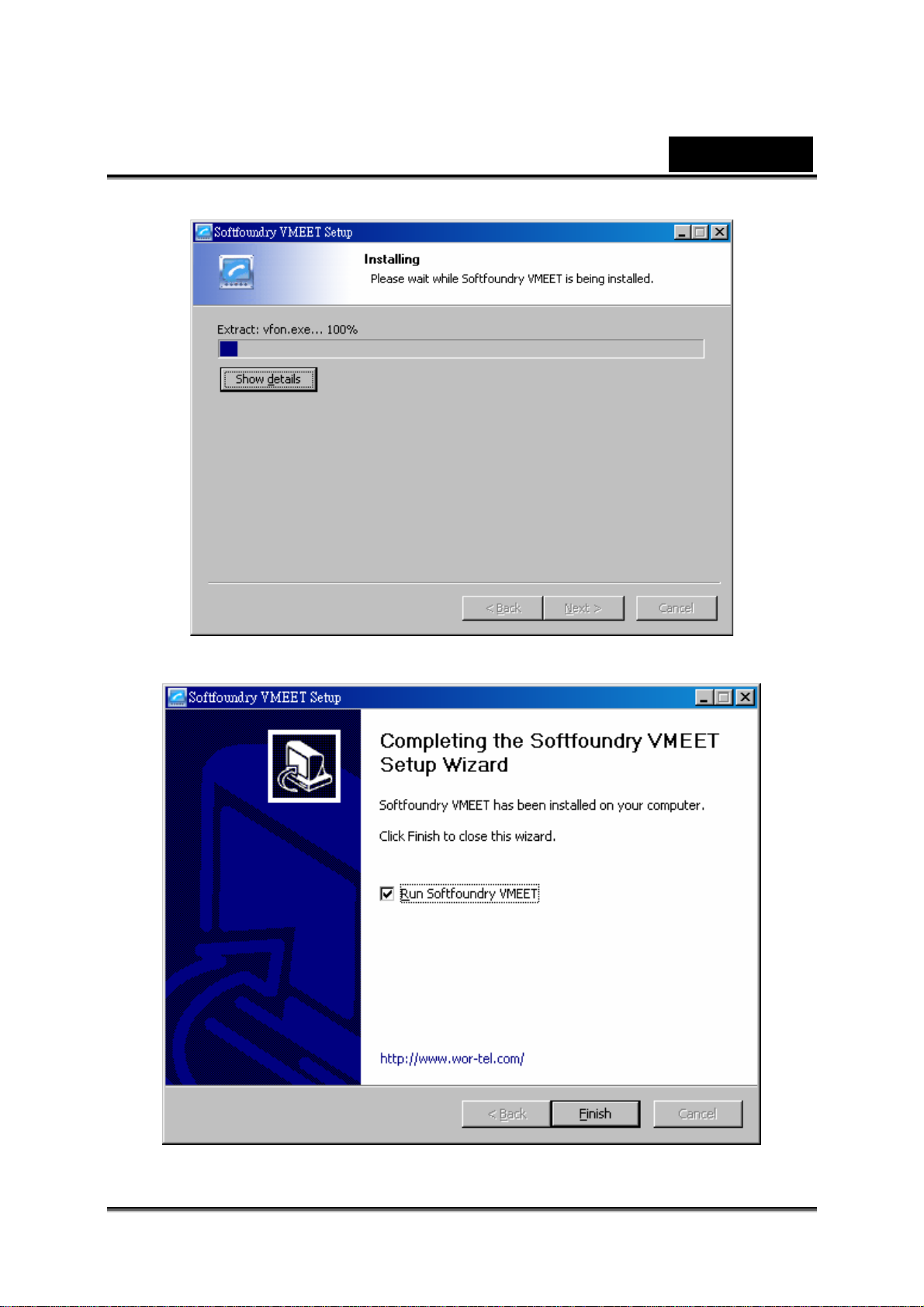
8. Install window.
9. Complete the Softfoundry VMEET setup wizard. Select “Run
Softfoundry VMEET” and click “Finish” to complete the installation.
Indice
Altri manuali Ipcam Telecamera di sicurezza


