
iPECS LIP-9040 Manuale utente

Telephone Operation Guide For
LIP-9040
Version 103 August 26, 2020
© Microman: Telephony & Data olutions
4393-E Tuller Road Dublin, OH 43017 (614) 923-8000 upport.Tel-Dat.com Telephony@Tel-Dat.com


LIP-9040 For support visit upport.Tel-Dat.com
Telephone Operation Guide email Telephony@Tel-Dat.com
or call (614) 923-8000
Contents
Button Overview........................................................................................................................................1
Making, Receiving, and Managing Calls...................................................................................................2
Making an external call....................................................................................................................2
Calling another station......................................................................................................................3
Calling another station using the directory.......................................................................................3
Answering a call ringing your station...............................................................................................3
Answering a second call ringing your station...................................................................................3
Answering a call to another station without call coverage...............................................................3
witching between handset and hands-free......................................................................................3
Group listening.................................................................................................................................3
Muting your microphone..................................................................................................................4
ilencing ringing while on a call......................................................................................................4
Intercom calling with forced hands-free...........................................................................................4
Placing a call on hold........................................................................................................................4
Placing a call on exclusive hold........................................................................................................4
Retrieving a call from hold...............................................................................................................4
Transferring a call to another extension...........................................................................................5
Transferring a call to a phone number..............................................................................................5
Transferring a call directly to a voice mailbox.................................................................................5
Transferring a call to a group............................................................................................................5
Parking a call....................................................................................................................................5
Retrieving a parked call....................................................................................................................6
Instant Redial....................................................................................................................................6
Reviewing the Call log.....................................................................................................................6
Conference Calling....................................................................................................................................6
Personal conference calling...................................................................................................................6
tarting a personal conference with new calls..................................................................................7
Conferencing a held call into your existing call...............................................................................7
Managing the your personal conference call....................................................................................7
Flexible Button Programming....................................................................................................................8
Viewing what a flexible button is currently programmed for...........................................................8
Program a flexible button with an extension....................................................................................8
Program a flexible button with a feature code..................................................................................9
Program a flexible button with a phone number..............................................................................9
Program a flexible button with a speed dial.....................................................................................9
Deleting the programming of a flexible button..............................................................................10
peed Dials..............................................................................................................................................10
Program a speed bin........................................................................................................................10
Dial a speed bin by bin number......................................................................................................11
Dial a station speed bin by name....................................................................................................11
Program a flexible button with a speed dial...................................................................................11
Page i

LIP-9040 For support visit upport.Tel-Dat.com
Telephone Operation Guide email Telephony@Tel-Dat.com
or call (614) 923-8000
Forwarding Calls......................................................................................................................................12
Forwarding Types...........................................................................................................................12
Forwarding your calls immediately to voice mail..........................................................................12
Programming your station to forward calls to another extension...................................................12
Canceling call forwarding...............................................................................................................13
Additional Features..................................................................................................................................13
Voice Mail.......................................................................................................................................13
Volume buttons and their multiple functions..................................................................................13
Intercom answering options............................................................................................................13
Ring tones.......................................................................................................................................14
Headset management......................................................................................................................14
Character Entry........................................................................................................................................15
Page ii
LIP-9040 For support visit upport.Tel-Dat.com
Telephone Operation Guide email Telephony@Tel-Dat.com
or call (614) 923-8000
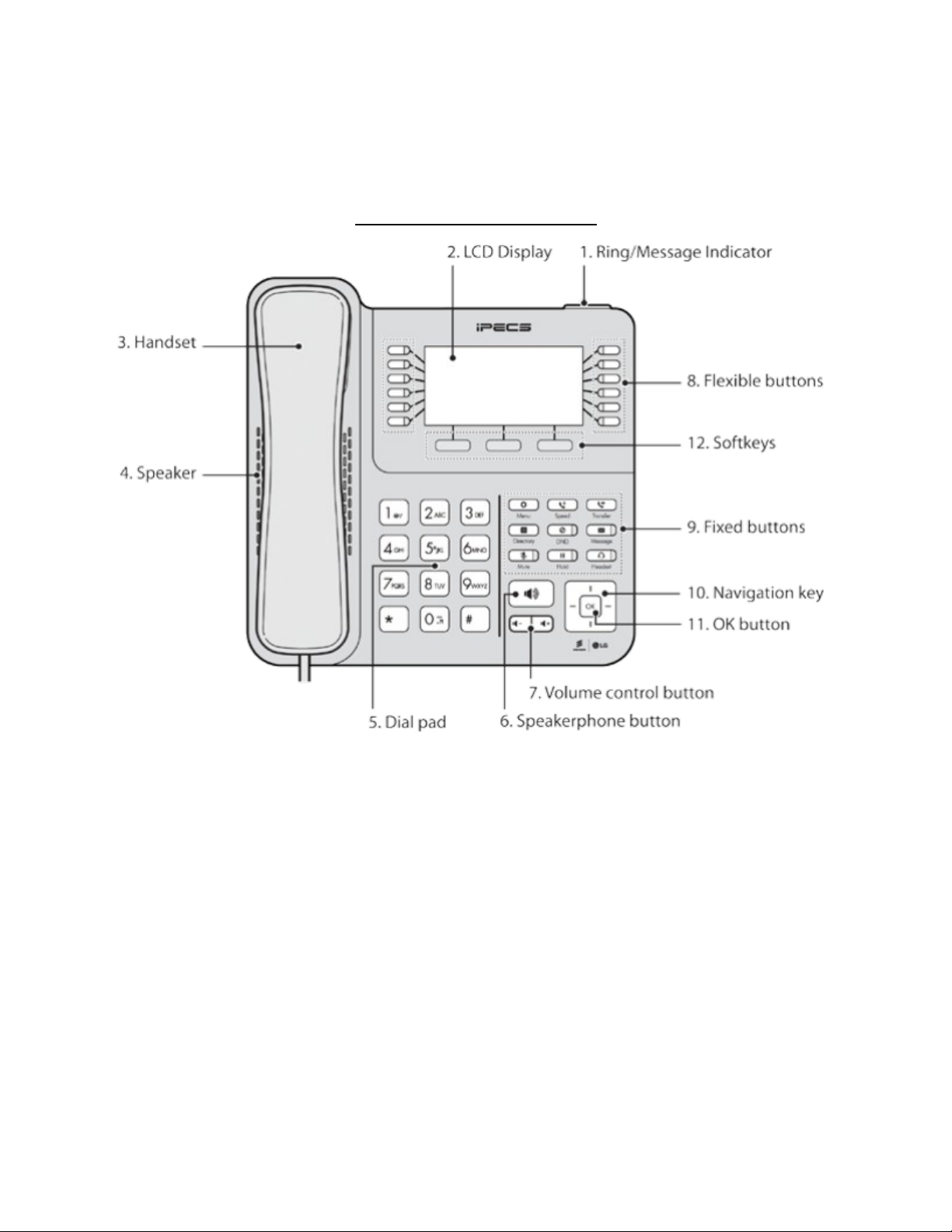
Button Overview
1. Ring/Message Indicator: Flashes when receiving a new call or you have a new message waiting.
2. LCD Display: Displays your phone status, dialing directories, and message information.
3. Handset: Use to answer calls.
4. peaker: Delivers ringing and other audible signals, also lets your hear the caller's voice in
speakerphone mode.
5. Dial pad buttons: Use to dial a number, select a menu item, or input a value.
6. [ peaker] button: Toggles the IP phone speakerphone on and off. The button illuminates when the
speakerphone is active or the phone is in menu mode.
7. Volume control button: Use to adjust ring, headset, handset, and speaker volume.
8. Flexible buttons: Assigned as line or feature access button.
9. Fixed buttons.
Page 1

LIP-9040 For support visit upport.Tel-Dat.com
Telephone Operation Guide email Telephony@Tel-Dat.com
or call (614) 923-8000
(a) [Menu]: Accesses the menu for display and changes to the IP phone configuration.
(b) [Transfer]: Transfers the current active call. The button also accesses the User Program (PGM)
menu or switches the dial pad input mode (ABC, abc, or 123). The dial pad mode displays in the
upper-right corner.
(c) [ peed]: Used to assign your speed dial numbers.
(d) [Message]: Use to access your voice mailbox.
(e) [DND] (Do Not Disturb): Use to activate DND so that your phone will not ring. This button also
deletes the last character of an input when in menu mode.
(f) [Headset]: Toggles use of the headset port on or off. When enabled a headset is used in place of
the speakerphone.
(g) [Hold]: Use to place a call on hold. Can also be used to access a held call. In menu mode, it saves
your inputs.
(h) [Mute]: Toggles audio from the microphone to the connected party on and off.
10. Navigation key
(a) Left: Use to select the previous group of softkeys when ◄ appears in the bottom-left of the
display.
(b) Right: Use to select the previous group of softkeys when ► appears in the bottom-right
of the display.
(c) Up: crolls upward through the phone's menu options.
(d) Down: crolls downward through the phone's menu options.
11. OK key: elects the highlighted choice when navigating through a menu. During a call
pop-up display of call information can be toggled on and off. When off the call information
will show at the top of the display.
12. oftkeys: These buttons are interactive, changing function based on the status of the phone.
The current function of each softkey is displayed on the screen directly above the softkey.
Making, Receiving, and Managing Calls
Making an external call
13. Press one of your Line buttons to reach an outside line.
14. Dial your phone number.
Page 2

LIP-9040 For support visit upport.Tel-Dat.com
Telephone Operation Guide email Telephony@Tel-Dat.com
or call (614) 923-8000
Calling another station
1. Dial the extension of the station you wish to reach or, if programmed, press the flexible button
labeled for the extension.
Calling another station using the directory
1. Press [Directory].
2. Press [3].
3. Use the directional buttons surrounding [OK] to browse the directory listing, or dial the first few
characters of a name.
(a) A chart displaying how to dial letters can be found on page 15.
4. When you have highlighted your selection press [OK], your station will call that extension
automatically.
Answering a call ringing your station
1. Lift the handset to answer normally or press [ peaker] to answer hands-free.
Answering a second call ringing your station
1. Press the blinking [Line] button to automatically place the first call on hold and answer the second.
2. witch between calls by pressing the blinking [Line] button of the caller you wish to speak to.
Answering a call to another station without call coverage
Call coverage is detailed beginning on page Error: Reference source not found.
1. If programmed, press the flashing flexible button that was pre-programmed with the extension that
is ringing.
2. If no such button is programmed dial [*77] followed by the extension that is ringing.
Switching between handset and hands-free
1. Press [ peaker] and hang up the handset to switch to hands-free.
2. Lift the handset to switch from hands-free to handset, the speakerphone will automatically disable.
roup listening
1. While on the call and already using the handset, press [ peaker]
(a) The call will continue to use the handset as usual but the caller will also be heard over the
Page 3

LIP-9040 For support visit upport.Tel-Dat.com
Telephone Operation Guide email Telephony@Tel-Dat.com
or call (614) 923-8000
speakerphone. This is useful if additional people need to monitor the call.
Muting your microphone
1. While on a call press [Mute], it will light red.
2. To disable mute press [Mute], it will no longer be lit.
Silencing ringing while on a call
1. If you find your phone ringing while you are on a call, press [DND] to silence the second ringing
call.
(a) If the second call was routed directly to your station, the caller will be sent to voice mail.
(b) If the second call was ringing your station because it was routed to a station group of which you
are a member, the call will continue ringing the other station group members.
Intercom calling with forced hands-free
This feature must be enabled for the calling station.
1. When calling from your station directly to another and the called station is ringing press [#]
(a) A tone will sound on both stations and the call will connect, the called station will automatically
use speakerphone.
Placing a call on hold
1. Press [Hold] once, the call will hold for a short time before recalling.
(a) Your [Hold] button and a [Line] flexible button will both begin blinking.
(b) You may place one call on hold for each [Line] flexible button you have programmed.
Placing a call on exclusive hold
1. Press [Hold] twice, the call will hold for much longer (than if you had pressed [Hold] once) before
recalling and cannot be retrieved by another station manually picking up that line.
(a) Your [Hold] button and a [Line] flexible button will both begin blinking.
(b) You may place one call on hold for each [Line] flexible button you have programmed.
Retrieving a call from hold
1. Press the flashing [Line] flexible button that is associated with the call you wish to pick up.
(a) If only one call was placed on hold, you may press the flashing [Line] or [Hold] button to
Page 4

LIP-9040 For support visit upport.Tel-Dat.com
Telephone Operation Guide email Telephony@Tel-Dat.com
or call (614) 923-8000
retrieve the call.
Transferring a call to another extension
1. While on the call press [Transfer] and your caller will automatically be put on transfer-hold.
2. Dial the extension of the party you wish to transfer the call to.
3. To transfer the call immediately, hang up. Otherwise wait for your call to be answered before
announcing the transfer and hanging up to complete the transfer.
4. If unable to reach your party or you otherwise need to retrieve the party on transfer-hold press
[Transfer] to pick them back up.
Transferring a call to a phone number
1. While on the call press [Transfer] and your caller will automatically be put on transfer-hold.
2. Press a Line button to reach an outside line.
3. Dial the phone number of the party you wish to transfer the call to.
4. To transfer the call immediately, hang up. Otherwise wait for your call to be answered before
announcing the transfer and hanging up to complete the transfer.
5. If unable to reach your party or you otherwise need to retrieve the party on transfer-hold press
[Transfer] to pick them back up.
Transferring a call directly to a voice mailbox
1. While on the call press [Transfer] and your caller will automatically be put on transfer-hold.
2. Press [Message]
3. Enter the extension of the voice mailbox to transfer the caller to or, if programmed, press the
flexible button for that mailboxes extension.
4. Complete the transfer by hanging up.
Transferring a call to a group
1. While on the call press [Transfer] and your caller will automatically be put on transfer-hold.
2. Dial the group number you wish to transfer to.
3. Hang up to complete the transfer.
Parking a call
1. While on the call press a park flexible button
Page 5

LIP-9040 For support visit upport.Tel-Dat.com
Telephone Operation Guide email Telephony@Tel-Dat.com
or call (614) 923-8000
Or
1. While on the call press [Transfer]
2. Dial a park bin.
(a) Park bin numbers begin at [#601]. The total number of park bins depends on system model.
Retrieving a parked call
1. Press a flashing park flexible button, if programmed.
Or
1. Dial the park bin manually.
Instant Redial
1. Dial [*552] to redial the most recently dialed external call.
Reviewing the Call log
1. Press your [Log] soft key.
2. The call log lists all calls involving this station and uses icons on the left side of each entry to
differentiate between call types.
(a) An arrow pointing right is a call made by the station.
(b) An arrow pointing left is a call answered by the station.
(c) A bouncing arrow is a missed call.
3. The date and time that an entry is created can be viewed: highlight the line item and press the
[ elect] soft key.
4. Once an item is open, it can be deleted or saved as a speed dial by pressing the related soft key.
5. If the user wishes to call a line item found in the call log. Highlight the item and press [OK] to have
the phone automatically dial.
Conference Calling
Personal conference calling
Each station can create conference calls on their own without using a conference room. Follow these
instructions to do so.
Page 6
Indice
Altri manuali iPECS Telefono IP

iPECS
iPECS LIP-9000 Series Manuale utente

iPECS
iPECS LIP-9002 Manuale utente

iPECS
iPECS LDP-9008D Manuale utente

iPECS
iPECS LIP-8040E Manuale utente

iPECS
iPECS LIP-8002E Manuale utente

iPECS
iPECS LIP-8004D Manuale utente

iPECS
iPECS LIP-8008D Manuale utente

iPECS
iPECS LDP-9008D Manuale utente

iPECS
iPECS 1020i Scheda tecnica

iPECS
iPECS LIP-9002 Manuale utente

iPECS
iPECS LIP-9002 Manuale utente

iPECS
iPECS LDP-9240 Manuale utente

iPECS
iPECS 9071 Guida all'installazione

iPECS
iPECS 1020i Scheda tecnica

iPECS
iPECS 1030i Manuale utente

iPECS
iPECS LIP-8008D Manuale utente

iPECS
iPECS LIP-9070 Manuale utente

iPECS
iPECS LIP-8012D Manuale utente

iPECS
iPECS LIP-9000 Series Manuale utente

iPECS
iPECS LIP-7024LD Manuale utente


