
IRISBOND Hiru Manuale utente

User Manual
Hiru eye tracker |Compatibility |CE & MDR | Technical Specications
See it Possible
The only eye-tracker that works in Windows and iPadOS, indistinguishably
Hiru

User manual IRISBOND Hiru
See it Possible www.irisbond.com
User Manual IRISBOND Hiru
Eye Tracking System
IRISBOND CROWDBONDING, S.L. All rights reserved.
This document, including all supporting materials, is
proprietary to IRISBOND CROWDBONDING, S.L.
As this document may contain information that is
condential, proprietary, or otherwise legally protected,
it must not be further copied, distributed, or displayed
without the express written permission of IRISBOND
CROWDBONDING, S.L.
Products that are referred to in this document may be
either trademarks and/or registered trademarks of the
respective owners. The publisher and the author make
no claim to these trademarks.
Contact Information
IRISBOND CROWDBONDING, S.L
Tolosa Avenue 75, 2nd oor
20018 Donostia-San Sebastián, Gipuzkoa, Spain
+34 943 496 622

User manual IRISBOND Hiru
See it Possible www.irisbond.com
What are you looking for? IRISBOND Hiru Eye tracker
Components included 2
Compatibility 3
Multiplatform 3
Positioning 3
USB Connection and mounting 4
Assembly Options 5
How to mount Oskol 8
Hiru Compatibility
Use with different Operating Systems: Overview 9
Windows
How to update Hiru in Windows 11
Windows Eye Control: Microsoft HID Protocol 14
EasyClick software
Compatibility 17
Downloading and installing EasyClick step by step 17
EasyClick features 20
Beginner Mode 21
Pro Mode 25
iOS
Getting Started in iOS 41
Hiru App 42
Update Hiru in iOS 47
Hiru and iOS Accessibility Tools 48
iPad Settings for Eye gaze 52
Compliance Information: CE and MDR
Declaration of conformity (MDR)
Technical Specifications

User manual IRISBOND Hiru
See it Possible
1
www.irisbond.com
Before getting started… Welcome to IRISBOND!
Congratulations on purchasing the IRISBOND system which will allow you to use
a computer simply by moving your eyes!
The IRISBOND system is based on the latest innovations in articial vision
technology, and more specically, on Eye Tracking technology, which allows
the user to control a computer mouse by moving their eyes. Those who benet
most from the system are people with severe motor impairment who cannot
use conventional mouse movement systems. Individuals with Amyotrophic
Lateral Sclerosis (ALS) or Cerebral Palsy using Irisbond can access a variety of
apps installed on the computer. Irisbond gives the user a window to the world,
allowing them to communicate, share experiences and knowledge, watch
movies, read, listen to audiobooks, play...there really is no limit!
In addition, by using Augmentative and Alternative Communication (AAC)
tools such as a virtual keyboard, voice synthesizers and environmental control
systems, the user can control the remote control for the TV, or any other infrared
device. For perhaps the rst time ever, they will be able to control devices at
home around them.

User manual IRISBOND Hiru
See it Possible
2
www.irisbond.com
IRISBOND Hiru Eye tracker
The system consists of one eye tracking device connected to the computer via
a cable (included with the device) through a USB port. The eye tracker emits
infrared light beams which create reections on the user’s corneas. A camera
then registers these reections and through a series of complex computational
algorithms can identify the user’s pupils. The information is then processed in
the Hiru and sent to the software via the USB cable. This allows the user’s eye
movements to be translated into onscreen positioning coordinates for the mouse.
The Hiru eye tracker can be switched between different computers and
operating systems, if Hiru has a valid license, and the device with the minimum
requirements listed below.
Components included
The IRISBOND Hiru system comes with the following components:
1 IRISBOND Eye tracker.
1 Holder + 2 Screws + 2 Magnet strips.
1 USB C-A Cable (50 cm.)
1 Adapter A-C for e.g. iPad Pro.

User manual IRISBOND Hiru
See it Possible
3
www.irisbond.com
Compatibility
Multiplatform
Hiru eye tracker can be used both with Windows and iOS (iPad).
The same eye tracker works with both operating systems.
We recommend iPad Pro / Surface Windows 10
Positioning
Minimum requirements Intel Graphics
CPU 1.33GHz
RAM 2GB
Hard Disk 3GB + HDD
USB 3.0
Nvidia and others with OpenGL 2.0
iPadOS Windows
iPads with a USB-C port. 15.2 and later Windows 7-11
Optimum working distance Optimum screen size
55 cm. 10” – 20” inches
If you want to use the eye tracker with larger
screens, you can do so by changing the
position of the camera and placing it further
away from the screen.

User manual IRISBOND Hiru
See it Possible
4
www.irisbond.com
USB Connection and mounting
Depending on the device that you may be using, an adaptor might be needed:
For Windows devices, just use the long C-A cable. The C male connects
to the Hiru and the A male connects to the device.
For iPad PRO, the A-C adaptor is needed. Connect the adaptor to the
iPad Pro, and the long cable to the Hiru.

User manual IRISBOND Hiru
See it Possible
5
www.irisbond.com
Assembly Options
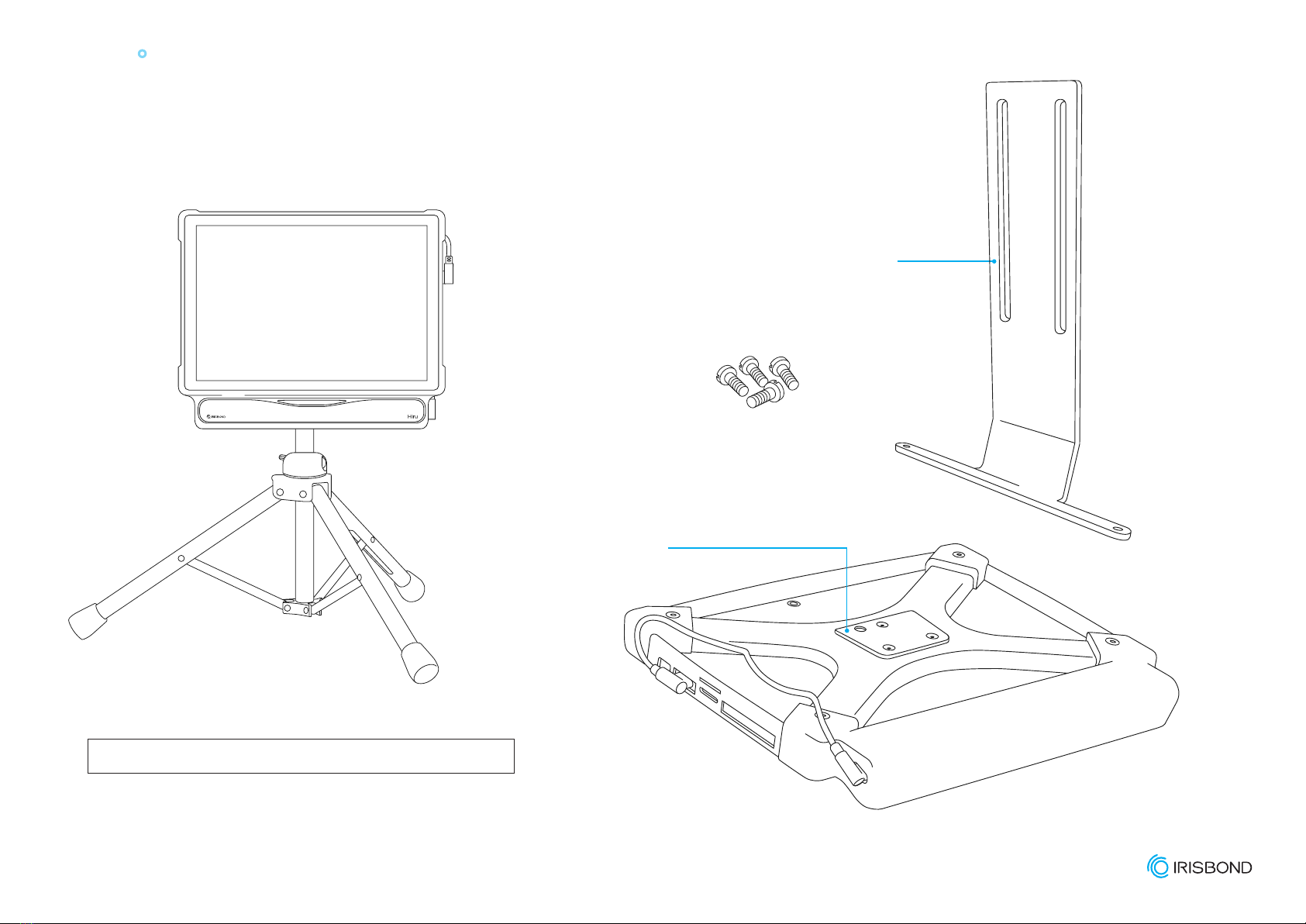
The IRISBOND Hiru system is designed to be fully adaptable for use with
laptops, Desktop PCs, and tablets:
Laptop
Under the laptop or PC, x the Hiru
onto the holder with the provided screws.
Click here to watch Set Up video for IRISBOND Hiru.

User manual IRISBOND Hiru
See it Possible
7
www.irisbond.com
Assembly Options
Tablets
1. Attached to a tablet:
Rehadapt’s GA IRISBOND Hiru bracket (#16.1239).
2. Every Oskol casing comes by default
with the Rehadapt’s GA Universal adapter
(#16.1224) mounted.
Click here to watch Set Up video for IRISBOND Hiru.
Altri manuali per Hiru
2
Indice
Altri manuali IRISBOND Accessori per computer


