
JabloCom EyeSee Manuale utente

- 1 -
EyeSee
Mobile Security Camera
User‘s Guide

- 2 -
Content
1. What is the EyeSee camera? ........................................................................................3
2. Getting started .....................................................................................................................4
What do you need ...................................................................................................................4
Package content .......................................................................................................................4
Installation guide.......................................................................................................................5
Start-up ......................................................................................................................................6
3. Basics .......................................................................................................................................8
LED Lights .................................................................................................................................8
Acoustics ...................................................................................................................................8
4. Camera control ....................................................................................................................9
Clicker .........................................................................................................................................9
Mobile .......................................................................................................................................10
JabloTool ..................................................................................................................................10
5. Reporting ..............................................................................................................................11
6. JabloTool Cloud .................................................................................................................12
Free services for your camera ..............................................................................................12
Premium services ...................................................................................................................13
7. Advanced ..............................................................................................................................14
Security detectors ..................................................................................................................14
SD card .....................................................................................................................................14
Night vision .............................................................................................................................15
Outdoor installation ...............................................................................................................15
Wireless peripherals ...............................................................................................................15
Other features .........................................................................................................................15
8. Troubleshooting .................................................................................................................16
9. Safety and warranty ........................................................................................................18
Technical specifications ........................................................................................................18
Safety instructions ..................................................................................................................18
Declaration of Conformity .....................................................................................................19
Warranty ...................................................................................................................................19
EyeSee.ENG.MAN.User_Manual.01.02

- 3 -
1. What is the EyeSee camera?
The EyeSee camera recognizes motion activity
using its built-in detectors. During the night
theEyeSee uses infrared night vision.
DVR
The EyeSee saves all recorded videos on an
internal SD card and it keeps a backup copy on a
secured server.
The EyeSee communicates using the GSM
mobile network. It uses a SIM card, just like most
common mobile phones.
The EyeSee can be accessed by authorized user
from any computer via www.jablotool.com server.
The EyeSee strictly protects your privacy as well
as your safety and property.

- 4 -
2. Getting started
What do you need
The EyeSee works like a common mobile phone. You need a SIM
card from your GSM mobile operator with an appropriate data plan.
SIM card is not included in the EyeSee package. You will need a mobile
phone for the set-up process.
PIN protection of SIM card must be removed prior to use in
the EyeSee. Use a mobile phone to unlock the SIM.
(Settings > Phone settings > Security > PIN > disable)
Package content
SIM
(not included)
Screwdriver
Power adaptor
Extension cable
Clicker - remote
control
USB cable
Back-up battery
- 5 -
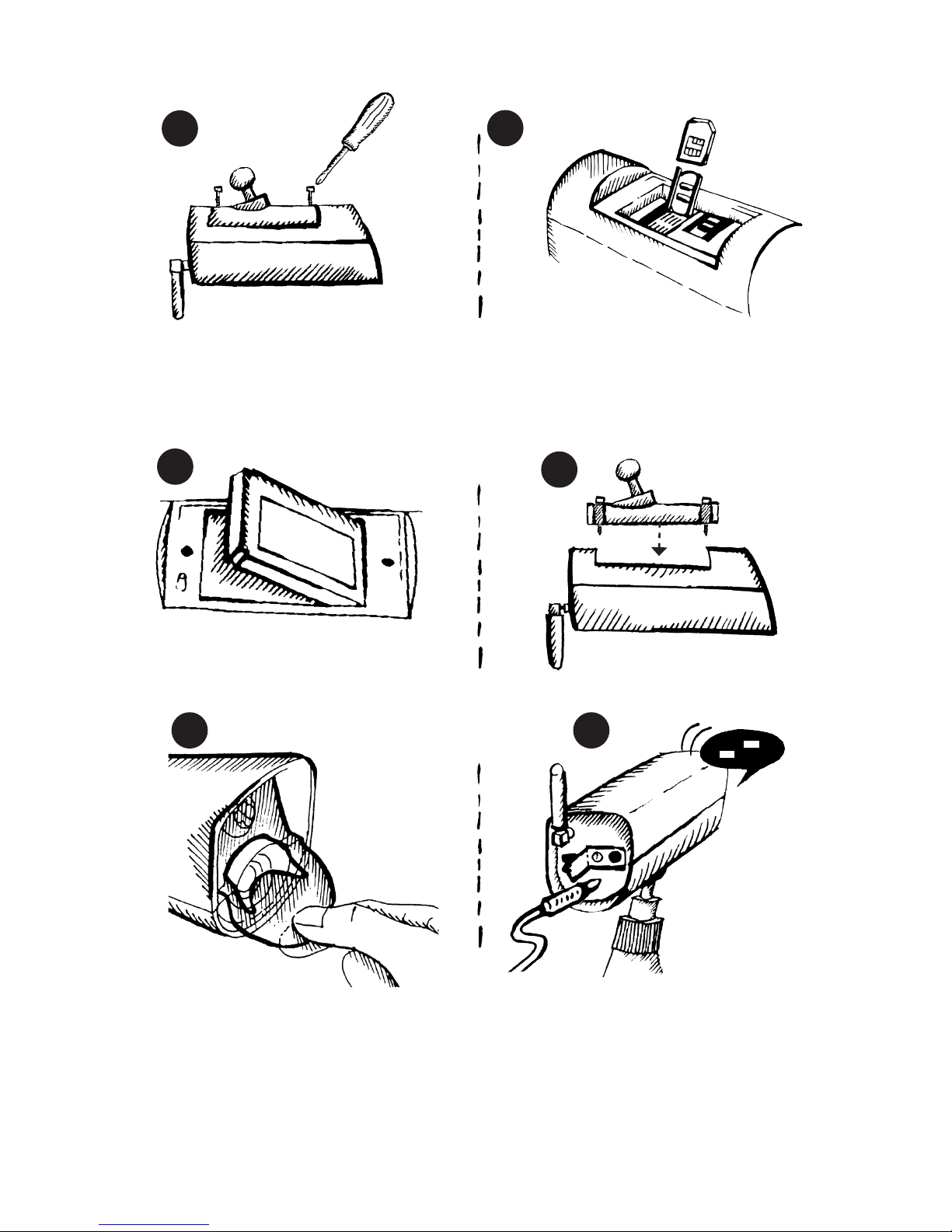
Installation guide
Beep Beep
Unscrew and
open the batery cover
Put the SIM card (PIN disabled)
into the holder and close it
Insert back-up battery Close the battery cover
Connect the power adaptor
Two rising tones confirm the external powering
and camera begins the start-up
Remove protecting foil
from camera front panel
1
3
65
2
4

- 6 -
Start-up
The Green LED on the camera’s front panel will
flash during the start-up. When ready, the green
LED will light continuously.
If the red LED lights instead it means there is some
problem with the GSM network registration– refer
to the TROUBLESHOOTING chapter.
Call the EyeSee from a mobile phone to hear the
set-up confirmation message and to receive the
confirmation text message. The voice message
will be
“Camera has been activated. You will receive a
message with hyperlink now. Follow the link and
finish the setup of your camera. This call will be
terminated now.”
Shortly after you will receive the text message with
registration link. It looks similar to this:
Welcome to camera start-up wizard.
Go to https://www.jablotool.com/reg/X1Y2Z3
to finish the registration and setting.
Activate the link from the text message using a
web browser (Internet Explorer, Chrome, Firefox,
Safari, etc.) on your computer. Open your new free
account for the EyeSee camera and complete your
camera registration.
An intuitive installation wizard will start
automatically when the camera is connected
the first time. It helps you to easily set all the
necessary camera settings and ready your camera
for use.

- 7 -
After finishing the wizard you get full access to your camera and you can see the live video.
Camera
picture
Select time
period to show
Switch between SLEEPING
and WATCHING
Timeline columns
representing events Change scale
of timeline
History
of events
Live video
or picture

- 8 -
3. Basics
There are two working modes for the EyeSee.
WATCHING SLEEPING
Watches the protected area
and detects activity
Does not watch the protected
area. Protects just itself from
tampering
Video records activity Does not video record (Unless
it is selected by you.)
Sends out alarm reports Does not send out alarm
reports
LED Lights
There are RED and GREEN signal LED lights on camera’s front panel:
Flashing GREEN
EyeSee is busy, finishing some command, please wait.
Continuous GREEN
SLEEPING mode (stand-by). Entering SLEEPING mode is
confirmed by two audible beeps.
No lights
WATCHING mode. Camera will detect any activity and report it to
the user. Entering this mode is confirmed by one audible beep.
Note: The WATCHING mode could be confused with the state when camera is
completely off. Remember that the camera shutdown is always confirmed by two
downwards tones.
Flashing RED
Camera is recording video. This allows people in the protected area
to know they are being recorded in order to protect their privacy.
Each possible recording is clearly indicated. However if you prefer
to hide your camera you can completely disable this warning.
Continuous RED
Continuous RED light indicates some serious error. Refer to the
TROUBLESHOOTING chapter
Acoustics
WATCHING
now
SLEEPING
now
OK, Accepted,
Confirmed
Delay.
WATCHING will
start shortly.
Starting Shutting down

- 9 -
4. Camera control
There are multiple ways to control your EyeSee.
Clicker
The Clicker, an intelligent remote control for the EyeSee, is perfectly suitable for everyday
use in households or small businesses.
Before first use
Remove plastic strip
Switch camera to WATCHING
RED
Press Clicker button on the top ( ) Attach your personal tag
Switch camera to SLEEPING
GREEN
Press Clicker button on the bottom ( ) Attach your personal tag
Clicker can control camera modes also without attaching personal tag.
This simplified mode can be activated in JabloTool (Settings > Peripherals > Clicker).
When used without personal tags, Clicker should be installed on the hidden place.
The Clicker communicates wirelessly with the EyeSee camera. Common working
distance is usually 30 m inside a building.

- 10 -
Mobile
JAMA - mobile application
• JAMA is a free smartphone application,
for use on iPhones, Android or
Windows Mobile phones. It is available
at m.jablotool.com.
• Via JAMA you can control the basic
functions of your EyeSee or browse its
records. JAMA on your smartphone
SMS
• Camera can be controlled using text messages (SMS).
• Send the text message “0000 watch” to your camera to switch it to
WATCHING. If you set your own camera password during the installation
then replace the default camera password “0000” with your own password.
• To switch the camera back to SLEEPING send the message “0000 sleep” to
the camera.
Call
• You can also call the camera from your mobile phone and control it by voice menu.
The EyeSee camera voice menu offers the most common commands:
Welcome. Camera is Sleeping now.
To switch the camera to watch, press 1.
For message with a snapshot, press 2.
To listen to the watched area, press 3.
For message with the last alarm record, press 4.
• Use your mobile keyboard to select the option.
• Calls from unknown numbers (not saved as contacts in your camera) will be refused.
JabloTool
• www.jablotool.com provides an intuitive and convenient way to control your EyeSee
camera from any browser. It offers fast web access to your camera records, features
(i.e. LIVE video streaming) and settings.
• Registration at www.jablotool.com is free.
Indice
Altri manuali JabloCom Telecamera di sicurezza

JabloCom
JabloCom EYE-02 Manuale utente

JabloCom
JabloCom EYE-02 Manuale utente

JabloCom
JabloCom EYE-02 Istruzioni per l'installazione e il funzionamento

JabloCom
JabloCom EYE-02 Manuale utente

JabloCom
JabloCom EYE-02 Manuale utente

JabloCom
JabloCom EYE-02 Manuale utente

JabloCom
JabloCom EYE-02 Istruzioni per l'installazione e il funzionamento

JabloCom
JabloCom EYE-02 Manuale utente

JabloCom
JabloCom EYE-02 Manuale utente


