
Jasco HO98058 Manuale utente

WIRELESS OFFICE KEYBOARD
AND OPTICAL MOUSE
HO98058
USER’S MANUAL
www.jascoproducts.com

Page - 2 -
TABLE OF CONTENTS
1. INTRODUCTION-------------------------------------------------------------------------------------------------- 3
2. FEATURE DESCRIPTION ------------------------------------------------------------------------------------- 3
3. PACKAGE CONTENTS ---------------------------------------------------------------------------------------- 4
4. SYSTEM REQUIREMENTS ----------------------------------------------------------------------------------- 4
5. INSTALLATION INSTRUCTIONS---------------------------------------------------------------------------- 5
6. SPECIAL FUNCTION HOT KEYS --------------------------------------------------------------------------- 7
6-1. OFFICE KEY ZONE -------------------------------------------------------------------------------------------- 7
6-2. MULTIMEDIA KEY ZONE -------------------------------------------------------------------------------------- 8
6-3. INTERNET KEY ZONE------------------------------------------------------------------------------------------ 9
6-4. WINDOWS KEY ZONE ---------------------------------------------------------------------------------------- 10
7. SPECIAL MOUSE FUNCTIONS----------------------------------------------------------------------------- 11
8. TROUBLESHOOTING ----------------------------------------------------------------------------------------- 12
9. 3 YEAR LIMITED WARRANTY ------------------------------------------------------------------------------ 14
10. FCC STATEMENT--------------------------------------------------------------------------------------------- 15

Page - 3 -
Thank you for purchasing the GE branded Wireless Office Keyboard and Optical
Mouse. This User’s Manual contains all of the information needed to operate your
keyboard. Please keep the enclosed CD in a safe place for future maintenance after
installation.
1. Introduction
Do away with cables and take control of your applications. The Wireless Office Keyboard and Optical
Mouse are specially designed to optimize your efficiency and provide a complete wireless office
solution. With 32 special one-touch keys, you can execute your favorite commands instantly from your
desktop! The 5-button mouse allows easy scrolling in your applications, plus front and back Internet
buttons that can be programmed to perform other common tasks. The detachable wrist rest ensures
comfort and the key feel is quiet and crisp. This wireless solution is designed to maximize your total
productivity!
The Wireless Office Keyboard and Optical Mouse are compatible with Windows® 95, NT, 98, 2000,
ME, and XP. For Windows® ME, 2000, and XP or later operation systems, NO driver is required, except
to use the special function and short cut keys. You can just plug and play the Wireless Office Keyboard
and Optical Mouse, or install the driver to empower the keyboard with more functions.
2. Feature Description
•Wireless Keyboard and Mouse eliminates the clutter of tangled cords.
•Optical mouse provides pinpoint precision on almost any surface and won’t wear out.
•14 hot keys for “Office Zone”.
•7 hot keys for “Internet Zone”.
•7 hot keys for “Multimedia Zone”.
•4 hot keys for “Windows® Zone”.
•100% compatible with Windows® 95, NT, 98, ME, 2000, and XP.
•No driver required for Windows® ME, 2000, XP or later except for special application keys.
•Wrist Rest for added comfort.

Page - 4 -
3. Package Contents
•Wireless Office Keyboard
•Wrist Rest
•Wireless Optical Mouse
•Receiver (with two PS/2 connectors)
•Four AA Batteries
•CD with Drivers
•User’s Manual
4. System Requirements
•Pentium 133 MHz or higher processor
•Windows® 95 or later
•Microsoft® Office 95 or later; enhanced Office features may also be compatible with other leading
applications
•Microsoft® Internet Explorer 4.0 or later; Netscape Navigator 4.73 or later; MSN Explorer and AOL.
•For Windows® 95, 98: 32 MB of RAM recommended
•For Windows® NT, 2000, ME, XP: 64 MB of RAM recommended
•4MB of available hard disk space
•CD-ROM or DVD drive
•PS/2 port
Note:
•“Sleep” hot key function is available if your system supports power management (ACPI) and has it
enabled and all the peripherals (e.g. VGA, Sound card…) are compatible with power management.

5. Installation Instructions
Please keep this user’s manual in a safe place. Every time the
batteries in the keyboard and mouse are changed, you will need
to re-link them. To do so, you will need to follow steps 5 – 11.
1. Uninstall any existing keyboard or mouse software from
your computer by going to “Add/Remove Programs” in the
“Control Panel”.
2. Shut down and turn off your computer before connecting or disconnecting any PS/2 device (failure to
do so could damage your computer).
3. Disconnect existing keyboard and mouse from your computer.
4. Plug the two PS/2 plugs on your new receiver into the correct ports on your PC. (Make sure the green
mouse plug is plugged into the mouse port, and the purple keyboard plug is plugged into the keyboard
port)
5. Install the included batteries into the battery compartments located on the bottom of your keyboard and
mouse. Make sure the polarity corresponds to the symbols in the battery compartment.
6. Place the receiver 8” (20cm) from any other electronic device such as computer, monitor, to ensure no
interference.
7. Place the keyboard and mouse within 3ft. (approximately 1 meter) of the receiver for optimal
communication.
2 AA Batteries
Link Button
8. Turn on your computer and start your Operating System.
9. Press the Link button on your receiver. The light should
begin to blink.
Page - 5 -

10. Use a pen to press the Link button on the bottom of your mouse and then move the mouse to ensure
connection. The light on the receiver should continue to blink.
11. Press the Link button on the bottom of your keyboard. The light on the receiver should now stop
blinking – the connection is complete. Press any standard letter or number on your keyboard to ensure
connection.
12. Insert the included CD in your CD-ROM drive and follow the on-screen instructions to install the
drivers and software for your keyboard and mouse.
2 AA Batteries
13. Once the drivers and software have been loaded and the computer has
rebooted, all keyboard and mouse functions should work properly. Hot
keys and mouse buttons can be customized by double clicking on the
keyboard ( ) or mouse ( ) icon in the system tray and selecting from
the menu screens.
PLEASE NOTE THE FOLLOWING SPECIAL FEATURES OF YOUR KEYBOARD:
1. The Battery Low LED on you keyboard will illuminate when the
keyboard batteries need replaced. You will need to re-link your
keyboard and mouse each time you change batteries by following
steps 5 – 11 in the instructions above.
2. The silver OFFICE LOCK key on your keyboard switches the F keys
between special “Office Functions” and their regular functions. You
can tell if the “Office lock” is on because the LED on your receiver turns and stays orange when this
function is activated (otherwise it is green).
3. After the drivers and software have been installed, there are icons in the system tray for Scroll Lock ,
Number Lock , and Caps Lock to indicate when these items are active (green box with white
characters) or inactive (gray box with gray characters). These icons can be turned on or off in the
Keyboard Settings menu. To switch number lock on or off, your office lock needs to be OFF (the LED
light on the receiver should be green).
4. Note: The “Replace” office function does not work in Excel or Outlook. The “Redo” office function
does not work in Outlook.
Page - 6 -
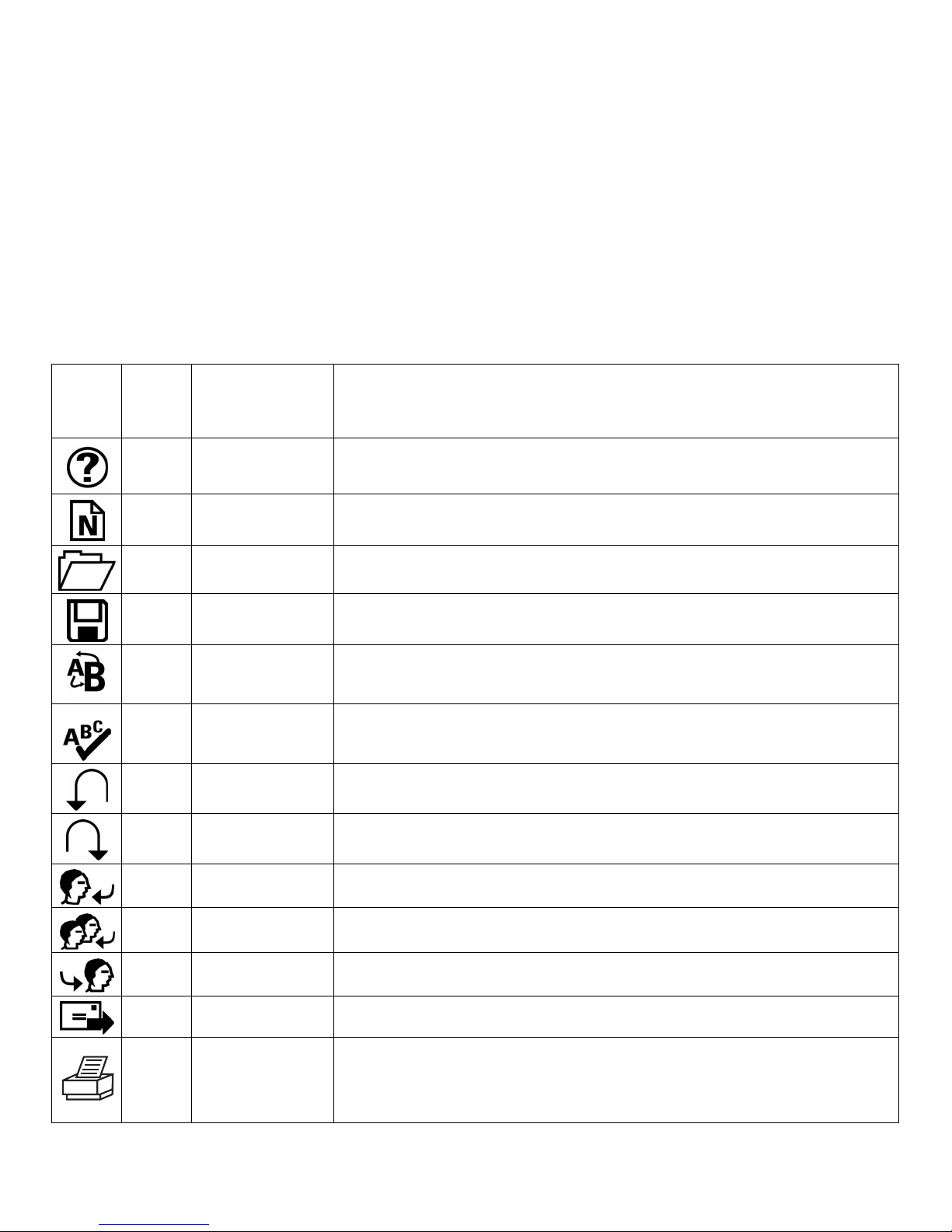
6. Special Function Hot Keys
Hot keys give you quick and direct access to programs, files or commands. Using hot keys can increase
your productivity, as you do not have to take your hand off the keyboard so frequently (e.g. to use the
mouse). The available hot keys depend on the operating system and application being used. The
following list shows the icon on each hot key and the standard assignment of the hot keys. Most hot keys
can be reconfigured with the Wireless Office Keyboard and Optical Mouse Software (see section 5).
6-1. Office Key Zone
F
Lock Office Lock Switch the function from the normal function keys (green LED) to the
enhanced office function keys (orange LED). Office Lock must be on to
activate all other Office Hot Keys.
F1 Help Open the Help file for the active window.
F2 New Create a new document.
F3 Open Open a document.
F4 Save Save the file in the active window.
F5 Replace Search for and replace the specified text and formatting.
F6 Spell Start spell-check in the active document.
F7 Undo Cancel the previous action.
F8 Redo Cancel the previous undo.
F9 Reply Reply to the sender of the active e-mail message.
F10 Reply All Reply to all who received the active email message.
F11 Forward Forward the active e-mail message.
F12 Send Send the active e-mail message.
Print
Screen
Print Print the document in the active window.
Page - 7 -

6-2. Multimedia Key Zone
Volume down Decrease the volume. Hold down to decrease the volume more
quickly.
Volume up Increase the volume. Hold down to increase the volume more
quickly.
Mute Turn all sound off or on.
Play/Pause Play or pause media. Once paused, press this key again to resume
playing.
Stop Stop playing media.
Previous Track Skip to the previous media track. Press once to return to the
beginning of the current track and press again for each preceding
track.
Next Track Skip to the next media track.
Page - 8 -

6-3. Internet Key Zone
Back Go back to the previously viewed item in programs that support the
“Back” command, such as a Web browser.
Forward Go to the next item – if it was previously viewed in the same session – in
programs that support the “Forward” command, such as a Web browser.
Stop Stop loading or refreshing a Web page or the contents of a particular
window.
Refresh Update the information on an active Web page or the contents of a
particular window.
Search Open the Internet Explorer Search pane
My favorites Open the Internet Explorer Favorites pane. This is where you can store
shortcuts to frequently used files, websites or other items for easy access.
Home Start the default Web browser or go to the Home Web page. If the Web
browser is already activated it opens the Home Web page. You can
reassign the Home key to start another Web browser, another Home Web
page or another application.
Page - 9 -

6-4. Windows Key Zone
Email Starts the default e-mail program. If you are not sure what the default
e-mail program is, press this key to find out. You can reassign the Email
key to start another e-mail program or another application.
My Computer Opens My Computer. My computer shows the contents of your floppy
drive, hard drive(s), CD-ROM drive, DVD drive and network drives.
You can also search for and open files and folders.
Calculator Opens the calculator.
Sleep Puts the system into sleep mode if the PC supports power management
and has it enabled. The user can put the computer to sleep at the press of
any button, protecting data and saving energy. If power management is
not enabled, this key will not work. Press sleep again to bring your
system back to operational mode.
Page - 10 -
Indice


