
Jinke Hanlin eReader A6 Manuale utente

Hanlin eReaderA6
Version 2

Content
Safety Notice ........................................................................5
Structure................................................................................7
1. Keys..........................................................................9
2. Touch Screen ..........................................................10
1) Tapping...........................................................10
2) Dragging.........................................................10
3) Dragging and holding.....................................11
Operation............................................................................12
1. Switch On/Off.........................................................12
2. Charging .................................................................12
3. Installing SD Card..................................................13
4. Power On/Off .........................................................14
1) Power On........................................................14
2) Power Off.......................................................15
5. Keyboard Lock.......................................................16
6. Home Page..............................................................17
1) User Manual...................................................17
2) About..............................................................17
3) Background Music.........................................18
4) Switching Memory.........................................18
5) Memory State.................................................19
6) List Mode.......................................................19
7) Continue Reading...........................................19
7. My Bookshelf.........................................................20
1) Search Books..................................................21
2) Reading eBooks .............................................27
8. My Music................................................................47
9. My picture ..............................................................49
1) Background Music.........................................49

2) Slide Setting ...................................................49
3) Play Slide .......................................................50
4) Rotate .............................................................50
5) Original Size...................................................51
6) Match Size......................................................51
7) Brightness Contrast........................................51
8) Zoom In/Out...................................................52
10. Calendar................................................................53
11. Memo....................................................................55
1) Edit.................................................................55
2) View ...............................................................56
3) New................................................................56
4) Delete .............................................................56
12. Mail Box...............................................................57
1) Add Account...................................................58
2) Delete Account...............................................59
3) Edit Account...................................................59
4) Check the email..............................................60
5) Go To Page.....................................................60
6) Delete All .......................................................61
7) Receipt Reply.................................................61
8) Forward ..........................................................62
9) Reply ..............................................................62
10) Delete the email............................................63
11) Load Mail .....................................................63
12) Download Attachment..................................64
13) Compose the email.......................................64
13. RSS.......................................................................65
1) Feed Delete.....................................................65
2) Feed Import....................................................66
3) News Browse .................................................67

4) Template Import.............................................67
5) Mode Switch ..................................................67
14. Book Store............................................................68
1) Browse / Navigate Link .................................69
2) Favorite ..........................................................70
3) Rotate .............................................................72
4) History............................................................72
5) Address...........................................................73
6) Zoom..............................................................73
15. WiFi......................................................................74
16. System Settings ....................................................75
1) Key Sound......................................................75
2) Language Settings..........................................76
3) Change Fonts..................................................77
4) Date &Time....................................................78
5) Refresh Mode.................................................79
6) Calibrate touch screen....................................80
7) Network Settings............................................81
8) Automatically Scan WiFi ...............................83
9) Adobe Device Activate...................................84
10) Browser Settings ..........................................85
17. Input Methods Instruction ....................................86
1) Switch Input Methods ....................................86
2) Enter English..................................................86
3) Enter Symbols................................................86
4) Enter Numbers ...............................................86
18. USB Connection...................................................87
19. Exception..............................................................88
Specifications .....................................................................89
After-sales Service Guide...................................................90

Safety Notice
For safe and efficient use of the device, please abide by
the following.
Do not expose device to direct sunlight or extreme
temperatures, it may damage the electronic components of
the device or battery.
Avoid dust and humid environments. Contact with water or
any other liquid will result in the malfunction of the internal
circuit.
Do not drop the device; it will damage the product.
Do not exert force on the display screen, the extra pressure
will damage the screen.
Do not put the device in the place with dust, dirt, corrosive
gases
Do not use chemical solvents to clean the surface of the
device. Use a soft cloth to wipe away dust from the surface
of the screen or cover. You may use wet cloth to clean the
screen or cover.
Do not open the device. Only authorized personal may do
so.
Keep the device and its accessories out of Children’s reach
to avoid damage on Children’s body and device.
Do not keep the product near any magnetic field.

Use only recommended accessories and batteries. Do not
connect incompatible products.
This product is CE approved.

Structure
Front View
Display/Touch Panel
Home
Menu
Bookmark
Zoom
Return
Indicato
r
Previous Pa
g
e
N
ext Pa
g
e
SYM
Search
SD Slot
Power On/Off
Top View
USB Port
Earphone
j
ack
Bottom View

Volume
Up/Down
Side View
S
p
eake
r
Reset
Back View
Power Switch

1.Keys
Power: Long press to power off, short press to lock screen.
Homepage: to return to homepage from any interface.
Zoom: to display the zoom option window
Bookmark: to add/delete bookmark under text reading
interface, long press to enter into bookmark list.
Menu: to display menu
Return: to quit from current interface
Search: to open the search window under bookshelf or text
reading
ALT: to switch input method
SYM: to open/shut the special characters window
QWERTY keys: to input letters and numbers
Shift: use with letter keys to input capital letters.
Enter: Confirm or turn to next line.
Previous/Next: to turn the next or previous page while
reading the book
Arrow keys: move cursor
Volume: adjust volume of music file, long press to mute.
2.Touch Screen
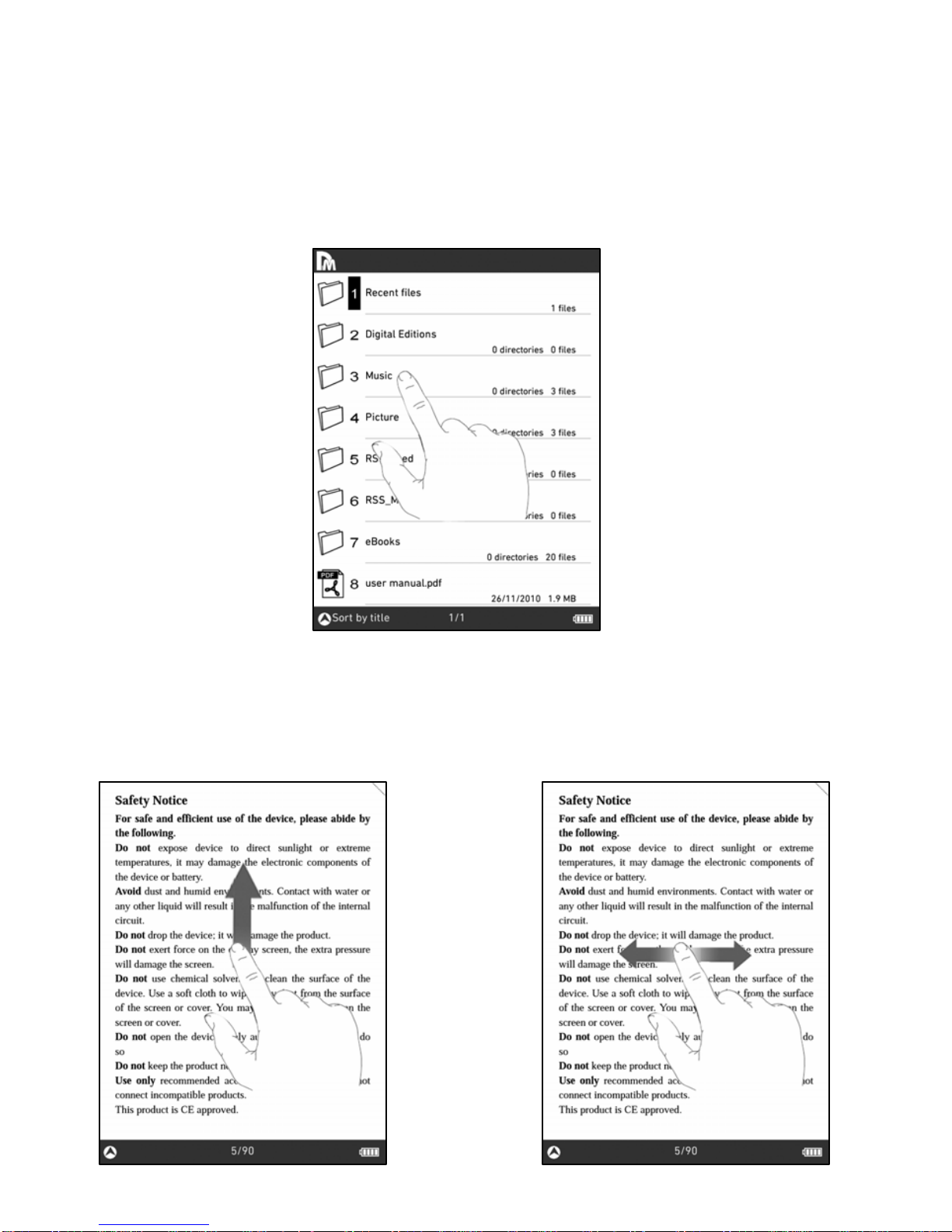
1)Tapping
By tapping on the touch screen, you may select an item on
interface as Homepage, System setting, bookshelf, etc.
2)Dragging
By dragging on the touch screen, you can turn a page.
Q
uit current interface
N
ext or previous page
Indice
Altri manuali Jinke Lettore di e-book


