KiSS DP-500 Manuale utente


2
THIS PRODUCT UTILIZES A LASER.
USE OF CONTROLS OR ADJUSTMENTS OR PER-FORMANCE OF PROCEDURES OTHER THAN THOSE SPECIFIED HEREIN MAY RESULT IN HAZARDOUS RADIATION EXPOSURE.
DO NOT OPEN COVERS AND DO NOT REPAIR YOUR-SELF. REFER SERVICING TO QUALIFIED PERSONNEL.
TO REDUCE THE RISK OF FIRE, ELECTRIC SHOCK OR PRODUCT DAMAGE, DO NOT EXPOSE THIS APPARATUS TO RAIN, MOISTURE, DRIPPING OR SPLASHING AND THAT NO
OBJECTS FILLED WITH LIQUIDS, SUCH AS VASES, SHALL BE PLACED ON THE APPARATUS.
• DO NOT INSTALL, OR PLACE THIS UNIT, IN A BOOKCASE, BUILT-IN CABINET OR IN ANOTHER CONFINED SPACE. ENSURE THE UNIT IS WELL VENTILATED. TO PREVENT RISK
OF ELECTRIC SHOCK OR FIRE HAZARD DUE TO OVERHEATING, ENSURE THAT CURTAINS AND ANY OTHER MATE-RIALS DO NOT OBSTRUCT THE VENTILATION VENTS.
• DO NOT OBSTRUCT THE UNIT’S VENTILATION OPENINGS WITH NEWSPAPERS, TABLECLOTHS, CURTAINS, AND SIMILAR ITEMS.
• DO NOT PLACE SOURCES OF NAKED FLAMES, SUCH AS LIGHTED CANDLES, ON THE UNIT.
• DISPOSE OF BATTERIES IN AN ENVIRONMEN-TALLY FRIENDLY MANNER.
THE FOLLOWING APPLIES ONLY IN THE U.S.A. AND CANADA:
TO PREVENT ELECTRIC SHOCK MATCH WIDE BLADE OF PLUG TO WIDE SLOT, FULLY INSERT.
For the Middle East, South Africa and Asia
THIS UNIT IS INTENDED FOR USE IN TROPICAL CLIMATES.
For Australia, N.Z. and units with PX printed on the outer packaging
THIS UNIT IS INTENDED FOR USE IN MODERATE CLIMATES.
This product may receive radio interference caused by mobile telephones during use. If such interference is apparent, please increase separation between the product and
the mobile telephone.
DANGER VISIBLE AND INVISIBLE LASER RADIATION WHEN OPEN. AVOID DIRECT EXPOSURE TO BEAM. (FDA 21 CFR)
CAUTION VISIBLE AND INVISIBLE LASER RADIATION WHEN OPEN. AVOID EXPOSURE TO BEAM. (IEC60825-1)
THE FOLLOWING APPLIES ONLY IN THE U.S.A.:
This equipment has been tested and found to comply with the limits for a Class B digital device, pursuant to Part 15 of the FCC Rules.
These limits are designed to provide reasonable protection against harmful interference in a residential installation. This equipment generates, uses and can radiate
radio frequency energy and, if not installed and used in accordance with the instructions, may cause harmful interference to radio communications. However, there is no
guarantee that interference will not occur in a particular installation. If this equipment does cause harmful interference to radio or television reception, which can be
determined by turning the equipment off and on, the user is encouraged to try to correct the interference by one or more of the following measures:
• Reorient or relocate the receiving antenna.
• Increase the separation between the equipment and receiver.
• Connect the equipment into an outlet on a circuit different from that to which the receiver is connected.
• Consult the dealer or an experienced radio/TV technician for help.
Any unauthorized changes or modifications to this equipment would void the user’s authority to operate this device.
This device complies with Part 15 of the FCC Rules. Operation is subject to the following two conditions: (1) This device may not cause harmful interference, and (2) this
device must accept any interference received, including interference that may cause undesired operation.
THE FOLLOWING APPLIES ONLY IN THE U.S.A. AND CANADA:

3
The laser product label has not been attached to products for U.S.A. and Canada.
Read these operating instructions carefully before using the unit. Follow the safety instructions on the unit and the safety precautions listed below. Keep these operating
instructions handy for future reference.
Safety
1.Power source :Connect the unit to a power source of the type described in these instructions or as marked on the unit.
2.Polarization - The unit is equipped with a polarized power plug where one blade is wider than the other. This safety feature ensures that the plug fits into your
household AC outlet only one way. If the plug doesn’t fit one way, try reversing it. If the plug still doesn’t fit, contact an electrician to replace the obsolete outlet. Do not
attempt to defeat the safety purpose of the plug.
3.Power cord protection - Route the AC power supply cord so that it will not be walked on or pinched by items placed on or against it. Never take hold of the plug or
cord with wet hands. Always grasp the plug body firmly when connecting and disconnecting it.
4.Overloading - When connecting the AC power supply cord, be careful not to overload the household AC outlet, extension cord, or outlet from any other device as this
can result in fire or electric shock.
5.Nonuse periods - Turn the unit off when it is not in use. Unplug the unit from the household AC outlet if it is not to be used for a long time. Unplug the unit during
lightning storms.
6.Attachments and accessories - Use only the attachments and accessories recommended in these operating instructions.
Installation
Placement
1. Ventilation - Situate the unit so that it receives proper ventilation. Do not install in a confined space such as a bookcase or cabinet. Allow at least 10 cm (4
inches) clearance from the rear of the unit. To prevent the risk of electric shock or fire due to overheating ensure curtains and other materials do not obstruct
the unit’s ventilation.
2. Foreign material - Ensure objects and liquids do not get into the unit. Avoid exposing the unit to excessive smoke, dust, mechanical vibration, and shock.
3. Magnetism - Situate the unit away from equipment and devices that generate strong magnetic fields.
4. Stacking - Do not place heavy objects on top of this unit.
5. Surface - Place the unit on a flat, level surface.
6. Carts and stands - Use the unit only with carts and stands recommended by the manufacturer. Move carts with care.
Sudden stops, excessive force, and uneven surfaces can cause carts to overturn.
7. Wall and ceiling mounting - Do not mount the unit on walls or ceilings unless specified in the instructions.
Environment
1. Water and moisture - Do not use the unit near water, such as near a bathtub or swimming pool. Avoid damp basements.
2. Heat - Situate the unit away from heat sources, such as radiators. Do not situate where temperatures fall below 5° C (41° F) or rise above 35° C (95° F).
Maintenance
Unplug the unit from the household AC outlet before cleaning.
Clean with a damp cloth.
Do not use abrasive pads, scouring powders, or solvents.
Service
1. Damage requiring service-The unit should be serviced by qualified service personnel if: The AC power supply cord or the plug has been damaged; or Objects
or liquids have gotten into the unit; or The unit has been exposed to rain; or The unit does not operate normally or exhibits a marked change in performance;
or The unit has been dropped or the cabinet damaged.
2. Servicing - Do not attempt to service the unit beyond that described in these operating instructions. Refer all other servicing to authorized servicing
personnel.
3. Replacement parts - When parts need replacing ensure the servicer uses parts specified by the manufacturer or parts that have the same characteristics as
the original parts. Unauthorized substitutes may result in fire, electric shock, or other hazards.
4. Safety check - After repairs or service, ask the servicer to perform safety checks to confirm that the unit is in proper working condition.
To clean this unit, wipe with a soft, damp cloth.
• Never use alcohol, paint thinner or benzine to clean this unit.
• Before using chemically treated cloth, read the instructions that came with the cloth carefully.

4
Congratulations on your new DVD Player
The many different functions provided by your new player will be a source of pleasure to you for many years to
come. Naturally, you can play and watch DVD films with superb audio and visual quality.
You can watch films in many other formats than DVD, such as SVCD, MPEG-4, XviD, DivX.
The audio features also give you the option of playing music CDs, MP3 or Ogg Vorbis files. The DP-500
automatically recognises each format and can read CD-RW and DVD-RW alike. Your new DP-500 also supports
Picture CDs (jpg), which means that you can display your photos directly on the TV screen. This includes the
pictures developed at the photo shop and any photos you have scanned and saved on a CD yourself.
Contents
Accessories and Connections 5
Quick Setup 7
Advanced Setup 9
Playing Media 11
Advanced Functions 12
WebRadio 13
KiSS PC-Link 15
Support 17
Note: Do not use the DVD Player until you have studied the configuration menu. To do so, the DVD Player must be connected to a TV set.
english

5
1Accessories and Connections
Make sure the following accessories are included with your DVD Player.
Remote control
Batteries
for the remote control [size “AAA” (R6P)]
Power Cable Audio CableScart Cable Composite Video
Video Connection
Connecting your KiSS DP-500 DVD player to
your TV can be done with any of the cables
below. (Only one cable can be connected at a
time).
1. RGB via SCART
2. S-Video
(the cable is an extra accessory)
3. Composite via SCART
4. Composite Video
5. Component SCART (the cable is an extra accessory)
DVD-Player KiSS DP-500
KiSS PC-Link Software CD
Audio Connection
1 3 5 4 2
DP-500
DP-500
TV
Amplifier
Connecting your KiSS DP-500 DVD player to
your amplifier can be done with any of the
cables below. (Only one cable can be connected
at a time).
6. Optical output (the cable is an extra accessory)
7. Coaxial output (the cable is an extra accessory)
8. Analogue Stereo
6 78

6
1. On/Off
2. CD Tray
3. Open/Close
4. Play/Pause
5. Stop
6. Previous Chapter
7. Next Chapter
8. Rewind
9. Fast Forward
10. Menu
Option on the Setup Menu
11. Enter
12. Navigate Left
13. Navigate Right
14. Navigate Up
15. Navigate Down
16. Close
1. Ordinary Stereo Output
2. Composite Video Output for TV Set
3. S-Video Output for TV Set
4. Coaxial Output for Amplifier
5. Optical Output for Amplifier
6. SCART for TV Set
7. AC Input
8. Ethernet
1. Standby
2. Open/Close
3. Title/Menu
4. Menu
5. Back
6. Up Arrow
7. Left Arrow
8. Enter
9. Right Arrow
10. Down Arrow
11. Rewind
12. Play/Pause
13. Fast Forward
14. Previous Chapter
15. Stop
16. Next Chapter
17. Select Lang/Audio
18. Next Picture
19. Select Subtitles
20. Select Angle
21. Zoom
22. Repeat
23. Unused
24. Setup
25. Clear Input
26. Search
27. Increase Volume
28. Decrease Volume
Note:
Certain functions will
only work if supported
by the media.
The DVD Player is equipped with a VFD display which indicates the current ongoing activities.
1. Indicates the selection of the disk being played
2. Indicates the number or chapter being shown/played
3. Indicates the current function, such as play or stop
4. Indicates the type of media being played
The front panel has the following standard buttons. The functions of the buttons depend on
whether they are used for playing various media, or used in connection with the “Setup Menu”
PC to DVD connection
Below is an example of a connection for your DP-500 to a PC via an Ethernet Switch, to enable use of all its features and programmes.
Extra information regarding cabling and connecting can be obtained by your local electronics´ supplier.
Presentation
PCDP-500 Ethernet Switch
1
2 3 4 5
6
9
7
11 12 13
14 15 16
18 17 19 20
21 22 23 24
25 26 28 27
10
8
12
11
12
34
1 2 3 4 5 6
7
8
3
4
13
7
15
9
12
6
14
8
16
10
5

7
If your DVD Player is correctly connected (see the chapter on cable connections), a menu will appear when you
turn on the DVD Player. The menu installs the most important settings for your TV set and language.
Note: If this menu does not appear when you start the DVD Player, recheck the cable connections.
Note: Try connecting your TV set using the Composite Video cables. Composite Video always produces a picture.
2Quick Setup
Language
Select the language that will be used whenever
you open the DP-500’s built-in menus. Use the
arrow buttons on the remote control to move
the rectangular frame to the language you wish
to select and press ENTER.
Connection
Select your TV set’s connection. Your options are
SCART, S-Video and Composite. The connection
depends on the inlets available on your TV set.
(If you select SCART, this connection also
includes RGB and Composite Video).

8
You can always go back and start over if you happen to do something wrong, or if you wish to enter the Setup menu and edit it.
TV
This screen presents two different types of TV
formats: 4:3 (normal) or 16:9 (wide screen).
Audio
If your TV set is connected via SCART, your TV is
automatically provided with sound. If you would
rather use an amplifier to reproduce the sound,
you have two options to choose from: the phono
jack or one of the two digital outputs.
Note: The default Audio choice should be stereo
unless your player is connected to a digital
amplifier
IP Address
In order to use the KiSS PC-Link software, you
need to provide your DVD player with your
computer IP address. To easily find this number,
first install the KiSS PC-Link software on your
computer. Once this step is completed, you will
find the number under the Info Panel. Type it
on the provided screen. Leave it blank if you do
not want to set up your PC connection for the
moment. You can always go back to the quick
setup menu if you want to provide the IP address
at a later stage.
Note: Some 4:3 TV screens can display 16:9 format.
Note: Your KiSS PC-Link software will ONLY work if the KiSS DP-500 is provided with
a valid IP address.

9
You can always access the Setup menu and adjust the DP-500 to your specific requirements and hardware. When
DP-500 appears on the main screen, press the SETUP button on your remote control, and a menu will appear with
the available options. The orange frame shows your position on the menu. Use the arrow buttons to move the
frame and select by pressing the ENTER button. The settings on some of the menus have already been determined
under Quick setup, but there are several settings available under Advanced setup as well.
3Advanced Setup
Language Settings
The first menu is the Language settings menu.
Here you select the language you wish to use
for the menus, that will appear on the screen,
and your preferred language when playing a DVD
film – for subtitles, speech and menus (they will
only be used if the film supports the language).
Video settings
You can also select a different TV system from
PAL (the European standard), and you can
indicate whether you have RGB via SCART,
Component via SCART or S-Video. Refer to your
TV set’s instruction manual before selecting
the connection. Only one setting at a time is
possible.
Note: Composite Video via SCART is always activated.

10
To leave a menu, press the left arrow on the remote control.
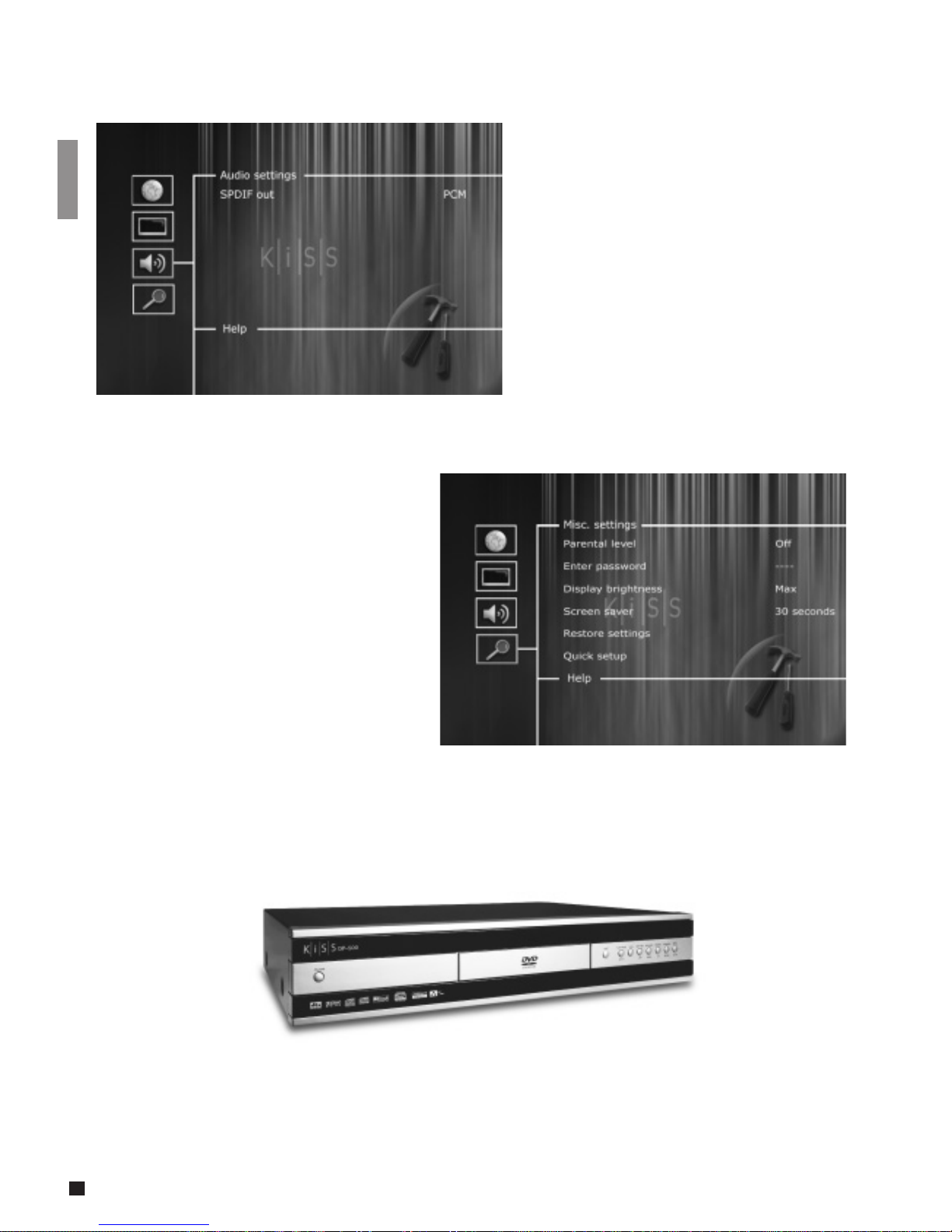
Audio Settings
This menu enables you to select either RAW or PCM.
PCM: Stereo sound. Used for slightly older
amplifiers. Choose this option to obtain
analogue sound.
RAW: Plays the surround sound track on the disk.
Recommended as default.
Miscellaneous Settings
This display lets you set your preferred level of
protection on the films. Some films are divided
into levels, so that parents can prevent their
children from seeing a specific type of film. In
the next menu item, you create a password that
is required for editing this setup*. The light in the
DVD Player’s display can be modified from dim
to normal or bright. All settings can be reset in
the “Restore settings” menu, and the Quick setup
can be re-initiated from the last menu.
*If you wish to modify this setup later on, you
must re-enter the password.
Indice
Altri manuali KiSS Lettore DVD