
Kogan KAEBK06TCHAA Manuale utente

USER MANUAL

1
User Guide
Contents
General Precautions 2
Supplied 4
Appearance 5
Enabling and disabling devices 6
Main Menu 8
Connecting to a Computer 9
Reading e-books 10
Book menu 11
Context menu 13
Listening 18
Music Menu 19
View images 21
Photo Menu 23
Notebook 25
Explorer 26
Calendar 28
Settings 29
Transferring eBooks 33
Specifications 34

2
User Guide
General Precautions
Attention!
Before you start using the device, please read this manual and keep it handy for future use.
The impact of fluid
• Do not spill liquid on the surface or inside the eBook Reader - it can cause damage to the
device.
• Do not put it next to anything containing liquids.
Direct exposure to sunlight
• Avoid direct sunlight on the screen of the device. The information on the screen may be
displayed incorrectly or not at all, if exposed to direct sunlight.

3
User Guide
Additional devices
• Do not use any unsupported device - it can cause damage to the device.
Using earphones
• To protect your hearing, we recommend you do not listen to music on earphones at a high
volume for a long period of time.
• If you have a hearing problem, please turn down the volume or abstain from the use of
earphones.
Repair
• Please contact the Authorised Repair Centre.
Attention!
To avoid losing important data, periodically back up important data from the device. Kogan is
not responsible for all kinds of data loss and does not provide support for data recovery.

4
User Guide
Attention!
If your unit has been off for a long period of time, it may display artifacts of black and white on
the screen.
This is not a malfunction in your unit!
This is the operation of the screen. Please refresh the screen contents, and the artifacts will
disappear.
Supplied
• eBook Reader.
• USB Cable.
• Earphones.
• Cover.

5
User Guide
Appearance
1. Power on / off.
2. Buttons to scroll through pages.
3. Button to return to the main menu.
4. Button-up menu.
5. Return button.
6. Lock button.
7. Reset button.
8. USB port for connecting to the computer / charger connection.
9. Card slot.
10. 3.5 mm jack for earphones.

6
User Guide
Enabling and disabling devices
To turn the device ON, press the ON/OFF button on the top of the eBook Reader.
To put the unit into standby mode, briefly press the lock button. After this, the device stops
responding to button management. When the device is in standby mode, the image of a key
will appears in the center of screen and an inscription at the bottom of the screen:

7
User Guide
To unlock the eBook reader, click the lock button once again.
For emergency powering off of the device, press and hold on / off for a few seconds. The
device will be completely turned off.
If the eBook reader is frozen, or operates slower than usual, please press the hard reset button
in on the back of the unit. You may need to use a pin to do so.

8
User Guide
Main Menu
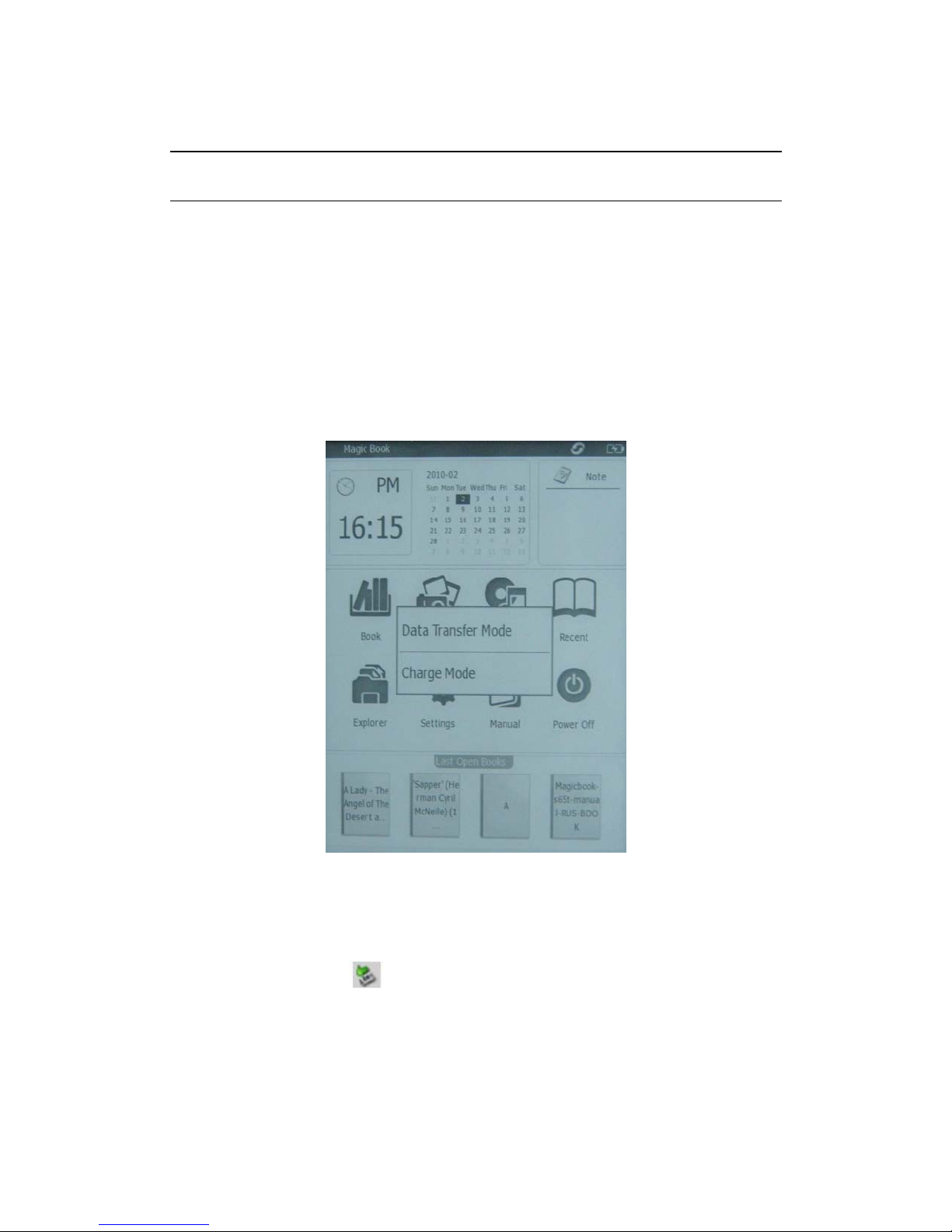
On the home screen there is a clock, calendar and icons that you can choose by touching the
corresponding button on the screen.
In Book, a list of eBooks in the memory will be displayed.
In Photo, a list of graphic files in the memory will be displayed.
In Music, a list of music files in memory will be displayed.
The Recent section provides quick links to the latest accessed files.
Explorer is designed to navigate the entire contents of the device and memory cards.
Settings section contains date, time, menu language, screen, power off, as well as system
information.
Manual is used to view the manual on the device.
Power off is used to turn off the device.
9
User Guide
Connecting to a Computer
To connect the eBook Reader to your computer:
1. Connect the USB-cable to the USB port on the device.
2. Connect the USB-cable to a USB 2.0 port on your computer.
3. There will be a message box on the eBook, you can choose either: “Data Transfer Mode” or
“Charge Mode”. Select Data Transfer Mode to gain access to the eBook via the computer.
4. Wait for the operating system detects a new storage device for USB.
After connecting the device to a PC, it will be displayed in explorer as a removable disk USB.
You will then be able to copy music and image files to your device.
To disconnect the unit from the computer you must use the Safely Remove Hardware. To do
this:
1. Double click on the icon in the notification area of Windows.
2. In the resulting window, select USB Mass Storage Device and click Stop.
3. In the resulting window, stop the device by clicking OK.
4. Then a message will appear on your computer to let you know that the hardware can be
safely removed from the system.
Indice
Altri manuali Kogan Lettore di e-book


