
Kralin Bluetooth Dongle V2.0 Manuale utente
KR.BE Manuale.FH11 Tue Jun 05 16:09:04 2007 Pagina 1
Colori compositi
C M Y CM MY CY CMY K
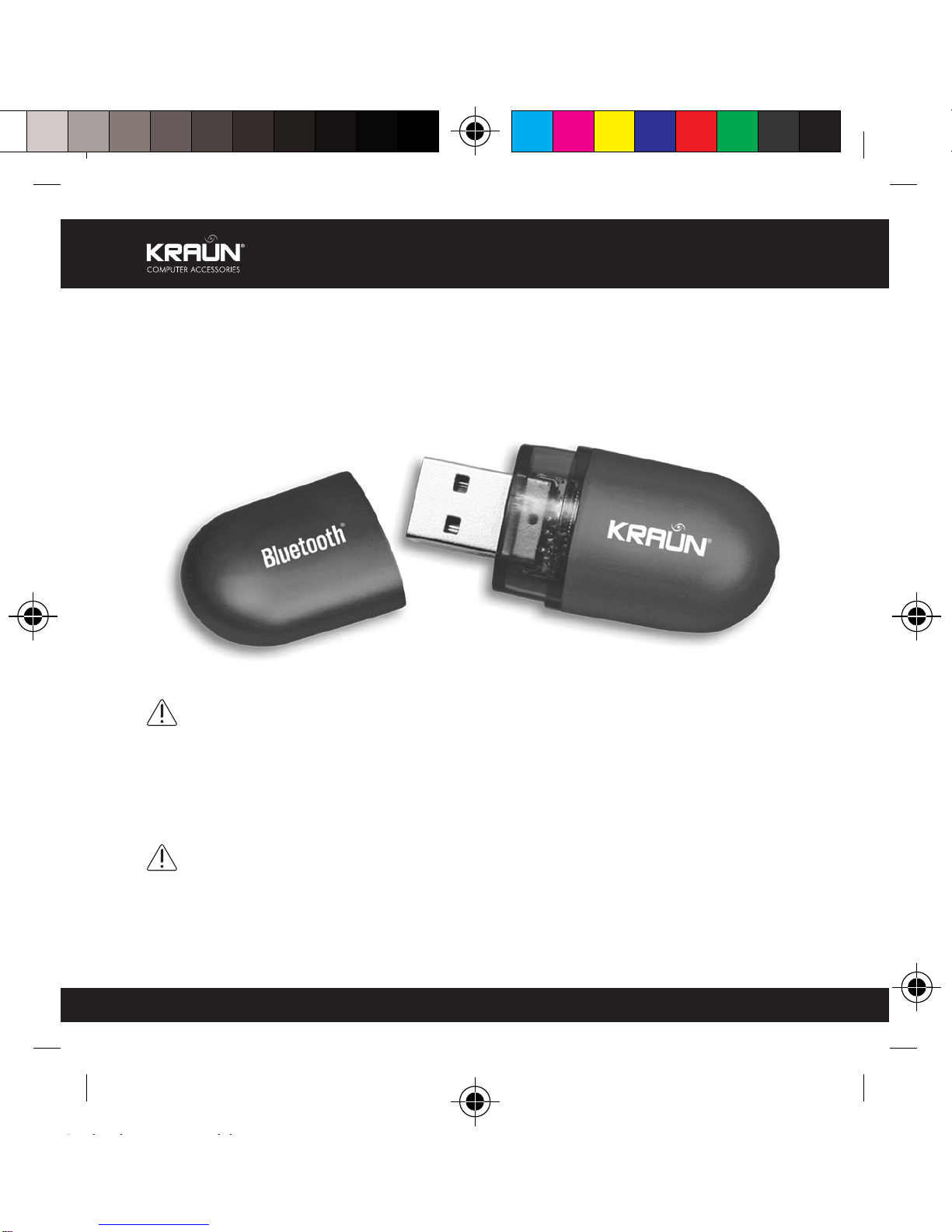
Bluetooth Dongle V 2.0
Quick Guide
Guida rapida
Cod. KR.BE
www.Kraun.it
Avvertenza
Qualsiasi variazione fatta dallutilizzatore o
da altri non autorizzati può compromettere
la conformità e la sicurezza del prodotto di
cui il produttore non si ritiene responsa ile.
Warning
The manufacturer is under no circumstances
lia le for any unauthorised modifications made
to the product y the user or any other parties
which may compromise its conformity and
safety.

KR.BE Manuale.FH11 Tue Jun 05 16:09:04 2007 Pagina 2
Colori compositi
C M Y CM MY CY CMY K
www.Kraun.it
Contents
1. Basic Operations
2. Audio Service
3. File Transfer Service
4. Networking Service
5. PIM Service
6. Print Service
Thanks for choosing The Kraun Bluetooth Dongle V2.0. Before operating the
unit, please read this manual and retain it for future reference. Please also
check for any exceptions, national requirements or limitations in usage of
Bluetooth equipment efore getting start.
With Kraun Bluetooth Dongle V2.0 installed, the computer ecomes a
Bluetooth ena led device which provides wireless communication services.
It ena les the following connection etween the computer and Bluetooth
ena led mo ile phone, PC, PDA, headset, printer, DSC, mouse and key oard.
Create a personal Area Network to share the documents and file
transmission
Access the Internet through GPRS/CDMA 1X/3G, rowse the we , send
and receive E-mail
Provide Audio Gateway ( I/O) etween PC and Bluetooth headset
Support MSN/ Netmeeting / Skype /Music, e.g support the Bluetooth
headset to listen to the music or make an interactive talk
Engage with Bluetooth mo ile phone for pictures/data/game transfer,
send/receive Fax
ActiveSync with a Bluetooth ena led PDA System Requirement.
Quick Guide
KR.BE Manuale.FH11 Tue Jun 05 16:09:04 2007 Pagina 3
Colori compositi
C M Y CM MY CY CMY K
www.Kraun.it
System Requirement:
One availa le USB port
CD-ROM drive
Microsoft Win 98/SE/ME/2000/XP/VISTA
. Basic Operations
Finding Bluetooth Devices
To find all Bluetooth devices that is in range
1. Open My Bluetooth Places.
2. Click View devices in range.
To find a specific Bluetooth device
1. Open My Bluetooth Places.
2. Click Add a Bluetooth Device
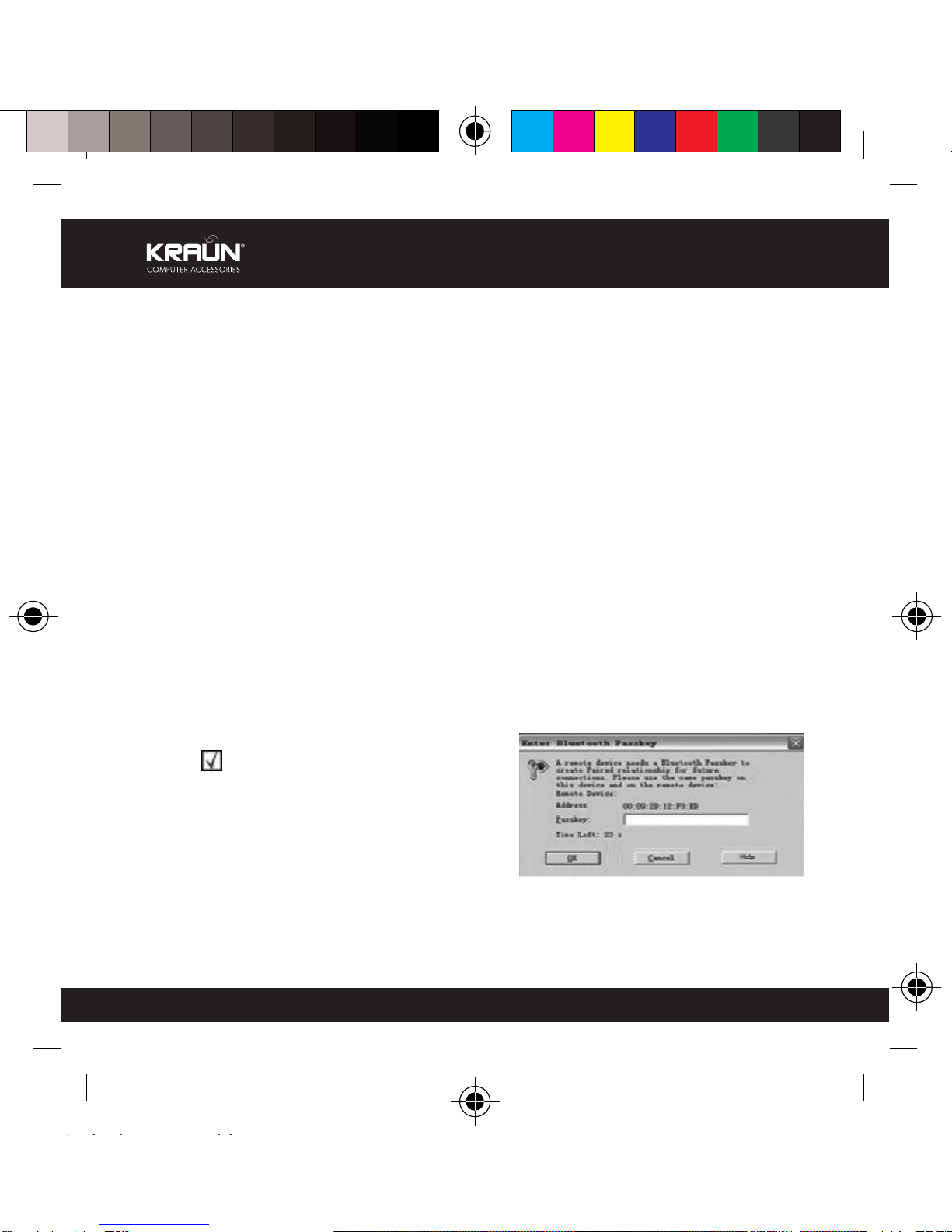
Pairing My Bluetooth Devices
Type the Bluetooth security code in the Bluetooth security code ox, and
then click Pair now.
Icon at the side of the device icon
which indicate s the pairing successful.
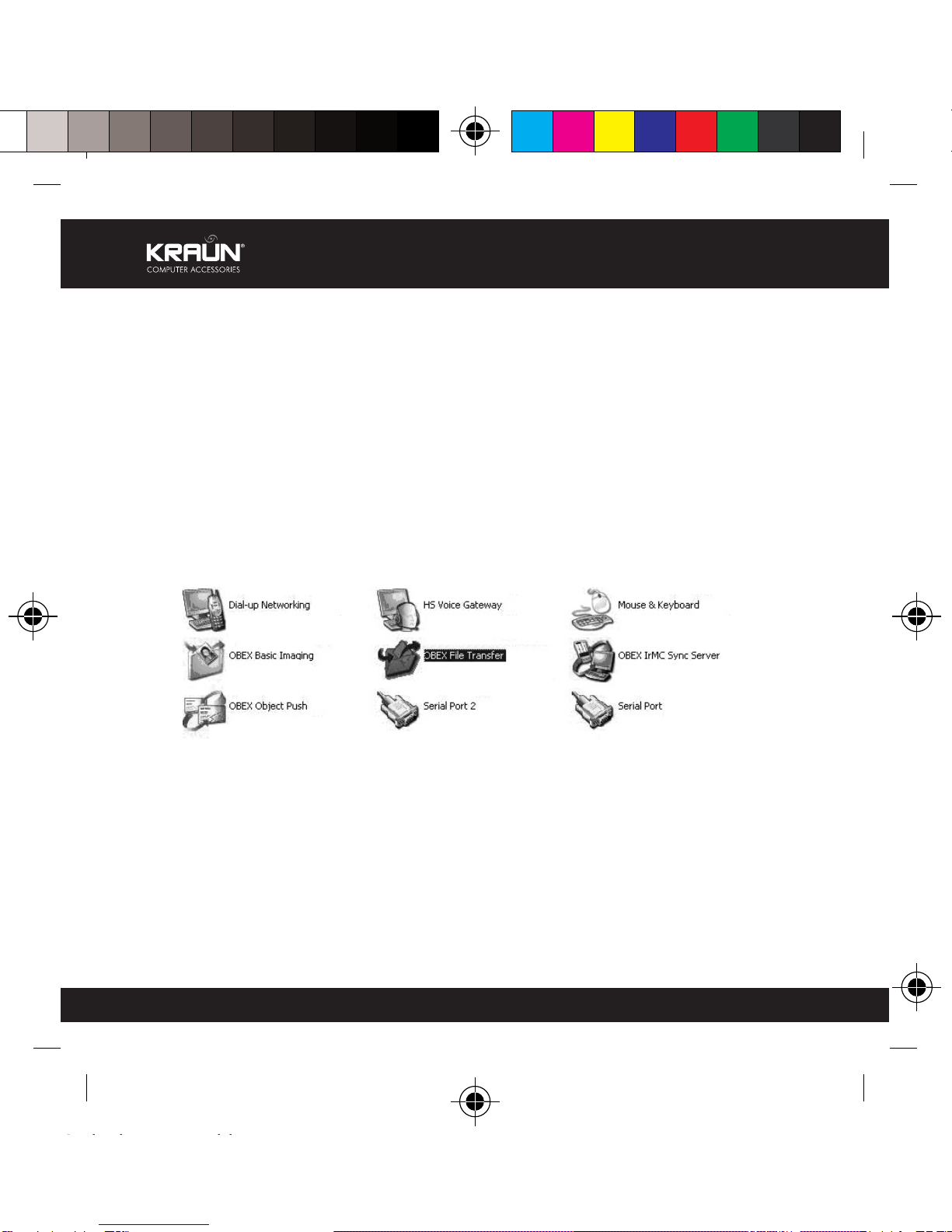
Viewing My Bluetooth Services
Bluetooth services are used to carry out
actions etween a program installed on
your computer and a remote Bluetooth device. The Bluetooth services that
are installed on this computer are known as My Bluetooth services, and
they are listed in My Device.
Quick Guide
KR.BE Manuale.FH11 Tue Jun 05 16:09:04 2007 Pagina 4
Colori compositi
C M Y CM MY CY CMY K
www.Kraun.it
To view My Bluetooth services
1. Open My Bluetooth Places.
2. Click View My Bluetooth services
Making a Quick Connection
To make a quick connection, right-click the Bluetooth icon in the task ar
notification area, point to Quick Connect, point to the name of the service you
want to use, and then click the name of the device that provides the service.
Start or Stop the Bluetooth Device
If it is availa le, you can use a software tool to start or stop the Bluetooth adapter
in your Bluetooth-ena led computer. Starting the Bluetooth adapter turns the
radio on and stopping the device turns the radio off. To start or stop the
Bluetooth device, right-click the Bluetooth icon in the task ar notification
area and then click either Start the Bluetooth Device or Stop the Bluetooth Device.
The particular command that is availa le depends on the current state of the
device.
2. Audio Service
2. Play Audio from a Bluetooth Player on This Computer
1. From this computer, open My Bluetooth Places.
2. Click Add a Bluetooth Device.
3. Make the Bluetooth player discovera le, and then in Bluetooth Setup,
click Next.
4. When the Bluetooth player icon appears in Bluetooth Device Selection,
click the icon, and then click Next.
5. In Bluetooth Service Selection, select the Audio Gateway check ox, and
then click Next.
Quick Guide

KR.BE Manuale.FH11 Tue Jun 05 16:09:04 2007 Pagina 5
Colori compositi
C M Y CM MY CY CMY K
www.Kraun.it
Quick Guide
6. The Start the connection check ox is selected y default. To accept the
default setting and have the connection start automatically, click Finish.
You are now a le to play audio from the Bluetooth player on this computer.
To disconnect the audio gateway
1. From this computer, open My Bluetooth Places.
2. Click View devices in range.
3. In Entire Bluetooth Neigh orhood, right-click the icon of the Bluetooth
audio player, and then click Disconnect Audio Gateway.
2.2 To use a hands-free audio device with Skype
You can egin using Skype as soon as you are connected to your hands-
free audio device. Skype automatically recognizes your hands-free audio
device, adjusts Audio In and Audio Out settings to use a Bluetooth Hands-
free Audio device, and routes calls to your device. You can use the utton
on your device to accept or reject a call, place a call on hold, hang up, or
redial a num er.
3. File Transfer Service
3. Access Files on another Bluetooth Device from This Computer
1. If the other Bluetooth device is not another Bluetooth computer, ena le
the File Transfer service on the other device (refer to the manual that
came with the other Bluetooth device for instructions).
2. From this computer, open My Bluetooth Places.
3. Click Add a Bluetooth Device, and then click Next.
4. When the icon for the other device appears in Bluetooth Device Selection,
click the icon, and then click Next.

KR.BE Manuale.FH11 Tue Jun 05 16:09:04 2007 Pagina 6
Colori compositi
C M Y CM MY CY CMY K
www.Kraun.it
Quick Guide
NOTE: If the Secure connection property of the File Transfer service of
the other device has een set, type the security code you want to use
in the Bluetooth security code ox, and then click Pair Now. The operator
of the other device must know the security code and must e availa le
to respond to the Bluetooth Security Code request sent y this computer.
Otherwise, the pairing process fails. After the two devices are paired,
you can access the files on the other device without having to e granted
access permissions.
5. In Bluetooth Service Selection, select the check ox for the File Transfer
service, and then click Next.
6. Click Finish.
You can now access the files in the Bluetooth Exchange Folder of the other
Bluetooth device. To do so, in My Bluetooth Places, dou le-click the File
Transfer shortcut to open the Bluetooth Exchange Folder on the other
Bluetooth device.
3.2 Allow Other Bluetooth Devices to Access Files on This Computer
1. From this computer, open My Bluetooth Places.
2. Click View my Bluetooth services.
3. Right-click My File Transfer and then click Properties.
4. On the General ta , specify how you want the File Transfer service to
start. By default, the Startup Automatically check ox is selected. If you
prefer to manually start the service, clear the check ox.
5. To require the use of a security code to connect to this service and to
encrypt Bluetooth transmitted data, select the Secure Connection check
ox. If you prefer not to require the use of a security code and to not
encrypt data, do not select the check ox.

KR.BE Manuale.FH11 Tue Jun 05 16:09:04 2007 Pagina 7
Colori compositi
C M Y CM MY CY CMY K
www.Kraun.it
Quick Guide
6. Specify remote user access permissions y selecting either, oth, or
none of the Remote users may modify read-only files and folders and
Remote users may access hidden files or folders check oxes.
NOTE: To specify a different location than the default location where
the File Transfer service saves files, click Browse.
7. To specify if or how you want to e notified when another Bluetooth
device access the files on this computer, click the Notifications ta , and
then select either the Do not provide notification check ox, or either or
oth of the Visual notification and Audio notification check oxes.
8. Click OK to save your settings.
Other Bluetooth devices can now access the files in your Bluetooth Exchange
Folder.
NOTE: If you set the secure connection property of the File Transfer
service of this computer, you must e availa le to respond to the
Bluetooth Security Code Request sent y the other device when the
other device initially attempts to connect to this computer. Otherwise,
the pairing process fails. After the two device are paired, the other
device can access the files on this computer without having to o tain
access permissions.
3.2 Allow Other Bluetooth Devices to Access Files on This Computer
1. From this computer, open My Bluetooth Places.
2. Click View my Bluetooth services.
3.3 Send Files or Folders on This Computer to another Bluetooth
Device
To send files on this computer to another Bluetooth device
1. Verify that File Transfer service is ena led on the destination Bluetooth
device.
KR.BE Manuale.FH11 Tue Jun 05 16:09:04 2007 Pagina 8
Colori compositi
C M Y CM MY CY CMY K
www.Kraun.it
Quick Guide
2. In Windows Explorer, open the folder where the file you want to send
is located.
3. Right-click the file name, point to Send To, point to Bluetooth, and then
click the name of the destination Bluetooth device.
To send folders on this computer to another Bluetooth device
1. Open My Bluetooth Places.
2. Click View devices in range.
3. Open Windows Explorer and rowse to where the folder you want to
send is located.
4. Copy or drag the folder to the destination device name in Entire Bluetooth
Neigh orhood.
NOTE: When you send folders to another Bluetooth device, If the Secure
Connection property of the File Transfer service of the other Bluetooth
device has een set, the operator of the other Bluetooth device must
availa le to allow access unless the Always allow this device access to
my computer's File Transfer service check ox in Bluetooth File Transfer
Authorization is selected. Otherwise, the file transfer fails.
The sent files or folders are located in the Bluetooth Exchange Folder on the
destination Bluetooth device.

KR.BE Manuale.FH11 Tue Jun 05 16:09:04 2007 Pagina 9
Colori compositi
C M Y CM MY CY CMY K
www.Kraun.it
Quick Guide
4. Networking Service
4. Connect to the Internet Using a Bluetooth Telephone, Modem,
or Other Bluetooth Device That Offers Dial-up Networking Service
1. From this computer, open My Bluetooth Places.
2. Click Add a Bluetooth Device, and then click Next.
3. Make the other Bluetooth device discovera le, and then in Bluetooth
Setup, click Next.
NOTE: Refer to the manual that came with the device for instructions
a out how to make the device discovera le.
4. When the icon of the other device appears in Bluetooth Device Selection,
click the icon, and then click Next.
5. In Bluetooth Service Selection, select the check ox for the Dial-up
Networking service, and then click Next.
6. Click Finish.
7. If your mo ile service operator requires you to supply your user name
and password, type them in the spaces provided.
8. Type the num er of your Internet service provider in the Dial ox, and
then click Dial.
NOTE: For typical GPRS connections, you can normally leave the User
name and Password oxes lank and use 99# as a phone num er.
9. Respond to the authorization messages that appear on the other device.
To disconnect the dial-up networking connection
1. From this computer, open My Bluetooth Places.
2. Click View devices in range.
3. In Entire Bluetooth Neigh orhood, right-click the icon of the device you
esta lished a dial-up networking connection with, and then click
Disconnect Dial-up networking gateway.

KR.BE Manuale.FH11 Tue Jun 05 16:09:04 2007 Pagina 10
Colori compositi
C M Y CM MY CY CMY K
www.Kraun.it
Quick Guide
4.2. Make a Network Connection to another Bluetooth Device or to
a Local Area Network (LAN) Using the Network Connection of the
Other Device
1. From this computer, open My Bluetooth Places.
2. Click Add a Bluetooth Device, and then click Next.
3. Make the other Bluetooth device discovera le, and then in Bluetooth
Setup, click Next.
NOTE: Refer to the manual that came with the device for instructions
a out how to make the device discovera le.
4. When the icon of the device appears in Bluetooth Device Selection, click
the icon, and then click Next.
5. In Bluetooth Service Selection, select the check ox for the Network
Access service, and then click Next.
6. Click Finish.
To disconnect network access
1. From this computer, open My Bluetooth Places.
2. Click View devices in range.
3. In Entire Bluetooth Neigh orhood, right-click the icon of the device you
esta lished a network access connection with, and then click Disconnect
Network Access.
5. PIM Service
5. Exchange Electronic Business Cards with another Bluetooth
Device and Send Other PIM Items to the Other Device
1. From this computer, open My Bluetooth Places.
2. Click Add a Bluetooth Device, and then click Next.
3. Make the other Bluetooth device discovera le, and then in Bluetooth
Setup, click Next.
Indice
Lingue:


