
KVMSwitchTech KVM-HD88K Manuale utente

KVM-HD88K
8x8 HDMI Matrix Switch with Auxiliary Audio I/O
INSTRUCTION MANUAL
118 W. Streetsboro Street, Ste. 125 | Hudson, OH 44236 | Toll Free: (866) 865-7737

SAFETY INFORMATION
1. To ensure the best results from this product, please read this manual and all other documentation before operating your equipment.
Retain all documentation for future reference.
2. Follow all instructions printed on unit chassis for proper operation.
3. To reduce the risk of fire, do not spill water or other liquids into or on the unit, or operate the unit while standing in liquid.
4. Make sure power outlets conform to the power requirements listed on the back of the unit. Keep unit protected from rain, water and
excessive moisture.
5. Do not attempt to clean the unit with chemical solvents or aerosol cleaners, as this may damage the unit. Dust with a clean dry cloth.
6. Do not use the unit if the electrical power cord is frayed or broken. The power supply cords should be routed so that they are not
likely to be walked on or pinched by items placed upon or against them, paying particular attention to cords and plugs, convenience
receptacles, and the point where they exit from the appliance.
7. Do not force switched or external connections in any way. They should all connect easily, without needing to be forced.
8. Always operate the unit with the AC ground wire connected to the electrical system ground. Precautions should be taken so that the
means of grounding of a piece of equipment is not defeated.
9. AC voltage must be correct and the same as that printed on the rear of the unit. Damage caused by connection to improper AC
voltage is not covered by any warranty.
10. Turn power off and disconnect unit from AC current before making connections.
11. Never hold a power switch in the “ON” position.
12. This unit should be installed in a cool dry place, away from sources of excessive heat, vibration, dust, moisture and cold. Do not use
the unit near stoves, heat registers, radiators, or other heat producing devices.
13. Do not block fan intake or exhaust ports. Do not operate equipment on a surface or in an environment which may impede the normal
flow of air around the unit, such as a bed, rug, carpet, or completely enclosed rack. If the unit is used in an extremely dusty or smoky
environment, the unit should be periodically “blown free” of foreign dust and matter.
14. To reduce the risk of electric shock, do not remove the cover. There are no user serviceable parts inside. Refer all servicing to
qualified service personnel. There are no user serviceable parts inside.
15. When moving the unit, disconnect input ports first, then remove the power cable; finally, disconnect the interconnecting cables to
other devices.
16. Do not drive the inputs with a signal level greater than that required to drive equipment to full output.
17. The equipment power cord should be unplugged from the outlet when left unused for a long period of time.
18. Save the carton and packing material even if the equipment has arrived in good condition. Should you ever need to ship the unit,
use only the original factory packing.
19. Service Information Equipment should be serviced by qualifier service personnel when:
A. The power supply cord or the plug has been damaged.
B. Objects have fallen, or liquid has been spilled into the equipment.
C. The equipment has been exposed to rain
D. The equipment does not appear to operate normally, or exhibits a marked change in performance
E. The equipment has been dropped, or the enclosure damaged.
THIS SAFETY INFORMATION IS OF A GENERAL NATURE AND MAY BE SUPERSEDED BY INSTRUCTIONS CONTAINED WITHIN THIS MANUAL
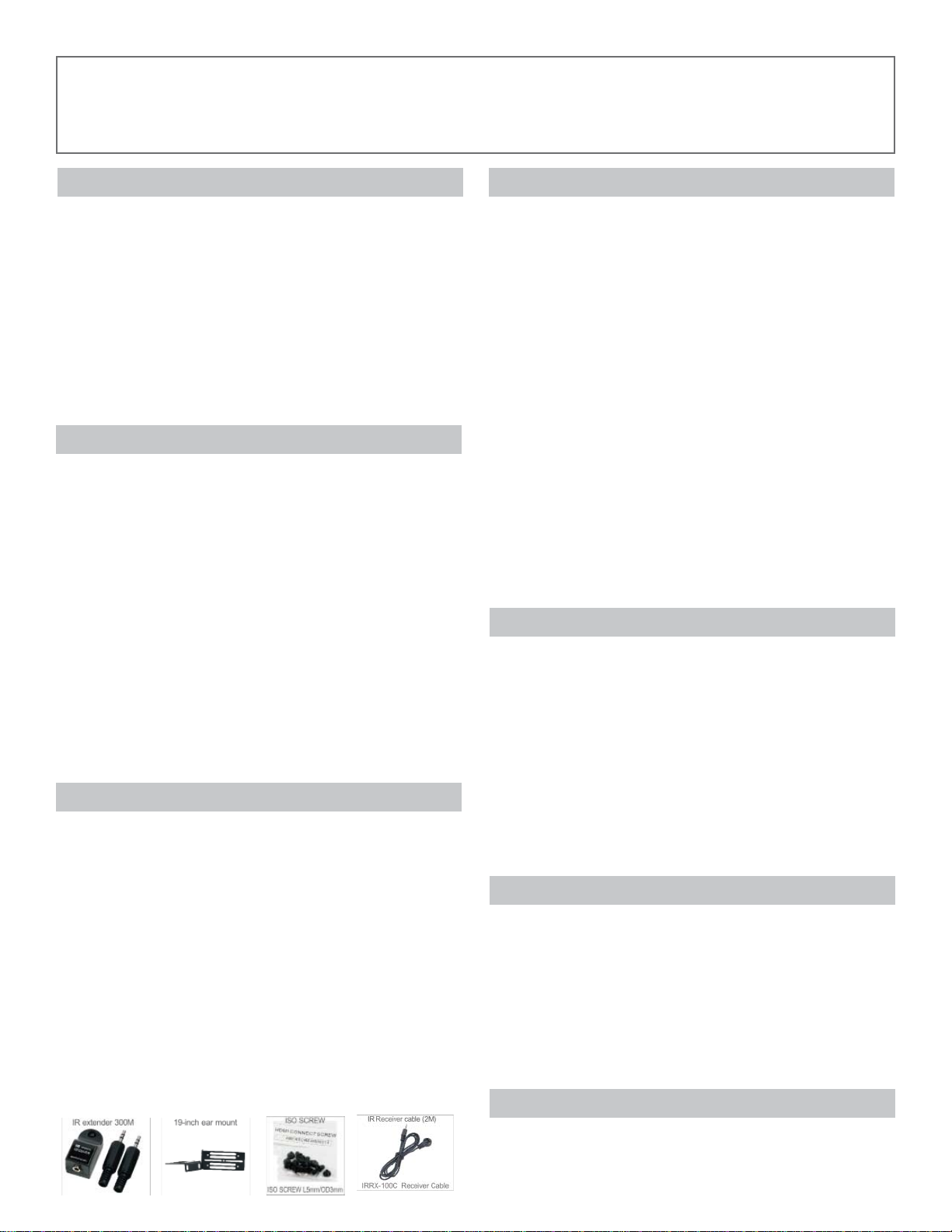
TABLE OF CONTENTS
CONTENTS
INTRODUCTION & PACKAGE CONTENTS ....................1
FEATURES ........................................................................2
SPECIFICATIONS .............................................................3
FRONT PANEL .................................................................4
REAR PANEL ...................................................................10
TYPICAL APPLICATION .................................................12
REMOTE CONTROL .......................................................13
IR EXTENDER ................................................................. 15
EDID FUNCTION ............................................................17
RS-232 SERIAL INTERFACE ...........................................21
INTRODUCTION
The KVM-HD88K is professional 8x8 matrix routing switch.
Supporting eight (8) HDMI Inputs and (8) Auxiliary Audio Inputs.
Output supported (8) HDMI and (8) SPDIF audio. The KVM-HD88K
is based on the HDMI standard and supports full resolution HDMI
Video with embedded EDID, With a signal bandwidth of 340Mhz,
there is no signal degradation. High Definition Digital signals can
be selected and distributed to any (8) Inputs to (8) outputs. The
Switcher is certified as being fully CEC , ARC and HDCP 2.0
compliant, full HD 4K2K HDMI V1.4a 3D formats, data rates up
to 6.75 Gbps. Supports UXGA/WUXGA/DVI 1920x1200 resolution
to any HD displays. The KVM-HD88K has 1x HDMI and Auxiliary
Audio(analog stereo audio) connector for Input, effectively making
this an (8) in x (8) out switcher. The EDID management can be
selected between seven (7) different modes. Control is provided
via Front panel push buttons, IR remote, RS-232 or TCP/IP (not a
web-browser). An RS-232 Windows GUI interface is provided for
matrix routing control (Windows only).
PACKAGE CONTENTS
Before attempting to use this unit, please check the packaging
and make sure the following items are contained in the shipping
carton:
• Main switch console unit
• Operating Instructions
• RS-232 V2.0 Protocol Instructions
• Ethernet V2.0 Protocol Instructions
• Master wireless IR Remote Control (SW-HD44)
• 19 inch Ear mount bracket (Part # 1U-440L)
• IR RX-100 IR Extender distance ~984 feet (300M) Receiver set
• IR RX-100C IR Extender distance 6ft(2M) Receiver Cable
• CD Contents : Windows GUI, ISP V1.0 Windows driver
• RS-232 Cable 6 ft (2M)
• ISO Screws
• Worldwide Universal Power Supply: DC12V, 5A, (Worldwide
Universal 100~230 VAC, AC 50/60Hz.)
1
SAFETY PRECAUTIONS
Please read all instructions before attempting to unpack, install or
operate this equipment and before connecting the power supply.
Please keep the following in mind as you unpack and install this
equipment:
• Always follow basic safety precautions to reduce the risk of fire,
electrical shock and injury to persons.
• To prevent fire or shock hazard, do not expose the unit to rain,
moisture or install this product near water.
• Never spill liquid of any kind on or into this product.
• Never push an object of any kind into this product through any
openings or empty slots in the unit, as you may damage parts
inside the unit.
• Do not attach the power supply cabling to building surfaces.
• Use only the supplied power supply unit (PSU). Do not use the
PSU if it is damaged.
• Do not allow anything to rest on the power cabling or allow any
weight to be placed upon it or any person walk on it.
• To protect the unit from overheating, do not block any vents or
openings in the unit housing that provide ventilation and allow
for sufficient space for air to circulate around the unit.
DISCLAIMERS
The information in this manual has been carefully checked and
is believed to be accurate. We assume no responsibility for any
infringements of patents or other rights of third parties which may
result from its use.
We assume no responsibility for any inaccuracies that may be
contained in this document. We make no commitment to update or
to keep current the information contained in this document.
We reserve the right to make improvements to this document and/
or product at any time and without notice.
COPYRIGHT NOTICE
No part of this document may be reproduced, transmitted,
transcribed, stored in a retrieval system, or any of its part translated
into any language or computer file, in any form or by any means
— electronic, mechanical, magnetic, optical, chemical, manual, or
otherwise — without express written permission and consent
© Copyright 2013. All Rights Reserved.
Version 1.0 JUNE 2014
TRADEMARK ACKNOWLEDGMENTS
All products or service names mentioned in this document may
be trademarks of the companies with which they are associated.

FEATURES
FEATURES
• (8)x HDMI with Auxiliary Audio (Analog Audio) source devices matrix switched to (8)x HDMI with S/PDIF output destinations.
• HDMI digital Video w/embedded HDCP, DVI format and CEC/HDCP 2.0 compliant
• Worldwide control EDID modes for HDMI full 4K2K (24/30 Hz) HD Video resolutions.
• Link speeds of up to 6.75 Gbps (link clock rate of 340MbHz), Support HDMI 4K2K, 1.4a 3D formats.
• Wide range of HD resolutions from PC XGA to WUXGA 1920x1200 and HDTV/DTV HDMI resolutions 480i/480p, 576i/576p, 720p,
1080i/p & 4K2K (24/30Hz).
• Compatible with all HDMI source devices, PC monitors, Plasma HD display, HDTV and audio receivers or audio amplifiers.
• Digital Video TMDS formats Resolution up to 4K2K with Deep color 36-bit.
• Digital Audio Support :
• Dolby TrueHD, Dolby Digital, Dolby Digital Plug/ex, DTS, DTS-HD, DTS-HD Master, DTS-EX, PCM, PCM2, LPCM2
• Audio Input : Support Auxiliary Audio (Analog stereo audio).
• Audio Output : Support Digital audio ARC or Digital audio S/PDIF ( from HDMI source or Auxiliary Audio)
• Various User Interface control:
• Windows based GUI control via RS-232 port
• Front Panel push button
• IR wireless remote control
• Ethernet Switch control
• Third party RS-232 controller (via simple ASCII)
• Using the build-in booster, each HDMI Output port is capable of driving cable lengths 1080p up to 98 ft (30M) & 4k2k up to 66 ft ( 20M)
• The KVM-HD88K HDMI Outputs contain a booster enabling longer cable runs without using amplifier/repeaters. HDMI specification is
15M or 50 feet. The KVM-HD88K is capable of supporting 30M or 98 feet.
• Support world wide (10)x control function keys:
• Full function front panel controls: ARC / AUX/ ALL / OFF / EDID / LOCK / RECALL / MEMORY / ENTER
• Support EDID modes :
• Embedded EDID modes : FSS/ H24-3D/ H24-3D-M/ H36-3D/ H36-3D-M/ 4K2K-3D / DVI-D 1920x1200-60Hz
• External modes : Learning mode. Automatic scanning input & output status via LED show on front panel
• Automatic scanning input & output status via LCM show on front panel.
• Support IR Remote and IR Extender with distance up to ~ 984 feet (300M) Maximum.
• Support Universal power adaptor AC90V~AC240V, 50/60Hz.
The Switcher will remember that last state during a power cycle. When power is removed and resorted, the last configuration will be invoked.
2

SPECIFICATIONS
SPECIFICATIONS
• Type of Switcher: 8x inputs To 8x Outputs HDMI Matrix Switcher with Audio and Extension
• HDMI Support: HDMI 4K2K, 1080P-@60Hz, H36-bit Deep color, 3D of HDMI V1.4 formats.
• HDCP / CEC Support: HDCP 2.0 Compliant, CEC Compliant
• Video Bandwidth: Double Data Rates: 340Mhz, Total 6.75Gbps bandwidth.
• Digital Video Support: HD:480i/ 480p/ 720p/ 1080i/p and 4K2K up to 36bit deep color
• Video Inputs: 8x HDMI (HDMI or DVI digital source).
• Audio Inputs: 8x AUX Audio ( Analog Stereo, AUX port. 3.5mm Jack).
• Video Outputs: 8x HDMI (To Destination).
• Audio Outputs:
• 8x S/PDIF : Multi Audio Formats 5.1 from HDMI or LPCM-2CH from Auxiliary audio.
• 8x ARC : TV Return Channel Audio.
• 8x HDMI : Multi Audio Formats 5.1 / 7.1, MAT(MLP), Dolby Digital, Dolby TrueHD, Dolby Digital Plus, DTS, DTS-ES 6CH,
DTS-HD, DTS-HD-HRA, DTS-HD Master, (PCM-2CH)
• Switch Controls:
• 1x Select & Function buttons on front panel (Data status via LCM panel show out)
• 1x IR Remote Controller (switch control)
• 1x IR External port (switch control via 3.5mm OD Jack)
• 1x RS-232 series interface (switch control)
• 1x Ethernet series interface (switch control)
• Source Status: Input status LEDs indicates presence of a live signal
• (25) Function Control Keys: 1. ARC, 2. AUX, 3. ALL, 4. OFF, 5. RECALL, 6. ENTER, 7. MEMORY, 8. LOCK, 9. EDID, 10. Destination
button 1 thru 8, 11. Source button 1 thru 8
• (7) EDID Management:
• 1. Select Embedded EDID modes : Mode1: FSS, Mode2: H24-3D, Mode3: H24-3D-M, Mode4: H36-3D, Mode5: H36-3D-M,
Mode6: 4K2K-3D, PCM-2CH, Mode7: DVI-D 1920x1200-60Hz
• 2. Select LEARNING mode : Learning Destination EDID To Link Source
• Infrared Frequency: 38 Khz
• Video Booster: HDMI output 1080p lengths up to 98 feet (30M) / 4K2K up to 66 feet (20M).
• IR External Distance: ~984 ft / 300 m maximum
• HDMI I/O Connector: HDMI Type A - SMD 19pin Female Type
• Temperature: 32 °F - 100 °F Operation (0 °C - 32 °C)
• Dimensions (LxWxH): 19 x 9.85 x 1.75 in (482 x 250 x 44mm)
• Rack Mount: 1RU High 19 in (with rack mount)
• Power Supply: DC12V, 5A, Power Input : AC 100~240 VAC 50/60Hz (universal Type Supply)
• Power Consumption: 2150 mA Maximum
• Safety Approvals: CE, FCC, RoHS (2002/95/EC)
• Product Weight: 3.75 Kgs / 8.25 lb
As product improvements are continuous, specifications are subject to change without notice.
3

4
FRONT PANEL
FRONT PANEL
1 POWER SWITCH
The power switch turns the unit on and off. The LED will illuminate red to indicate that the switcher is ON and is receiving power.
The Switcher will remember that last state during a power cycle.
When power is removed and resorted, the last configuration will be evoked.
2 STATUS DISPLAY
Front panel status display shows current matrix routing configuration. This same display also shows particular configuration settings
depending on your current function. In run mode (as shown above), the display shows each Output (destination ) Channel shows which
input (source) is assigned.
3IR SENSOR
The IR sensor receives IR commands from the supplied remote controller or third party IR emitter.
4INPUT STATUS DISPLAY
Input sources 1 to 8 LED illuminates blue to indicate that a video source is present on that input.
5SOURCE SELECT BUTTONS
Separate inputs 1 thru 8 select buttons are provided each source selection.
6EDID MODE SELECT BUTTONS
Used to select EDID mode using Input buttons #1 and #2.
7DESTINATION SELECT BUTTONS
Separate outputs 1 thru 8 select buttons are provided for each destination assignment. Routing can be Source to Destination or one
source to multiple destinations. Example : Press Destination 1,3,5 then press Source 2 will route Input 2 to Output 1,3,5 respectfully.
819 INCH EAR MOUNT PAIR
Converts desktop to 19 inch rack mount. Bracket (part # 1 U-440L) INCLUDED.
Image shows rack mount bracket attached.

5
FRONT PANEL
FRONT PANEL
9FUNCTION KEY - ARC
Audio Return Channel (ARC) is a feature that sends audio from the TV back down the HDMI cable to its source device, in this case, the
switcher, Not all displays support ARC; check your Users Guide for additional information. ( Default = ARC Disabled )
The “Audio & ARC” port can support audio from either of three sources.
If the Input Video/Audio Source is HDMI, the audio can extracted from the embedded signal.
If the Input Audio Source is connected to the external Audio Input, this same audio will be present on the Audio & ARC jack.
If ARC is selected, the audio will be from the destination device (ex; TV).
To Enable the ARC option on a specific Output, perform the follow steps:
- Press the ARC button.
- On the Destination row, Press 1 thru 8 (the button will illuminate).
- Press ENTER button. The new configuration will be stored The front panel LCD display will now show an “ A “ under the Output port.
- Or press ARC again to cancel operation.
To Disable the ARC option on a specific Output, perform the follow steps:
- Press the ARC button
- On the Destination row, press 1 thru 8 (the button will illuminate).
- Press ENTER The pre-set configuration will execute. The front panel LCD display will be blank under the Output port
- Or press ARC again to cancel operation.
Note :
1. Operation will abort if no keys are pressed within 5 seconds.
2. The AUX Audio input only function when a valid HDMI / DVI video signal is present.
Without a video, the AUX audio will not operate.

6
FRONT PANEL
FRONT PANEL
10 FUNCTION KEY - AUX (The audio additional on the “ Audio / ARC” port )
The AUX FUNCTION feature allows you to replace the embedded HDMI audio signal with an audio signal that is connected to the
switchers Audio AUX Input. Using the AUX function replaces the audio and does not mix the audio. ( Default = AUX Disabled )
To Enable the AUX option on a specific Output, perform the follow steps:
- Press the AUX button.
- On the SOURCE row, press 1 thru 8 (the button will illuminate).
- Press ENTER The new configuration will be stored. The front panel LCD display will show an “X” under the Source port
- Or AUX press again to cancel operation.
To Disable the AUX option on a specific Output, perform the follow steps:
- Press the AUX button
- On the SOURCE row, press 1 thru 8 (the button will illuminate).
- Press ENTER The pre-set configuration will execute. The front panel LCD display will be blank under the Output port indicating
audio source is that which is embedded on the HDMI cable.
- Or press AUX again to cancel operation.
Note :
1. Operation will abort if no keys are pressed within 5 seconds.
2. The AUX Audio input only function when a valid HDMI / DVI video signal is present.
Without a video, the AUX audio will not operate.

7
FRONT PANEL
FRONT PANEL
12 FUNCTION KEY - EDID
Used to display change current EDID mode.
- Press EDID to select new EDID mode or select
- Press SOURCE row #1 or #2 Select EDID modes.
- Press ENTER to ready memory location.
- Or press EDID again to cancel operation.
Operation completes.
Note : Operation will abort if no keys are pressed within 5 seconds.

8
FRONT PANEL
FRONT PANEL
13 FUNCTION KEY - ALL
Disables (mute) video on all destinations OR Selects the same source to all destinations.
Option 1
- Press ALL followed by OFF button. The display will show “ 0 “ indicating all destinations have no video selected.
Option 2
- Press ALL followed by Source 1 thru 8. The display will show the Source selected.
- Press ENTER The pre-set source selection will be assigned all destinations.
14 FUNCTION KEY - OFF
Disables (mute) video to selected channels. Either destinations.
- Press OFF button followed by any Destination channel.
- Press 1 thru 8 output destination. The display will show ” 0 “ for the selected channel indicating no video selected.
15 FUNCTION KEY - LOCK
- Press and hold LOCK button for two seconds lockout the front panel.
- Press and hold LOCK button for two seconds to enable the front panel.
16 FUNCTION KEY - ENTER
Press ENTER to confirm entries.
Indice
Altri manuali KVMSwitchTech Commutatore a matrice

KVMSwitchTech
KVMSwitchTech MVID-MTX88 Manuale utente

KVMSwitchTech
KVMSwitchTech HD-MTX-88-4KA Manuale utente

KVMSwitchTech
KVMSwitchTech VGA-MTX-88A Manuale utente

KVMSwitchTech
KVMSwitchTech RKD-KVM-217 Series Manuale utente

KVMSwitchTech
KVMSwitchTech DMS-1616 Manuale utente

KVMSwitchTech
KVMSwitchTech VW-HDMI-4P Manuale utente

KVMSwitchTech
KVMSwitchTech HD-MTX-88-4K Manuale utente

KVMSwitchTech
KVMSwitchTech AB-5645LCM Manuale utente
KVMSwitchTech
KVMSwitchTech AB-4184 Manuale utente
KVMSwitchTech
KVMSwitchTech AB-4140 Manuale utente


