KWorld M101 Manuale utente

ONE Introduction..............................................................02
1.1 Features..............................................................02
1.2 Specification........................................................03
1.3 Package Contents................................................03
1.4 Remote Control Guide.............................................04
1.5 Connection Chart.................................................05
TWO Installation and Instructions...................................06
2.1 Setting Up Your KWorld Media Player M101..................06
2.2 System Settings.............................................................07
2.3 Using Your Media Player M101.......................................09
2.4 Format Factory.........................................................12
2.5 How to update a firmware file?...................................12
THREE FAQ..............................................................14
Q1 Why can’t enter the Main Menu, or the Start-up Screen looks different?......14
Q2 How do I restore to the factory settings on my Media Player M101?............14
Q3 Where is there No sound?.................................................................14
Q4 How do I adjust the time interval for the photo slideshow?..........................14
Q5 Why can’t my Media Player M101 recognize the USB HDD enclosure?............14
Q6 Why can’t my Media Player M101 recognize my memory cards or USB memory stick?...14
Q7 How do I create subtitle les in SMI, SSA, SRT, ASS format with ANSI encoding?....15
Q8 Why my M101 Media player doesn’t respond when playing some media file.......15
Contents V1.0

© 2009 KWorld
2
Introduction
Thank you for purchasing the KWorld Media Player M101 and you will be able to enjoy
digital entertainment on the big screen in your living room. This manual will guide you
through all of the installation and instruction. You will be able to use many of the exciting
and useful features that make your multimedia experience more enjoyable than ever.
ONE
Instruction
1.1 Features
• A light and compact device is attached.
• Built-in hot keys and friendly user interface
• User-friendly OSD control.
• No installation of application software and driver are necessary.
• No problem in compatibility.
• Video play: Support video formats such as RM, RMVB, MPEG-1/2, DAT, AVI, DIVX,
XVID
• Music playback: Supports MP3 & WMA audio formats
• Photo playback: Supports JPEG, BMP and PNG image formats.
• Subtitle format: Supports SRT、SSA、ASS、SMI subtitles of AVI video formats into
ANSI format.
• Supports USB Host interface and enables hot swap of devices. It directly displays the
les from USB device such as USB disk or HDD enclosure.
• File Management: Copy or delete les within the USB device or memory card. ‘No PC or
notebook is necessary.
• Multi TV display mode: NTSC Interlace, NTSC Progressive, PAL Interlace,PAL
Progressive, NTSC Composite, PAL Composite, HD720P(YPbPr), VGA.
• Maximum output resolution: YPbPr up to 720p, VGA up to 1024 x 768.
• Maximum resolution of RM/RMVB les: Up to 1024 x 576. Resolution of other video
formats is 720 x 576.
• Supports 4:3 and 16:9 switch.
• Card reader: Support SD/SDHC/MMC/MS/XD memory cards.
• A remote control with full functions
• Bonus: Format Factory.

M101
3
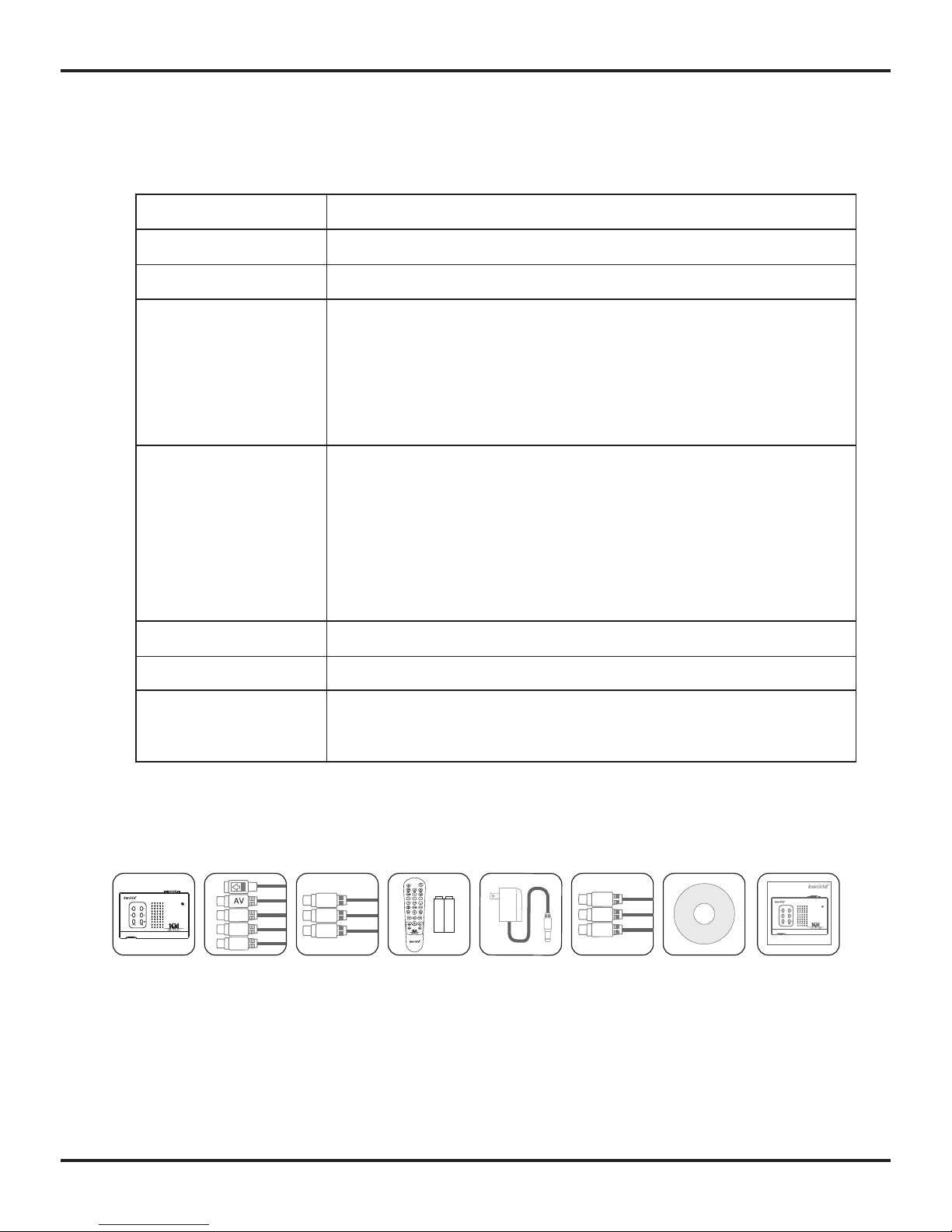
1.2 Specication
1.3 Package Contents
TV System
HDD Partition
Max output Resolution
System I/O
AV output
Card Reader
Power Adaptor
Support Media format
PAL/NTSC
FAT32,NTFS
VGA:1024*768 ; YPbPr:720P
Card reader * 1
IR Receiver * 1
USB Host * 1 (USB2.0)
Power Jack * 1
YPbPr output RCA * 3
VGA output D-sub 15 * 1
S-Video output DIN4 * 1
CVBS output RCA * 1
Audio L/R RCA * 2
SD/SDHC, MS, MMC, XD
AC100-240V 50/60Hz 5V 2A
RM, RMVB, MPEG1, MPEG2, AVI, DIVX, XVID, DAT, VOB, WMA,
MP3, JPEG, BMP, PNG,TXT
AC100-240V
50/60Hz 5V 2A
Media Player
M101
User Manual
Remote
Control
(with Batteries)
Multi-Cable
Y
Pb
Pr
YPbPr Cable
Y
Pb
Pr
AV Cable Format Factory

© 2009 KWorld
4
1.4 Remote Control Guide
Key Key Function
Mute: Enable/Disable Mute function.
Power: Stand by/Switch on.
Video: Enter Movie page.
Music: Enter Music page.
Photo: Enter Photo page.
Switch between 16:9 and 4:3
Play/Pause
Stop
Rewind
Fast Forward
Previous one
Next one
Increase Volume
Decrease Volume
VGA: Switch to VGA output mode
YPbPr: Switch to YPbPr output mode
AV/S: Switch to AV/S-video output mode
Zoom: Zoom image
Rotate: For each press, the photo will
rotate 90 degrees clockwise.
Arrow key, Up
Arrow key, Down
Arrow Key, Left
Arrow Key, Right
OK key, Select and confirm
Menu: Enter Setup page
OSD: Enter OSD page
Exit: Exit or Back to previous page
Background Music: Play Background Music

M101
5
1.5 Connection Chart
Note: It is not necessary to connect all of the output cables such as VGA, YPbPr, AV, S-video.
Please just connect the ones that you intend to use. (Please note the package does not
include VGA & S-video cables.)
VGAAVAudioPower
Multi-Cable
Output
Audio
Output
VGA
Output
Y
SVideo
AV
Pb
Pr
R
L
R
L
SD/SD
HC/MS
/MMC
Card
USB
Storage
Device
TV Screen
LCD Monitor /
CRT Monitor /
Plasma...
Download
media files
via internet
PC

© 2009 KWorld
6TWO
Installation and Instruction
2.1 Setting Up Your KWorld Media Player M101
1.Please connect your KWorld Media Player M101 to the TV set via AV cables.
2.Please connect the device to its power adaptor and turn it on. Please set the device output
setting to “TV to AV Mode”.
3.It would take a moment in loading. If the device
is not connected to any storage devices (USB
Thumb Drive or Memory Cards), the Main Menu
will only show the “Setup” option. However, if
the device is already connected to one of the
storage devices, the Main Menu will show the
relevant options.
4.Please select “Setup” and press “OK” to enter
the Setup page.
a. If the device cannot be turned on, please follow the steps below:
- Please check if the device has already been set to “TV to AV Mode”?
- Please check the output setting of cables in use. For example, if you would like to check the
YPbPr output setting, please press the YPbPr key on the Remote and change to YPbPr mode.
Download
media files
via internet
PC
SD/SDHC/MS/
MMC Card
USB
Storage
Device

M101
7
2.2 System Settings
Once you have entered the System Setup page, you will see the options below:
Language: Please use the Left/Right key
on the Remote to select your preferred
language, then press “OK” to conrm.
Slide Interval (3sec, 5sec, 15sec, 1min,
15min, 1hr): Please use the Left/Right
key on the Remote to select the preferred
time interval that you like to set for your
slideshows, then press “OK” to conrm.
Slide Mode (Bottom to Top, Top to
Bottom, Left to Right, Right to Left, Door
close, Door open, Horizontal cross,
Vertical cross, Random, Fading): Please
use the Left/Right key on the Remote to
select the preferred mode, then press “OK”
to confirm. (This function only supports
photos in JPEg formats)
Music Play Mode: You can set the Music
Play Mode as “Repeat one” or “Repeat All”.
Please use the Left/Right key on the Remote
to select which one you prefer, then press
“OK” to conrm.

© 2009 KWorld
8
Video Play Mode: You can set the Video
Play Mode as “Repeat one” or “Repeat All”.
Please use the Left/Right key on the Remote
to select, then press “OK” to conrm.
Display Ratio: Set the display ratio based
on your TV screen ratio. Please use the Left/
Right key on the Remote to set the proper
ratio, then press “OK” to conrm.
TV Settings (NTSC Interlace, NTSC
Progressive, PAL Interlace, PAL
Progressive, NTSC Composite, PAL
Composite, HD(YPbPr), VGA): Please use
the Left/Right key on the Remote to select
the proper TV setting, then press “OK” to
conrm.
Auto Play: You may enable or disable the
auto play function. Please use the Left/Right
key on the Remote to set your preference,
then press “OK” to conrm.
Default Settings: To return to the initial
settings. Simply select it, then press “OK” to
conrm.

M101
9
1.Video: Please select Video icon on the Main Menu and press “OK” key to enter the video le
listing to select a video le, and proceed to the full screen play mode.
For Video Play:
Use the “UP/Down” keys on the Remote to select the video le and press OK to play. Or, press
the “Exit” key to return to the previous page and back to the le listing. In full screen mode,
press the “OSD” key on the Remote to enable the Video Control Bar. Use the “Left/Right” keys
to select the icon and press “OK” to conrm and proceed.
If you want to exit the current video playing or return to the previous menu, just press the “Exit”
key on the Remote or select Stop on the Video Control Bar.
Subtitle : The subtitle is only available when you watch the video in AVI format. You may press
the OSD key on the Remote and select the Subtitle icon on the Video Control Bar to turn on or
off the subtitle. Please note this function is not available with other video formats.
2-3 Using Your Media Player M101
The Main Menu lists out all media functions
such as Video, Music, Photo, and Text Files.
User can enjoy the corresponding multimedia
functions in full display by pressing the Video,
Music, or Photo keys on the Remote.

© 2009 KWorld
10
Note on the Subtitle Function:
A.Subtitle Format: Only supports ANSI encoding format. Please refer to FAQ-7 on how to make a
subtitle le with ANSI encoding format.
B.When naming the subtitle le, it should correspond with the video le name. For example, if the
video le name is “A.avi”, then the Subtitle le name must be “A.srt” or “A.smi”…etc.
C.The corresponding Video and Subtitle les must be stored in the same folder.
D.The timing of video playback and subtitle display for the corresponding les must be exact, or
the subtitle would be ahead or delayed.
2.Music : Select the Music icon on the Main Menu and
press “OK” key to enter Music play list, and Music play
page. Or, you can use the Music key on the Remote
control to enter the Music play page directly.
3.Photo: Please select the Photo icon on the Main Menu
and press the OK key to enter Photo listing, and enter
the photo-play page. Or you can simply press the Photo
key on the Remote to enter directly.
For Music Playback:
Press the “UP/Down” keys to select a music le and “OK” key to conrm and play. You can
use the “Left/Right” keys to return to the previous page or the catalog. You canenter the
catalog by pressing the OK key. In full screen play, press OSD key on the remote to enable the
Music Control Bar. Use the “Left/Right” keys to select the icon and press “OK” to conrm and
proceed..
For Photo Playback:
Press the “Up/Down/Left/Right” keys to select the photos and press “OK” to conrm and enter
full-screen play. Use the Zoom key to zoom-in/out of the photos and the arrow keys to browse
the photos. Press the “Exit” key if you wish to return to the Photo Preview page. In full screen
play mode, please press the OSD key on the Remote to enable the Photo Control Bar and
select the icon to proceed.
Altri manuali per M101
1
Indice
Altri manuali KWorld Lettore multimediale

KWorld
KWorld M120 Manuale utente

KWorld
KWorld SP1200 Manuale

KWorld
KWorld M200 Manuale utente

KWorld
KWorld SP800 Manuale utente

KWorld
KWorld M102 Manuale utente

KWorld
KWorld M300 Manuale utente

KWorld
KWorld M130 Manuale utente

KWorld
KWorld M130 Manuale utente

KWorld
KWorld M101 Manuale utente

KWorld
KWorld 1440 Manuale utente