
Laipac M2M 3350 Manuale utente

M2M 3350 GSM/GPRS Modem
User’s Manual & Reference Guide
Revision 1 – June 2007
©1999-2007 by Laipac Technology, Inc. All rights reserved – The Specifications and information regarding the products in this manual are subjected to change without
notice. All statements, information, and recommendations in this manual are believed to be accurate but are represented without warranty of any kind, express or implied,
users must take full responsibility for their applications of any Products - Reproduction of the contents of this manual, in whole or in part, without written permission of
Laipac Technology, Inc. is prohibited.

Laipac Technology Inc. M2M 3350 User’s Manual & Reference Guide
Table of Contents
1INTRODUCTION...………………………………............4
2FEATURES.………………………………………………4
3CONFIGURATION AND SETUP………………………5
3.1 What you will need……………………………………………….5
3.2 Getting Started……..……………………………………………..5
3.3 USB Driver Installation……...…..……………………………….6
3.4 Creating a Modem Profile in Windows…………………………..8
3.5 Creating the Modem Connection.………………………………..11
3.6 Bluetooth Dongle Driver Installation…………………………….16
3.7 Pairing your Devices……………………………………………..17
4 SIM CARD RECOMMENDATIONS………………….21
5 HARDWARE DETAILS………………………………...21
5.1 GSM Modem Specifications……………………………………..21
5.2 GSM Antenna Specifications…………………………………….21
5.3 Physical Characteristics………………………………………….22
5.4 Temperature Range………………………………………………22
5.5 Power Supply…………………………………………………….22
5.6 RS232 and USB Connector Pinout………………………………23
© 2002-2007 by Laipac Technology Inc. All Rights Reserved. Page 2

Laipac Technology Inc. M2M 3350 User’s Manual & Reference Guide
6 OPERATION……………………………………………24
6.1 LED Operation…………………………………………………..24
6.2 SIM Card Tray……………….…………………………………...24
6.3 USB/COM Switch………………………………………………..24
6.4 Power Supply...…………………………………………………...24
6.5 Headphone Jack...………………………………………………...25
7 COMMANDS…………..………………………………...25
8 TROUBLESHOOTING………………………………….26
© 2002-2007 by Laipac Technology Inc. All Rights Reserved. Page 3

Laipac Technology Inc. M2M 3350 User’s Manual & Reference Guide
1 INTRODUCTION
The M2M 3350 is a GSM/GPRS modem which allows you to connect to the internet anywhere
there is GSM coverage. Using a SIM card you can download emails, surf the web, send/receive
SMS, send faxes, and make phone calls from your PC while on the road. The M2M 3350 uses the
power from your USB port so it does not require any external power supply. You can connect to
the M2M 3350 using USB, RS232, and Bluetooth (Optional). The M2M 3350 is available for quad
band 850/900/1800/1900Mhz networks.
2 FEATURES
•Easy to install
•Compact and robust enclosure
•Quick and easy to setup via Windows™
•Available for quad-band GSM operation (850/900/1800/1900MHz)
•USB Powered
•Send SMS or make phone calls using the dialer
•Access the web from anywhere
•Uses a standard SIM card
•USB, RS232, Bluetooth interfaces
•LEDs show complete modem status
•Hayes Modem AT command set available for API
•Detachable GSM antenna
© 2002-2007 by Laipac Technology Inc. All Rights Reserved. Page 4

Laipac Technology Inc. M2M 3350 User’s Manual & Reference Guide
3 CONFIGURATION AND SETUP
This section will help you setup a connection for your M2M 3350 using Windows XP.
3.1 What you will need
To begin you will need the following:
•M2M 3350
•A PC with Windows XP and at least one USB port
•GSM antenna
•GPRS enabled SIM card with known APN settings
•USB cable
•M2M 3350 CD
•Bluetooth USB dongle (optional)
•Bluetooth Serial dongle (optional)
3.2 Getting Started
Follow the steps below to setup your M2M 3350 internet connection.
1. Insert the SIM card into the SIM Card Tray on the front of the unit
2. Connect the GSM antenna
3. Insert the M2M 3350 CD into your PC
4. Continue to section 3.3.
© 2002-2007 by Laipac Technology Inc. All Rights Reserved. Page 5

Laipac Technology Inc. M2M 3350 User’s Manual & Reference Guide
3.3 USB Driver Installation
Put the M2M 3350 CD into your computer and make sure the modem is not connected to the PC.
Click ‘USB Driver Install’ and follow the instructions.
After the pre-installation has finished, connect the M2M 3350 to your PC using the USB cable.
A message should pop-up saying “Found New Hardware” and then the “Found New Hardware
Wizard” will appear.
© 2002-2007 by Laipac Technology Inc. All Rights Reserved. Page 6

Laipac Technology Inc. M2M 3350 User’s Manual & Reference Guide
Click “yes, this time only”, then click ‘Next’.
.
Click “Install the software automatically (Recommended)” and click ‘Next’.
© 2002-2007 by Laipac Technology Inc. All Rights Reserved. Page 7

Laipac Technology Inc. M2M 3350 User’s Manual & Reference Guide
Finally, a message window will appear at the bottom of the screen: “Your new hardware is
installed and ready to use”.
If the “Found New Hardware Wizard” appears again, follow the instructions again as above to
complete the installation.
3.4 Creating a Modem Profile for the M2M 3350
If you are using the modem in USB mode, make sure the selector switch on the front of the
modem is set to ‘USB’. If you are using the serial or Bluetooth option, make sure the selector
switch is set to ‘COM’.
!!If you are using the Bluetooth option, skip to section 3.6!!
In order to know which comm. port the modem is emulating for USB we need to open Control
Panel>System>Hardware>Device Manager>Ports and see which port the modem is using. In
this case it is ‘CP210x USB to UART Bridge Controller (COM 4)’ as shown below.
© 2002-2007 by Laipac Technology Inc. All Rights Reserved. Page 8

Laipac Technology Inc. M2M 3350 User’s Manual & Reference Guide
Now that we know which comm. port our modem is using we need to create a profile for the
modem. To do this go to Control Panel>Phone and Modem Options>Modems. At the bottom of
the menu screen, click “Add…” Check the ‘Don’t select my modem; I will select it from a list’
checkbox and click “Next”. Select the ‘Standard 56000 bps Modem’ from the list and click
“Next”.
In the next screen select the comm. port which we had confirmed earlier and click “Next” and then
“Finish”. Now, under the Phone and Modem Options section of the Control Panel you should see
the modem we just created on the correct comm. port.
© 2002-2007 by Laipac Technology Inc. All Rights Reserved. Page 9
Laipac Technology Inc. M2M 3350 User’s Manual & Reference Guide
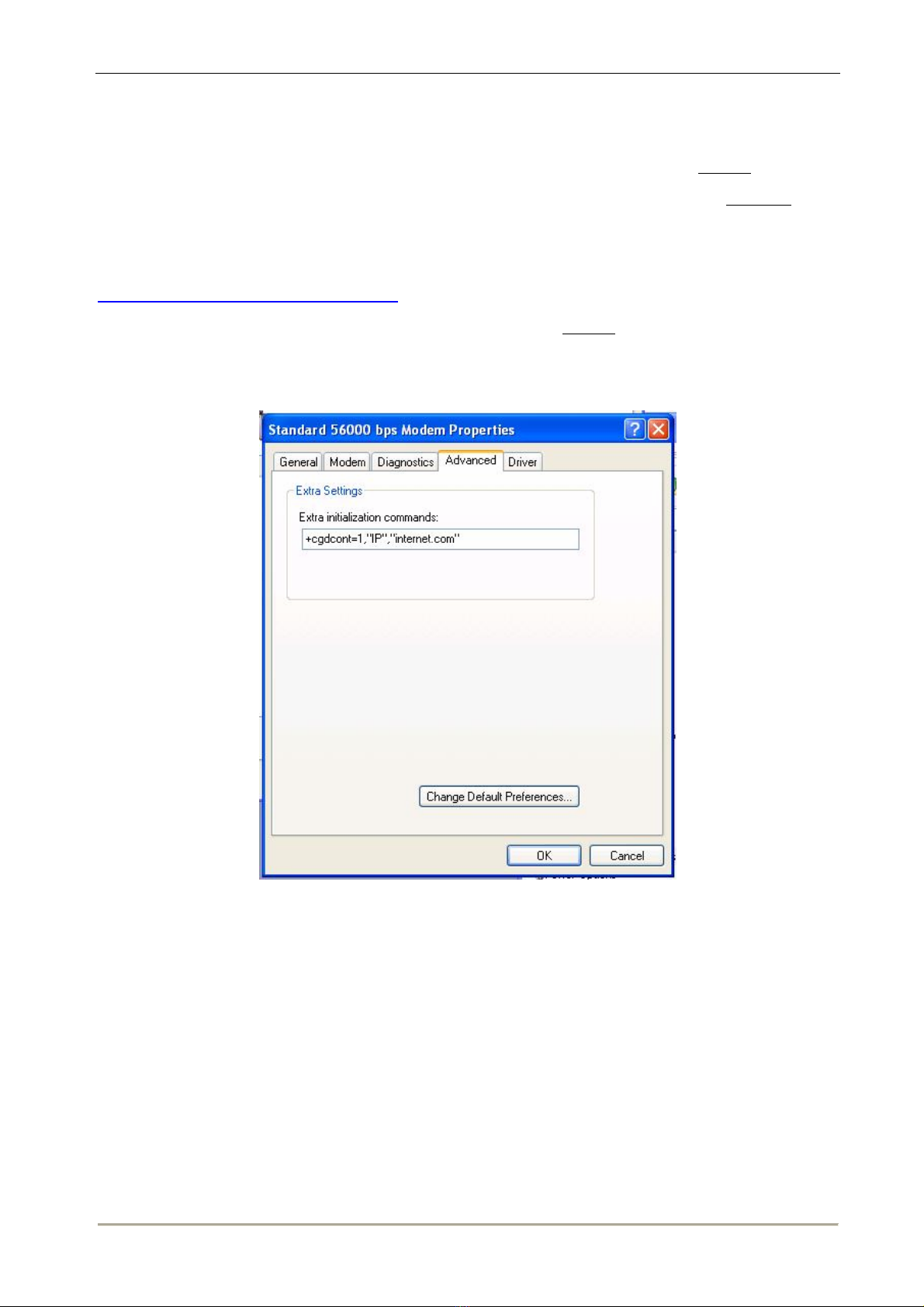
Now with the modem selected, click Properties>Advanced and enter the following string of text
under Extra initialization commands +cgdcont=1,”IP”,”Carrier APN”where the ‘Carrier APN’
is specific to the provider of your SIM card. In this example we are using the Rogers network in
Canada which has the APN (Access Point Name) ‘internet.com’. If you were using Cingular in the
US as another example you would use ‘ISP.CINGULAR’. You can refer to the following website
for a comprehensive list of APN settings for various networks around the world
http://www.laipac.com/gprs_setting.htm. Every carrier also has a username and password as listed
on the webpage. These will be used later. In the case of the Rogers network they are ‘wapuser1’
and ‘wap’ respectively.
Now click ‘OK’ and move on to the next section.
© 2002-2007 by Laipac Technology Inc. All Rights Reserved. Page 10
Indice
Altri manuali Laipac Modem


