
Lanix Ilium X110 Manuale utente

1
1
USER MANUAL
Model:Ilium X110
Brand:LANIX
FCC ID: ZC4X110

2
2
目录
Safety Information ................................................................................................................................................................ 4
Introduction .......................................................................................................................................................................... 7
SIM/SD card and battery Installation Guide........................................................................................................................... 7
Call Functions....................................................................................................................................................................... 9
Internet Browser..................................................................................................................................................................11
Messaging.......................................................................................................................................................................... 13
Notifications Bar................................................................................................................................................................. 15
Contacts............................................................................................................................................................................. 16
Bluetooth & Wi-Fi................................................................................................................................................................ 19
Downloads ......................................................................................................................................................................... 21
Gmail ................................................................................................................................................................................. 21
Clean Master...................................................................................................................................................................... 23
Clean the phone memory garbage...................................................................................................................................... 23
WPS office kinqsoft............................................................................................................................................................. 24
Play Store........................................................................................................................................................................... 24
Camera.............................................................................................................................................................................. 25
Gallery................................................................................................................................................................................ 28
Music ................................................................................................................................................................................. 29
FM Radio ........................................................................................................................................................................... 30
Sound Recorder ................................................................................................................................................................. 32
File Manager ...................................................................................................................................................................... 33
Calendar ............................................................................................................................................................................ 33
Alarm Clock........................................................................................................................................................................ 34
Calculator........................................................................................................................................................................... 35
Flashlight............................................................................................................................................................................ 35

3
3
Notebook............................................................................................................................................................................ 36
Hangouts............................................................................................................................................................................ 36
Facebook ........................................................................................................................................................................... 36
Google............................................................................................................................................................................... 37
Storage............................................................................................................................................................................... 42

4
4
All rights reserved
No part of this publication may be quoted, reproduced,
translated or used in any form or by any means, electronic
or mechanical, including photocopying and microfilm,
without the prior written permission of LANIX Corporation.
LANIX Corporation reserves the right to make modifications on
print errors or update specifications in this guide without prior
notice.
Safety Information
Please carefully read the terms below:
Use Safely
Do not use the phone in situations where it might cause
danger.
Transportation Safety
Please observe all transportation laws and regulations.

5
5
Please drive with both hands on the wheel.
Hospital Safety
Please follow hospital rules and limitations.
Please turn off your mobile phone when near medical
instruments.
Airport Safety
Remember to follow all airport and flight safety regulations.
Please do not use your phone during flight.
Chemical Warning
Do not use your mobile phone around fuels or chemicals.
Temperature Warning
Do not subject your phone to extreme temperature conditions.
Water Hazard
Your phone is not waterproof. Keep it away from water and
liquids.
Emergency Calls

6
6
Make sure your mobile phone is switched on and in a service
area. In home screen, tap the phone key and dial the
emergency number.
Accessories and Batteries
Use only Blu authorized batteries and accessories.
Information Backup
Remember to keep a written record of all important
information.

7
7
Introduction
SIM/SD card and battery Installation Guide
Installation of the SIM Cards
Advisory: Please keep the SIM card out of the reach of
children. The SIM card and its contact are easily damaged due
to scratching or bending. Please be cautious when carrying,
installing or taking out the SIM card. BN: Contact your cellular
phone service provider directly to obtain the SIM card.
To insert SIM card:
1. Remove the rear cover. Insert the SIM card.
2. Insert the SD card. (For additional storage capacity)
3. Insert the battery, replace the rear cover, and power on.
Charging The Battery
When you first get your new phone you‟ll need to charge the
battery.
1. Connect the adapter to the charger jack. Ensure that the
adapter is inserted with the correct orientation. Do not force
the connector into the charger jack.
2. Connect the charger to a standard AC wall outlet.

8
8
3. Disconnect the charger when the battery is fully charged.
Power On and Off
On - Please ensure the SIM card has been properly inserted
into the phone. Long press the Power key to switch on the
phone.
Off - In standby mode, long press on Power key until an
options menu appears. Select Power Off in the pop-up prompt
to switch off the phone.
Waking Up Your Phone
1. You may Press Power Key to activate your screen display.
2. Drag up the icon.
NOTE: If you have set an unlock pattern, PIN or password for your
phone, you‟ll need to draw the pattern or enter the PIN/password to
unlock your screen. For further information regarding password
locks, password revision and other functions please enter the
security settings of the phone.
Switching to Sleep Mode
To save battery power, Sleep Mode suspends your device to a
low-power-consumptionstate while the display is off. Your

9
9
device also goes into Sleep Mode by itself when the display is
automatically turned off after a certain period of time. You can
start sleep mode by the following method.
Press Power Key to switch to Sleep Mode.
Home Screen
In the Home screen, besides the shortcut icon is displayed,
you can also set your own wallpaper, add the widgets or
application shortcuts you need, or remove them as you like.
Call Functions
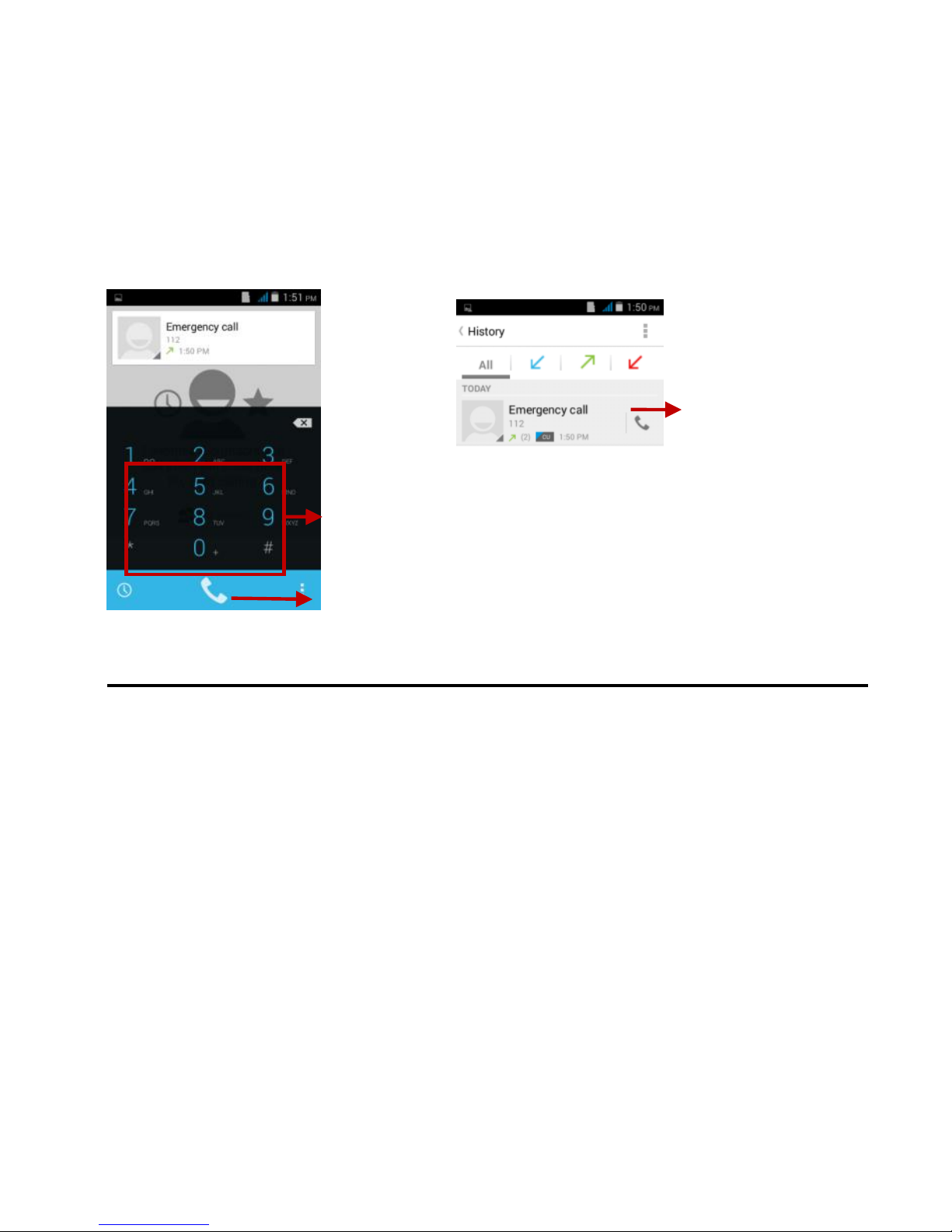
At the dial keyboard, enter the phone number and then click
the dial key. If dialing an extension, you may click the dial pad
icon in the bottom of the screen to open the interface and enter
the number of the extension. You may also press and hold the
0 key to add a (+) sign when adding an international dialing
prefix.
10
10
Call Logs
Every telephone number called and received will be saved in
the phones call history. All numbers in the call log can be
dialed directly by clicking the number and select REDIAL on
the screen. When the number appears on the list, click it and
select DETAILS to view details. To clear all the call history,
press the menu key and select Clear call history. You may
remove one or multiple calls.
Dial pad
Dial key
Tap number and
select Redial to dial
Indice


