
Lantech WL108G-PCI Istruzioni operative originali

User Manual
1. Quick Installation Procedure
Before you proceed with the installation, please notice following descriptions.
Note1: The following installation was operated in Windows XP. ( Procedures are similar
for Windows 98SE/Me/2000 )
Note2: If you have installed the Wireless PC Card driver & utility before, please uninstall
the old version rst.
Note3: For Windows 98SE please make sure your copy of windows is fully updated with
the latest hotxes by going to http://windowsupdate.microsoft.com
Note4: For Windows XP or Windows XP SP1, please update your windows with the
following hotx http://support.microsoft.com/?scid=kb%3Ben-us%3B822603&
x=10&y=13 if your copy of Windows XP has been updated with Service Pack 2
(SP2), you do not need to apply this hotx.
This chapter describes using the Atheros installer to install the Atheros PCI
wireless network adapter driver.
Installation
Note: Please ensure the WL108G-PCI adapter is rmly inserted to the PCI slot
before you turn on the computer.
To install the ACU and PCI device driver:
1. Insert the WL108G-PCI into the computer, and insert the installation CD.
2. Open the InstallShield Wizard (setup.exe).
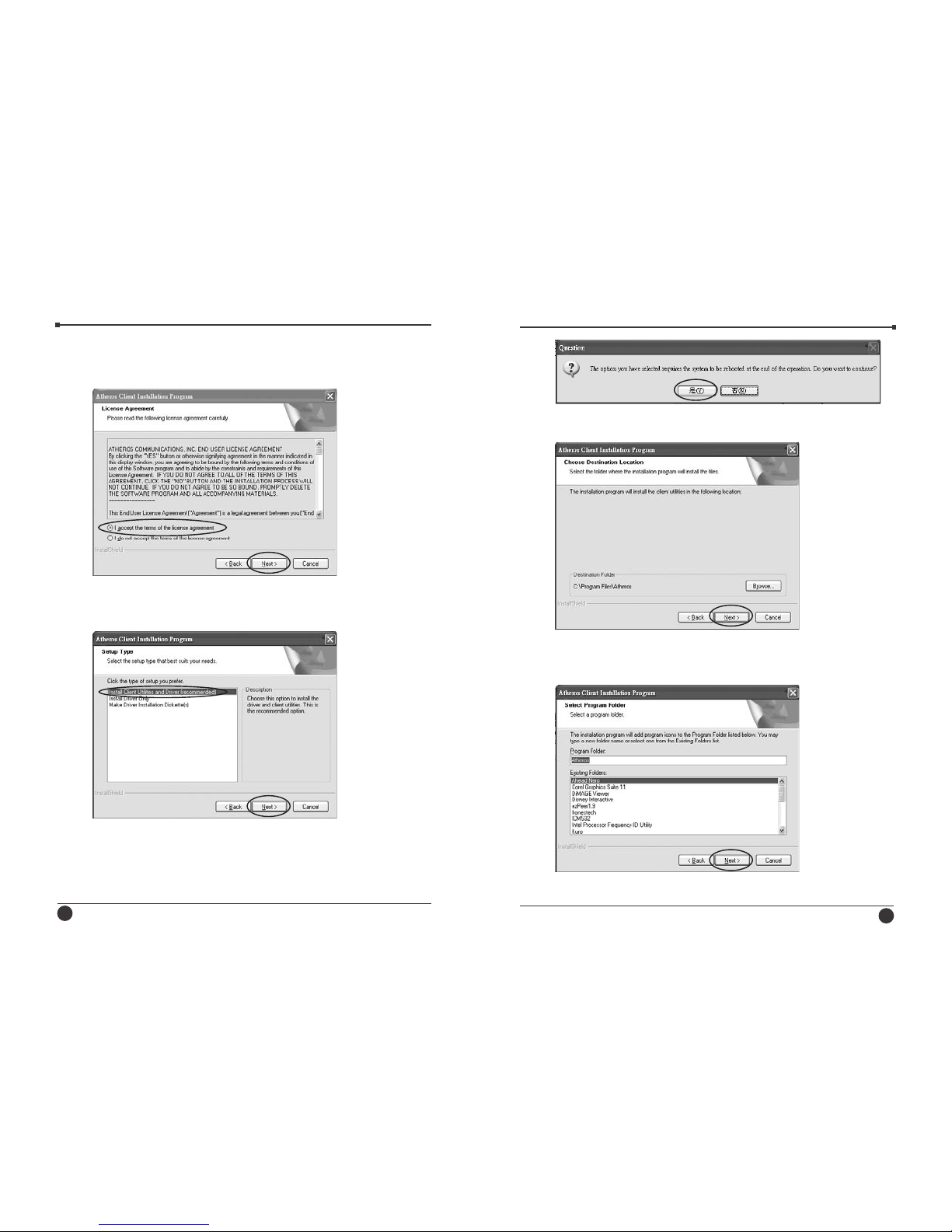
3. The Atheros Client Installation installer opens. Click Next.
4. The Atheros license agreement window appears. Read and accept the
agreement to continue. Click Next.
5. The Installation Program window appears with three setup options.
1

WL108G-PCI 802.11g 108M Wireless LAN PCI Adapter
User Manual
23
6. A prompt appears warning that the install requires the system to be
rebooted at the end of the installation process. Click Yes to continue.
7. Choose the setup directory. The default is C:\Program Files \ Atheros.
Click Next.
8. Choose the program folder for the start menu. The default is Atheros.
Click Next.
9. For a Windows XP installation, the next screen denes the Windows
Zero Conguration. Windows XP Zero Conguration provides
functionality to automatically try to connect the station to available
wireless networks. For complete information on Windows Zero
Conguration, see the Microsoft web site.
10. In this installation, select the Atheros Client Utility and Supplicant.
Click Next. The installer automatically installs the driver.
11. Make sure that the PCI device is inserted. If it is not, insert it, then
cancel the found New Hardware Wizard if it appears. Proceed with the
installation. Click OK.
12. Windows may display a Windows Logo error for the PCI bootloader.
Click Continue Anyway.
The installer continues installation.

WL108G-PCI 802.11g 108M Wireless LAN PCI Adapter
User Manual
45
13. Windows may display a Windows Logo error for the WLAN driver.
Click Continue Anyway.
The installer continues installation.
14. Click OK at the prompt to reboot and complete the installation.
Installing the Atheros WL108G-PCI
Wireless Network Adapter
To install the WL108G-PCI driver and the Atheros Client Utility, see "To install
the ACU and PCI device driver:" on page 2-1.
To install the WL108G-PCI Device Driver separately:
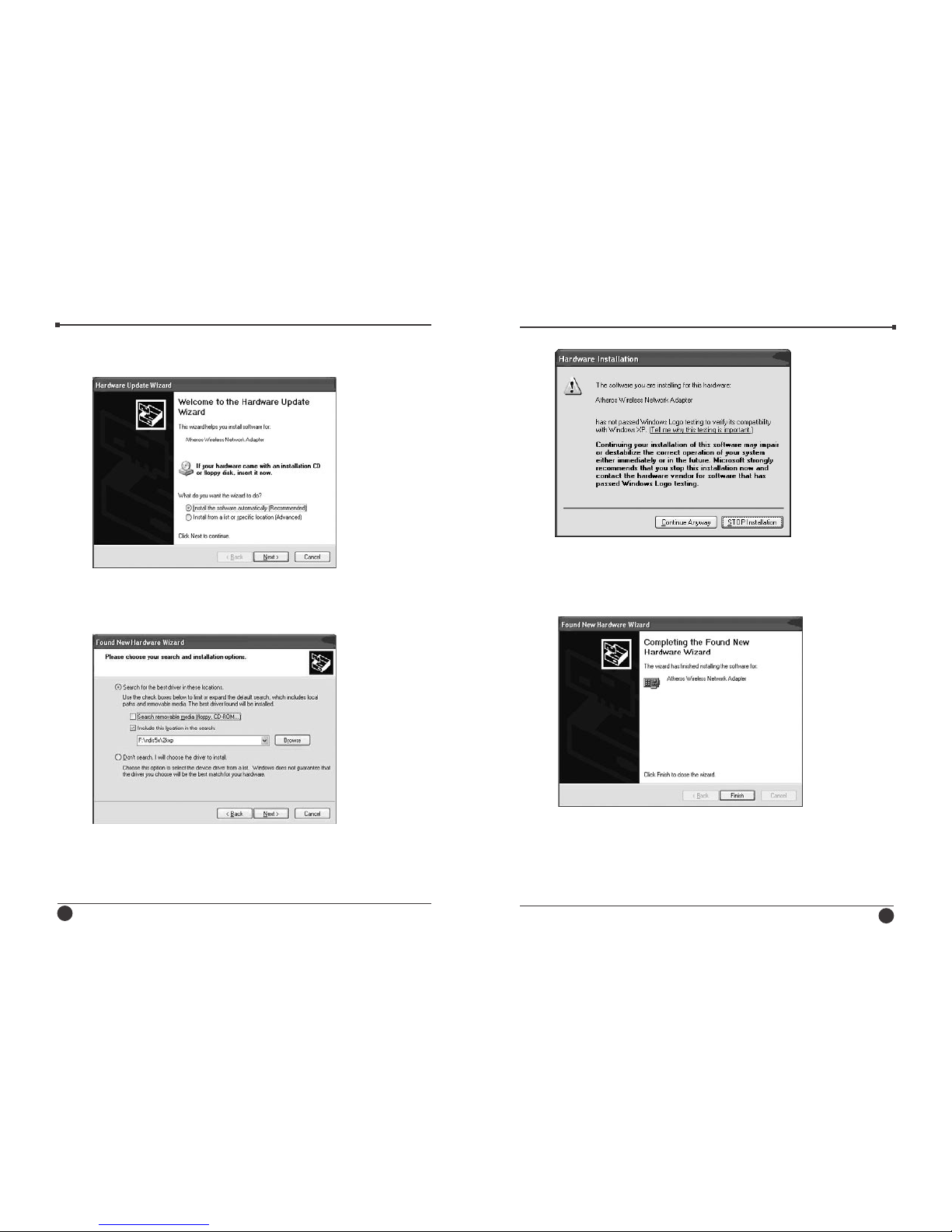
1. Insert the PCI device into the computer: The Found New Hardware
Wizard opens. Choose advanced installation and click Next.
2. Choose Search for driver in these locations. The driver is located in the
NDIS5x\2KXP directory.
3. Windows may display a Windows Logo error for the bootloader. Click
Continue Anyway.
The installer continues installation.
4. Click Finish to close the Found New Hardware Wizard and complete
installation of the PCI device bootloader.
WL108G-PCI 802.11g 108M Wireless LAN PCI Adapter
User Manual
5. The Found New Hardware Wizard opens to install software for the PCI
device. Click Next to continue.
6. Choose Search for driver in these locations. The driver is located in the
NDIS5x\2KXP directory.
7. Windows may display a Windows Logo error for the WLAN driver.
Click Continue Anyway.
67
The installer continues installation.
8. Click Finish to close the Found New Hardware Wizard and complete
installation of the Atheros PCI Network Adapter.
Use the ACU to congure the device driver. The ACU provides extensive online
help to aid in conguring the device. Access the ACU by right-clicking the tray
icon and choosing Atheros Client Utility.
WL108G-PCI 802.11g 108M Wireless LAN PCI Adapter
6
8
2. Troubleshooting
1. For Windows 98SE computers, if the Atheros Client Utility fails to load
after properly installation, click on the windows “Start” button on your
toolbar, select the “run” button, and enter “C:\Windows\system\aegis
2.exe” into the dialog box, then press enter, a dialog box will pop up,
please select “install” then press “enter”.
2. Before Uninstalling the Atheros Client Utility and the Device Drivers,
please make sure the Atheros Super-G PCI dongle is unplugged from
the computer.
3. In Windows ME, if you receive an error about IPHLPAPI.DLL, please
logoff your account, and re-login your account.
4. In Windows 98SE/ME, Errors may be encountered when the drivers
are installed through the “Found New Hardware Wizard” by choosing
“Don’t search. I will choose the driver to install”. To prevent this error,
please follow page 7 of this user’s manual.

使用者手冊
1
WL108G-PCI 安裝過程
在你安裝之前,請注意下列敘述。
Note1︰下列安裝程序是在Windows XP裡完成的。 (對於Windows 98SE
/Me/2000的使用者操作過程相似.)
Note2︰如果你先前有安裝其他無線網路卡的驅動程式或是應用程式,建
議請先全部移除,以免造成軟體衝突或是誤判。
Note3︰如果您的作業系統是Windows 98SE請確認您已經更新城最新的
版本,如果尚未更新請到微軟網站更新 http://www..microsoft.c
om.tw
Note4︰如果您的作業系統是Windows XP or Windows XP SP1,請到下
列網站去更新 http://www..microsoft.com.tw,如果您已經更新
成SP2則不必再更新了。
• 安裝ACU(Atheros Client Utility) 和PCI無線網卡驅動程式︰
重要提示:因為不支援熱插拔,安裝前請先確認WL108G-PCI已經插在電腦
上,然後再開機。
1. 把PCI 設備插入電腦中,然後開機,並且放入CD片進行安裝。
2. 依據您的作業系統,選擇安裝的驅動程式(如下圖所示)。
3. 出現下列畫面,並點選下一步:
WL108G-PCI 802.11g 108M PCI 無線網路卡
使用者手冊
23
7. 選擇安裝目錄。 預設路徑為C:\Program Files\ Atheros。 請按”下一步“。
8. 選擇開始的文件夾。 預設值是Atheros。 按下”下一步”。
4. 出現Atheros許可協議視窗。 閱讀文件內容並且按下接受協議。 點擊下
一步。
5. 出現下列視窗,共有3 種安裝選項。 建議選擇install the client utilities
and driver (安裝驅動程式和應用程式),點擊下一步。
6. 安裝完成後,會出現視窗提醒您是否要重新啟動電腦。請按下”是“繼續
下一步。

WL108G-PCI 802.11g 108M PCI 無線網路卡
使用者手冊
9. 對採用WINDOWS XP 的使用者來說,下一螢幕出現Windows Zero
Conguration。 該功能提供可連結無線網路設備並會自動取得連結。
欲了解該功能相關的完整訊息,請參見微軟公司網站。
10. 如下畫面,接著請選擇Atheros Client Utility and Supplicant 。按下一步
,將自動進行安裝驅動程式。
11. 接著出現下列畫面,請按下確定,進行重新開機。
12. 請確認開機前已經插上WL108G-PCI無線網卡。 接著出現發現新硬體的
畫面,請按”下一步”。 繼續安裝。
45

WL108G-PCI 802.11g 108M PCI 無線網路卡
使用者手冊
13. 請點擊“自動安裝軟體"繼續,電腦會自動搜尋CD-ROM並進行安裝;如
果您沒有放入我們所附的CD片或是已經將驅動程式的檔案另存在其它
位置,請選擇”重清單或特定位置安裝”並指定一個路徑。
14. 選擇“繼續安裝"
15. 出現下列畫面時,請點擊OK,即完成安裝。
16. 使用Window XP的用戶,可能會出現下列畫面,請直接點選"取消"不要
做任何設定,否則您的"區域網路連線"會切分成"區域網路連線"及"網路
橋接器"兩個選項。
17. 安裝完成後,在電腦的右下角會出現下列畫面;其左邊的 表示無線網
路卡安裝成功, 表示應用程式(Utility),右邊的 表示您先前的有線網
路連線。
67

WL108G-PCI 802.11g 108M PCI 無線網路卡
使用者手冊
18. 請將滑鼠移到 上面,點選右鍵並按下"Open Atheros Client Utility”,
出現下列畫面,請按下”Scan..”按鍵,以搜尋附近的無線設備。
19. WL108G-PCI搜尋到附近有三台無線設備( 分別為 erp、My Network、
my_test ),且目前取得的連線裝置為my_test 這台無線設備。有出現一把
表示erp這台無線設備有加密,而My Network及my_test這兩台都沒
有設定加密動作,你可以任意取得這兩台機器的連線,其中my_test因為
有 圖示,所以與WL108G-PCI同為高速的Super G(108Mbps)傳輸設備
。
20. 為了防止他人盜用您的無線網路,建議您在無線基地台上設定無線加
密。在此舉例說明 ----- 當您的基地台已有設定加密狀態時,此無線網卡
的設定方法如下: 請點選您要連線的erp,並按下Activate,鍵入Prole
Name名稱,以方便日後連線。
如下圖:在Prole Name後鍵入一個名稱 12AB
21. 接著在Security點選您先前已經設定好的加密方式,例如: Pre-Shared
Key( Static WEP)
89
Indice


