LG SP8YA Manuale utente

OWNER’S MANUAL
Wi-Fi
SOUND BAR
Please read this manual carefully before operating your set and retain it for future
reference.
Model
SP8YA (SP8YA, SPP8-W)
2105_Rev01
www.lg.com
Copyright © 2021 LG Electronics Inc. All Rights Reserved.

2
Sound Bar Quick Guide
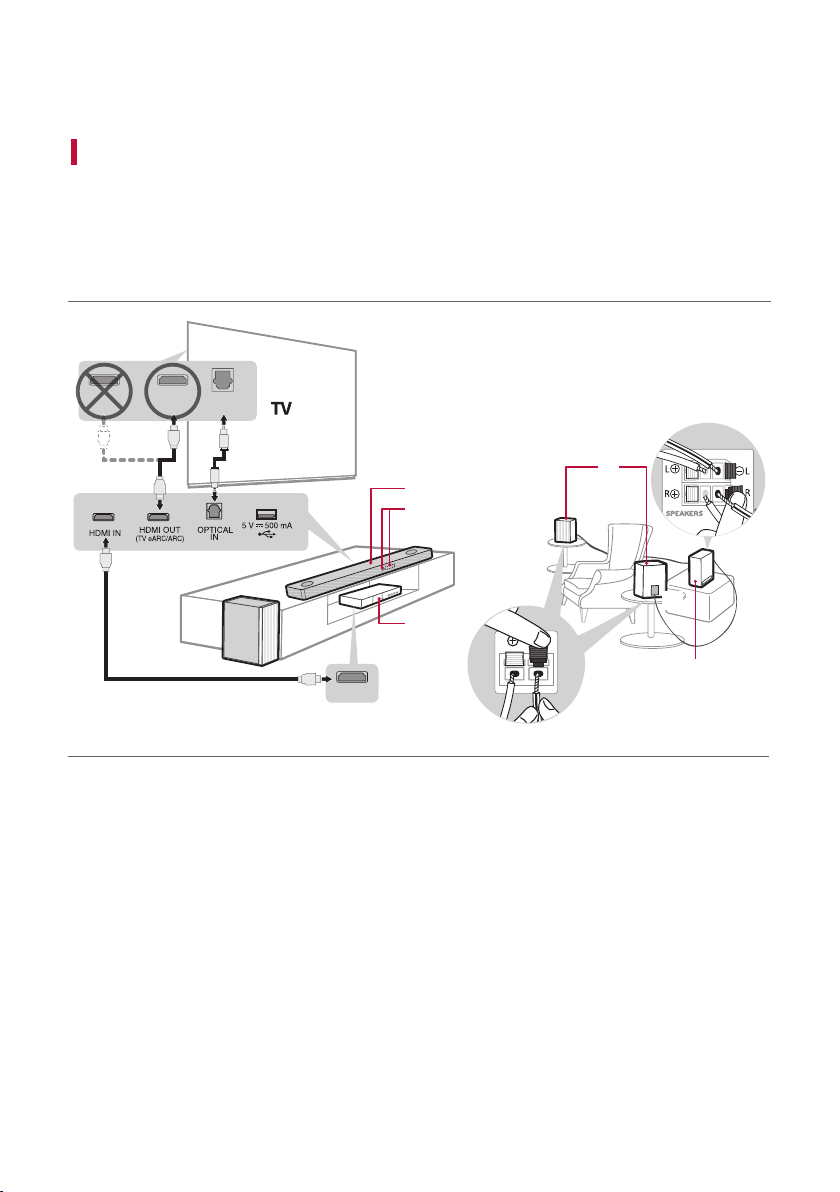
Installing and using the Product
aConnect the sound bar to your TV via an optical cable or an HDMI
cable.
HDMI OUT
D
HDMI IN
(ARC)
HDMI IN OPTICAL
OUT
E
C
C
c
c
c
B
A
a
b
a
ASound bar
BRemote Control Receiver / Status Display
CRear Speakers / Wireless Receiver (Sold
separately, SPK8-S)
DWireless Subwoofer - Install it close to the sound
bar.
EExternal Device - (Blu-ray player, game console,
etc.)
Soundbar Quick Guide

3
b If you are using an external device (ex. Blu-ray player, game console, etc.), connect it to the sound bar via an
HDMI cable.
c If you purchased the rear speakers and wireless receiver separately, connect the rear speakers to the wireless
receiver via a speaker cable. When connecting the rear speakers to the wireless receiver, connect the black
striped cable to the negative terminal of each speaker and the remaining cable to the positive terminal of
each speaker.
dConnect to power in the following order: wireless subwoofer [wireless receiver [sound bar. Then, turn on
the sound bar. When the connection is automatically established with the sound bar, the LEDs on the wireless
subwoofer and the wireless receiver will light up in green. ([See “Connecting the Product” on page 6.)
eUsing the product with your TV ([See “Connecting to the TV”
on page 30.)
APress the Function button repeatedly until “OPT/HDMI ARC” appears on the status display.
BOn your TV's settings, set the output speaker to [HDMI ARC], [Optical], or [External Speaker].
CWhen the TV is properly connected to the product, “OPT”, “ ARC”, or “E-ARC” will appear on the status display
with a sound.
fConnecting the product to your smartphone via Wi-Fi ([See
“Connecting with a Smartphone via Wi-Fi” on page 16.)
AConnect your smartphone to Wi-Fi.
BInstall the LG Sound Bar app on Google Play or the App Store.
CRun the LG Sound Bar app and follow the instructions.
DThe product will connect to your smartphone and you can control the product with LG Sound Bar app.
gConnecting the product to your smartphone via Bluetooth ([
See “Connecting via Bluetooth” on page 38.)
ATap the Settings button on your smartphone and select Bluetooth. Turn on the Bluetooth function. (
Off > On)
BPress the Bluetooth pair button. After a moment, you will see “BT READY” on the status display.
CFind and tap “LG_Speaker_SP8YA_XXXX” or the name you registered on the Google Home app.
DWhen the product is connected to your smartphone via Bluetooth, you can see the status display change
from “PAIRED” [“Connected Bluetooth device name” [“BT”.

4
Manually connecting the sound bar to the wireless subwoofer or wireless
receiver ([See “Connecting the wireless subwoofer manually”, “Manual
connection” on page 8, 10.)
If you see a red LED on the back of the wireless subwoofer or on the front of the wireless receiver, it means
that the sound bar is not connected to the speakers. If this is the case, connect them in the following order.
APress the Power button on the sound bar to turn it off.
BPress the PAIRING (Pairing) button on the back of the disconnected wireless subwoofer or wireless
receiver. Check if each LED blinks green.
- If you still see a red LED on the back of the wireless subwoofer, press and hold the button on the
back of the subwoofer again.
CPress the Power button on the sound bar to turn it on.
DWhen the connection is established, you will see a green LED light on the back of the wireless
subwoofer or on the front of the wireless receiver light up in green.

5
Table of Contents
Sound Bar Quick Guide
2Installing and using the Product
Installation
6Connecting the Product
16 Connecting with a Smartphone via Wi-Fi
19 Resetting the Product
Exploring the Product
20 Front
22 Back
23 Exploring Remote Control
Connecting to the TV
30 Connecting with an Optical Cable
32 Connecting with an HDMI Cable
34 Connecting via Bluetooth
Connecting to an External Device
35 Connecting with an HDMI Cable
37 Connecting with an Optical Cable
Using the Product as an Audio
System
38 Connecting via Bluetooth
41 Connecting to a USB Storage Device
43 Using the LG Sound Bar app
44 Compatible with Google Assistant
45 Works with Apple AirPlay
46 Spotify Connect
47 Works with Alexa
Mounting the Product to a Wall
50 Mounting the Product to a Wall
Safety Precautions
52 Safety and Regulatory
Before Reporting Product
Malfunction
55 Troubleshooting
Appendix
59 Specications
61 Registered Trademarks and Licenses
62 What You Need to Know about Network
Services
62 Open Source Software Notice Information
63 Handling the Product

6
Installation
Connecting the Product
You can enjoy a richer sound by connecting the sound bar to the wireless subwoofer.
Connecting the wireless subwoofer automatically
After completing installation, the wireless subwoofer will automatically be connected to the sound bar. Connect
the sound bar to the subwoofer in the following order.
a Plug the power cable into the wireless subwoofer.
b Plug the power cable connected to the wireless subwoofer into an outlet.
c Plug the power cable into the AC adapter.
d Connect the AC adapter cable to the DC IN (AC adapter input) terminal on the back of the product.
e Plug the power cable connected to the AC adapter into an outlet.
f When the connection is automatically established, you will see the LED on the back of the wireless subwoofer
light up in green.
Note • Make sure to use the provided AC adapter. Using other AC adapters may lead to malfunction
and will forfeit the product warranty.
Installation

7
Checking the connection with the LED on the back of the wireless
subwoofer
You can check the connection status by looking at the LED on the back of the wireless subwoofer.
LED Colour Status
Blinking green Connecting in progress
Green Connected successfully
Red Bad connection, or the subwoofer is in standby
Off Power cable not connected

8
Connecting the wireless subwoofer manually
If you see a red LED on the back of the wireless subwoofer, it means that the sound bar is not connected to the
subwoofer. If this is the case, connect them in the following order.
a Press the Power button on the sound bar to turn it off.
b Press the Pairing button on the back of the wireless subwoofer. Check if the LED on the back of the
subwoofer is blinking green. If you still see a red LED on the wireless subwoofer, press and hold the button on
the back of the subwoofer again.
c Press the Power button on the sound bar to turn it on.
d When the connection is established, you will see the LED light on the back of the wireless subwoofer light up
in green.
Note • Install the sound bar as close to the wireless subwoofer as possible. The closer the distance
between the sound bar and the wireless subwoofer, the better the sound quality.
• Please ensure there are no obstacles between the sound bar and the wireless subwoofer.
• To prevent wireless interference, maintain a distance of at least 1 m between the sound bar
or the wireless subwoofer and any peripheral devices that generate strong electromagnetic
waves (ex. wireless routers, microwave ovens, etc.).

9
Connecting the rear speakers to the wireless receiver (SPK8-S, sold
separately)
Automatic connection
After completing installation, the wireless receiver will automatically be connected to the sound bar. Connect the
sound bar to the wireless receiver in the following order.
a Connect the speaker cables to the corresponding terminals on the rear speakers (left, right).
Connect the black striped cable to the negative terminal and the other cable to the positive terminal.
b Connect the speaker cables on the rear speakers (left, right) to the wireless receiver.
Receiver Terminal Colour Speaker Position
Blue LLeft rear
Grey RRight rear
c Plug the wireless receiver power cable into an outlet.
d Press the Power button on the sound bar to turn it on.
e When the connection is automatically established, you will see the LED on the front of the wireless receiver
light up in green.
Note • Please only use the speakers provided with the product. Using other speakers may cause
malfunction.
• Connect the speaker cables to the corresponding terminals. Connect to the positive cable
to the positive terminal and the negative cable to the negative terminal. An incorrectly
connected cable will distort the sound or produce no bass.

10
Checking connection status with the LED colour
You can check the connection status with the LED on the front of the wireless receiver.
LED Colour Status
Blinking green Connecting In progress
Green Connected successfully
Red Bad connection, or the receiver is in standby
Off Power cable not connected
Manual connection
If you see a red LED on the front of the wireless receiver, it means that the sound bar is not connected to the
receiver. If this is the case, connect them in the following order.
a Press the Power button on the sound bar to turn it off.
b Press the PAIRING button on the back of the wireless receiver. Check if the LED on the front of the wireless
receiver is blinking green.
c Press the Power button on the sound bar to turn it on.
d When the connection is established, you will see the LED light on the front of the wireless receiver light up in
green.
Note • Keep the rear speakers at least 30 cm away from the TV or monitor.
• To prevent wireless interference, maintain a distance of at least 1 m between the sound bar
or the wireless receiver and any peripheral devices that generate strong electromagnetic
waves (ex. wireless routers, microwave ovens, etc.).
Altri manuali per SP8YA
4
Questo manuale è adatto per i seguenti modelli
1
Indice
Altri manuali LG Sistema di altoparlanti