
Linkskey LKA-EDU2A Manuale utente

USER GUIDE for USB2.0 IDE ENCLOSURE
1
Table of Contents
Overview……………..……………………………………………2
Features………….………………………………………...............2
Operation Systems Requirements…….…………………………..2
Specifications….…..…………………………………………….…3
Package Contents………………….……………………………….3
Hardware Installations…………………….………………………3
Driver Installations under Windows 98SE………………………..4-6
Driver Installations under Windows ME/2000/XP…………….…7-9
Driver Installations under MAC…………………………………..10-16
Un-installation Procedure………………………………………….17-18

USER GUIDE for USB2.0 IDE ENCLOSURE
2
Overview
USB2.0 IDE ENCLOSURE is a high quality 2.5” External HDD Enclosure, we are confident that you will be
able to use it to your full satisfaction. Nowadays the amount of data that people push around on their
computers, local networks and Internet is getting larger and larger. With a HDD Enclosure, install the
drive, and you will get a reusable portable data huge storage device than others can ever hope for. And USB is
a standard interface on most computers now, you could bring the drive almost anywhere and have the data at
your fingertips.
Features
USB
Compliant with Standard Specification of USB1.1 & USB2.0.
Complaint with ATA/ATAPI-6 Specification Rev.1.0(PIO modes 0-4,DMA mode 0-2, UDMA mode 0~5)
Supports 8-bit/16-bit Standard PIO mode interface.
Supports 16-bit multiword DMA mode and Ultra DMA mode interface (Ultra 33/66/100)
Supports Power Down mode and USB suspend indicator.
Perfect for both hot Plug and Play in the system or stand-alone use.
Operation System Requirements :
Windows 98SE/ME/2000/XP Mac 9.1 above &10.1&10.2

USER GUIDE for USB 2.0 IDE ENCLOSURE
3
Specifications
Model: USB2.0 2.5” External IDE Enclosure
Link Cable: USB “A Type (Male)” to “B Type(Male)”
Standards: Standard Specification of USB1.1 & USB2.0
Dimension: 158.75 x 78 x 15.5mm (2.5” HDD Enclosure)
EMI Compatibility: FCC Part 15, Class B CE mark, Commercial
LED: Power – Green LED / Active -- Red LED
Package Contents
Basic contents:
One U2 IDEHDD Enclosure (HDD Excluded)
One PS2/USB Y power cord
Switch AC power adapter 5V, 2.1A~2.5A, 1.3*3.5, 9.5mm (OPTION)
One USB A-Mini B Type Cable
One CD Driver with manual
Installation for USB2.0 IDE ENCLOSURE
Simply plug the USB2.0 IDE ENCLOSURE into the USB port of your computer. The computer will detect
this new hardware, and then please follow the steps below for easy driver installation.
Hardware Installations
2.5” HDD Enclosure
Step 1: Make the connection by plugging in one end of USB type A cable into the computer’s USB
port and the other end of the cable into the 2.5” HDD Enclosure USB receptacle.
Step 2: Plug the power cable in 2.5” HDD Enclosure power jack .
Step 3: turn on power button.
** To remove the Hard Drive, please repeat procedures Step 1 through Step 3 but in contrariwise
sequence.
POWER Cord
USER GUIDE for USB 2.0 IDE ENCLOSURE
4
Driver Installation Under Win 98 SE
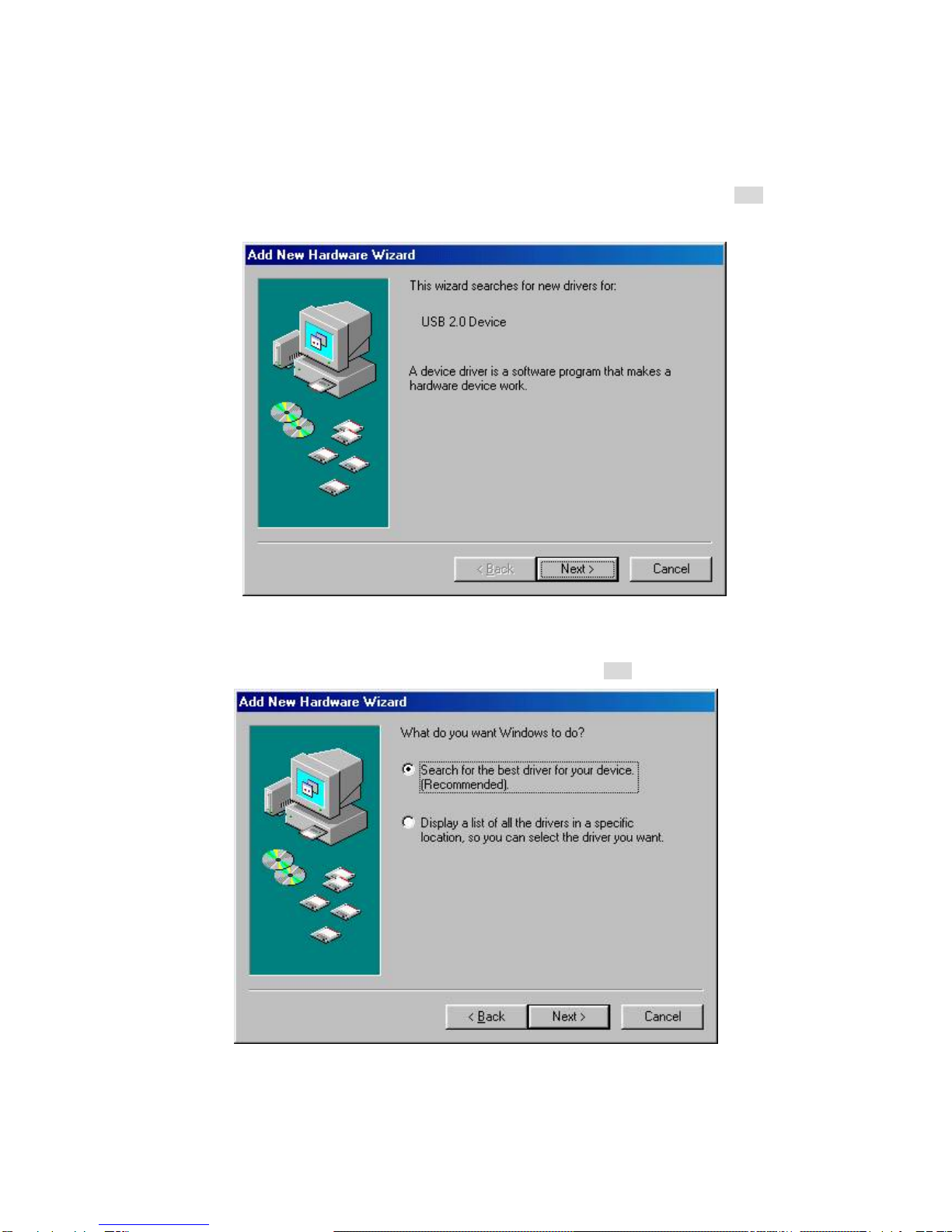
1. Windows detect new hardware and searches for new drivers for “USB 2.0Device”. Click Next
Figure 1
2. Select “Search for the best driver for your device” in Figure 2. Click Next
Figure 2
USER GUIDE for USB 2.0 IDE ENCLOSURE
5
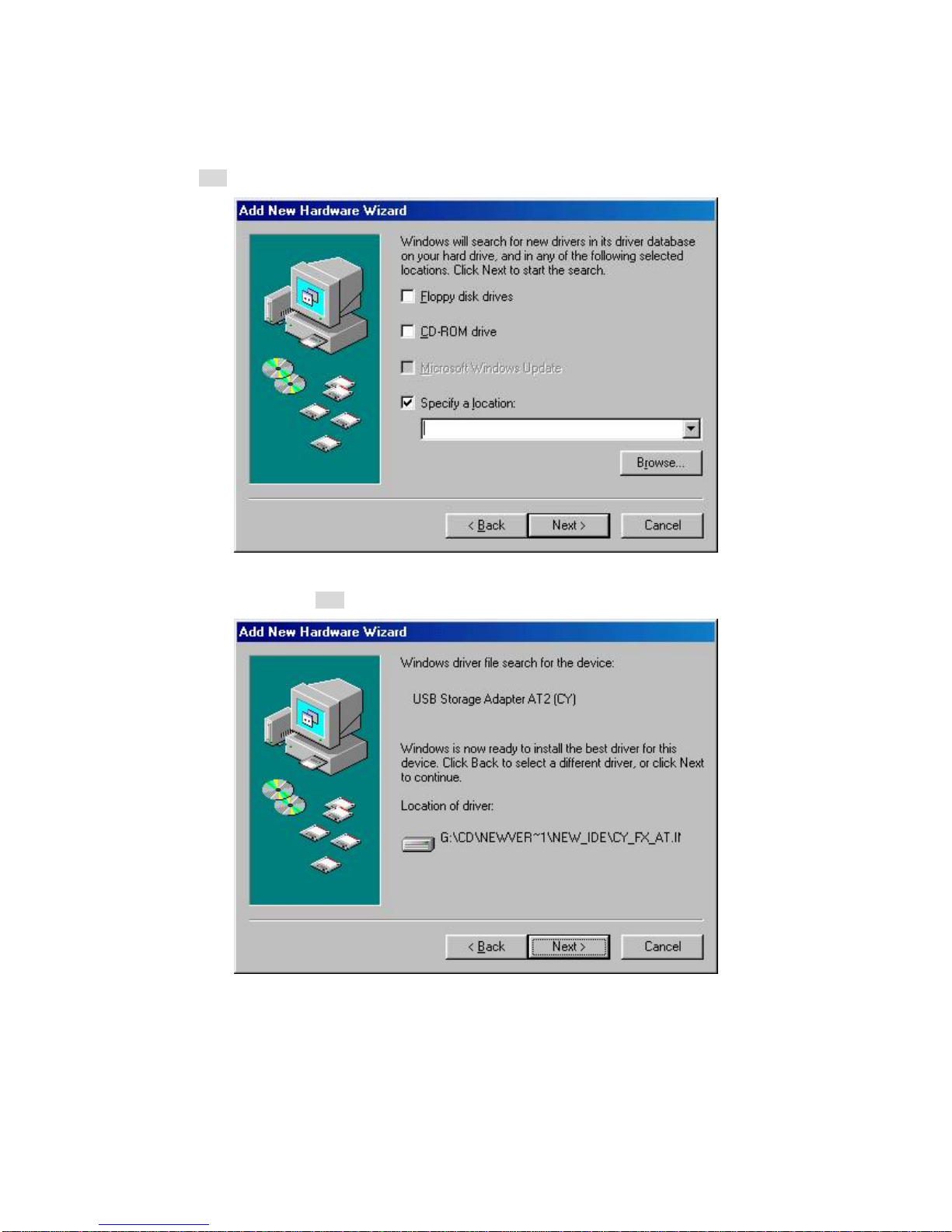
3. Insert CD Driver and select “Specify a location” then Click “Browse”Click
Next. . as Figure 3
Figure 3
4. See Figure 4. Click Next again.
Figure 4
USER GUIDE for USB 2.0 IDE ENCLOSURE
6
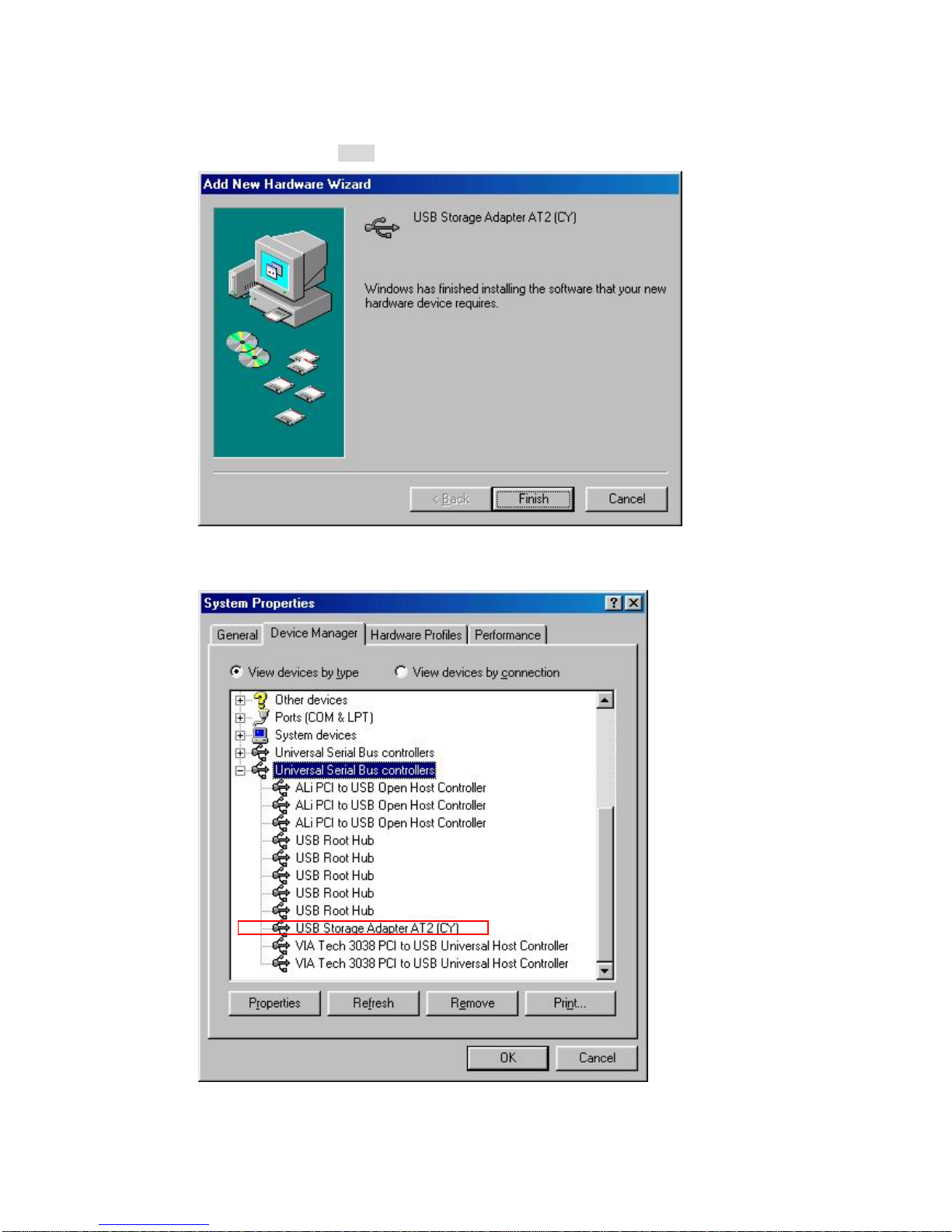
5. After installation, click Finish. As Figure 5
Figure 5
6. Check if the “USB Storage Adapter AT2(CY)” is installed. As Figure 6
Figure 6

USER GUIDE for USB 2.0 IDE ENCLOSURE
7
Driver Installation Under Win ME/2000/XP
1. Step 1. Open the “Device Manger” under “System Properties” and check if there is a “PCI to USB
Enhanced Host Controller” in “ Universal Serial Bus controllers”, it is a must to ensure your
system support USB2.0 specification.
2. Once you plug the IDE to your computer, you should see something similar to
Figure2 in the Start Bar. (See Figure1)
Figure 1
USER GUIDE for USB 2.0 IDE ENCLOSURE
8
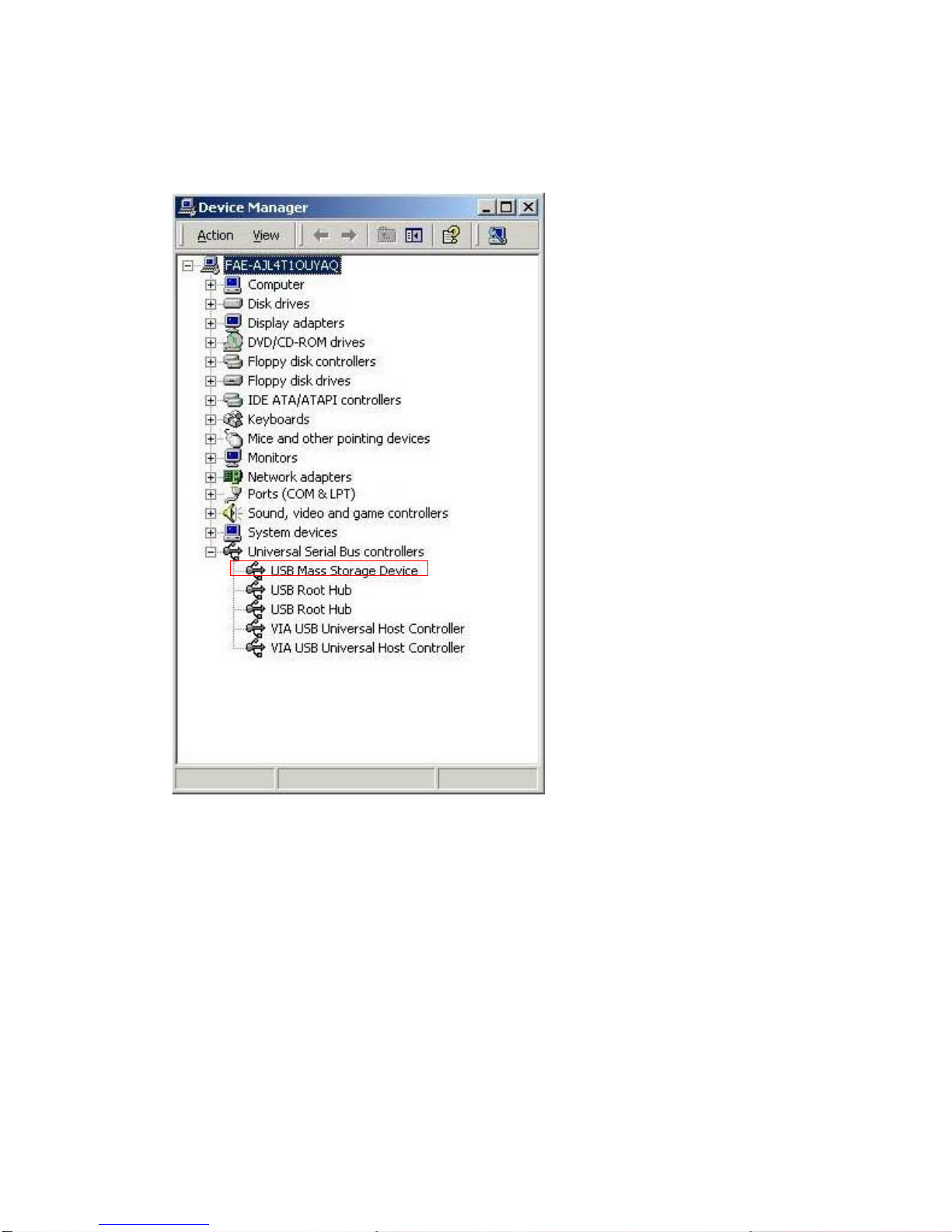
3. The driver installs automatic.
4. Check if the “USB Mass Storage device ” is installed. As Figure 6
Figure 2
USER GUIDE for USB 2.0 IDE ENCLOSURE
9
5. Check HD information:
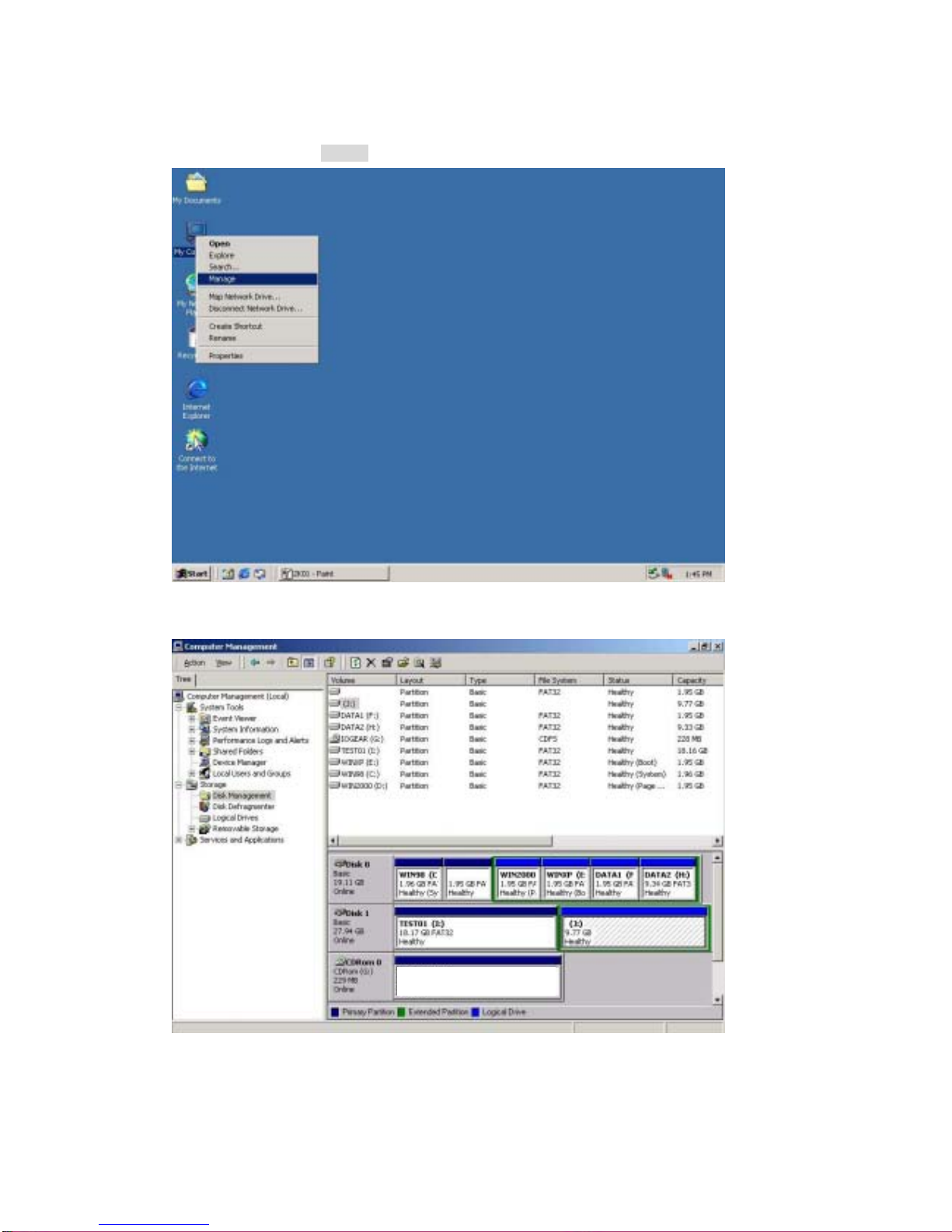
5.1. Double click the “Manage” under “My Computer” as Figure 3
Figure 3
5.2. Select Storage >Disk management you can see Hard Disk information .as Figure 4
Figure 4
USER GUIDE for USB 2.0 IDE ENCLOSURE
10
Driver installation under Mac 9.x
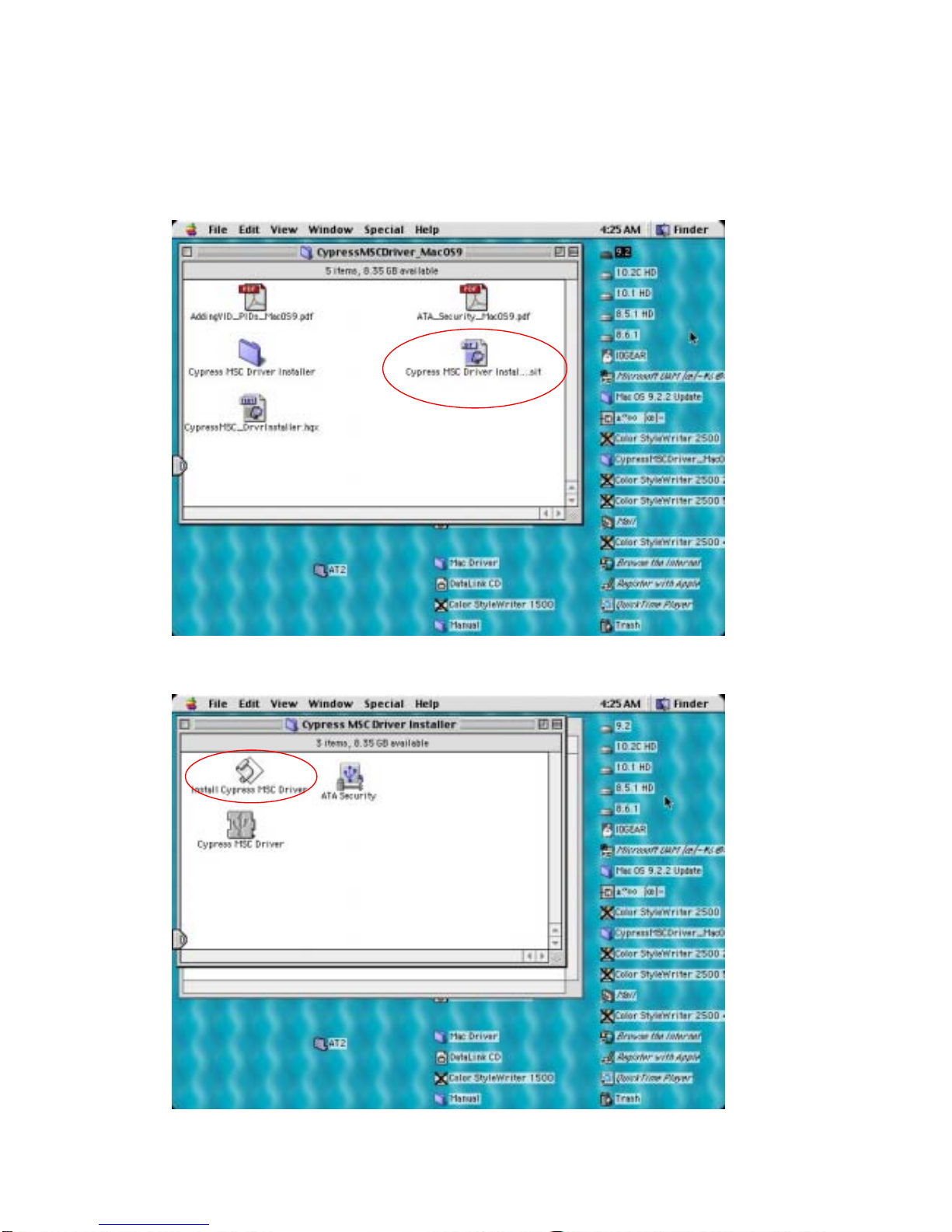
1. Copy file “CypressMSDriver_MacOS9.hqx” to Desktop , then click
“Cypress MS Driver Install.sit “(See Figure 1)
Figure 1
2. Choose ”Install Cypress MSC Driver “(See Figure 2)
Figure 2
Indice


