
LINOVISION IOT-R32W Manuale utente

IOT-R32W
User Manual
Updated on September 05,2023

Contents
Benutzerhandbuch .................................................................................15-28
Manuel de l'Utilisateur ...........................................................................29-42
User Manual ............................................................................................. 1-14
Manual de usuario ..................................................................................57-70
Gebruikers Handleiding .........................................................................71-84
Manuale d'us ............................................................................................43-56
1
2
3
4
5
6
www.linovision.com
;IPGSQI
Thank you for choosing linovision IOT-R32W industrial cellular router.
This guide describes how to install the IOT-R32W and how to log in the Web GUI to
configure the device. Once you complete the installation, refer to the linovision IOT-R32W
User Guide for instructions on how to perform configurations on the device.
6IPEXIH(SGYQIRXW
This Start Guide only explains the installation of linovision IOT-R32W router. For more functionality
and advanced settings, please refer to the relevant documents as below.
(SGYQIRX
(IWGVMTXMSR
IOT-R32W Datasheet Datasheet for IOT-R32W industrial cellular router.
IOT-R32W User Guide
Users could refer to the guide for instruction on how to log in the
web GUI, and how to configure all the settings.
The related documents are available on linovision website: https://www.linovision.com
(IGPEVEXMSRSJ'SRJSVQMX]
IOT-R32W are in conformity with the essential requirements and other relevant provisions of the CE,
FCC, and RoHS.
kPMRSZMWMSR-S8'S0XH
%PPVMKLXWVIWIVZIH
All information in this guide is protected by copyright law. Whereby, no organization or individual shall
copy or reproduce the whole or part of this user guide by any means without written authorization from
Xiamen linovision IoT Co., Ltd.
For assistance, please contact linovision
technical support: Email:
Tel: 86-571-8678175
6IZMWMSR ,MWXSV]
(EXI
(SG :IVWMSR
(IWGVMTXMSR
Apr. 26, 2019
V 1.0
Initial version
May 11, 2020
V 1.1
Web interfaces upgrade
Nov. 25, 2020
V 2.0
Layout Replace
1
en
www.linovision.com
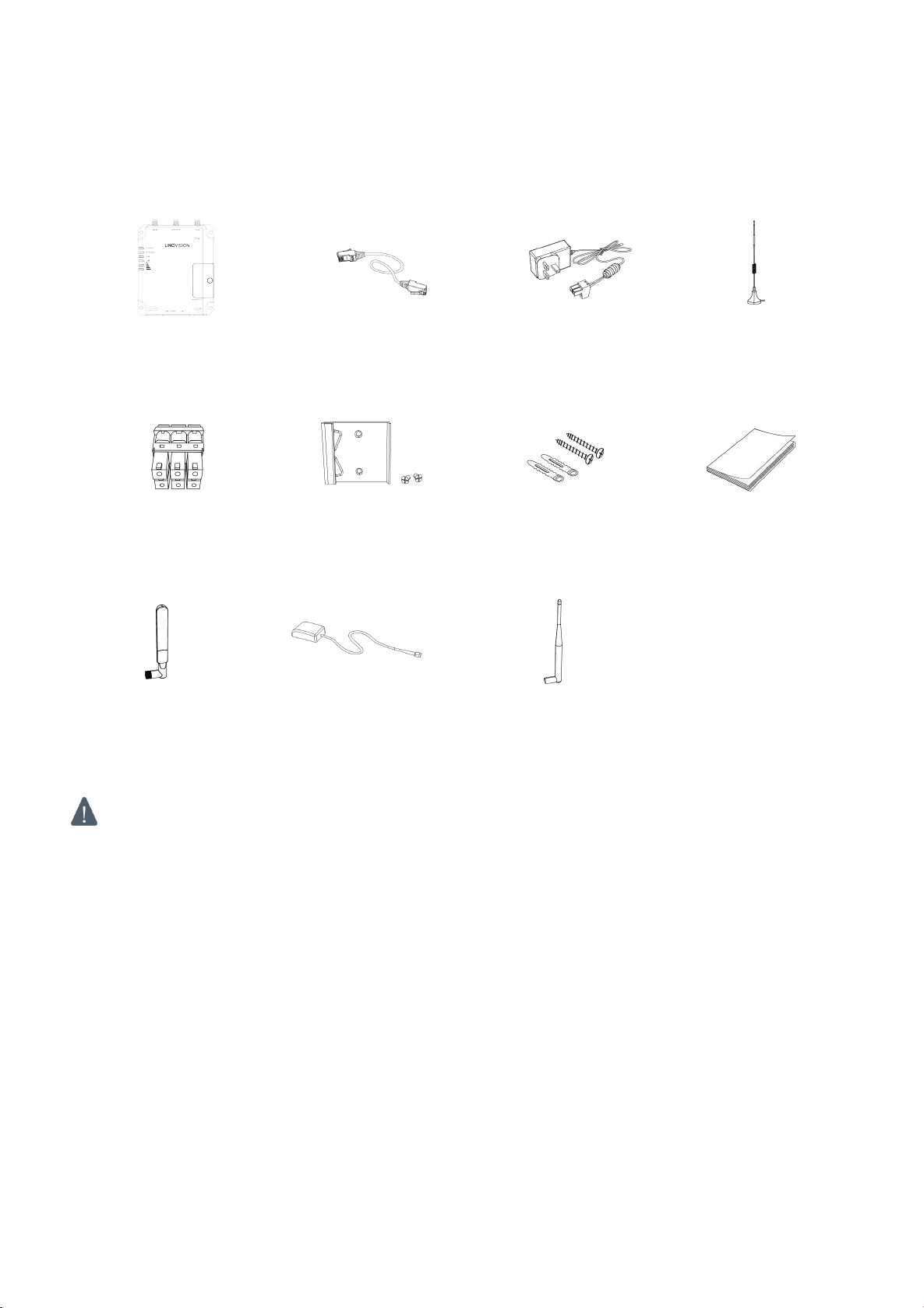
1. Packing List
Before you begin to install the IOT-R32W router, please check the package contents to verify that
you have received the items below.
1 × IOT-R32W
1 × Ethernet Cable
1 × Power Adapter
2 × Magnetic Cellular
Antennas
1 × Quick Start Guide
1 × Stubby Wi-Fi
Antenna
(Wi-Fi Version Only)
1 × GPS Antenna
(GPS Version Only)
2 × Stubby Cellular
Antennas (Optional)
If any of the above items is missing or damaged, please contact your sales representative.
1 × 6-Pin Pluggable
Terminal
1 × DIN Rail Kit
4 × Setscrews
2
en
www.linovision.com
2. Hardware Introduction
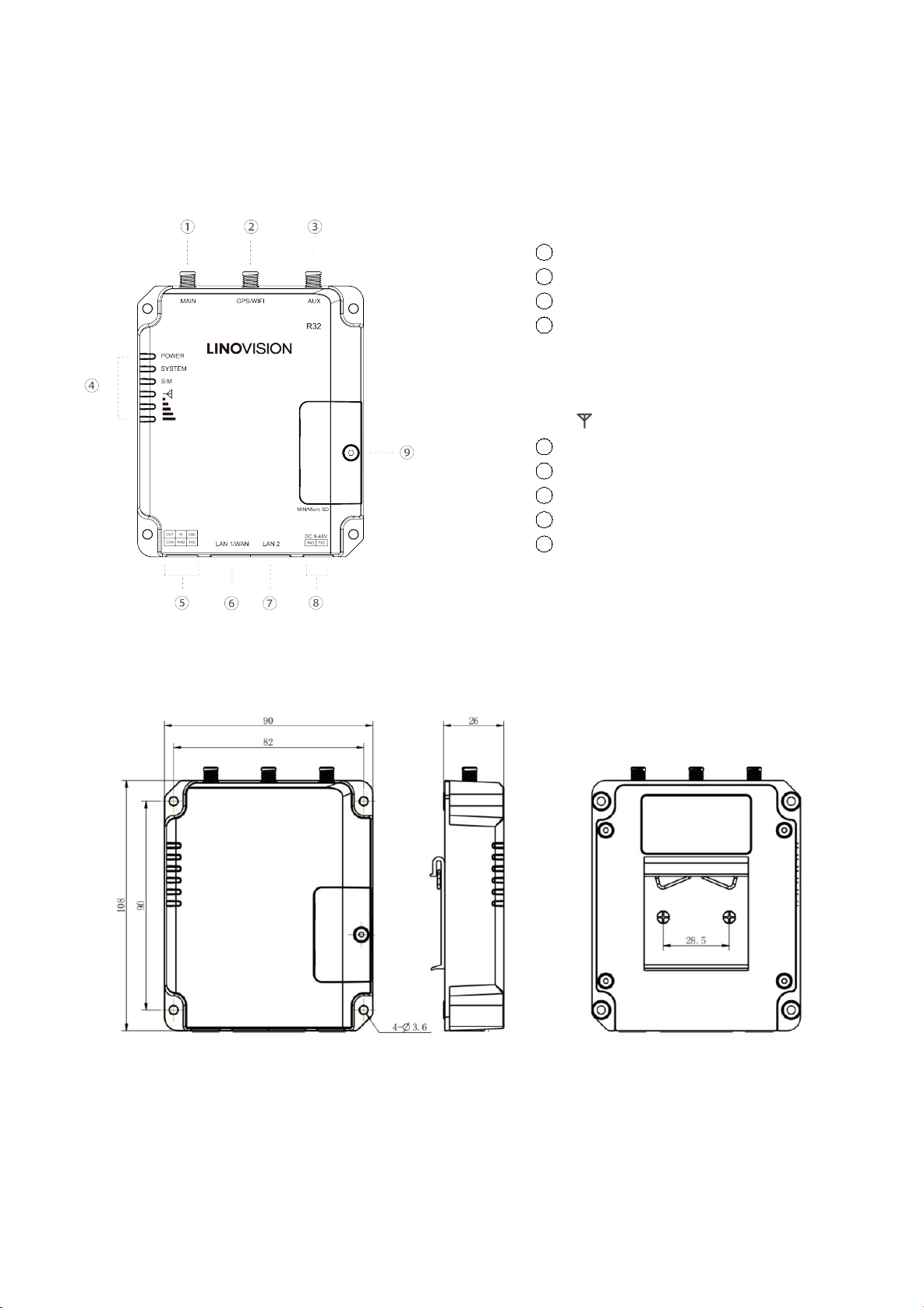
2.1 Overview
2.2 Dimensions (mm)
1Main Cellular Antenna Connector
2GPS/WIFI Antenna Connector
3AUX Cellular Antenna
4LED Indicator Area
POWER: Power Indicator
SYSTEM: Status Indicator
SIM : Status Indicator
: Signal Strength Indicator
5Serial Port & I/O
6Ethernet LAN1/WAN Port
7Ethernet LAN2 Port
8Power Connector
9SIM and Reset Button Holder
3
en
www.linovision.com
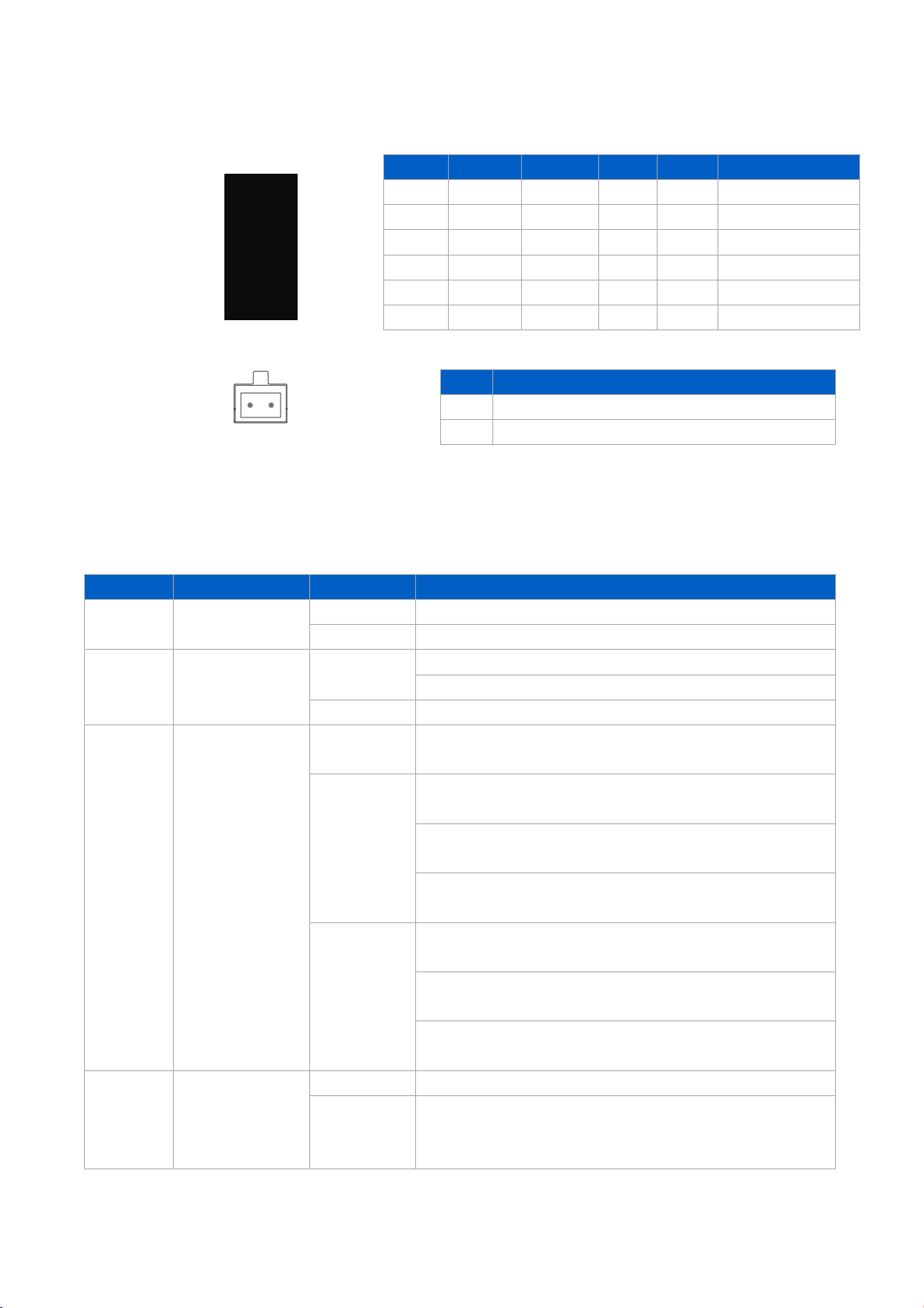
2.3 Connectors
*: Only for -485 model.
2.4 LED Indicators
LED
Indication
Status
Description
POWER
Power Status
Off
The power is switched off
On
The power is switched on
SYSTEM
System Status
Green Light
Static: Start-up
Blinking slowly: the system is running properly
Red Light
The system goes wrong
SIM
SIM Card Status
Off
SIM1 or SIM2 is registering or fails to register (or there
are no SIM cards inserted)
Green Light
Blinking slowly: SIM1 has been registered and is ready
for dial-up
Blinking rapidly: SIM1 has been registered and is
dialing up now
Static: SIM1 has been registered and dialed up
successfully
Orange
Light
Blinking slowly: SIM2 has been registered and is ready
for dial-up
Blinking rapidly: SIM2 has been registered and is
dialing up now
Static: SIM2 has been registered and dialed up
successfully
Signal
Strength
Signal 1/2/3
Off
No signal
Green Light
Static/Off/Off: weak signals with 1-10 ASU (please
check if the antenna is installed correctly, or move the
antenna to a suitable location to get better signal)
PIN
RS232
RS485*
DI
DO
Description
1
---
---
---
OUT
Digital Output
2
---
---
IN
---
Digital Input
3
GND
---
---
---
Ground
4
---
---
COM
COM
Common Ground
5
RXD
B
---
---
Receive Data
6
TXD
A
---
---
Transmit Data
PIN
Description
7
Positive
8
Negative
7 8
4
en
www.linovision.com
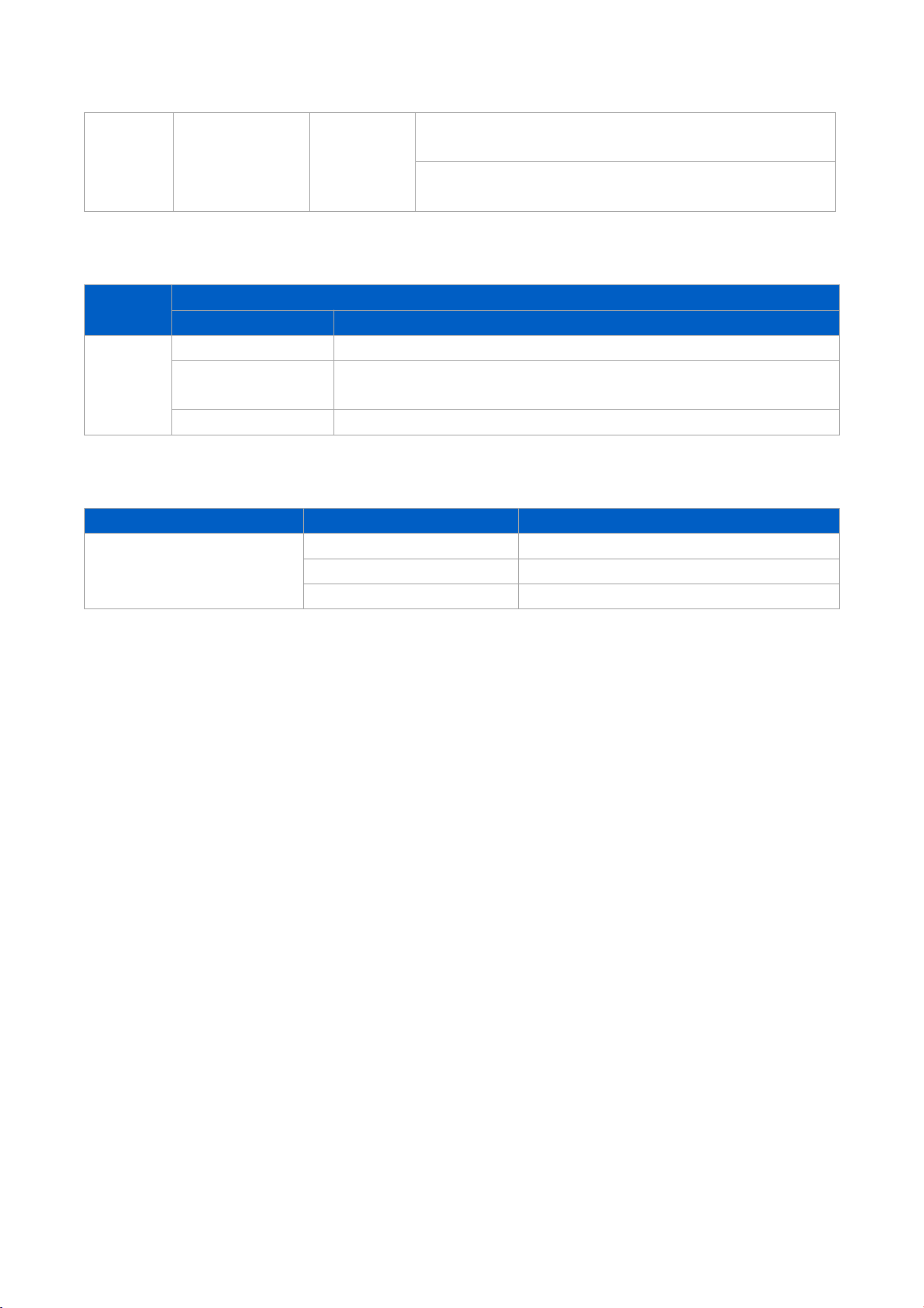
Static/Static/Off: normal signals with 11-20 ASU
(average signal strength)
Static/Static/Static: strong signals with 21-31 ASU
(signal is good)
2.5 Reset Button
Reset button is under the SIM slots.
Function
Description
SYSTEM LED
Action
Reset
Blinking
Press and hold the reset button for more than 5 seconds.
Static Green →
Rapidly Blinking
Release the button and wait.
Off →Blinking
The router is now reset to factory defaults.
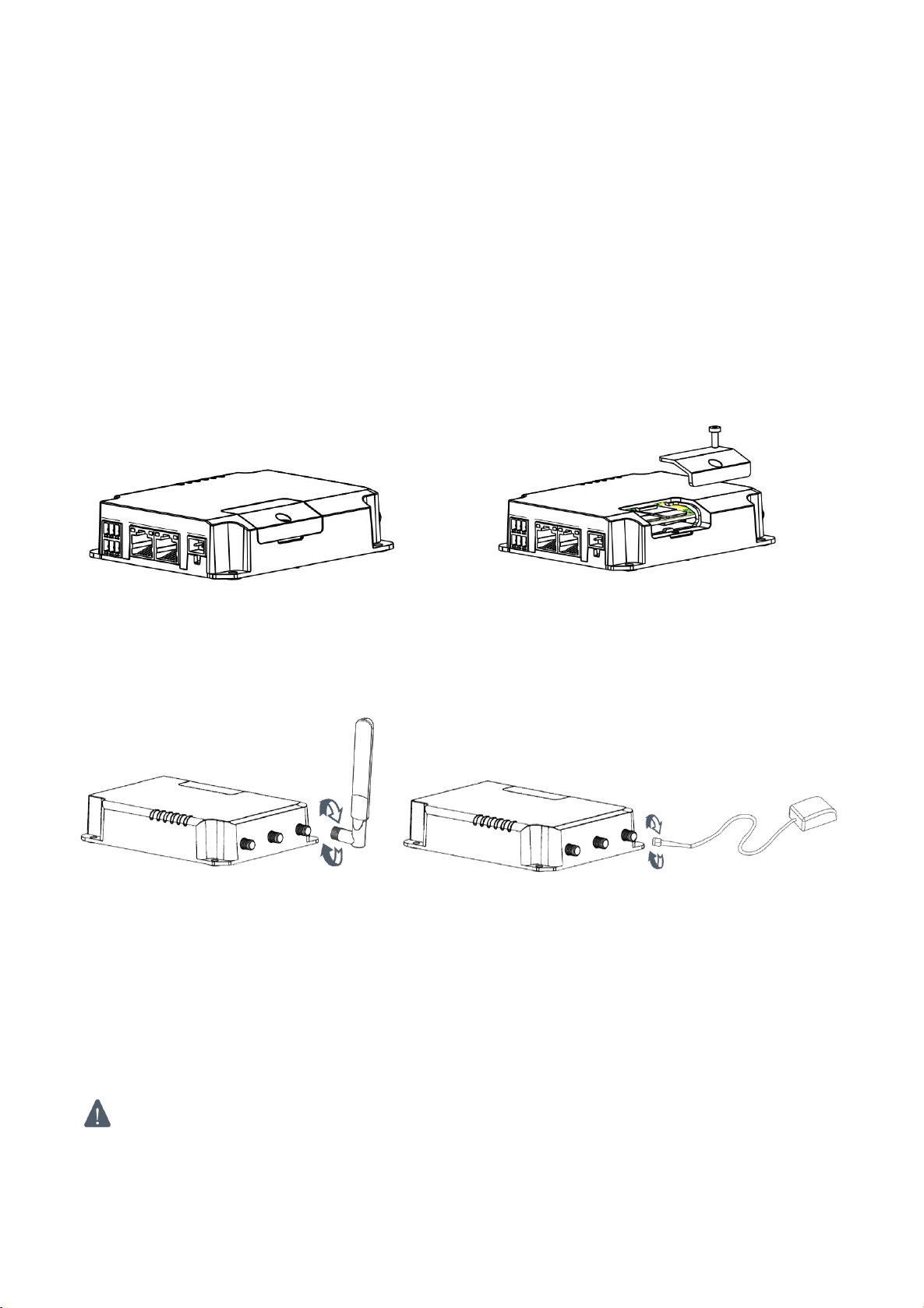
2.6 Ethernet Port Indicator
Indicator
Status
Description
Link Indicator (Orange)
On
Connected
Blinking
Transmitting data
Off
Disconnected
5
en
www.linovision.com
3. Hardware Installation
Environmental Requirements
- Power Input: 9-48 VDC
- Power Consumption: Typical 1.9W (Max 2.4 W)
- Operating Temperature: -40°C to 70°C (-40°F -158°F)
- Relative Humidity: 0% to 95% (non-condensing) at 25°C/77°F
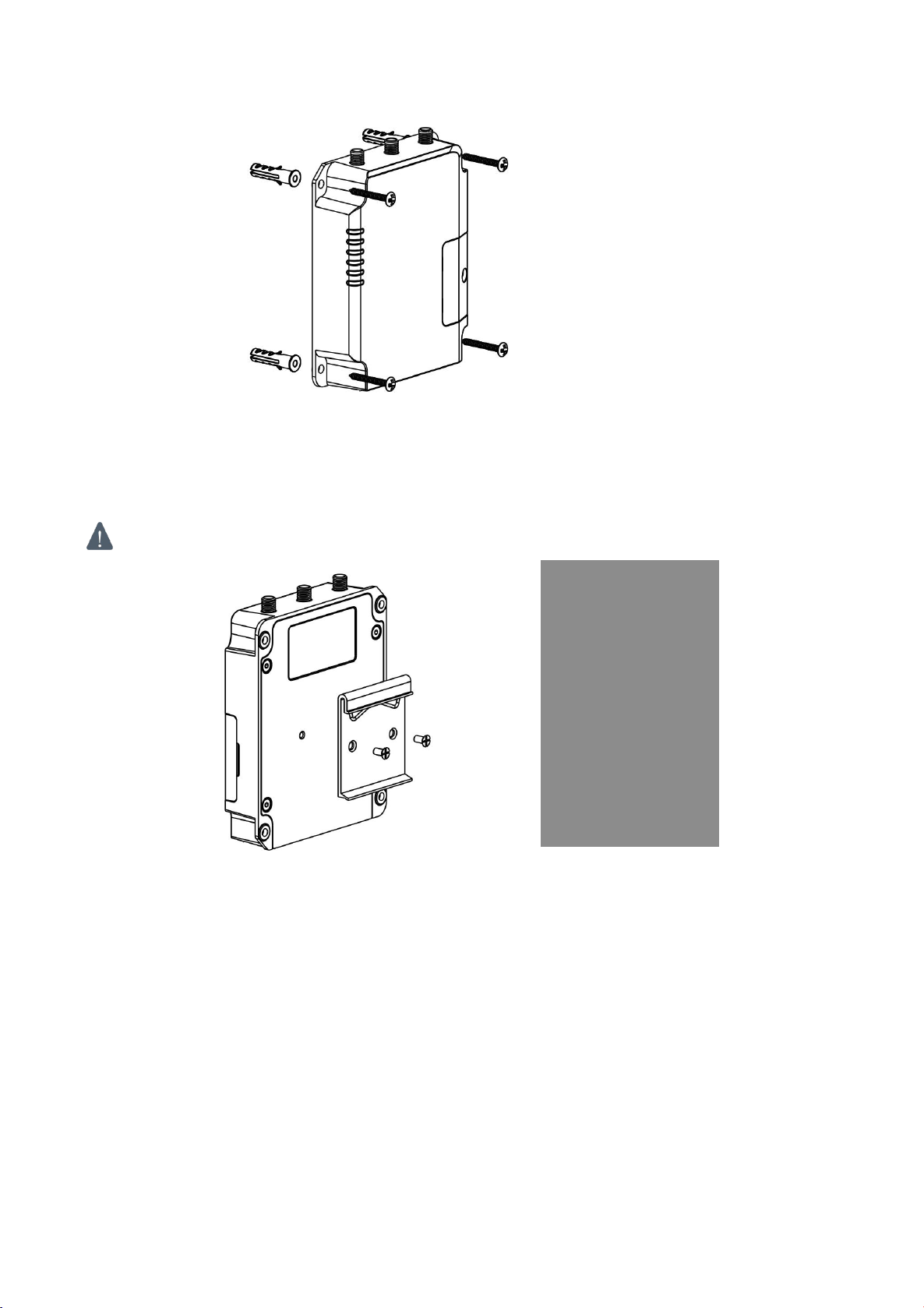
3.1 SIM Card/Micro SD Card Installation
A. Unscrew the cover of the SIM card then B. Put SIM card/Micro SD into the slot and
screw it up. take it off.
3.2 Antenna Installation
Rotate the antenna into the antenna connector accordingly.
The external antenna should be installed vertically always on a site with a good signal.
3.4 Router Installation
The router can be placed on a desktop or mounted to a wall or a DIN rail.
3.4.1 Wall Mounting (Measured in mm)
Use 4 pcs of M3 × 6 flat head Phillips screws to fix the router on the wall.
Recommended torque for mounting is 1.0 N·m, and the maximum allowed is 1.2 N·m.
6
en
www.linovision.com
3.4.2 DIN Rail Mounting (Measured in mm)
Use 2 pcs of M3 × 6 flat head Phillips screws to fix the DIN rail to the router, and then hang the DIN rail
on the mounting bracket. It is necessary to choose a standard bracket.
Recommended torque for mounting is 1.0 N·m, and the maximum allowed is 1.2 N·m.
7
en
www.linovision.com
4. Log in the Web GUI of Router
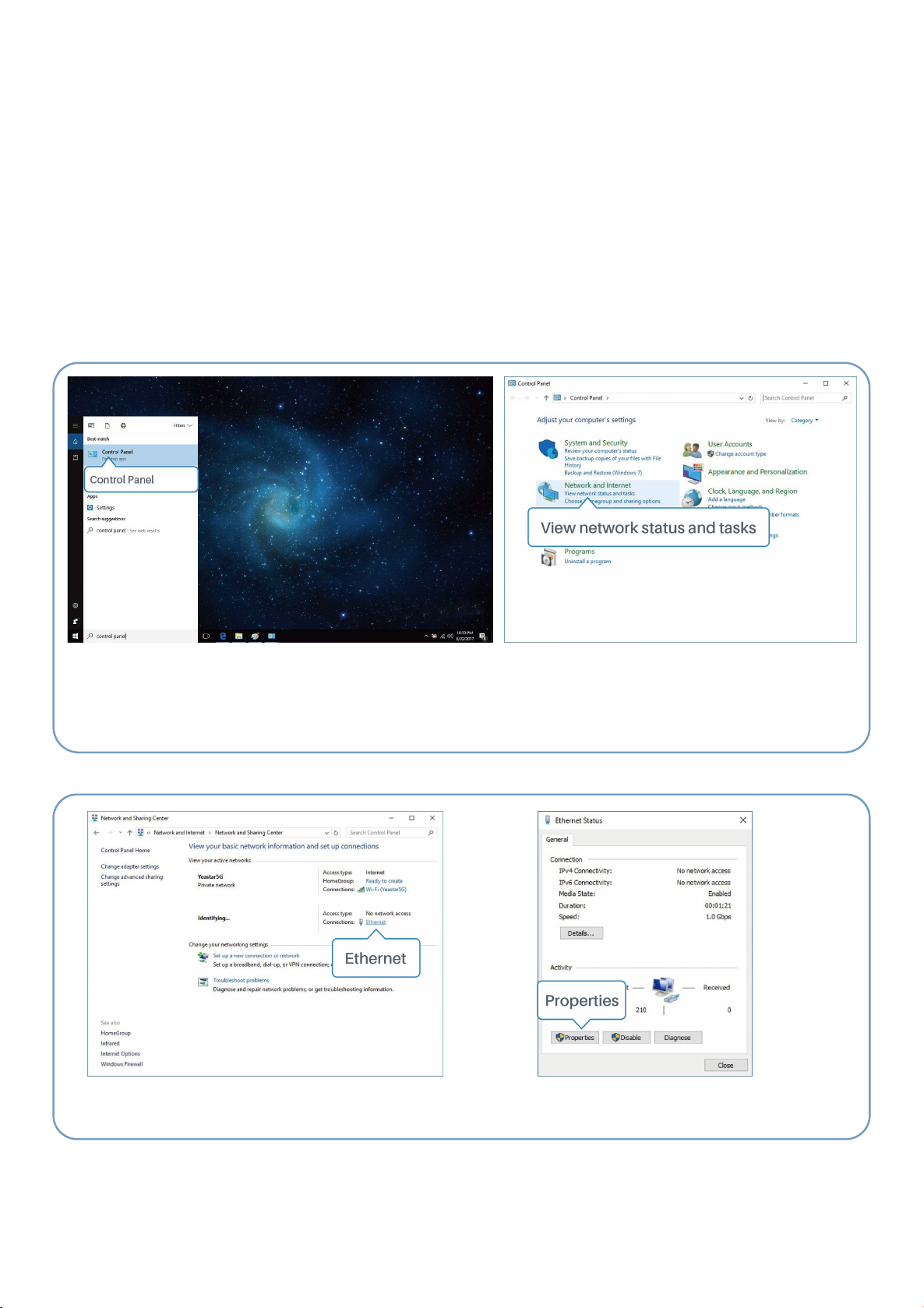
4.1 PC Configuration
Please connect PC to LAN port of IOT-R32W router. PC can obtain an IP address, or you can
configure a static IP address manually. The following steps are based on Windows 10 operating
system for your reference.
(Note: As remote access is disabled by default, you can't access to the router's Web GUI if you connect
PC to WAN port of the router. But it will function properly if you enable it on Web GUI.
③Click “Ethernet” (May have different names). ④Click “Properties”.
①Click “Search Box” to search “Control Panel” on the
Windows 10 taskbar.
②Click “Control Panel” to open it, and then click
“View network status and tasks”.
8
en
Altri manuali per IOT-R32W
1
Indice
Lingue:
Altri manuali LINOVISION Router di rete


Manuali Router di rete popolari di altre marche


NETGEAR
NETGEAR FS526T - Switch Manuale utente

Korenix
Korenix JetNet 5710G Series Manuale utente

Automated Logic
Automated Logic ZN551 Manuale del proprietario

Cisco
Cisco ASR 1000 Series Manuale dell'operatore

EnGenius
EnGenius ESR-9710 Manuale utente

Cisco
Cisco 805 Series Istruzioni operative e di sicurezza