Loc8tor Loc8tor Plus Manuale utente

User Guide
Manual del usuario / Mode d'emploi / Bedienungsanleitung
-For Loc8tor models -
Loc8tor:
1 Loc8tor Handheld
2 Mini Homing Tag
1 Key ring loop / adhesive pack
Batteries included
Index
nglish................................................................
spañol....................................................... ......14-27
Français.............................................................28-41
Deutsch.............................................................
Loc8tor plus:
1 Loc8tor Plus Handheld
3 Mini Homing Tags
1 Panic Homing Tag
2 Key ring loop / adhesive Pack
Batteries included
2-13
42-54

Welcome to Loc8tor, the great new product that helps you find your mislaid items and can even stop you losing
them in the first place*.
We've designed the Loc8tor to be versatile and easy to use, whether at home, out and about or on business.
Please take a few minutes to read through this User Guide to help you get the most out of your purchase.
Loc8tor has been manufactured to quality standards to run trouble free and comes supplied with a 12 month
warranty. Please visit our website at www.loc8tor.com for additional product information, contact details and
frequently asked questions.
We'd love to hear from you, what you like about Loc8tor and any suggestions you have to improve it. -mail us
at sales@loc8tor.com to have your say.
We hope you enjoy your new purchase and can now rest at ease, avoiding those frustrating moments of
mislaying your important items.
With best wishes.
Anthony Richards
Managing Director
*Loc8tor Plus - Comes supplied with Locate and Alert modes. Helps you find misplaced items and allows
invisible safety zones to be set around you to stop items going astray.
Loc8tor - Comes supplied with Locate mode. Helps you find misplaced items.
www.loc8tor.com www.loc8tor.co.uk
INTRODUCTION
2

Page
Quick Key Guide 3
Setting Up Your Loc8tor 4
Locate Mode - Find a mislaid item 5
Alert Mode* - Helps prevent items getting lost 6
Alert Activated 7
Mini Homing & Panic Homing Tags 8
Icons and Abbreviations
Menu Functions 9
Batteries 10
General Care 10
Changes 11
Warranty 11
Please Note 12-13
CONTENTS
QUICK KEY GUIDE
3
Grey button
Shows list of registered Tags
that can be located
Red button
Turns ON or OFF all
Alert enabled Tags
(Loc8tor Plus only*)
Navigation ring
Moves cursor around
screen: left, right, up, down
White button
Selects item
highlighted on
screen
Blue button
Loc8tor & Loc8tor Plus
Shows Tag list and low
battery warnings
Loc8tor Plus
Alert mode Tag settings
Yellow button
To register a new Tag
8

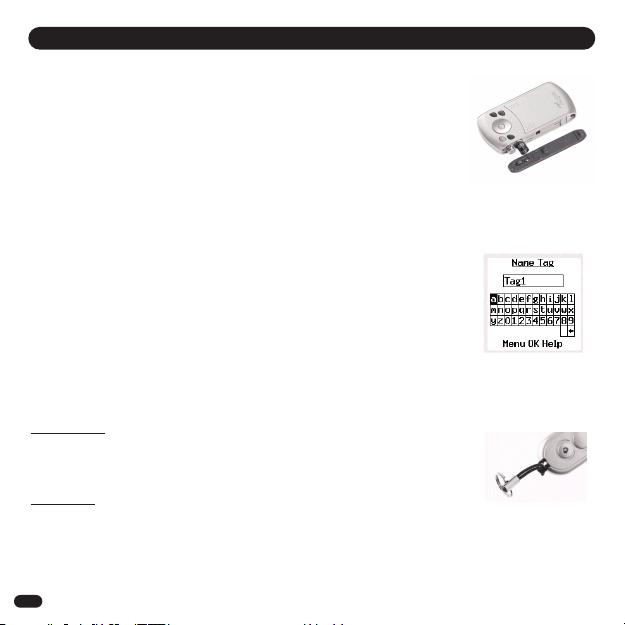
1. Insert batteries (2 x AAA)
With the Loc8tor buttons facing you push forwards and remove right hand side panel.
Insert batteries (See diagram in battery compartment for correct insertion) and replace
side panel.
Loc8tor has no ON or OFF button. To use press any button. It will automatically turn
ON.
2. Register Tags
•Pull out white strip in Tag to activate batteries
•Tag beeps and red light flashes twice
•Place Tag next to Handheld making sure all other Tags have been
moved more than an arms length away
•Press Yellow register button on the Handheld then select yes
•Follow on-screen instructions (see below Naming Tags)
•Repeat process for each new Tag
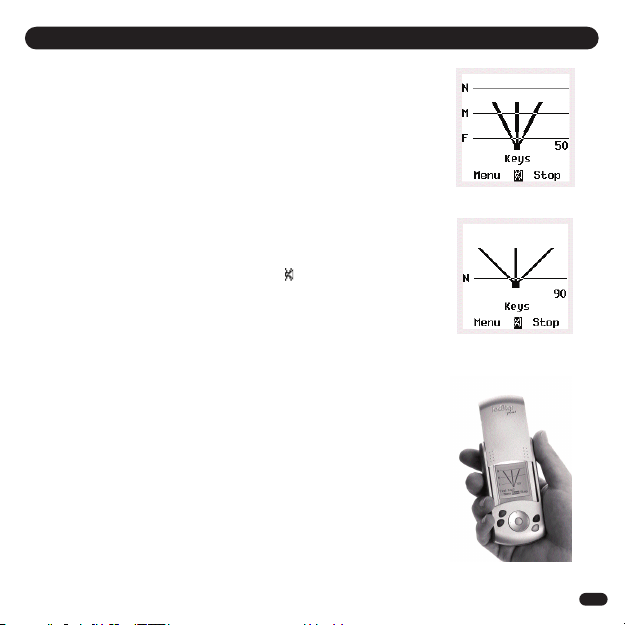
3. Naming your Tags
•Tags can be personalised with a name of your choice up to 10
characters long
•Use navigation ring to highlight letters
•Press White button to select
•Press OK to finish
4. Attach Tags
Depending on use Tags can be attached with adhesive strips, key ring loop or left loose.
Adhesive strips
Best used when attaching to a hard, flat surface. Peel off backing to attach.
Sticky tabs are not permanent but increase their bond with time. Ideally leave for a
Minimum of 10 minutes. Strongest bond after 24 hours.
To remove insert flat tool under Tag and gently twist / prise off.
Key ring loop
Best used to attach Tag to items such as key ring, bags and belt loop.
Push loop through the Tag hole and then pull ring through the loop.
SETTING UP YOUR LOC8TOR
1.
3.
4.
4

LOST
•Slide up lid and press Grey button (top left) to see list of Tags that can be located
•Scroll down and select item to be found with White button
•Scan area slowly turning full 360° circle
•Once circle completed go back to direction of strongest audio and visual
signal
•Walk in this direction - As you get nearer audio pitch and frequency of beeps
increase, lines on screen extend and signal strength numbers increase (1)
•Whenever in doubt, repeat 360° circle
•When signal strength lines get close to the top of the screen Tag is close by
•Try pressing select button on Handheld to Mute (
When you are almost on top of Tag, screen changes to Zooming in mode to guide
you right in (2)
•Select and press STOP when the item is found
FOUND
TIPS
•Place the Tag on a surface and practice locating a few times to get a feel for how it
works
•If you are ever unsure which direction to go in slowly repeat full 360° circle and
then go in direction with the strongest signal strength
•Strongest signal is displayed when Handheld is pointing directly at Tag. Also try
moving Handheld up and down as Tag could be upstairs or downstairs
•If you are close to a wall whilst getting a strong signal check the room next door
•If no signal is displayed try moving position to a different area
LOCATE MODE - FIND A MISLAID ITEM
5
(1)
(2)
) and listen for the Tag
Beep

The Blue button (Tag Settings screen) controls your Alert settings. It enables you to decide what mode
each Tag is in, Locate or Alert, and to set the distance for your required safety zone (Near, Medium or Far)
for each Tag. Once you're happy with your settings simply press the Red button to activate Alert.
All Tags with a ( ) will now automatically be in Alert mode.
Setting up Alert (Blue Button - Tag Settings Screen)
•Attach Tag in or on item to be protected
•Press Blue button for Tag Settings screen. A list of all your Tags will be displayed
Selecting the Safety Range (1 )
•Scroll to the right hand column in line with selected Tag
•Use White button to select distance between Tag and your Handheld
N = Near, M = Medium, F = Far
Set Tag Mode
•Scroll to column with dash (-) next to the Tag name
•Press White button to make Tag alertable ( )
Repeat this process for each Tag
Using Alert Mode
•Press Red button to turn Alert mode ON or OFF for all Tags with ( ) in Tag settings screen
•The Tag will beep to confirm Alert mode is ON.
Your Tags are now in Alert. Should any Tag set in Alert mode go out of the preset safety zone the
Loc8tor Plus will vibrate, set off an alarm and advise which Tag has gone astray
An will appear in the bottom right hand corner when the Alert mode is on
ALERT MODE - ELPS PREVENT ITEMS GETTING LOST (Loc8tor Plus Model)
6
A
! Important Alert mode usability statement ! - A constant link between Handheld and Tag ensures you are
notified immediately when Tags go out of range. However if used continuously will significantly reduce battery
life. When not needed turn Alert mode off using Red button.
(1)

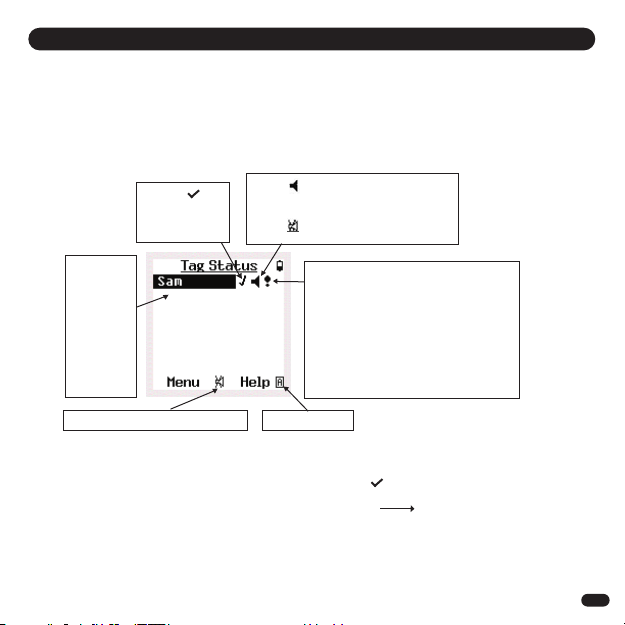
Should one of the Tagged items go out of your safety zone the Handheld will vibrate, let off an alarm and the 'Tag
Status' screen will automatically appear.
The Tag Status lists which Tag/s have activated an Alert and whether the Tag is currently out of your designated safety
zone. If a Tag has gone out of range but since returned to the safety zone, it also enables an Alert to be muted or
removed from the Alert list altogether.
Using the Tag Status Screen
To turn all Alerts OFF press the Red button.
To individually remove each Tag from the Alert enabled list select the ( ) and change to a (-).
Note - To return to Tag Statu creen go to Alert option on main menu Tag Statu
ALERT ACTIVATED (Loc8tor Plus Model)
7
Select to
remove Tag
from Alert
enabled list
When shown Alarm active for
that Tag
When shown Alarm muted
Identifies
which Tag
activated
the Alert
– Select
item to
Locate
that Tag
If the Tag is out of the safety zone
an ‘!’ symbol will appear
If the Tag has gone out of the
safety zone but returned and now
safe an ‘A’ will appear
If a Panic Tag has been activated a
‘P’ will appear (see page 8)
Mutes all current Alert alarms Alert mode on

Activating a Panic Tag
For a Panic alarm to be activated, the Panic Tag must be set in Alert mode ( )
in the Tag Settings screen (Blue button) and the Alert mode switched on (Red
button)
To activate the Panic alarm, simply press the centre of the red button on the Panic
Tag. So long as the Panic Tag is within the set safety zone the Alert Alarm will be
activated - the Handheld will vibrate, let off an alarm and identify which Tag has
activated the Panic alarm
Give or attach the Tag to the child / dependant as appropriate.
MINI OMING & PANIC OMING TAGS
Look out for our Splash proof wrist strap that can help extend the range of
your Tag when attached to a child / dependant
8
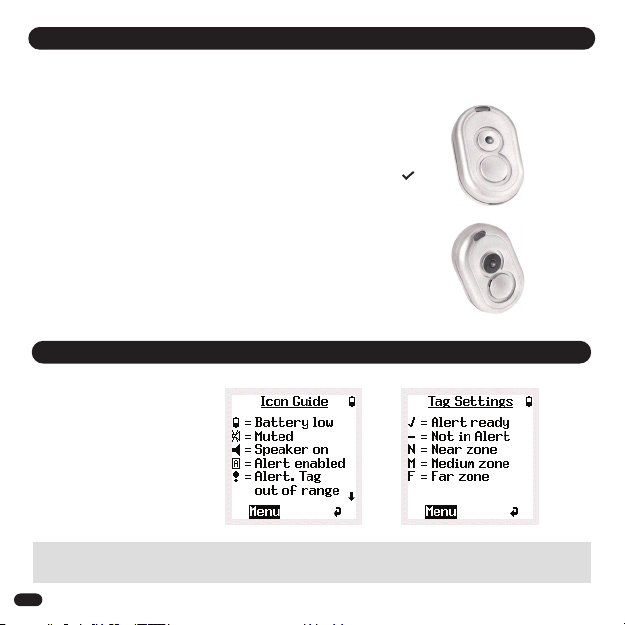
ICONS AND ABBREVIATIONS
Throughout the menu system a
variety of icons are used to inform
on status. The screen shots
shown contain icons you can
expect to see whilst navigating
Homing Tag
Panic Tag
Both Mini Homing and Panic Homing Tags can be used to Locate items and if used with the Loc8tor Plus model used
in Alert mode.
The Panic Tag provides the additional function of enabling a child or dependant in need to activate an alert alarm to call
for help.

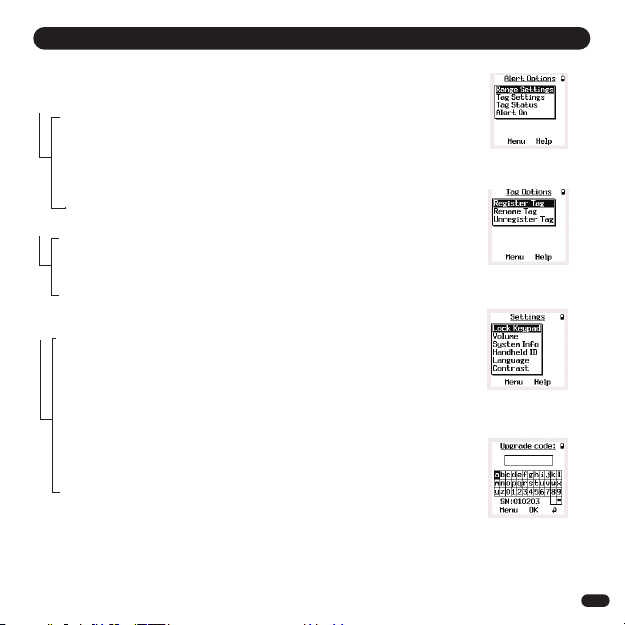
MENU FUNCTIONS
9
(1)
(2)
(3)
(4)
Locate - Same function as Grey button. Shows list of Tags that can be
located
Alert Options (Loc8tor Plus model only) (1)
Range Settings - nables Near (N), Medium (M) and Far (F) range to be increased or
decreased as required
Tag Settings - Same function as Blue button
Tag Status - Control screen informing which Tag has activated an Alert alarm and
the Tags current status
Alert ON / OFF - Same function as the Red button
Tag Options (2)
Register Tag - Same function as Yellow button. Register a new Tag
Rename Tag - Select Tag from list to be renamed. nter in new name followed by
OK
Unregister Tag - Select Tag from list to be unregistered
Place Tag next to Handheld and confirm Tag is to be unregistered
This enables a Tag to be used on a different Loc8tor Handheld
Settings (3)
Lock Keypad - Protects against buttons being accidentally pressed
To unlock press Red then Blue button
Volume - Select to adjust volume whilst locating, for Alert alarm or the
Keypad. Left / right on navigation ring decreases / increases
volume. Up / Down on navigation ring switches between volume
control and bottom menu
System Info - System information screen
Handheld ID. - It is recommend you keep a note of your Loc8tor Handheld ID
Should your Handheld ever become lost you can re-program
a new Handheld to re-register any of your existing Tags
Language - Select preferred language
Contrast - nables screen contrast to be made lighter or darker
Upgrade (4) - nables a Loc8tor Handheld to be upgraded to a Loc8tor Plus
(activates Alert mode). Contact place of purchase or visit
www.Loc8tor.com/upgrade for more details
elp / Key Guide - Quick guide to what each button does and the icons used
Help button also appears at the bottom of selected screens

andheld
•To replace batteries use 2 x AAA 1.5 volt or equivalent (Also see
Setting up your Loc8tor on page 4)
•A low battery icon will appear in the top right hand corner of the
screen when Handheld batteries are running low. Batteries are able
to be used until screen starts to fade.
Please Note - Battery life will vary depending on mode and frequency
of use.
Tags
•To change the batteries - there is a hole which you can thread the
lanyard through. Put your thumb nail or other flat tool at this end into the split line (line going around
the middle of the Tag). Keeping your thumb / flat tool in the split line move it around to the middle of
the long side. The Tag will pop open.
-Replace with SR54 (silver oxide) 1.5v button cells or equivalent to provide best battery life, keeping
the plus side face up nearest the lanyard hole.
-Replace the lid by putting one side in first then pushing shut.
-If batteries are correctly inserted Tag will beep when case is closed.
•If you locate a Tag and its battery is low a low Tag battery icon will appear in the Tag Settings screen
(Blue button) on the very right hand side of the screen. The Icon will appear in line with the Tag that
needs to be changed. Replace Tag batteries when icon is displayed to ensure Tag does not become
lost.
•The Loc8tor and Tags have not been designed to be waterproof. Please take care not to get wet.
•Never clean with water, detergent or cleaning agent - simply use clean, dry cloth.
•On the reverse of the Handheld lid are two black lines. These are aerials and essential to the
functioning of your Loc8tor. Take care not to scratch.
•Tag and Handheld operational temperature is between 0˚c to + 55˚C. Storage temperature is between
- 10˚c and + 60˚c.
BATTERIES
GENERAL CARE
10
Altri manuali per Loc8tor Plus
1
Indice
Lingue:
Altri manuali Loc8tor GPS