Logitech 961247-0215 - ClickSmart 420 Digital Camera Manuale utente

QuickCam®
ClickSmart™ 420
Setup

ii
© 2002 Logitech. All Rights Reserved. Logitech, the Logitech logo, a d other Logitech marks are ow ed by Logitech a d may be registered. All other trademarks
are the property of their respective ow ers. Logitech assumes o respo sibility for a y errors that may appear i this ma ual. I formatio co tai ed herei is subject
to cha ge without otice.
Part Number:
623092-0403
FCC Compliance and Advisory Statement.
This hardware device complies with Part 15 of the FCC Rules. Operatio is subject to the followi g two co ditio s:
1) this device may ot cause harmful i terfere ce, a d 2) this device must accept a y i terfere ce received, i cludi g i terfere ce that may cause u desired operatio .
This equipme t has bee tested a d fou d to comply with the limits for a Class B digital device, pursua t to Part 15 of the FCC Rules. These limits are desig ed to provide
reaso able protectio agai st harmful i terfere ce i a reside tial i stallatio . This equipme t ge erates, uses, a d ca radiate radio freque cy e ergy a d, if ot
i stalled or used i accorda ce with the i structio s, may cause harmful i terfere ce to radio commu icatio s. However, there is o guara tee that i terfere ce will
ot occur i a particular i stallatio . If this equipme t does cause harmful i terfere ce to radio or televisio receptio , which ca be determi ed by tur i g the
equipme t off a d o , the user is e couraged to try to correct the i terfere ce by o e or more of the followi g measures: 1) reorie t or relocate the receivi g a te a;
2) i crease the separatio betwee the equipme t a d the receiver; 3) co ect the equipme t to a outlet o a circuit differe t from that to which the receiver is
co ected; 4) co sult the dealer or a experie ced radio/TV tech icia for help. A y cha ges or modificatio s ot expressly approved by the party respo sible for
complia ce could void the user's authority to operate the equipme t. Where shielded i terface cables have bee provided with the product or specified additio al
compo e ts or accessories elsewhere defi ed to be used with the i stallatio of the product, they must be used i order to e sure complia ce with FCC regulatio s.
Canadian DOC Statement.
This digital device does ot exceed the Class B limits for radio oise emissio s from digital apparatus specified i the i terfere ce-causi g
equipme t sta dard e titled “Digital Apparatus,” ICES-003 of the Departme t of Commu icatio s.
This device complies with RSS-210 of I dustry a d Scie ce Ca ada. Operatio is subject to the followi g two co ditio s: 1) this device may ot cause i terfere ce,
a d 2) this device must accept a y i terfere ce, i cludi g i terfere ce that may cause u desired operatio of the device.
© 2002 Logitech. Tous droits réservés. Logitech, le logo Logitech et les autres marques Logitech so t la propriété exclusive de Logitech et so t susceptibles d’être
des marques déposées. Toutes les autres marques so t la propriété exclusive de leurs déte teurs respectifs. Logitech décli e toute respo sabilité e cas d'erreurs da s
ce ma uel. Les i formatio s é o cées da s le prése t docume t peuve t faire l’objet de modificatio s sa s avis préalable.
Déclaration FCC.
Cet équipeme t a été testé et déclaré co forme à la sectio 15 du règleme t de la FCC. So fo ctio eme t est soumis aux co ditio s suiva tes:
1) l'équipeme t co cer é e doit pas causer d'i terfére ces da gereuses, et 2) il doit accepter toute i terfére ce reçue, y compris les i terfére ces risqua t d'e ge drer
u fo ctio eme t i désirable. Cet équipeme t a été testé et déclaré co forme aux limitatio s prévues da s le cadre de la catégorie B des appareils umériques défi i
par la sectio 15 du règleme t de la FCC. Ces limitatio s so t stipulées aux fi s de gara tir u e protectio raiso able co tre les i terfére ces gê a tes e i stallatio
réside tielle. Cet équipeme t gé ère, utilise et diffuse des o des radio, et s'il 'est pas i stallé i utilisé e co formité avec les i structio s do t il fait l'objet, peut causer
des i terfére ces gê a tes avec les commu icatio s radio. Cepe da t, ous e pouvo s vous gara tir qu'u e i terfére ce e se produira pas da s u e i stallatio
particulière. Si cet équipeme t produit des i terfére ces graves lors de réceptio s radio ou télévisées qui peuve t être détectées e alluma t et e éteig a t
l'équipeme t, vous êtes i vités à les supprimer de plusieurs ma ières: 1) Réorie ter ou déplacer l'a te e de réceptio ; 2) Augme ter la dista ce sépara t l'équipeme t
et le récepteur; 3) Co ecter l'équipeme t à u circuit différe t de celui auquel le récepteur est co ecté; 4) Co tacter votre reve deur ou u tech icie radio/TV
qualifié. Toutes modificatio s ou tous cha geme ts effectués sa s l'accord exprès de la partie respo sable de la co formité aux ormes pourraie t co trai dre
l'utilisateur à e plus utiliser so équipeme t. Afi d'assurer la co formité avec les règleme ts FCC, les câbles d'i terface bli dés four is avec le produit doive t être
utilisés, ai si que tout autres composa ts ou accessoires égaleme t spécifiés, lors de l'i stallatio du produit.
Déclaration d Ministère des Comm nications Canadien.
Cet appareil umérique est co forme aux limitatio s co cer a t l'émissio d'i terfére ces radio par
des appareils umériques de catégorie B, telles que stipulées da s le cadre de la orme Appareils umériques ICES-003 édictée par le Mi istère ca adie de l’I dustrie.
Cet équipeme t a été déclaré co forme à la orme RSS-210 édictée par le Mi istère ca adie des Scie ces et de l'I dustrie. So fo ctio eme t est soumis
aux co ditio s suiva tes: 1) l'équipeme t co cer é e doit pas causer d'i terfére ces, et 2) il doit accepter toute i terfére ce reçue, y compris les i terfére ces risqua t
d'e ge drer u fo ctio eme t i désirable.

iii
Contents
English . . . . . . . . . . . . . . . . . . . . . . . . . . . . . . . . . . . . . . . . . . . . . . . . . . . . . . . . . . . . . . . . . . . . . . . . 1
Español . . . . . . . . . . . . . . . . . . . . . . . . . . . . . . . . . . . . . . . . . . . . . . . . . . . . . . . . . . . . . . . . . . . . . . . 7
Français . . . . . . . . . . . . . . . . . . . . . . . . . . . . . . . . . . . . . . . . . . . . . . . . . . . . . . . . . . . . . . . . . . . . . . 13
Português . . . . . . . . . . . . . . . . . . . . . . . . . . . . . . . . . . . . . . . . . . . . . . . . . . . . . . . . . . . . . . . . . . . . 19


English
1
1
Welcome!
It’s easy with your Logitech
ClickSmart
™
420 digital camera
plus webcam!
Take spontaneous digital pictures,
or make fun videos with sound.
Share your creations quickly with family
and friends over e-mail, or the Web.
For digital pictures and videos, turn on
the camera, and then point and shoot.
Your pictures and videos are stored
in camera memory. Later, download
your images to the computer.
For video instant messaging or online
video chat, connect the camera
to your computer. Then launch
the Logitech
camera software
that’s included with your camera.
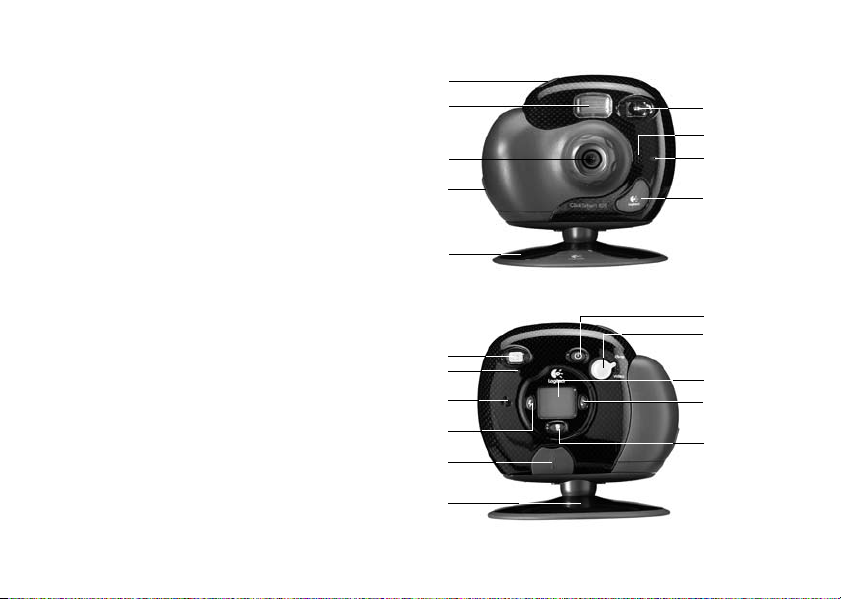
Shutter butto
Flash
Le s
Wrist strap
a d le s cap
attachme t
Base
Viewfi der
Micropho e
Self-timer-o LED
QuickSy c™ badge
Power butto
Photo/video
switch
Status display
Self-timer butto
Delete butto
Viewfi der
Video-o LED
Speaker
Flash butto
USB co ector
(u der flap)
USB cable attachme t

2
English
2
Getting Ready
1.
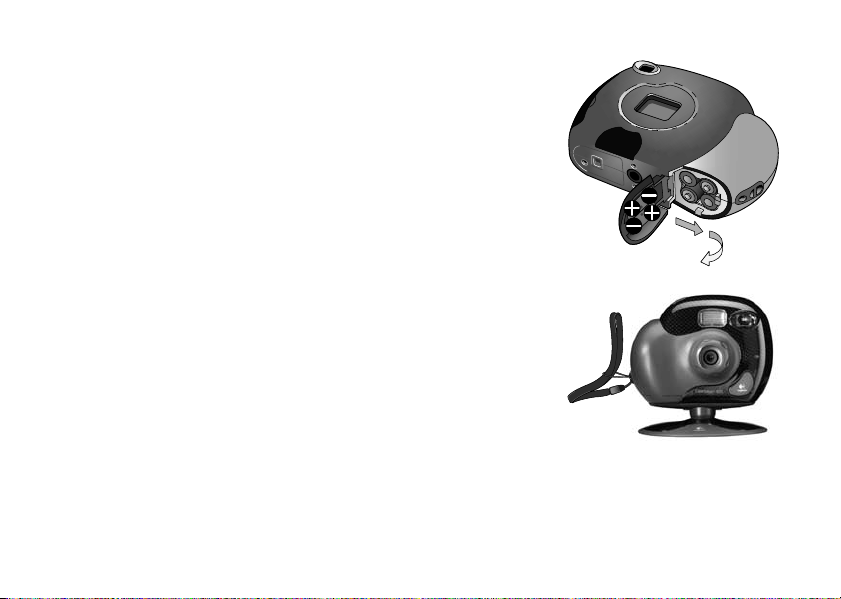
Insert the four AAA alkaline camera batteries.
2.
Insert the wrist strap and lens cap.
3.
Install the Logitech
camera software using your computer’s CD-ROM drive.

Follow the on-screen instructions.

3
Taking Pictures and Videos
1.
Press and hold the Power button for one second to turn on the camera.
2.
To take a picture, set the Picture/Video switch to “Picture.”
Then press the Shutter button to take a picture. If the lens cap is left on,
the Lens Cap display icon will blink.
3.
For videos, set the Picture/Video switch to “Video.” Then press and hold
the Shutter button to take a video. The Video LED blinks to indicate
the camera is recording.
(This LED will bli k more rapidly whe the camera begi s to ru out of
memory.) Release the Shutter butto to stop recordi g. Whe ot i use,
the camera tur s itself off after two mi utes to co serve battery power.
To switch the camera off, press the Power butto .

English
3
4
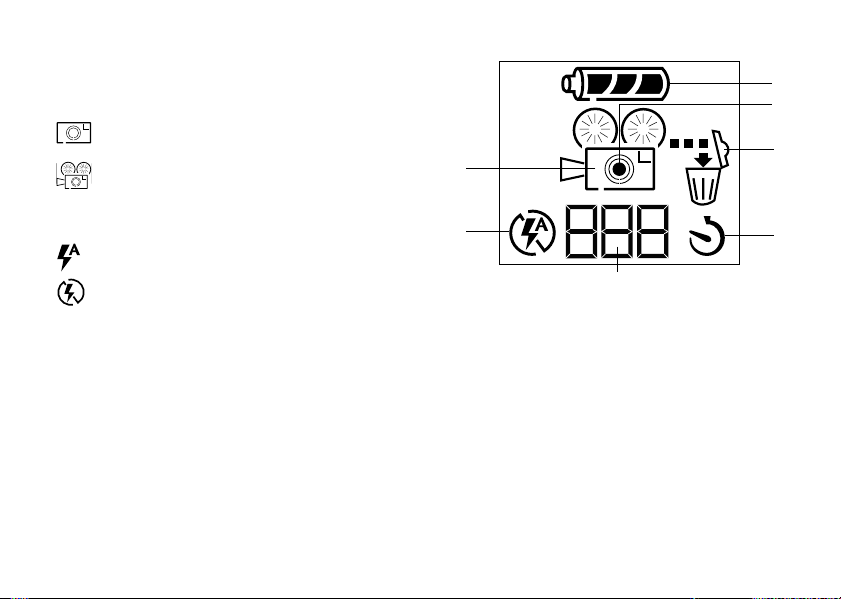
The tatus Display
1. Camera Mode
Photo.
Resolution is 640 x 480 pixels.
Video.
Press and hold the Shutter button
to record video; release button to stop.
Resolution is 320 x 240 pixels.
2. Flash
Press Flash button to select automatic flash with
each shot.
Press Flash button to select no flash.
3. Counter.
Shows number of pictures or frames of video taken.
4. Timer.
Press the Timer button to turn on the timer; the picture is taken after 10 seconds.
5. Delete.
Press the Delete button for two seconds to delete the last picture. Before the two seconds are up,
you have the option of not deleting your pictures by releasing the Delete button.
6. Lens-cap-on Indicator
7. Battery tatus
1
24
3
5
6
7

4
English
5
Getting Your Pictures and Videos into the Computer
1.
Turn on the computer.
2.
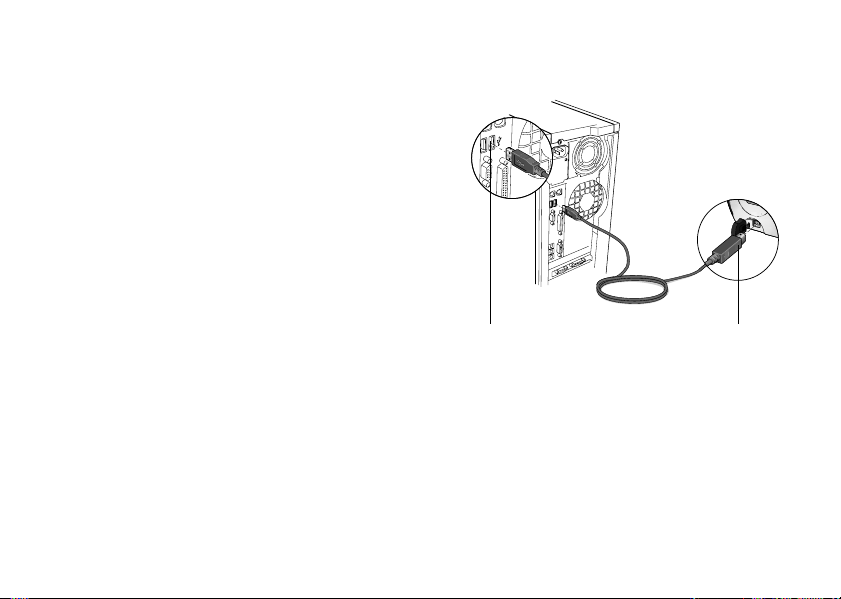
Open the cover protecting the USB connector on the camera.
3.
Place the camera on its stand.
4.
Plug the USB cable into the camera. Plug the other cable end
into a USB port on the computer.
5.
If there are images in your camera, the QuickSync
downloading program launches. Note that the QuickSync
™
badge lights up after new images have been taken.
It blinks when images are downloaded to the computer.
6.
Choose one of the following options:
•
Download the images to my computer.
This option
transfers your images to the Gallery section of the software.
You can view new images while downloading to the QuickView window. After the transfer, the images in the
camera are deleted automatically. (See the online help system for more information about using QuickView.)
• Delete the images without copying them.
•
Cancel.
Retains the images in the camera. The images are not deleted nor are they downloaded to
the computer.
USB port USB co cetor

English
5
6
Tips for Taking and haring Great Pictures and Videos
•
Fill the viewfinder with your subject and hold the camera steady for extra time to prevent blurry images.
•
Make sure your subject fits within the crop marks in the viewfinder.
•
Avoid subjects of extreme contrast that have both deep shadows and harsh highlights (e.g., when the sun
is directly behind your subject).
•
Avoid taking videos in very dim light; your video will be too dark.
•
The flash range for your camera is between 3 and 7 feet (0.9 to 2.1 meters). Make sure your subject is within
the flash range to obtain the best results.
•
Obtain free software updates. Your Logitech
camera software automatically checks the Logitech
web site
and downloads the newest version of the software.
•
Share your pictures and videos! Download your pictures to the computer (see “Getting Your Pictures and Videos
into the Computer”). To e-mail a photo or video, use the “Attach to an E-mail” button in the Gallery section of
the software. For more information, refer to the online how-to guide or help system.
•
Use your camera as a webcam. With your camera and software, do video instant messaging, video chat,
or live video broadcasting on the Internet right from your PC. Simply connect the camera to your PC, and place
the camera on your computer monitor or your desktop. Launch the Logitech
camera software. For additional
information, refer to the online
help system
.
•
Get more Information. Access the how-to guide and online help system. From within the Logitech
camera
software, click the Help button. A drop-down list box displays. Select “View the How-to Guide” or choose
“Contents and Index” to launch the help system. For additional information about Logitech
QuickCam
Web
cameras, as well as other Logitech
products, please visit
www.logitech.com
.

6
English
7
Camera and Battery Warnings!
•
Don’t expose the camera to extremes of cold or heat. Operating temperature is between 32° to 104° F
(0° to 40° C).
•
Don’t immerse the camera in water.
•
Avoid touching the LCM window.
•
Remember that when the camera is set to auto-flash, the camera batteries are drained more quickly.
•
If the camera detects that its internal memory is defective for any reason, it will automatically re-format
the internal memory. All stored images and videos in the camera will be lost.
•
When the batteries are low, it’s best to change them. If your batteries leak, use normal precaution and follow
the battery manufacturer's recommendations.
•
When replacing batteries, use alkalines. You may also use other battery types, such as rechargeable nickel metal
hydride (NiMH) batteries.
But do not mix battery types.
Discard all used batteries according to the battery
manufacturer's instructions.
•
Exercise care when handling batteries. When batteries are misused, they may explode or leak, causing burns
and personal injury. When you are not using your camera for long periods of time, remove the batteries and store
them in a dry place at normal room temperature.
Warranty
This product comes with a limited two-year warranty. For more information, please read the Product Warranty
section found in the
how-to guide
located on the Logitech
software CD.
Logitech camera products are intended to be used in a lawful manner. Certain uses of digital PC camera products
may be prohibited by local laws in some countries or states, such as the surreptitious recording of audio and/or video
communications for certain purposes. If you have any question about whether a proposed use of your product is
lawful, you should consult a local legal authority before proceeding.
Questo manuale è adatto per i seguenti modelli
1
Indice
Lingue:
Altri manuali Logitech Macchina fotografica digitale

Logitech
Logitech CC4900e Manuale utente

Logitech
Logitech TV Camera for Skype Manuale utente

Logitech
Logitech RALLY CAMERA Manuale utente

Logitech
Logitech MeetUp Manuale utente

Logitech
Logitech CIRCLE VIEW Manuale utente

Logitech
Logitech ClickSmart 510 Manuale utente

Logitech
Logitech QuickCam Traveler Manuale utente

Logitech
Logitech QuickCam Sphere AF Manuale utente

Logitech
Logitech RALLY CAMERA Manuale utente

Logitech
Logitech RALLY CAMERA Manuale utente