
Luxul XGS-1024 Manuale utente

luxul.com
Simply Connected
User Guide
XGS-1024
Luxul Xen™
24-Port Gigabit Ethernet Switch
SWITCH
Use the XGS-1024 to:
Expand Your Home or Offi ce Network with 24-Ports
(10/100/1000)
Future Proof Your Network with Gigabit Speeds (10X
Performance of Fast Ethernet)
Create a VLAN for Optimizing VoIP, Video, Security, or Gaming
Applications (requires XMS-1024)
User Guide
2© Copyright 2011 Luxul. All rights reserved. Trademarks & Registered Trademarks are property of respective holders.
24-PORT GIGABIT ETHERNET SWITCH
MODEL NUMBER: XGS-1024
USER GUIDE
© 2011 Luxul. All Rights Reserved.
No part of this publication may be modifi ed or adapted in any way, for any
purposes without permission in writing from Luxul. The material in this manual
is subject to change without notice. Luxul reserves the right to make changes to
any product to improve reliability, function, or design. No license is granted, either
expressly or by implication or otherwise under any Luxul intellectual property rights.
An implied license only exists for equipment, circuits and subsystems contained in
this or any Luxul product.
DOCUMENT CONVENTIONS
The following graphical alerts are used in this document to indicate notable situations:
NOTE: Tips, hints, or special requirements that you should take note of.
CAUTION: Care is required. Disregarding a caution can result in data
loss or equipment malfunction.
WARNING!: Indicates a condition or procedure that could result in
personal injury or equipment damage.
luxul.com | 357 South 670 West | Suite 160 | Lindon, UT 84042 | p: 801-822-5450 | f: 801-822-5460
luxul.com | 357 South 670 West | Suite 160 | Lindon, UT 84042 | p: 801-822-5450 | f: 801-822-5460
User Guide
3
CONTENTS
1: PRODUCT OVERVIEW 4
1.1 Product Introduction 4
1.2 XGS-1024 Features 4
1.3 Product Specifi cations 5
1.4 Package Contents 6
2: HARDWARE DESCRIPTION 6
2.1 Front Panel 6
2.2 LED Indicators 7
2.3 Rear Panel Layout 8
3: PREPARING FOR INSTALLATION 8
3.1 System Requirements 8
3.2 Before Connecting to the Network 8
4: XGS-1024 INSTALLATION 9
4.1 Installing the XGS-1024 in a Rack 9
4.2 Desktop Setup 9
4.3 Connecting Devices 10
4.4 Connecting to a Router or other Switch 11
5: REGULATORY COMPLIANCE 11
5.1 Health and Safety Recommendations 11
5.2 FCC Statement: 12
6: CONTACT LUXUL 12

User Guide
4© Copyright 2011 Luxul. All rights reserved. Trademarks & Registered Trademarks are property of respective holders.
1: PRODUCT OVERVIEW
1.1 Product Introduction
The XGS-1024 Gigabit Ethernet Switch is designed to resolve data transfer bottle-
necks in Small to Medium sized networks. It provides 24 10/100/1000Mbps ports
with Auto-negotiation and Auto MDI/MDIX capability. All ports can be used for
ordinary network traffi c as well as for uplinks to connect with other networking
devices (i.e. routers, switches, etc.). The XGS-1024 provides 10X the performance
of a standard 10/100Mbps switch and can be a simple upgrade replacement for
resolving performance bottleneck issues associated with the use of legacy Ethernet
switch hardware. Each port within the XGS-1008 can deliver up to 2000Mbps in
full-duplex mode, making it an excellent choice as a core switch for improving
performance between devices on the local network. With easy XenConnect™
plug-and-play setup and no network management you will benefi t from a seam-
less installation, whether you are setting up a new network or upgrading a legacy
10/100 switch.
1.2 XGS-1024 Features
Compliance with IEEE802.3, IEEE802.3u and IEEE802.3ab Ethernet standards,
supporting 10/100/1000 transfer modes.
Auto MDI/MDIX on each port
NWAY Auto-Negotiation functionality
24 10/100/1000Mbps RJ-45 ports
IEEE802.3x fl ow control for full-duplex and Backpressure fl ow control
for half-duplex
48Gbps backplane bandwidth and non-blocking wire speed forwarding
Store-and-forward switching method
8kb MAC address table and MAC address auto-learning/auto-aging
XenConnect “Plug and Play” Compatibility
1U steel chassis for standard 19-inch rack installation
luxul.com | 357 South 670 West | Suite 160 | Lindon, UT 84042 | p: 801-822-5450 | f: 801-822-5460
luxul.com | 357 South 670 West | Suite 160 | Lindon, UT 84042 | p: 801-822-5450 | f: 801-822-5460
User Guide
5
1.3 Product Specifi cations
Supported
Protocols and
Standards
IEEE 802.3 10Base-T Ethernet
IEEE 802.3u 100Base-TX Fast Ethernet
IEEE 802.3ab 1000Base-T Gigabit Ethernet
IEEE 802.3 NWay Auto-negotiation
IEEE 802.3x Flow Control
CSMA/CD
HTTP
ARP
DNS
ICMP
TCP/IP
Features Number of Ports: Twenty-four 10/100/1000BASE-T
MAC Address Table: 8K
Switch Fabric: 16Gbps
Transmission Method: Store-and-forward
Auto uplink (MDI/MDI-X) detection and confi guration
MAC Address Learning /Auto-learning, Auto-aging
Packet Filtering/
Forwarding Rate
14880pps (10Mbps) per port
148800pps (100Mbps) per port
1488000pps (1000Mbps) per port
Transmission
Method
Store-and-Forward
Network Data
Transfer Rate
Ethernet: 10Mbps (Half-duplex)
Ethernet: 20Mbps (Full-duplex)
Fast Ethernet: 100Mbps (Half-duplex)
Fast Ethernet: 200Mbps (Full-duplex)
Gigabit Ethernet: 1000Mbps (Half-duplex)
Gigabit Ethernet: 2000Mbps (Full-duplex)
Interface
Options
RJ-45:
10 Base-T: Cat.5 UTP /STP
100 Base-TX: Cat.5 UTP /STP
1000Base-T: Cat.5, Cat.5e or Cat.6 UTP/STP
Cable Recognition for Straight-through or Crossover Cables
Certifi cations FCC Class A, CE, RoHS
Led Per unit: Power
Per port: Link/Activity
DC Input DC 9V 600mA
Power
Consumption
27.5 Watts Maximum
Power Supply Internal Switched Power, AC100-240V, 50-60Hz input
User Guide
6© Copyright 2011 Luxul. All rights reserved. Trademarks & Registered Trademarks are property of respective holders.
Operating
Temperature
32°F to 104°F
(0°C to 40°C)
Operating
Humidity
10% to 90%
(Non-condensing)
Dimensions W: 17.3” x D: 8.3” x H: 1.7” (W: 439.5mm x D: 211mm x H: 43.2mm)
Weight Item: 4.5 lbs (2.1Kg)
Packaging: 6 lbs (2.7Kg)
1.4 Package Contents
Please check the contents carefully after you open the packing:
One XGS-1024 24-Port Gigabit Ethernet switch
Power Cord
Two L-shaped rack mounting brackets and screws
Four rubber pads
Quick Installation Guide
CD-ROM with User Documentation
If any of the listed items are missing or damaged, please contact the reseller from
whom you purchased the XGS-1024 for return/replacement.
2: HARDWARE DESCRIPTION
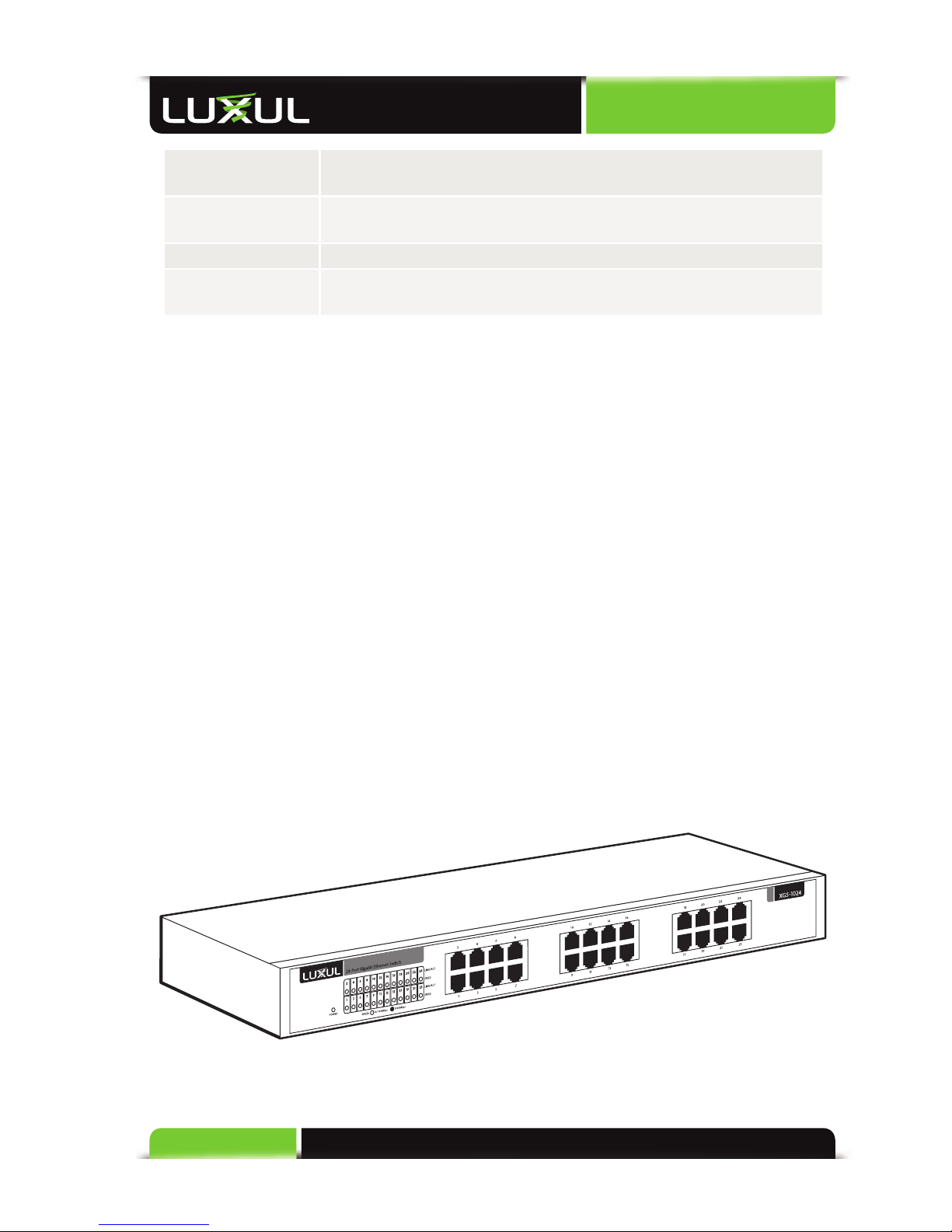
2.1 Front Panel
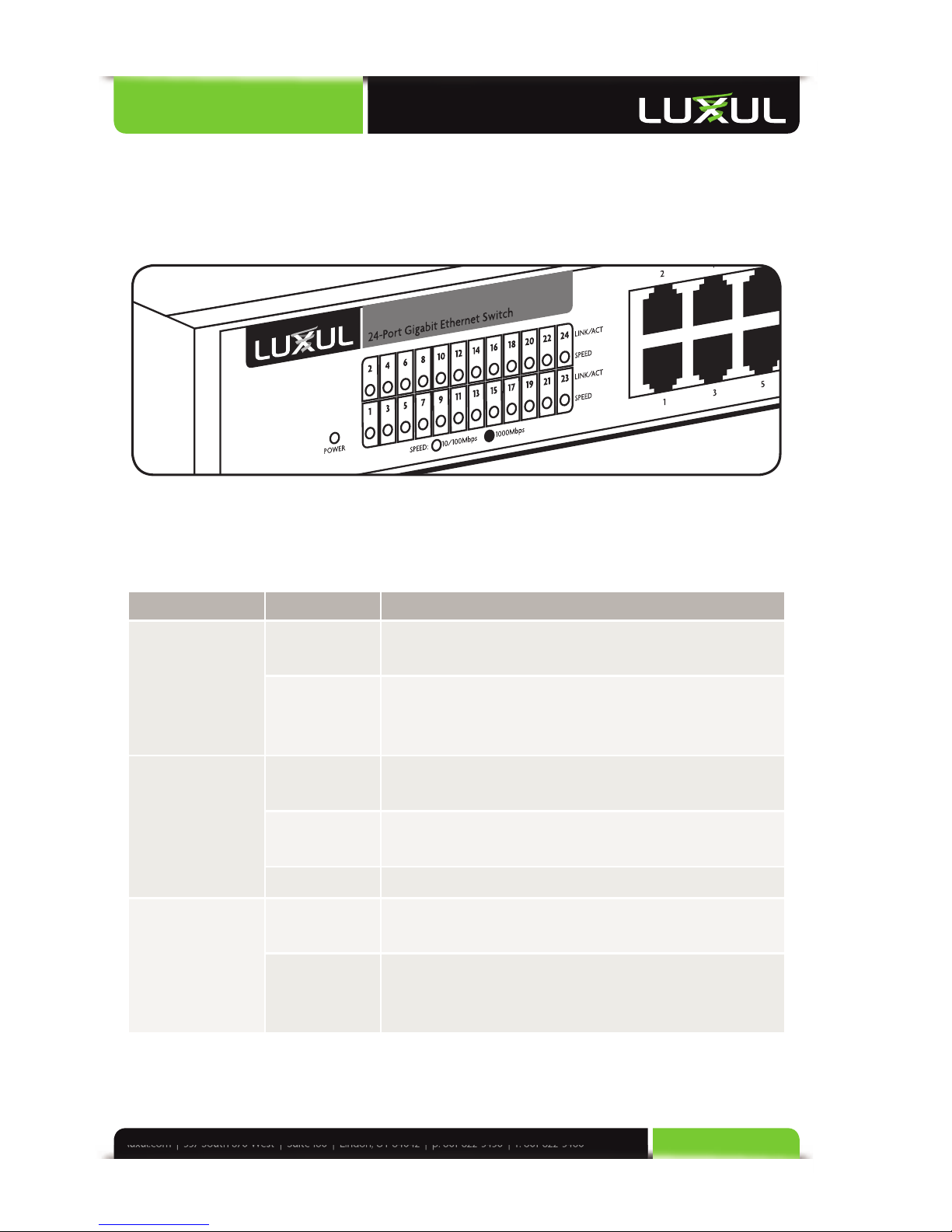
The front panel of the XGS-1024 includes 24 10/100/1000Mbps RJ45 ports on the
right side and LED indicators on the left side. Each port has one Link/Activity LED
and one 1000Mbps LED. There is also a power LED for indicating whether or not
power is being applied to the XGS-1024.
XGS-1024 Front Panel View
luxul.com | 357 South 670 West | Suite 160 | Lindon, UT 84042 | p: 801-822-5450 | f: 801-822-5460
luxul.com | 357 South 670 West | Suite 160 | Lindon, UT 84042 | p: 801-822-5450 | f: 801-822-5460
User Guide
7
2.2 LED Indicators
The LED indicators of the XGS-1024 include 1 Power indicator, 24 numbered Link/
Activity indicators, and 24 1000Mbps indicators. These LED indicators show the
operating status of the XGS-1024 and each switch connection.
LED Indicators
The following chart shows the LED indicators of the XGS-1024 along with an
explanation of the indicator’s properties:
LED Status Description
Power ON This indicator lights up when the XGS-1024 is
properly powered.
OFF If this indicator is not lit, please check the AC
power cord to ensure proper connection to the
outlet and the XGS-1024.
Link/ Activity ON Indicates a device is connected to the port of
the XGS-1024.
Blinking Indicates the port is transmitting or receiving
data.
OFF Indicates the port is not connected to a device.
1000Mbps ON Indicates the XGS-1024 is connected to device at
1000Mbps.
OFF Indicates the device likely does not support
1000Mbps and is connected at something less
than1000Mbps.

User Guide
8© Copyright 2011 Luxul. All rights reserved. Trademarks & Registered Trademarks are property of respective holders.
2.3 Rear Panel Layout
The rear panel has 1 AC power port and power switch.
100-240V~ 0.6A(Max) 50/60Hz
XGS-1024 Rear Panel View
CAUTION: Please use the correct power cord for your environment. If
any voltage other than 100/240 is applied, it will result in
damage to the XGS-1024.
3: PREPARING FOR INSTALLATION
3.1 System Requirements
Ethernet Cables to connect the XGS-1008 to Ethernet enabled devices
Power should be AC 100-240V~ 0.6A(Max) 50/60Hz.
3.2 Before Connecting to the Network
The XGS-1024 can be rack-mounted or used as a desktop switch. Before connecting
to the network, please be aware of the following requirements:
Install the XGS-1024 in a stable/safe place to avoid any possible damage
Make sure there is adequate space around the XGS-1024 for adequate ventilation
and proper heat dissipation.
Do not place heavy articles on the XGS-1024.
Power outlets should be within 5 feet of the XGS-1024.
Check the power cord to confi rm a secure connection.

luxul.com | 357 South 670 West | Suite 160 | Lindon, UT 84042 | p: 801-822-5450 | f: 801-822-5460
luxul.com | 357 South 670 West | Suite 160 | Lindon, UT 84042 | p: 801-822-5450 | f: 801-822-5460
User Guide
9
Ensure there is suffi cient space around the XGS-1024 for proper ventilation and
heat dissipation. It is recommended to have at least 4-6 inches around all sides.
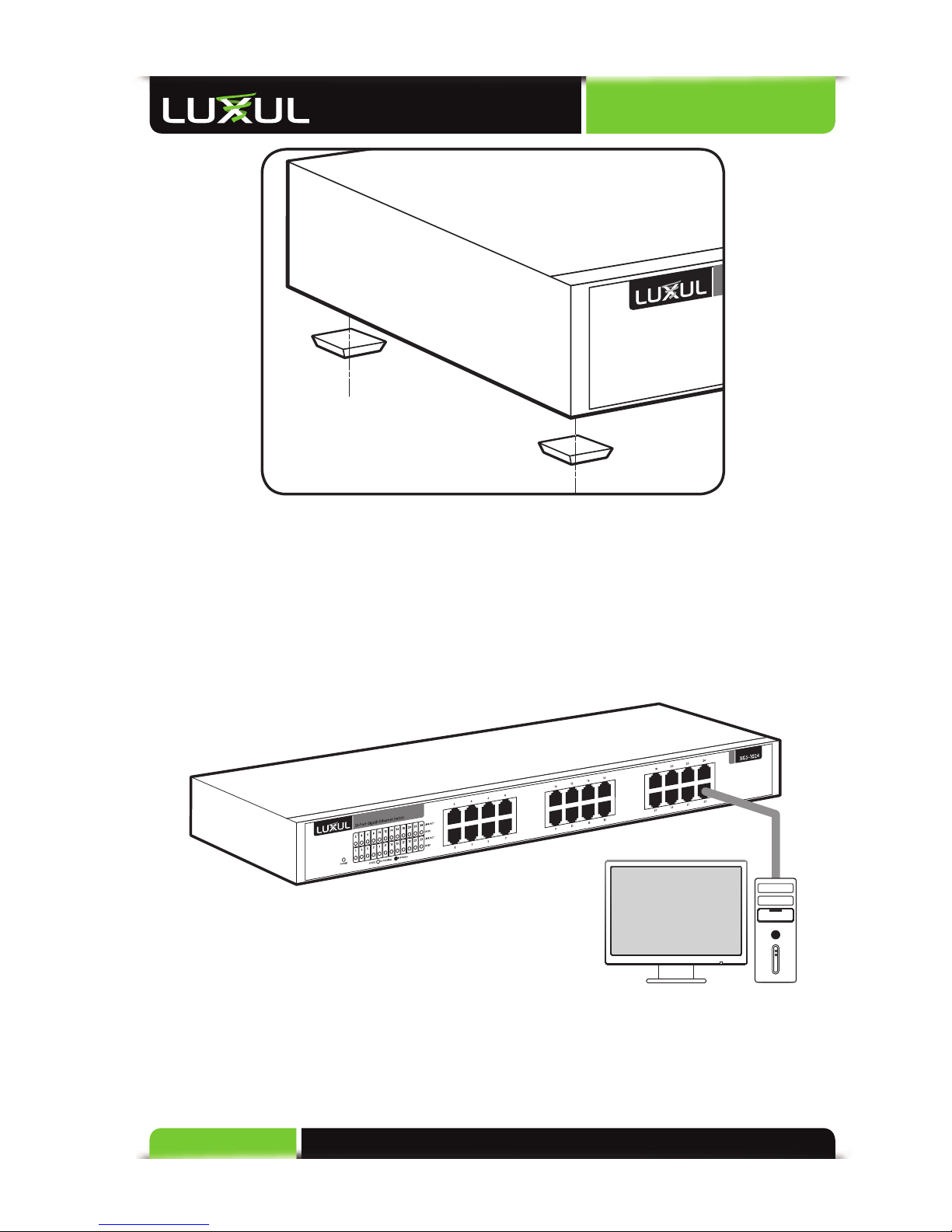
When installing the XGS-1024 on a surface, attach the rubber feet to the bottom
of the device to avoid scratching the surface.
4: XGS-1024 INSTALLATION
4.1 Installing the XGS-1024 in a Rack
The XGS-1024 can easily be installed in a standard 19” rack. The XGS-1024 includes two
mounting ears for installing and stabilizing the switch. For attaching the mounting ears
and installing the switch within a rack, please refer to the following illustration:
Rack-Mounting the XGS-1024
Using the included screws, attach the mounting ears to each side of the switch.
Mount the switch in the rack with the LEDs facing outwards. Be sure the switch is
level and properly secured within the rack.
4.2 Desktop Setup
For use as a desktop device, position and apply the included rubber feet to the
bottom of the XGS-1024.
User Guide
10 © Copyright 2011 Luxul. All rights reserved. Trademarks & Registered Trademarks are property of respective holders.
Attaching the Rubber Feet to the XGS-1024
4.3 Connecting Devices
Use standard Ethernet CAT5, CAT5e, or CAT6 cable to connect the XGS-1024 to
a device as described below (CAT6 must be used in order to achieve full Gigabit
bandwidth). The XGS-1024 will automatically adjust to the characteristics (speed/
duplex) of the device to which it is connected.
Connecting the XGS-1024 to a Device
When a device is properly connected, the Link/Activity LED for each port lights
up green. Please refer to the LED Indicators section for indicator defi nitions and
troubleshooting.
Altri manuali per XGS-1024
2
Indice
Altri manuali Luxul Router di rete

Luxul
Luxul XMS-1024 Manuale utente

Luxul
Luxul Dual-Band AC3100 Manuale utente

Luxul
Luxul XBR-4400 Manuale utente

Luxul
Luxul XBR-2300 Manuale utente

Luxul
Luxul Epic 4 XBR-4500 Manuale utente

Luxul
Luxul XFS-1084P Manuale utente

Luxul
Luxul Epic 5 Manuale utente

Luxul
Luxul Epic 3 Manuale utente

Luxul
Luxul EPIC 4 Manuale utente

Luxul
Luxul XBR-2300 Manuale utente


Manuali Router di rete popolari di altre marche


NETGEAR
NETGEAR FS526T - Switch Manuale utente

Korenix
Korenix JetNet 5710G Series Manuale utente

Automated Logic
Automated Logic ZN551 Manuale del proprietario

Cisco
Cisco ASR 1000 Series Manuale dell'operatore

EnGenius
EnGenius ESR-9710 Manuale utente

Cisco
Cisco 805 Series Istruzioni operative e di sicurezza