
Mach Speed Technologies TRIO V2400 Manuale utente


1
Congratulations on purchasing your Trio Personal Media
Player! To get the most out of your purchase, please take the
time to carefully read through this manual.
Foreword
If any problems occur during while using your Trio, please
feel free to contact Mach Speed technical support at 580-272-0035,
or sending an email to mssupport@machspeed.com. Thank you for
your support and cooperation!
Mach Speed Technologies bears no responsibility for any
damage or loss of personal data due to misuse of software and/or
hardware, damage to the player caused by human factors,
replacement of battery, or other unforeseen circumstances. To
prevent loss of your data, please backup your data regularly.
Information in the manual is subject to any change without
noticeand is subject to copyright protection. Copying or otherwise
reproducing this material without prior written consent is prohibited.
Due to Firmware changes, some of the pictures and
functions described in this manual may not be the same as are
included with your player.
Precautions
If you do not use your Trio for over 24 hours, please switch it
to OFF.

2
Avoid using your Trio under extremely hot, cold, dusty or wet
environments.
Striking, dropping, or severe jolts to your Trio may cause
physical damage, battery loosening, or other hardware
damage.
The following conditions indicates a low battery level and
signifies that the player should be charged:
oThe battery icon displays in normal operation
with low battery prompt.
oWhere there is no response when pressing keys and
the battery icon displays .
oThe player turns off automatically.
Static electricity may cause damage to interior hardware of
the player.
Do not disconnect the player while formatting, uploading, or
downloading files to the player, as it may cause program
errors, or cause the unit to be unable to power on.
When the player is used as a removable hard disk, users
should store files following correct file management methods.
We are not liable for any data loss or damage.
Do not disassemble the unit in any way as this will void all
warranties. Please contact your place of purchase if you
experience any problems with your unit.
3
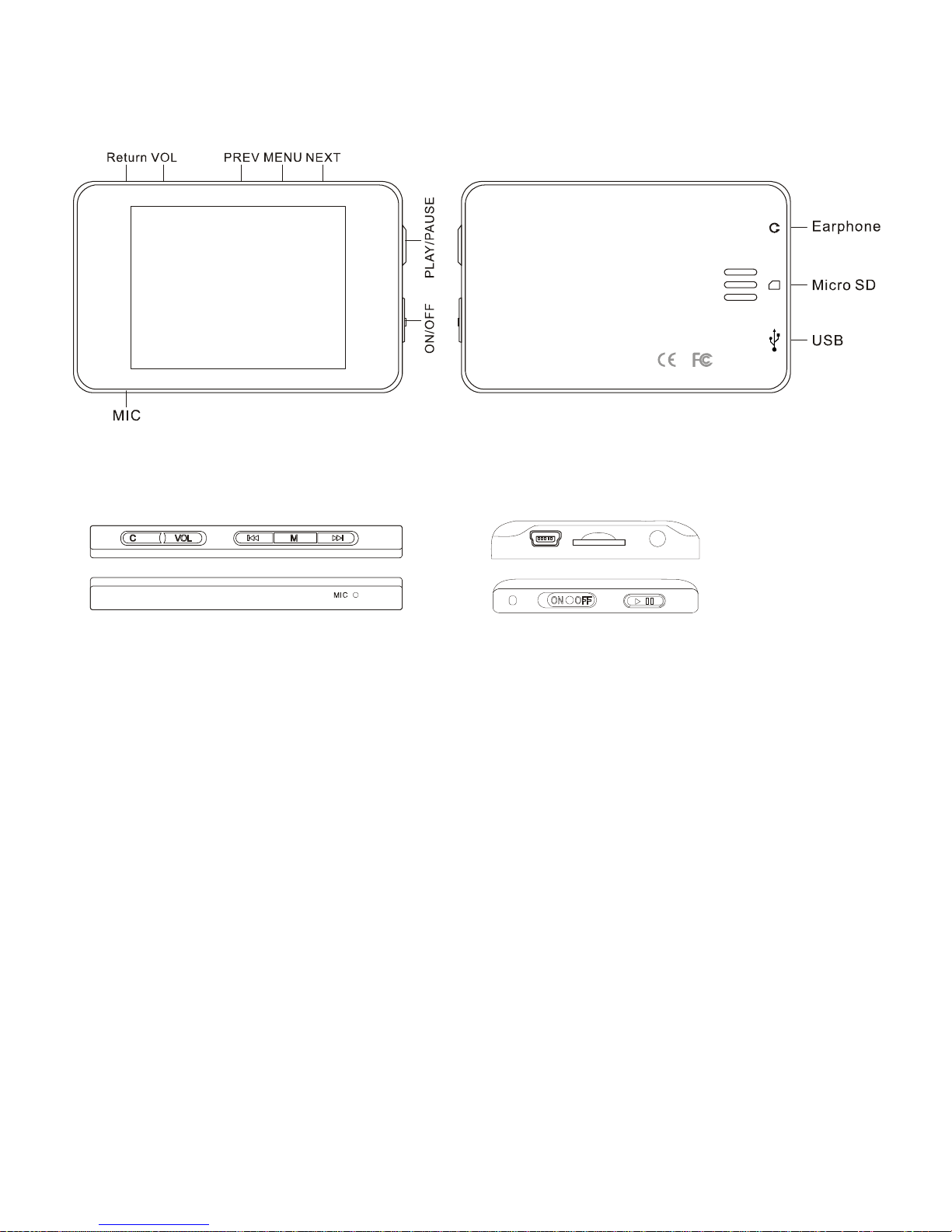
Appearance
Basic operations
1) Power on: Set the ON/OFF switch to the ON position, and press
and hold the [>II] (play/stop) button for 3 seconds.
2) Power off: Press and hold the [>II] (play/stop) button for 5
seconds, until the player powers off. You can then set the ON/OFF
switch to the OFF position.
Note: When battery power is low, the player will automatically
power off.
3) Adjusting volume: In Music, Voice, or Movie modes, press the
[VOL] button, then press [NEXT] or [PREV] button to
decrease/increase the volume.
4
4) Charging the player: To charge your player, set the power
switch to the ON position and connect the player to a powered USB
port. As a general rule, it will take 4-6 hours to completely charge
the battery on the player.
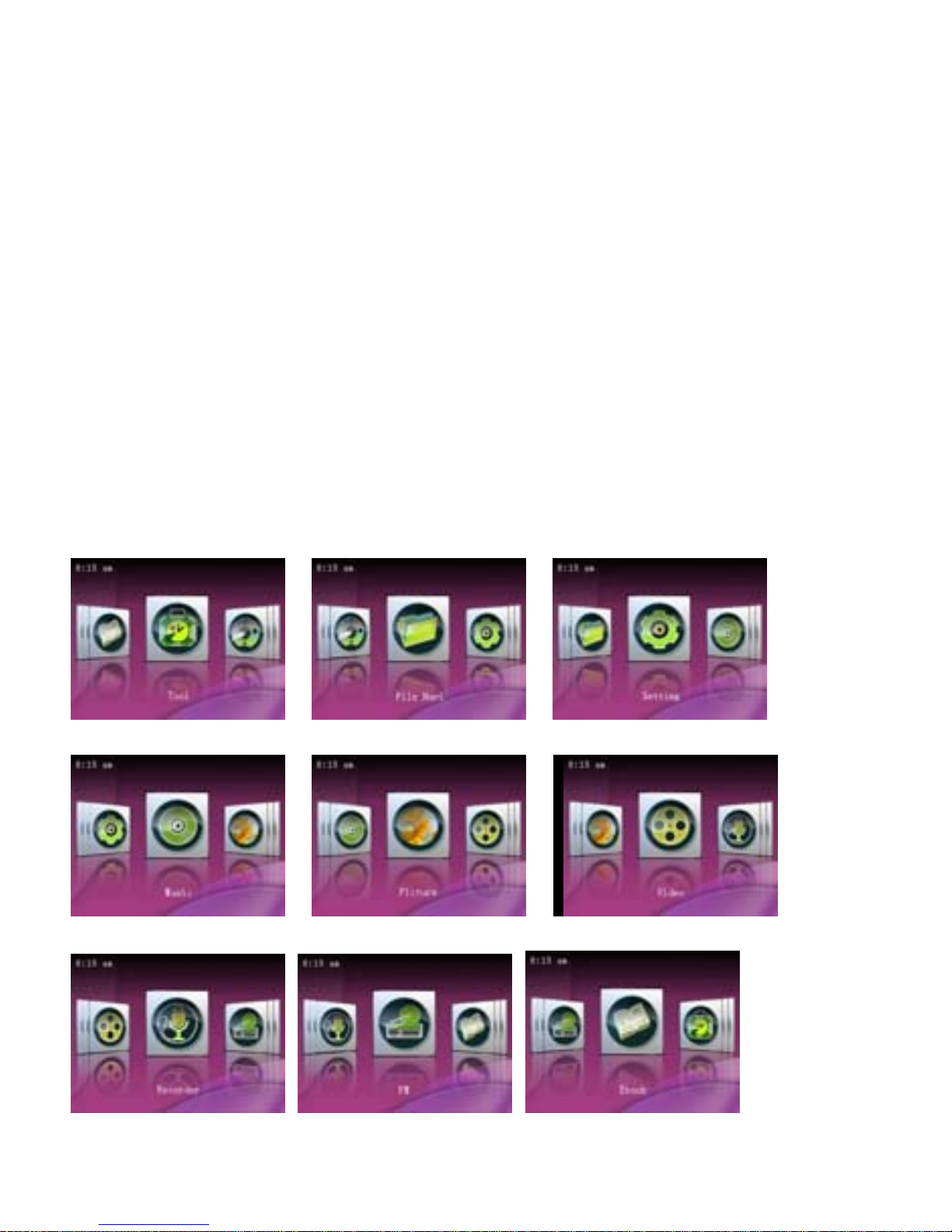
Main menu
The main menu allows you to access the different modes of your
player. You can access the main menu at any time by pressing and
holding the [MENU] button. Use the [NEXT] and [PREV] buttons to
navigate, and press the [MENU] button to make a selection.
5
Music
Music Mode allows you to play your MP3 and WMA audio files.
After entering Music Mode, you will enter the Music selection
screen, which allows you to select which file you wish to play.
Press [PREV] or [NEXT] to select category and press the [MENU]
button to enter the category. Once you have selected a file, press
the [PLAY] button to begin playing the file. Briefly pressing the
[NEXT] or [PREV] buttons will skip to the next or previous track.
Pressing and holding these buttons will fast forward or rewind the
current track. While in the music mode, you can press the [MENU]
button to enter the music submenu.
Music Submenu
AB Repeat- Allows you to begin playing an A-B selection of the
music file. After selecting this feature, briefly press the [PLAY]
button to set the “A” point. Press [PLAY] again to set the “B”
point. Press [PLAY} a third time to play between points A and B
Repeat- Allows you to set the play mode. select either
Sequence (plays each file once), Repeat one (plays a single file
6
over and over again), Repeat all (plays each file over and over),
Shuffle (mix up the order of your audio files) and Shuffle +
Repeat
Select EQ- Select one of 6 equalizer settings
Set Sound- Set up a customized equalizer setting, or one of
several sound effects
Replay Times- Set the number of times you will play your A-B
sequence when A-B mode is activated
Replay Intervals- set the amount if time (in seconds) between
replays of your A-B sequence.
Pictures
Picture Mode allows you to view your digital pictures in JPG, GIF
or BMP formats. Please ensure that the file is 800x600 or smaller
resolution. Larger files will cause lockups and system instability
when the player attempts to access them. Optimum resolution for
picture files on this player is 320x240. After entering picture mode,
you will select the file you wish to view by highlighting the

7
thumbnail of the picture suing [NEXT] or [PREV] and pressing the
[MENU] button. While viewing your pictures you can press the
[MENU] button to enter the picture submenu, or press [PLAY] to
begin showing your pictures as a slideshow
Picture Submenu
Rotate- Allows you to rotate the picture clockwise
either 90, 180, or 270 degrees
Zoom- Allows you to zoom in and out of the picture
Slide Gap- Allows you to set the time a picture will be
displayed before switching to the next in slide show
mode
Slide effect- Allows you to select one of several
special effects displayed when a picture changes in
slideshow mode
Set as desktop background- Set the current picture
as the background display on the player
Set as startup- Set the current picture to display
when powering up, instead of the normal logo
Set as Shutdown- Set the current picture to display
when powering down, instead of the normal logo
Delete the file- Delete the current picture file
Information- Displays the file name, resolution, and
file size
8
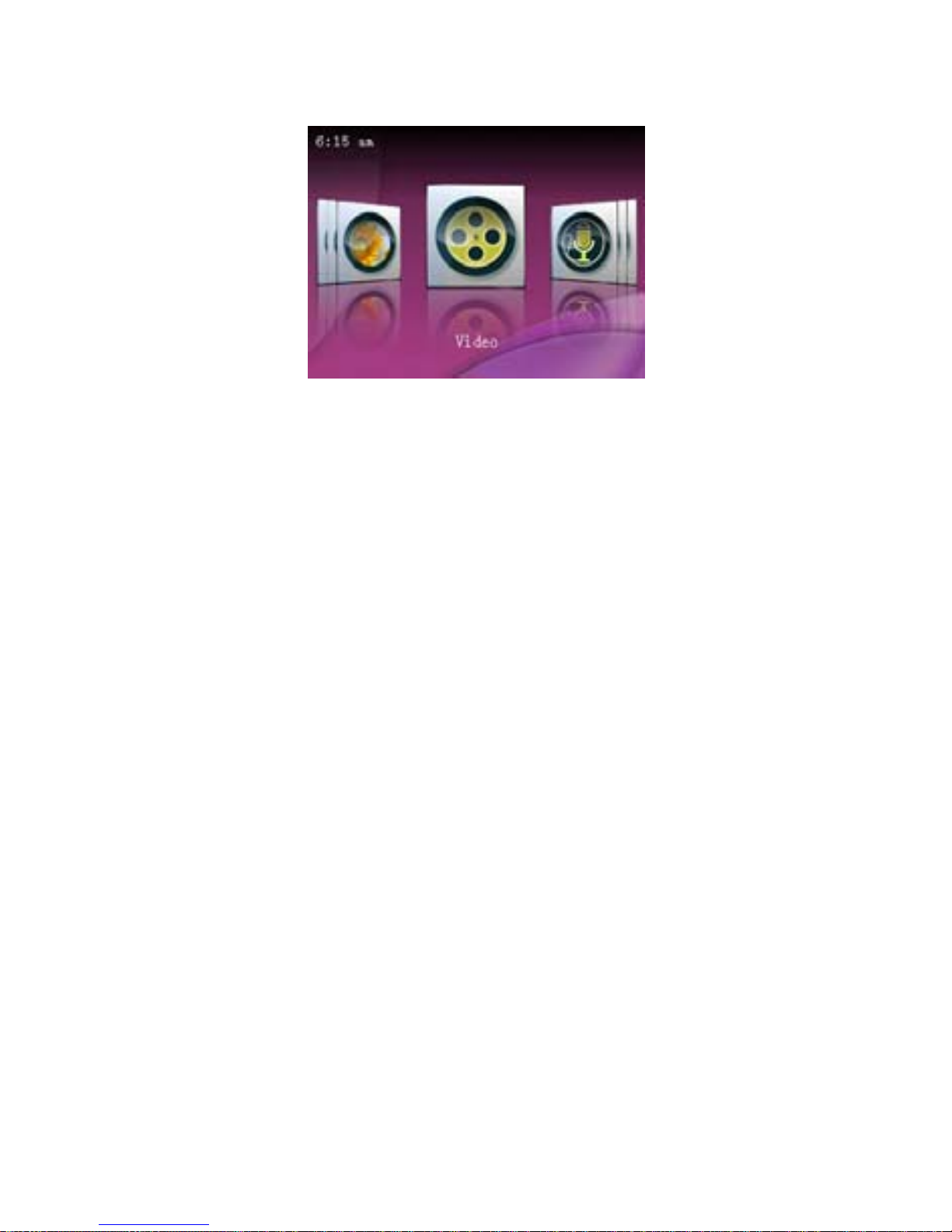
Video
Video mode allows you to watch your favorite AVI video files.
Please ensure that you convert your video files using the enclosed
video conversion software to load the necessary codecs on the file,
even if your file is already in AVI video format. When you first enter
video mode, you will select either “Tag List” or “Dir List”. Tag list
will take you to a list of bookmarks you set for your video files (see
the video submenu section). Dir List allows you to select which file
you would like to play. Once you have selected a file, the file will
begin playing automatically. Briefly pressing the [NEXT] or [PREV]
buttons will skip to the next or previous video. Pressing and
holding these buttons will fast forward or rewind the current video.
While in the video mode, you can press the [MENU] button to
enter the video submenu, which will pause the currently playing
file.
Video Submenu
Playback Mode- Allows you to set the play mode.
select either Sequence (plays each file once), Repeat
9
one (plays a single file over and over again), Repeat
all (plays each file over and over), and Shuffle (mix up
the order of your video files)
Add Bookmark- Set the current point in your video
file as a bookmark which will quickly allow you to
access it in the “Tag List” item on the video selection
screen.
Delete- Delete the current video file
Information- Displays the file name, resolution, and
frame rate
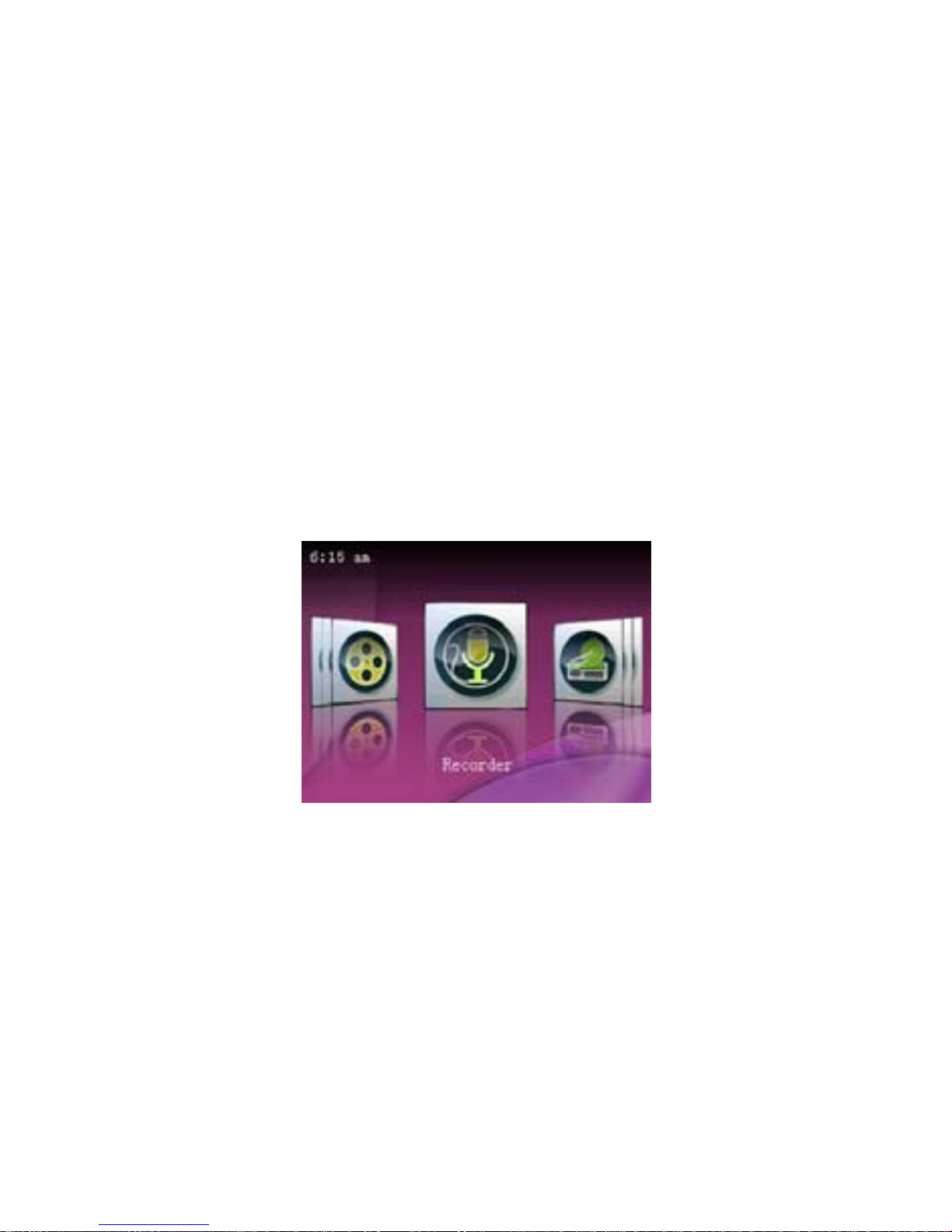
Recorder
Your player’s Voice recorder will allow you to make voice notes on
the go, or record your song demo. When you enter the recorder
mode, select MIC recording and press [MENU]. In the recording
screen, you will see your status at the top of the main screen
stating standby (awaiting a recording), Recording, paused, or
saving. To begin recording briefly press the [PLAY] button to begin
recording, and press it again to pause the recording. To save your
Indice
Altri manuali Mach Speed Technologies Lettore multimediale

Mach Speed Technologies
Mach Speed Technologies Eclipse Touch 2.8V Manuale utente

Mach Speed Technologies
Mach Speed Technologies Eclipse T180 Manuale utente

Mach Speed Technologies
Mach Speed Technologies Eclipse V180 Manuale utente

Mach Speed Technologies
Mach Speed Technologies TRIO T3010 Manuale utente

Mach Speed Technologies
Mach Speed Technologies Trio V7000 Manuale utente

Mach Speed Technologies
Mach Speed Technologies TRIO T3000 Manuale utente


