Magewell USB Fusion Manuale utente

Firmware Version: 2.2.52Firmware Version: 2.2.52 Date: 11/21/2022Date: 11/21/2022

03 Product Overview
05 What's New
06 Getting to Know USB Fusion
10 Getting Started
10
Connecting Devices
15
Connecting to a Third-party Software
17
Producing a Presentation
20 App Tutorials
28 App Guide
29
Downloading the USB Fusion App
29
Connecting to a USB Fusion Device
32
Creating a Presentation
55
Creating Background Music
60
Producing a Presentation
84
Controlling Audio
88
Recording and Taking Screenshots
93
Others
94 Web UI Guide
94
Web UI Layout
96
Accessing the Web UI
103
Viewing Device Information
108
Setting General Functions
94 Web UI Guide
94
Web UI Layout
96
Accessing the Web UI
103
Viewing Device Information
108
Setting General Functions
118
Viewing and Setting the Input
128
Viewing and Setting the Output
138
Setting the Audio
145
Creating and Managing Presentations
160
Managing the Media Files
168
Setting the Device Name
169
Setting USB-C Connection Name
170
Setting the System Time
173
Configuring Network
185
Joining Magewell Cloud
187
Updating Firmware
190
Managing Users
192
Managing Logs
193
Rebooting USB Fusion
194
Resetting USB Fusion
195 FAQs
210 Glossary and Abbreviations
212 Support
TABLE OF CONTENTS
2

Product Overview
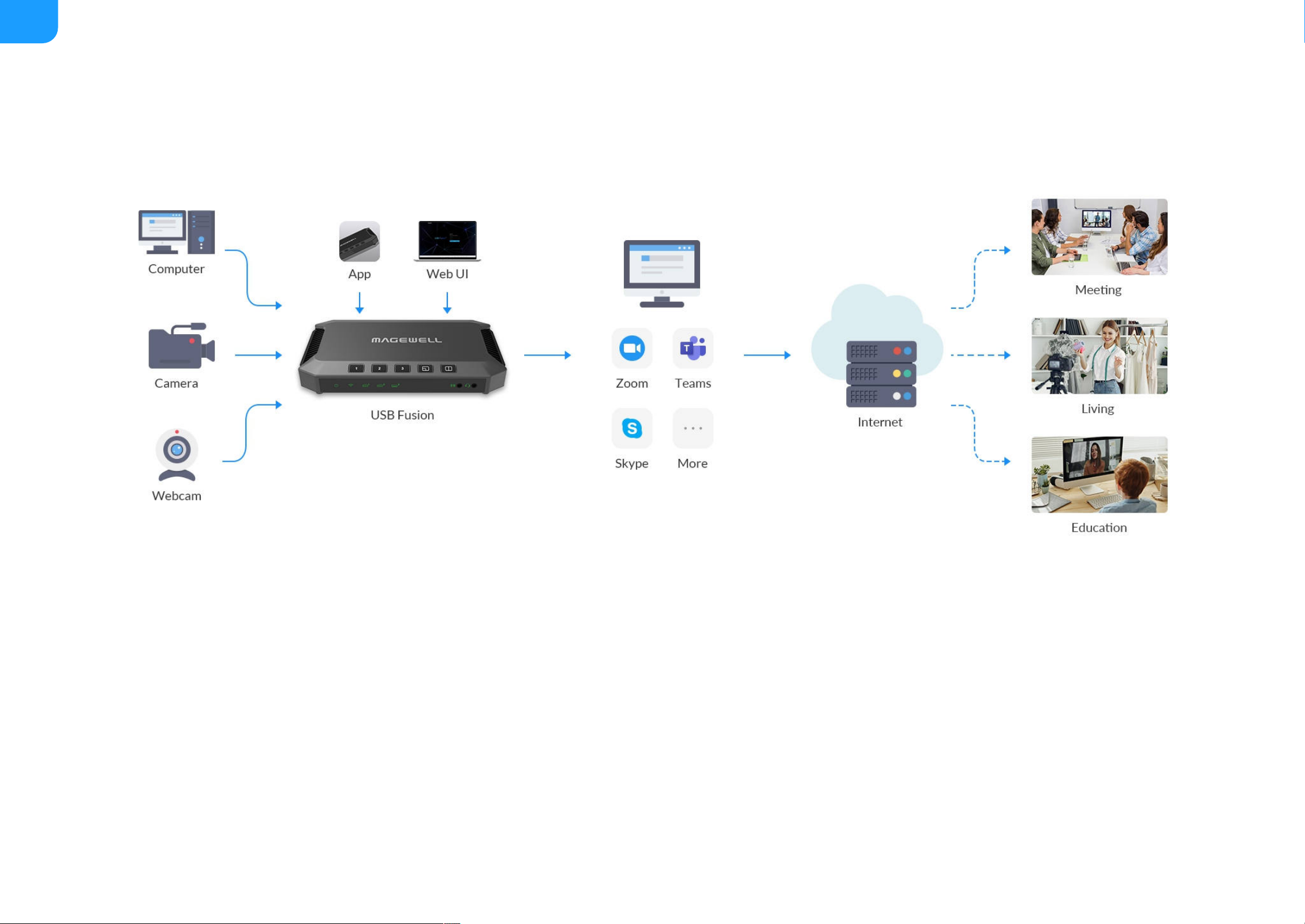
USB Fusion makes your online lectures and virtual events more engaging. Our USB Fusion hardware lets you combine camera and wired screenshare inputs into
attractive live presentations for remote education, webinars, live streaming and more.
USB Fusion is a multi-input USB video capture device with integrated source switching and layout control. Offering two HDMI inputs and one USB webcam input, USB
Fusion can switch between sources or combine two inputs simultaneously into one output (picture-in-picture or side-by-side) for capturing into popular software via
its USB 3.0 interface.
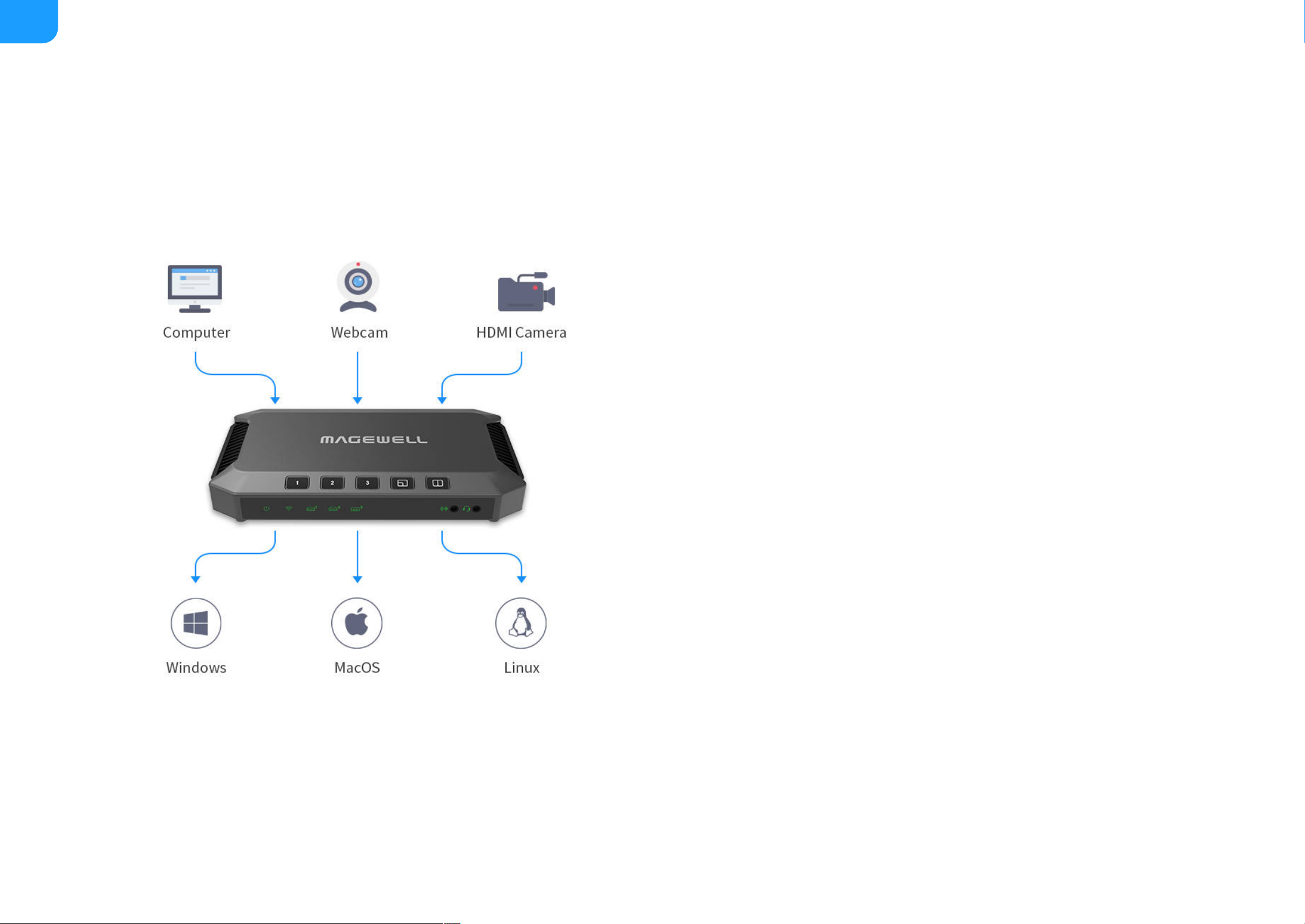
As a standard UVC/UAC device with automatic, driver-free installation, USB Fusion is immediately compatible with a wide range of operating systems and software
applications. Users or administrators can configure and manage the hardware through its built-in Web UI, while the free USB Fusion companion tablet App provides
additional features to augment your presentations.
3

USB Fusion features the following:
Using the USB Fusion companion App, teachers and event hosts can create presentation playlists in advance and incorporate pre-recorded audio and other media
files into their sessions. The App's annotation tools can be used to mark up presentation materials, and the annotations can be exported to a file for sharing after the
class or event. Sessions can also be recorded to the USB Fusion hardware's built-in storage for subsequent playback.
Two HDMI inputs and one USB webcam input with support for signals up to
1080p at 60fps
■
Support multiple scene display modes, such as single view, picture in
picture, and side by side
■
High-quality video processing with zero CPU usage
■
Support importing multimedia files and browsing web pages to enrich
presentations
■
Support more operations and settings through the companion App and
Web UI
■
Support USB 3.0 interface for super-speed data transferring
■
HDMI output for conveniently monitoring source or program
■
Standard UVC/UAC device offering broad compatibility with popular
software
■
Automatic, driver-free installation with support for Windows , Mac and
Linux operating systems
■® ®
®
Registration with Magewell Cloud platform for centralized management
■
4

What's New
This update adds the following features:
Create Scenes Quickly
On the main interface of the App, tap the button to create a scene with a caputured image, imported picture, video or PDF, or web page quickly.
■
Select Preview Quality
On the App, you can preview scenes of different quality to meet different preview requirements, such as making the video smoother, or making the PDF clearer.
■
Login with Pairing Code
The App can log in to the device with a pairing code, which is more flexible for different scenarios with higher security.
■
Set Sleep
You can set Sleep on the Web UI, to make the device going to sleep aftering being idle for a period of time, so as to save power and prolong device life.
■
Auto Backup
You can enable Auto Backup on the Web UI, and log on your Google Drive account, and then USB Fusion will automatically upload your recorded videos and
screenshots to Google Drive.
■
Manual Backup
When you manage the album on the Web UI, you can manually upload your recorded videos and screenshots to Google Drive.
■
Schedule Recording
You can add a recording schedul task on the Web UI, so that USB Fusion will implement automatic recording during the specified time period.
■
Browse Web Page
You can add a web page to a scene and browse it with gestures or tool bar, such as visiting hyperlinks and zooming in or out, and even type in text with the
remote keybord.
■
View PDF
You can add a PDF to a scene and view it with gestures or tool bar, such as turning pages and zooming in or out.
■
5

Getting to Know USB Fusion
This chapter will introduce the indicators, buttons, and ports of USB Fusion, and tell you how to get the App and log in the Web UI, as well as system requirements.
USB Fusion Device
6

7

USB Fusion App
With the USB Fusion App, you can create presentations, switch scenes, make
annotations, and record your presentations. You can make flexible
presentations easily.
The USB Fusion App supports iOS 12 and later and Android 7.0 and later. You
can search for USB Fusion in the app store or scan the QR code to download.
Web UI
USB Fusion provides a Web UI for user to check device status, configure device
functions, create and manage presentations, and more.
1. On the computer connected to the USB OUT port, open a browser and
access 192.168.66.1.
2. Enter the default username Admin and password Admin to log in.
You can also access the Web UI through other ways. Refer to Accessing the
Web UI.
Currently the App is available only on tablets.
Linux, macOS 10.12 and later, and Windows 10 19H1 and above
are supported
8

Computer Configuration
Operating System Versions
Computer Port
To connect the USB OUT port of the USB Fusion, to receive PROGRAM scenes
output from the USB Fusion
Tablet Version
To install the USB Fusion App for making presentations
Browsers Compatible with Web UI
To log in the Web UI for more advanced settings and presentation operating
Compatible Software
The software to connect the USB Fusion and use PROGRAM scenes output
from the USB Fusion for online classes, meeting or live streaming.
System Requirements
Windows
Windows 7 and later, Server 2008 and later (x86 & x64)
■
Linux
Linux system with kernel 2.6.35 and later (x86, x64 & ARM)
■
Mac
OS X 10.9 and later, macOS 10.12 and later
■
USB 3.0 port (recommended)
■
iOS 12 and later
■
Android 7.0 and later
■
Google Chrome version 49 and later
■
All Microsoft Edge versions
■
Apple Safari 11.1 and later
■
Opera 55.0.2994.44 and later
■
Skype
■
Zoom
■
Microsoft Teams
■
Other UVC/UAC-compliant software
■
9

Connecting Devices
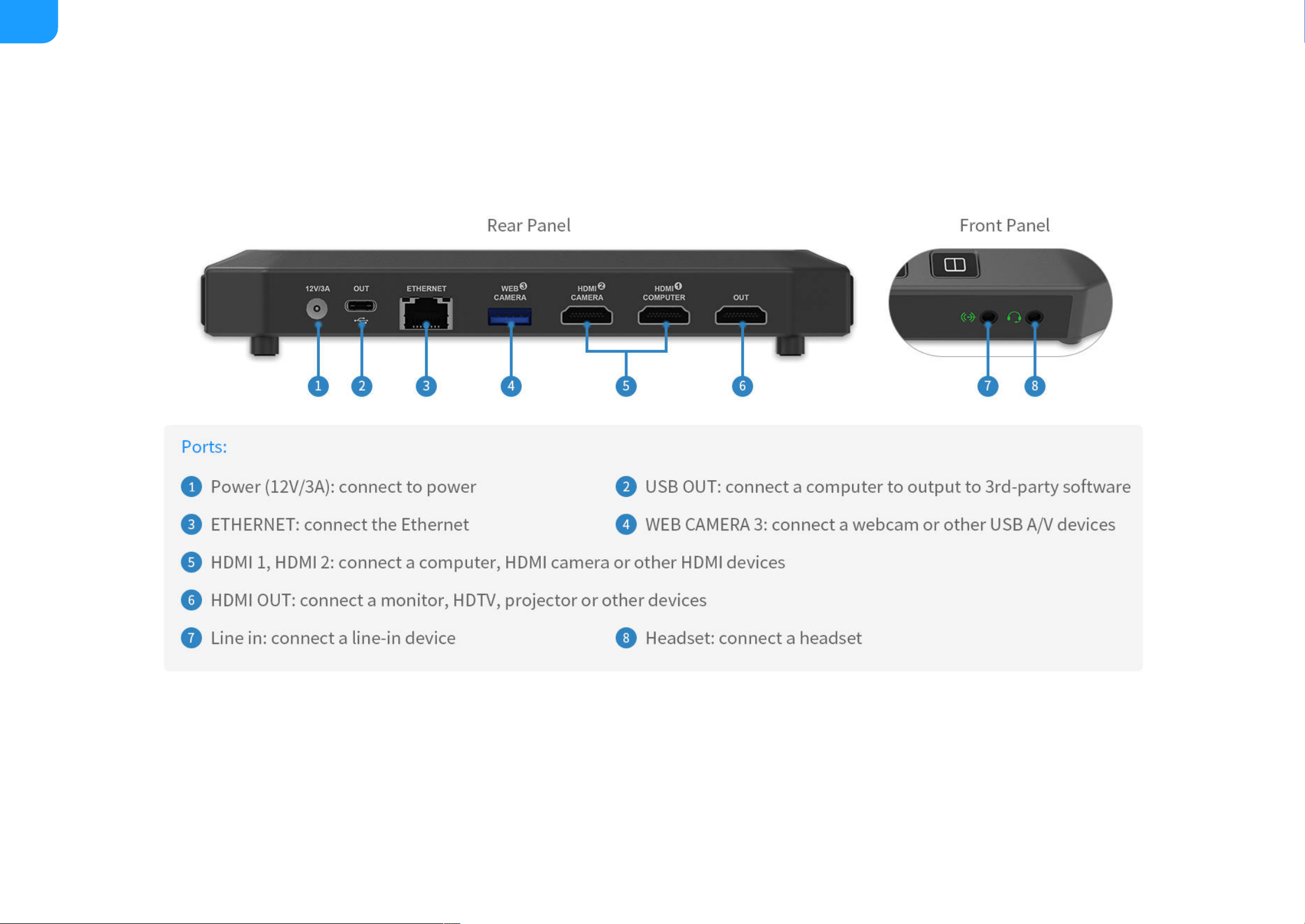
To use USB Fusion, you need to first connect power, network and various
video/audio devices. USB Fusion supports the following connections:
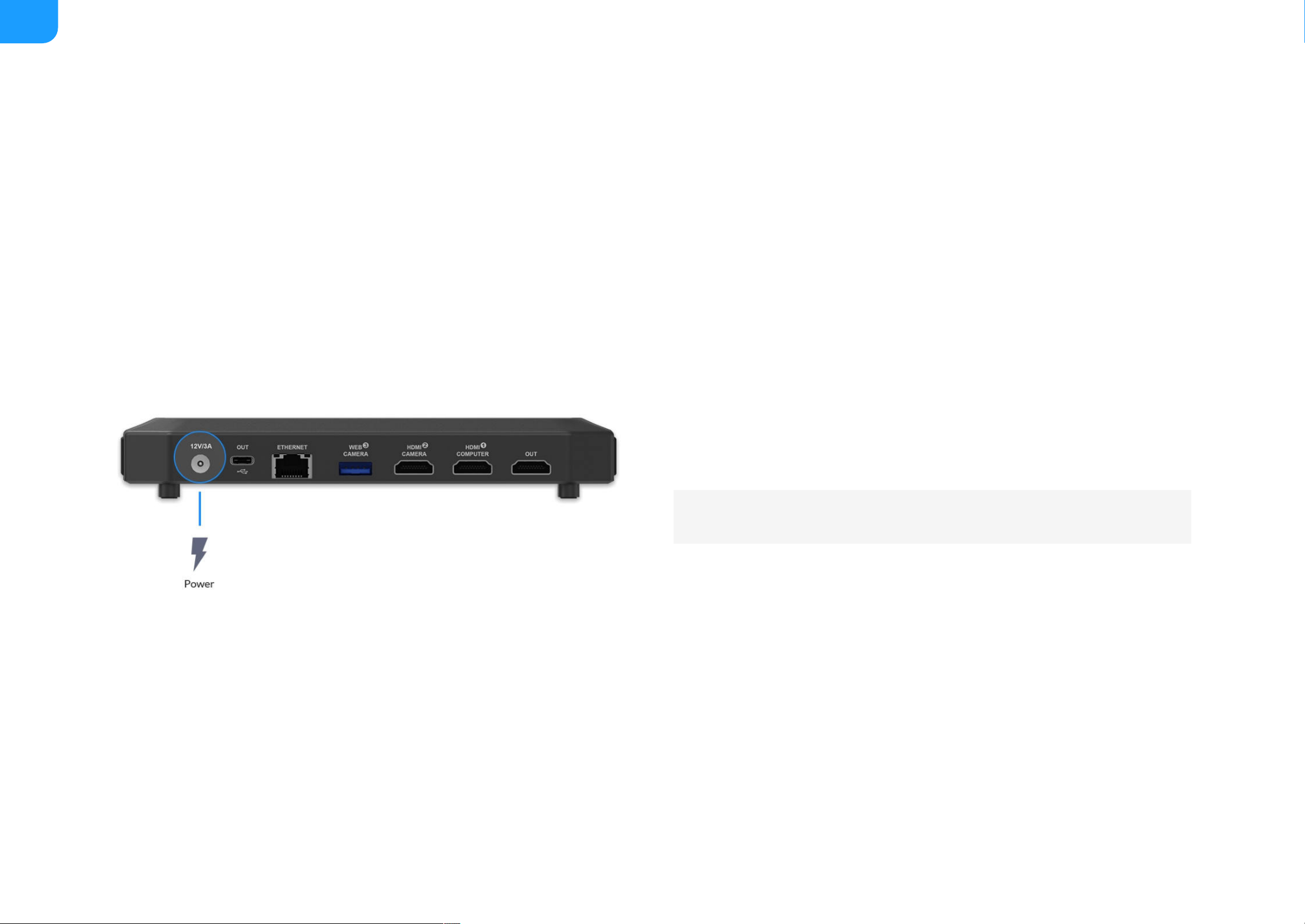
Connecting to Power
Use the supplied power adapter to connect the power port on USB Fusion and
power supply. After connected, the power indicator lights up.
Getting Started
USB Fusion is easy to use. No complicated configuration is required to implement high-quality capture and production. This chapter tells you how to use USB Fusion
and App for your presentation.
The device starts working after connected to power.
10
Altri manuali per USB Fusion
1
Indice
Manuali Hardware di rete popolari di altre marche

Matrix Switch Corporation
Matrix Switch Corporation MSC-HD161DEL Manuale utente

B&B Electronics
B&B Electronics ZXT9-IO-222R2 Manuale utente

Yudor
Yudor YDS-16 Manuale utente

D-Link
D-Link ShareCenter DNS-320L Manuale utente

Samsung
Samsung ES1642dc Istruzioni per l’uso

Honeywell Home
Honeywell Home LTEM-PV Istruzioni per il montaggio