
Marea Smart B60002 Manuale utente
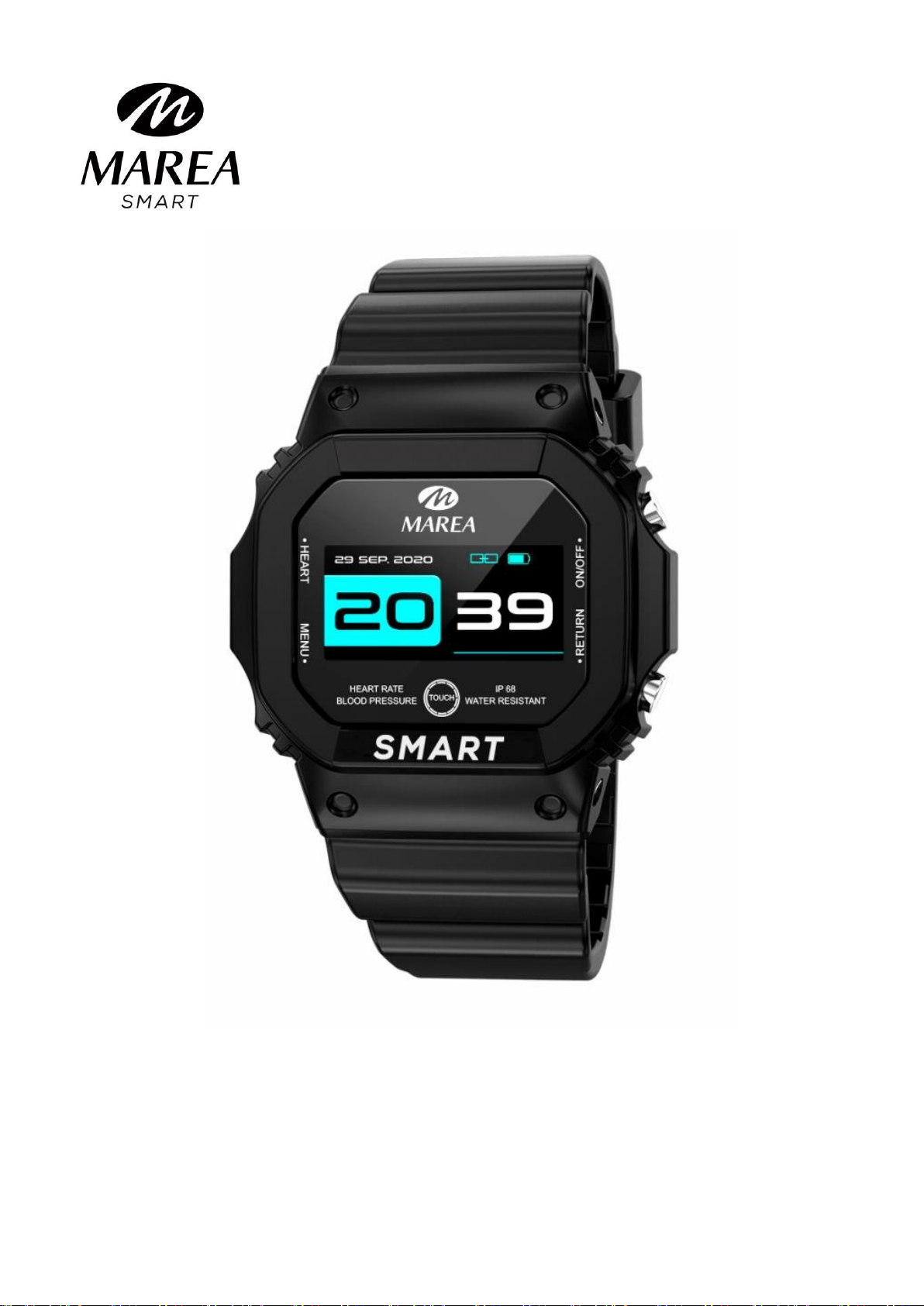
B60002
User Manual
Please read this manual before using the product to
fully understand its use and operation.

CAUTION:
The company reserves the right to modify the contents of this
guide without any further notification. Some functions may
vary in certain versions of software.
Please charge this product with the charger provided for no
less than 2 hours before using it for the first time. Use only the
charger that is included with the product. Make sure that the
charger and the smartwatch are properly connected while
charging. Do not charge if the watch has water (or sweat) to
avoid short circuits and damaging the product.
Avoid hitting the smartwatch, it could break the glass.
The waterproof rank is IP68, therefore the smartwatch can be
used for daily life. But the smartwatch cannot be used for
diving or be under water for a long time. In addition, the
smartwatch cannot be used in shower/baths with hot water
(since the water steam will damage it) or in salt water (as if it
gets into the watch, it will corrode the internal parts).
System Requirements:
Android: Android 4.4 or above
iPhone: iOS 8.0 or above
Bluetooth: 4.0
Download and install the application
1.Go to our website www.mareasmart.com and find your
smartwatch model. The model number is found on the back of the
smartwatch (it starts with “B” and is followed by five digits).
2.Download and install on your phone the official app that
corresponds with your smartwatch model.
3.Open the app and enable all the permissions that the app
requests.
4.Turn on Bluetooth on your phone.

5.Make sure that the smartwatch has not been linked directly
through Bluetooth to your phone. If so, unlink it.
6.Bind your Marea Smart through the app.
Notes on linking:
Only one smartwatch pairing application should be installed
on the phone to ensure that the connection with the
smartwatch is normal. If several applications are connected,
they can affect the connection between the watch and the
phone. Some Android phones will prompt you that you cannot
install them. Please go to phone settings and authorize the
‘Unknown source’.
When the mobile phone requests permissions, click "Allow".
On the contrary, you may not receive notifications, scan QR
codes, open the remote camera or use other functions. These
permissions do not affect the flow of the phone or other
information on the phone.
Some Android phones may accidentally close the app when
cleaning the applications. Please keep the app running in the
background. To turn on this function on your phone: open the
phone settings - application management –official application
- rights management - backstage management - select
background running. The setting method may be different
due to different mobile phone versions and models.
For iPhone: if the phone is in standby or hibernation mode for
a long time (for example, for 2 hours or more the phone has
not been in use and the screen is off), the application will be
closed by the iOS system , so the application and the watch
will be disconnected and the application functions will not be
available. Re-activate the phone and it will automatically
reconnect.

Operation of smartwatch
Home screen selection
-Long press the touch screen to change the home screen.
There are 3 different styles to choose from:
Turn on/off
-Press and hold the upper button to turn on/off the
smartwatch.
-Short press the upper button or touch the screen to activate
the watch when in standby mode.
Access main menu
-Touch the screen to enter the main menu.
-Touch the screen to go from one function to the next.
-Long press the screen to enter each function submenu.
Main functions in smartwatch
The main menu includes the following functions:
Steps
Shows the steps taken on the current
day. The data is cleared at 00:00 every
day. You can check the historical data on
the app.
Calories
Shows the calories consumed on the
current day. The data is cleared at 00:00
every day. You can check the historical

data on the app.
Distance
Shows the distance walked on the
current day. The data is cleared at 00:00
every day. You can check the historical
data on the app.
Sleep
If you have worn the watch during the
previous night, it shows the sleep time of
last night. On the app you can check the
historical data, as well as sleep info in
more detail.
Heart
Includes heart rate, blood pressure
and blood oxygen tests.
Long press the screen to enter the
interface. The heart rate measurement
will start automatically. Wait until the
test ends and the result will be shown on
the screen. Short press the screen to
start the blood pressure test and short
press again to start the blood oxygen
test. All test results will be saved in more
detail on the app.
Heart rate
Takes a heart rate
measurement.
Blood pressure
Takes a blood pressure
measurement.
Blood oxygen
Takes a blood oxygen
measurement.
Notes on health functions:
Heart rate, blood pressure and blood oxygen monitoring
require the watch and arm to be in contact, and the watch
should not be too tight or too loose. The test can be
inaccurate if it is too tight because it will affect blood flow,
and if it is too loose because it will affect the monitoring of
the heart rate sensor.
The results of the smartwatch measurements are for
reference only and cannot substitute in any case for any
medical test. Please follow your doctor's instructions and do
not rely solely on these results for an evaluation.
Training
Includes 7 different sport modes
(running, cycling, badminton, football,
pingpong, skipping, tennis).
Long press the screen to enter the
interface. Short press to go to the next
sport mode. Long press the screen on the
desired sport to start the measurement.
Short press the screen to see the diferent
units that are being measured. Long
press to pause/continue. To exit, long
press to pause and then short press to

return to previous menu.
Messages
Shows the last 3 messages / notifications.
Long press the screen to enter the
interface. Short press to go to the next
message. The last notification received
will replace the oldest one. The phone
and the watch must be linked and within
the Bluetooth range. On the app you can
select what type of notifications you
want to receive on the smart watch.
More Functions
Long press the screen to enter its
menu and short press to go to the
next function. Includes the following
options:
Brightness
You can
increase/decrease the
brightness of the
screen. Long press the
screen to enter its
interface and short
press to select the
next level of
brightness. Long press
to return to the
previous menu. The
brighter it shines, the
more battery it will
use.
Find phone
Long press the screen
and the paired phone
will ring so you can
find it. The phone and
the watch must be
paired and within the
Bluetooth range.
About
Long press the screen
to see the Mac
address and version
number. Short press
the screen to exit.
QR Code
Long press the screen
to see the QR code
that you can scan with
your phone to
download the app.
Short press the screen
to exit.
Reset
Long press the screen
to reset the
smartwatch to factory
settings. This function
will erase all the data
saved on the smart
watch.
Off
Long press the screen
to turn off the
smartwatch.
Main functions on the app (they can only be used if the smart
watch is linked)
Notifications
Activate notifications for each of the apps you want to receive
notifications from on your watch. When the phone receives
incoming calls, text messages or new notifications from the
activated apps, these notifications are received on the smart watch
as well. The last 3 messages / notifications can be viewed in the
message interface on the smart watch.
Data synchronization
If the watch is successfully linked to the app, click to synchronize
the lastest data from the watch to the app.

Camera remote control
The camera on the phone will open and a camera icon will appear
on the smart watch. Shake the smart watch and the phone will take
a photo. The photo will be saved in the phone’s gallery.
Note: When the camera usage request appears, select “Allow”.
Raise wrist to turn on screen
If this function is activated, the smart watch’s screen will turn on
when you lift your wrist.
Sedentary reminder
If this function is activated, when you have been in the same
position for a long time, the smart watch will vibrate and show a
sedentary icon to remind you to get up and move.
Drink water reminder
If this function is activated, the smart watch will vibrate and show a
water icon to remind you to drink water.
Questo manuale è adatto per i seguenti modelli
7
Indice
Altri manuali Marea Smart Orologio

Marea Smart
Marea Smart B58001 Manuale utente

Marea Smart
Marea Smart B59001 Manuale utente

Marea Smart
Marea Smart B57008 Manuale utente

Marea Smart
Marea Smart B58002 Manuale utente

Marea Smart
Marea Smart B58007 Manuale utente

Marea Smart
Marea Smart B59004 Manuale utente

Marea Smart
Marea Smart B58008 Manuale utente

Marea Smart
Marea Smart B60001 Manuale utente

Marea Smart
Marea Smart B61001 Manuale utente

Marea Smart
Marea Smart B61002 Manuale utente


