Matco Tools MAXIMUS PRO HD Manuale utente

I
User Manual MDMAXPROHD
2311226-16
www.matcotools.com 877-853-3738
WARNING
Study, understand and follow all instructions provided with this product. Read these instructions carefully
before installing, operating, servicing or repairing this tool. Keep these instructions in a safe, accessible
place.
Caution:To help prevent personal injury,
1. Always perform automotive testing in a safe environment.
2. Do not connect or disconnect any test equipment while the ignition is on or the engine is running.
3. DO NOT attempt to operate the tool while driving the vehicle. Have second personal operate the tool.
Any distraction may cause an accident.
4. Before starting the engine, put the gear lever in the Neutral position (for manual transmission) or in
the Park (for automatic transmission) position to avoid injury.
5. NEVER smoke or allow a spark or flame in vicinity of battery or engine. Do not operate the tool in
explosive atmospheres, such as in the presence of flammable liquids, gases, or heavy dust.
6. Keep a fire extinguisher suitable for gasoline/chemical/electrical fires nearby.
7. Wear an ANSI-approved eye shield when testing or repairing vehicles.
8. Put blocks in front of the drive wheels and never leave the vehicle unattended while testing.
9. Use extreme caution when working around the ignition coil, distributor cap, ignition wires and spark
plugs. These components create hazardous voltage when the engine is running.
10.To avoid damaging the tool or generating false data, please make sure the vehicle battery is fully
charged and the connection to the vehicle DLC (Data Link Connector) is clear and secure.
11. Automotive batteries contain sulfuric acid that is harmful to skin. In operation, direct contact with the
automotive batteries should be avoided. Keep the ignition sources away from the battery at all times.
12.Keep the tool dry, clean, free from oil, water or grease. Use a mild detergent on a clean cloth to clear
the outside of the equipment when necessary.
13.Keep clothing, hair, hands, tools, test equipment, etc. away from all moving or hot engine parts.
14.Store the tool and accessories in a locked area out of the reach of children.
15.Do not use the tool while standing in water.
16.Do not expose the tool or power adapter to rain or wet conditions. Water entering the tool or power
adapter increases the risk of electric shock.
1 7. When an engine is operating, keep the service area well-ventilated or attach a building exhaust
removal system to the engine exhaust system. Engines produce various poisonous compounds
(hydrocarbon, carbon monoxide, nitrogen oxides, etc.) that cause slower reaction time and result in
death or serious personal injury.
INTENDED USE OFTHETOOL
Compatible with heavy-duty and commercial vehicles, the MDMAXPROHD diagnostic tool is exclusively
intended for professional technicians.
Do not use this tool outside of the designed intent. Never modify the tool for any other purpose or use.
PRODUCT INFORMATION
Made in China
to Matco specifications

II
User Manual MDMAXPROHD
www.matcotools.com 877-853-3738
2311226-16
Using This Manual
This manual contains device usage instructions.
Some illustrations shown in this manual may contain modules and optional equipment that are not included
in your system.
Conventions
The following conventions are used.
Notes
A NOTE provides helpful information such as additional explanations, tips, and comments.
Example:
Note: In general, vehicle identification numbers are standardized - all contain 17 characters. VIN
characters may be capital letters A through Z and numbers 1 through 0; however, the letters I, O and Q
are never used in order to avoid mistakes of misreading. No signs or spaces are allowed in the VIN.
Warning
WARNING indicates a hazardous situation which, if not avoided, could result in minor or moderate injury to
the operator or to bystanders.
Example:
Warning: Retrieving and using DTCs for troubleshooting vehicle operation is only one part of an overall
diagnostic strategy. Never replace a part based only on the DTC definition. Each DTC has a set of testing
procedures, instructions and flow charts that must be followed to confirm the location of the problem. This
information can be found in the vehicle’s service manual.
Danger
DANGER indicates an imminently or potentially hazardous situation which, if not avoided, could result in
death or serious injury to the operator or to bystanders.
Example:
Danger: If you must drive the vehicle in order to perform a troubleshooting procedure, always have
a second person help you. Trying to drive and operate the diagnostic tool at the same time is dangerous,
and could cause a serious traffic accident.
Illustrations
Illustrations used in this manual are samples, the actual testing screen may vary for each vehicle being
tested. Observe the menu titles and on-screen instructions to make correct option selection.
Compliance Information
FCC ID: 2AUKMMAXFLEXPRO
Any changes or modifications not expressly approved by the party responsible for compliance could void
the user’s authority to operate the equipment.
This device complies with Part 15 of the FCC Rules. Operation is subject to the following two conditions:
(1) This device may not cause harmful interference, and
(2) This device must accept any interference received, including interference that may cause undesired
operation.
Note: This equipment has been tested and found to comply with the limits for a Class B digital device,
pursuant to part 15 of the FCC Rules. These limits are designed to provide reasonable protection against
harmful interference in a residential installation. This equipment generates, uses and can radiate radio

III
User Manual MDMAXPROHD
2311226-16
www.matcotools.com 877-853-3738
frequency energy and, if not installed and used in accordance with the instructions, may cause harmful
interference to radio communications. However, there is no guarantee that interference will not occur in
a particular installation. If this equipment does cause harmful interference to radio or television reception,
which can be determined by turning the equipment off and on, the user is encouraged to try to correct the
interference by one or more of the following measures:
- Reorient or relocate the receiving antenna.
- Increase the separation between the equipment and receiver.
- Connect the equipment into an outlet on a circuit different from that to which the receiver is connected.
- Consult the dealer or an experienced radio/TV technician for help.
The device has been evaluated to meet general RF exposure requirement. The highest reported SAR for
stand-alone and simultaneous transmission exposure conditions are below the maximum value. End-users
must be informed of the operating requirements for satisfying RF exposure compliance.

IV
User Manual MDMAXPROHD
www.matcotools.com 877-853-3738
2311226-16
Table of Contents目目
1 Introduction................................................................................................................................................ 1
1.1 Product Profile........................................................................................................................................... 1
1.2 Accessory Checklist .................................................................................................................................. 2
2 Components & Controls............................................................................................................................ 4
2.1 Display Tablet ............................................................................................................................................ 4
2.2 VCI Device ................................................................................................................................................ 6
2.3 Technical Specifications ............................................................................................................................ 7
3 Initial Use.................................................................................................................................................... 8
3.1 Charging the Tablet ................................................................................................................................... 8
3.2 Power ON/OFF ......................................................................................................................................... 8
3.3 Locator & Navigation Buttons................................................................................................................... 8
3.4 Wi-Fi Setup ............................................................................................................................................... 9
3.5 Adjust Brightness ..................................................................................................................................... 9
3.6 Change System Language........................................................................................................................ 9
3.7 Set Standby Time...................................................................................................................................... 9
4 Getting Started..........................................................................................................................................10
4.1 User Registration.....................................................................................................................................10
4.2 Basic Operations on Diagnostic App .......................................................................................................12
4.2.1 Switch between different function modules ..................................................................................12
4.2.2 How to arrange diagnostic vehicle software icons? .......................................................................12
4.2.3 How to distinguish if the software is locked or not? ......................................................................12
4.3 Function Modules ....................................................................................................................................13
4.3.1 Diagnostics.....................................................................................................................................13
4.3.2 Toolbox...........................................................................................................................................13
4.4 Diagnostics toolbar ..................................................................................................................................14
5 Start Diagnostics...................................................................................................................................... 15
5.1 Connections.............................................................................................................................................15
5.1.1 Preparation......................................................................................................................................15
5.1.2 Vehicle Connection..........................................................................................................................15
5.2 Communication Settings .........................................................................................................................15
5.3 Start Diagnostics .....................................................................................................................................16
5.3.1 System Scan...................................................................................................................................16
5.3.2 Manual Diagnosis ...........................................................................................................................16
5.4 Diagnostic History (Previous Session) ................................................................................................... 22
5.5 HD Reset................................................................................................................................................ 23
6Toolbox...................................................................................................................................................... 24
6.1 Maximus Fix HD .................................................................................................................................... 24
6.2 Saved Report .......................................................................................................................................... 24
6.3 Update.................................................................................................................................................... 24
6.3.1 Update Diagnostic Software & APP .............................................................................................. 24
6.3.2 Update Frequently Used software................................................................................................. 25
6.4 Tech 2 Tech .............................................................................................................................................. 25
6.4.1 Add Friends.................................................................................................................................... 26
6.4.2 Start Instant Messaging ................................................................................................................ 26
6.4.3 Launch Remote Diagnosis (Scanner to Scanner)........................................................................... 27
6.4.4 Launch Remote Diagnosis (Scanner to PC)................................................................................... 29


V
User Manual MDMAXPROHD
2311226-16
www.matcotools.com 877-853-3738
6.5 Settings................................................................................................................................................... 30
6.5.1 General .......................................................................................................................................... 30
6.5.2 VCI ................................................................................................................................................. 31
6.5.3 VCI Management ........................................................................................................................... 31
6.5.4 ROXIE MANAGEMENT ................................................................................................................. 31
6.5.5 Color Theme .................................................................................................................................. 31
6.5.6 MD Printer Connection.................................................................................................................. 32
6.5.7 Shop Information........................................................................................................................... 32
6.5.8 Shop Management........................................................................................................................ 32
6.5.9 Favorites ........................................................................................................................................ 32
6.5.10 Hide or Remove Software............................................................................................................ 32
6.5.11 Backup/Restore............................................................................................................................ 33
6.6 Feedback ................................................................................................................................................ 33
6.7 Videoscope ............................................................................................................................................. 33
6.8 MaxSensor ............................................................................................................................................. 33
6.9 About ...................................................................................................................................................... 33
7 FAQ ........................................................................................................................................................... 34

Safety & Accessory
Initial UseDiagnosticsFAQ & Appendix Product Profile
1
2311226-16
www.matcotools.com 877-853-3738
User Manual MDMAXPROHD
1 Introduction
1.1 Product Profile
MAXIMUS PROHD (MDMAXPROHD) is an evolutionary smart solution for specialized heavy-duty vehicle
diagnosis and maintenance. It inherits from advanced diagnosing technology and is characterized by
covering a wide range of vehicles, featuring powerful functions, and providing precise test result.
Through the wireless communication between VCI dongle and MDMAXPROHD tablet, it achieves full car
model and full system vehicle trouble diagnosis, which include Reading DTCs, Clearing DTCs, Reading Data
Stream, Actuation Test and Special Functions.
Moreover, taking advantage of the mobile Internet, it also integrates One-click Update, Tech 2 Tech (Remote
Diagnosis) and Repair Data, which helps to diagnose vehicle issues more efficiently, and greatly increase
customer’s retention and boost shop revenue.
MDMAXPROHD adopts a high performance-price ratio display tablet, which comes loaded with the
powerful 4-core 2.0GHz processor, 4G RAM, and a 10.1” IPS capacitive touch screen with a resolution of
1280 x 800 dots.
It supports the following functions:
• System Scan: This module allows you to quickly scan and access all available systems installed on the
test vehicle.
• Local Diagnosis: To perform diagnosis by executing on-screen commands step by step. Diagnosis
functions include: Read DTCs, Clear DTCs, Read Data Stream, Special Functions, etc.
• Tech 2 Tech (Remote Diagnosis): This option aims to help repair shops or technicians launch instant
messaging and remote diagnosis, making the repair job getting fixed faster.
• HD Service Reset: It offers coding, reset, relearn and more service functions, to help vehicles get back
to functional status after repair or replacement. Available tests vary by vehicle manufacturer, year, and
model.
• CAN BUS Pin Detection: Allows you to detect the voltage of the vehicle OBD II diagnostic socket pins
and the supported protocol types to help technicians judge the OBD II diagnostic interface.
• One-click Update: Lets you update your diagnostic software online.
• Diagnostic History (Previous Session): Provides a quick access to the tested vehicles and users can
choose to view the test report or resume from previous diagnostic session, without starting from scratch.
• Diagnostic Feedback: Enables you to submit the vehicle issue to us for analysis and troubleshooting.
• Vehicle Coverage: Quick dial to view the vehicle models that MDMAXPROHD covers.
• Backup/Restore: This feature lets you back up the recorded files to external storage device/restore the
recorded data from the external storage device.
• Add-on Modules: Video Scope and MaxSensor (sold separately) are available as add-on modules of the
MDMAXPROHD.

Safety & Accessory Initial Use Diagnostics FAQ & Appendix
Product Profile
2www.matcotools.com 877-853-3738
2311226-16
User Manual MDMAXPROHD
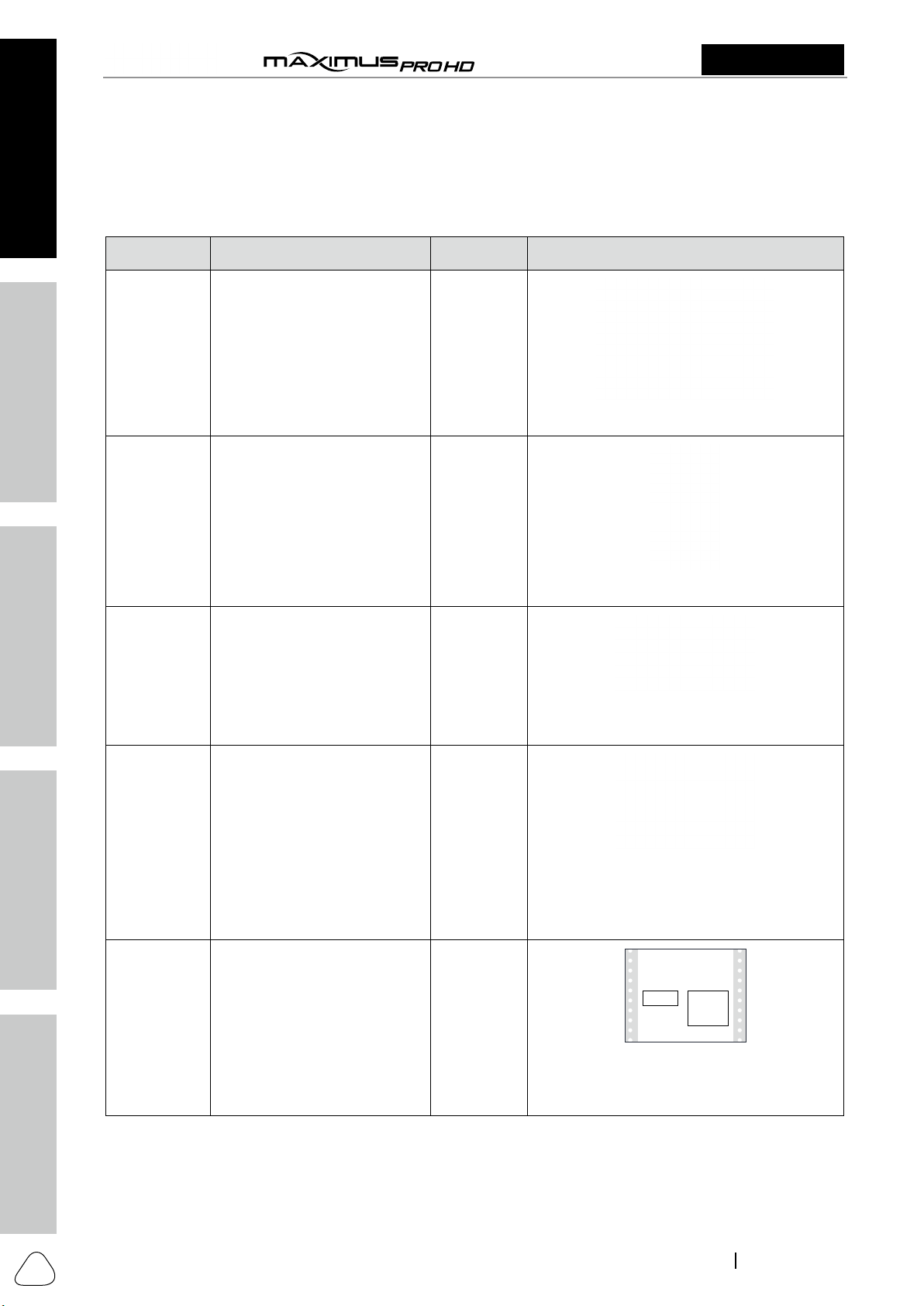
1.2 Accessory Checklist
Common accessories are same, but for different destinations, the accessories may vary. The following
accessory items are only for reference. Please consult from the Matco Distributor or check the package list
supplied with this tool together.
No. Name Qt. Picture & Notes
1Display Tablet 1
(A tablet for showing test results.)
2VCI (Vehicle Communication
Interface) device 1
(A device for accessing vehicle data.)
3Power Adapter 1
(To supply power to the tablet through
connection to AC outlet.)
4 Diagnostic Cable 1
(Connects the VCI dongle to the vehicle’s
OBD II DLC port. It can be separated into
two parts: DB15F to HD15F data cable and
HD15M to OBD II adapter.)
5 Password Envelope 1
(A piece of paper bearing Product S/N and
Activation Code, which is required for your
registration.)

Safety & Accessory
Initial UseDiagnosticsFAQ & Appendix Product Profile
3
2311226-16
www.matcotools.com 877-853-3738
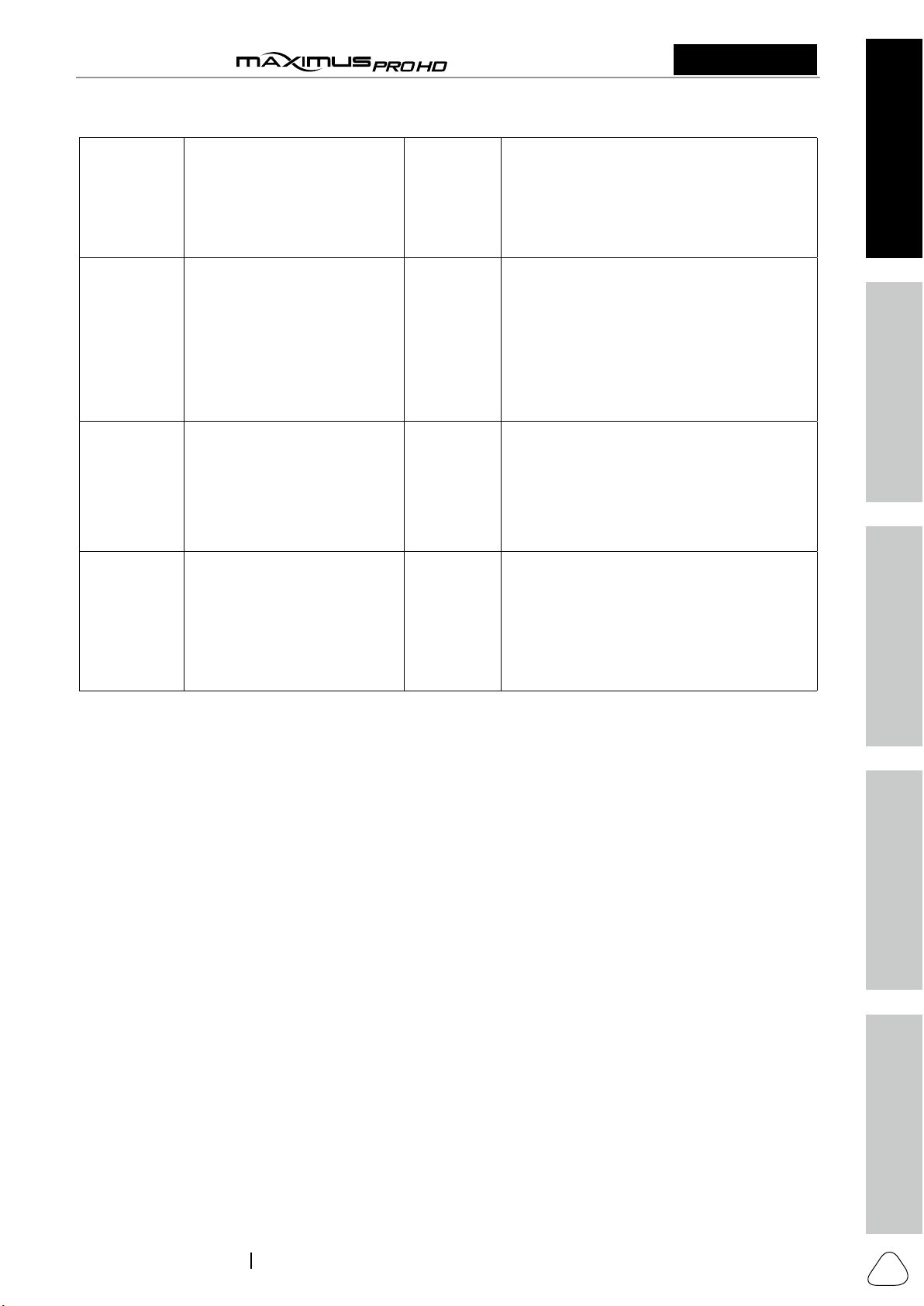
User Manual MDMAXPROHD
6 Data Cable 1
(Connect the VCI and diagnostic tool to
perform vehicle diagnosis.)
7 Battery Cable Clamps 1
(To provide power to the non-16pin
connector through connection to the
vehicle's battery.)
8 Cigarette Lighter Cable 1
(Supply power to the VCI through connection
to cigarette lighter receptacle.)
9 Adapter Cables 1
(Connect the diagnostic cable and vehicle’s
non-OBD II diagnostic socket.)

Safety & Accessory Initial Use Diagnostics FAQ & Appendix
Product Profile
4
User Manual MDMAXPROHD
www.matcotools.com 877-853-3738
2311226-16
2 Components & Controls
There are two main components to the diagnostic system:
• Display Tablet -- the central processor and monitor for the system (For details, please refer to Chapter
2.1.)
• VCI device -- the device for accessing vehicle data (For details, please refer to Chapter 2.2.)
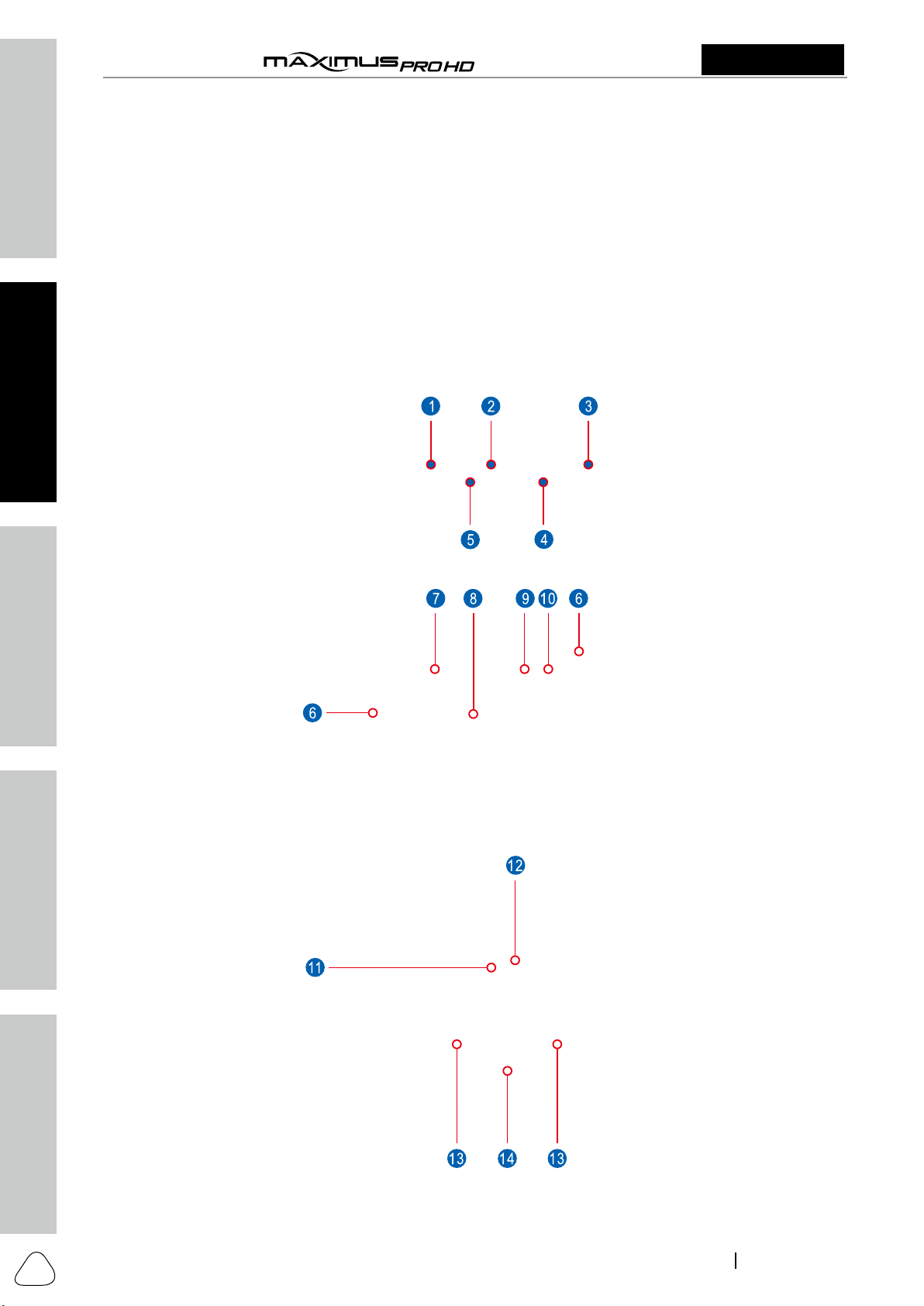
2.1 Display Tablet
The tablet acts as the central processing system, which is used to receive and analyze the live vehicle data
from the VCI device and then output the test result.
The following table formulates ports and indicators of display tablet:

Safety & Accessory
Initial UseDiagnosticsFAQ & Appendix Product Profile
5
User Manual MDMAXPROHD
2311226-16
www.matcotools.com 877-853-3738
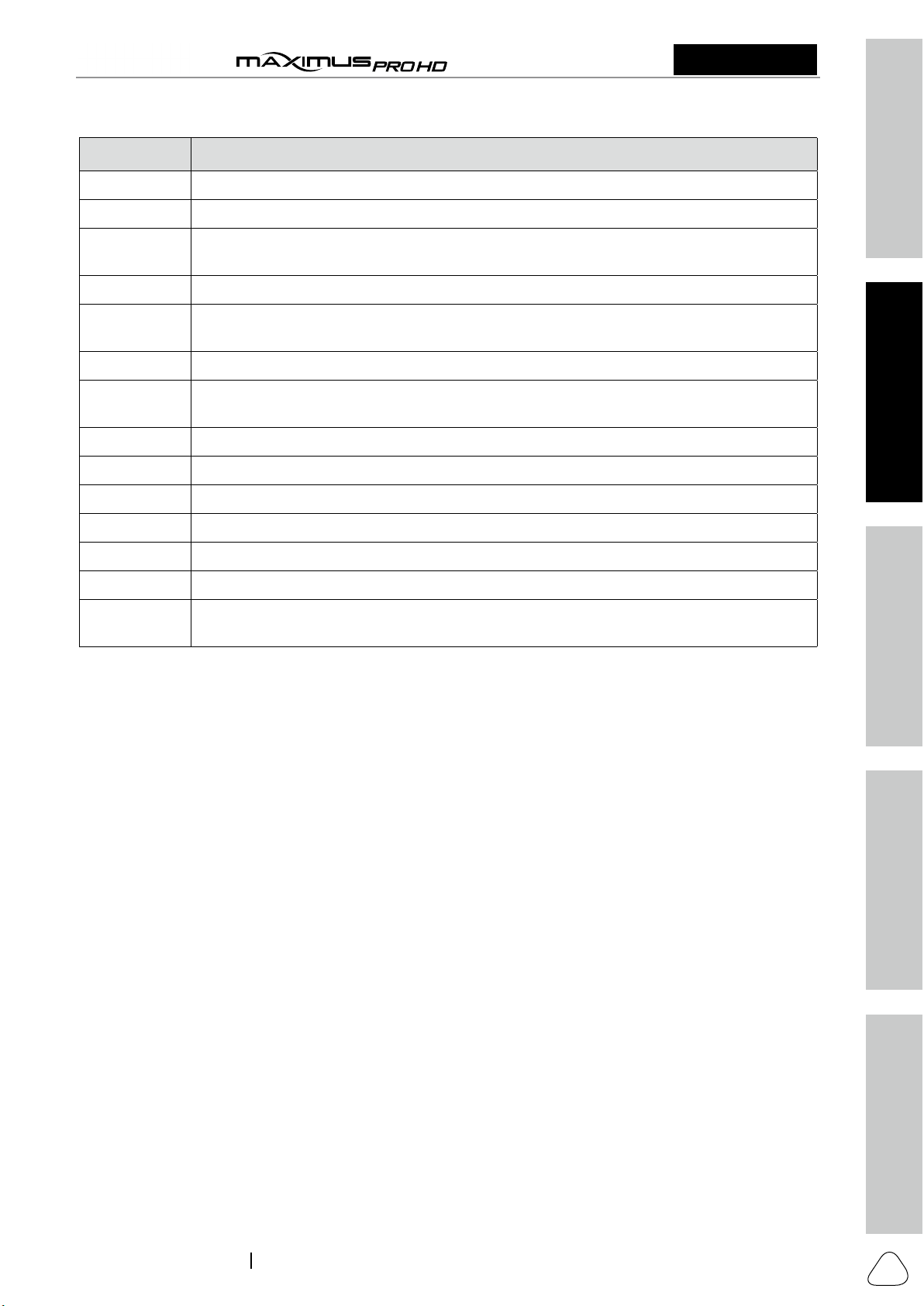
No. Name & Descriptions
1 Memory Card Slot -- To store the memory card for storage expansion.
2 Type C Charging Port -- Reserved for charging the tablet.
3Power/Screen Lock Button -- To turn the tablet on/off with long press, or lock the screen
with short press.
4 Volume Buttons -- To adjust the volume.
5Data Transmission Port -- Reserved for add-on modules (such as Videoscope, etc.), and
other devices with similar port.
6 Microphone
7Charging indicator -- It illuminates red while the tablet is charging. Once it is fully charged,
it will illuminate solid green.
8 10.1" Capacitive Touch Screen
9 Ambient Light Sensor
10 Front Camera
11 Rear Camera
12 Camera Flash
13 Audio Speaker
14 Adjustable Kickstand - Flip out it to any angle and work comfortable at your desk, or hang
it on the steering wheel.
Questo manuale è adatto per i seguenti modelli
1
Indice
Altri manuali Matco Tools Apparecchiature diagnostiche